Xero and and Fiscal Harmony Integration Guide
Overview
Fiscal Harmony can be integrated with Xero in order to Fiscalise Invoices generated in Xero.
Integrating Xero with Fiscal Harmony
Step 1.
- Go to https://app.fiscalharmony.co.zw/login/.
- Select "Sign In with Xero".
- Login from Xero so it takes you to the dashboard.
Step 2.
- Once in the Fiscal Harmony app dashboard, Select "Connect to Xero" in the top navigation near the dropdown.
This will direct you to a Xero page where you can select organisations. - Select your organisation from the drop down and select "Allow Access" to add the organisation.

Apply for a Fiscal Device
When you login to your dashboard, you will now be presented with a widget that says Fiscal device not yet connected:
Device Application
- Select "Apply for a Fiscal Device".
- Follow the steps to complete the form on the popup
Make sure to add the company information and tax details needed for the device. You can always save a draft for you to complete later. - Once you are ready, click "Submit Application" for it to be sent to the Fiscal Harmony team to review.
Approval from ZIMRA
Our team will now contact ZIMRA with your application details and begin the setup process, Once they are complete they will register the device and we will update you. Note that your submission will go through the stages before approval from ZIMRA:
- Awaiting Review
- Awaiting Payment
- Submitted to ZIMRA
Configuration with Xero
Once the device has been added we will need to Map the Tax Rates and Currencies. This can be done by logging into the Fiscal Harmony app on https://app.fiscalharmony.co.zw/.
Menu
The Side bar menu displays all the configuration options for your Fiscal Solution.
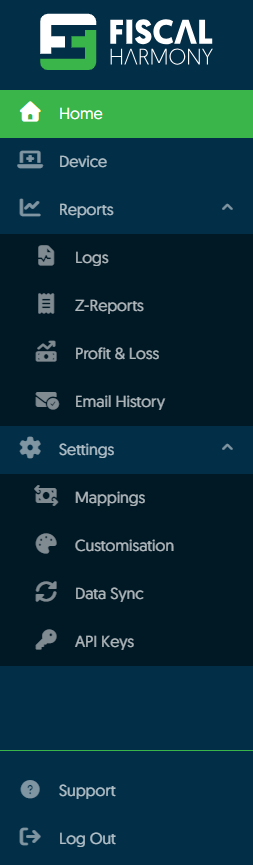
Currency Mapping
- Select Settings > Mappings and then select "Currency Mapping".
- Select the "Add New Currency Mapping" button.
- Select the Currency on Xero and the Currency on ZIMRA you want to match.
- Click "Save Currency Mapping" to create the mapping.
This process will need to be done again until all the currencies are mapped.
Tax Mapping
- Select Settings > Mappings and then select "Tax Mapping".
- Click the "Add New Tax Mapping" button.
- Select the Tax Code on Xero and the Tax Name on ZIMRA you want to match.
- Click "Save Tax Code Mapping" to create the mapping.
This process will need to be done again until all the Taxes are mapped.
You should be able to fiscalise from now on.
For further assistance, reach out to our support team:
Call Centre: +263 8677 010 305
Call Centre: +263 8677 010 305
WhatsApp: +263 783 323 154
Related Articles
Meat Matrix and Fiscal Harmony Integration Guide
Overview This guide outlines the steps to integrate Meat Matrix with the Fiscal Harmony plugin for the compliant fiscalisation of invoices and credit notes with the Zimbabwe Revenue Authority (ZIMRA). Prerequisites Download the Fiscal Harmony Plugin ...ERP Next and Fiscal Harmony Integration Guide
Overview This guide provides a step-by-step process for integrating ERP Next with the Fiscal Harmony plugin, facilitating the fiscalization of invoices and credit notes for compliance with the Zimbabwe Revenue Authority (ZIMRA). Prerequisites Setting ...QuickBooks and Fiscal Harmony Integration Guide
Overview This guide provides a step-by-step process for integrating QuickBooks with the Fiscal Harmony plugin, facilitating the fiscalization of invoices and credit notes for compliance with the Zimbabwe Revenue Authority (ZIMRA). Step 1. Downloading ...MS Excel and Fiscal Harmony Integration Guide
Overview This guide explains how to install and configure fiscalisation in Microsoft Excel using the Fiscal Harmony software. It walks you through downloading the required files, installing the necessary tools, and setting up the integration so that ...Manager.IO and and Fiscal Harmony Integration Guide
Overview This guide outlines the steps necessary to set up fiscalization using Manager IO and integrate it with Fiscal Harmony APIs. The process involves obtaining API credentials, configuring fields in Manager IO, and setting up the integration to ...