Meat Matrix and Fiscal Harmony Integration Guide
Overview
This guide outlines the steps to integrate Meat Matrix with the Fiscal Harmony plugin for the compliant fiscalisation of invoices and credit notes with the Zimbabwe Revenue Authority (ZIMRA).
Prerequisites
- Download the Fiscal Harmony Plugin
- Ensure Meat Matrix software is installed.
- Make sure to have an active internet connection throughout the process.
Plugin Setup
- Right-click the plugin and Run as Administrator.
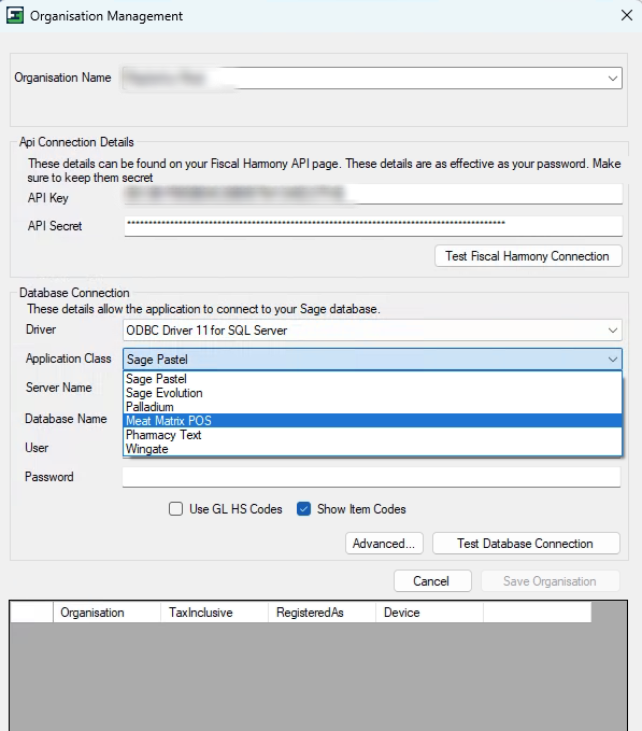
- You will see the Organisation Management window.
Connection Settings
Step 1: Fiscal Harmony Connection
- Enter the organization name and copy-paste the API Key and Secret Key from your Fiscal Harmony account.
- Click Test Fiscal Harmony Connection.
Step 2: Database Connection
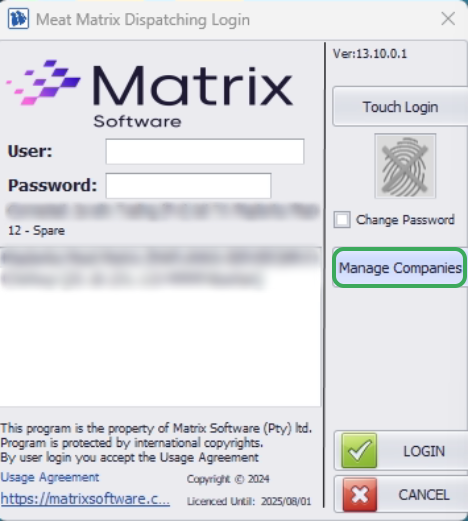
- Open Meat Matrix and click Manage Companies to retrieve the server and database name.
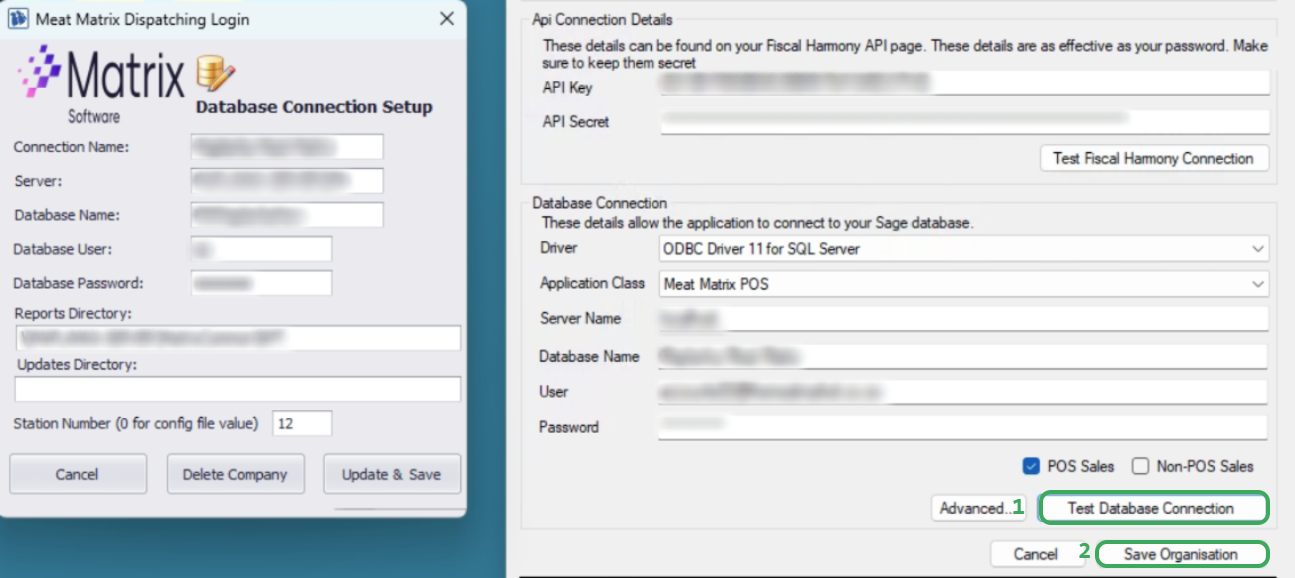
- On the Fiscal Harmony application, fill in the following:
- Driver
- Application Class, which should be set to Meat Matrix
- Server Name
- Database Name
- User
- Password
- Tick POS Sales
Step 3: Test Database Connection
- After filling in the necessary database information, ensure that the credentials are correct, then click Test Database Connection and Save Organisation.
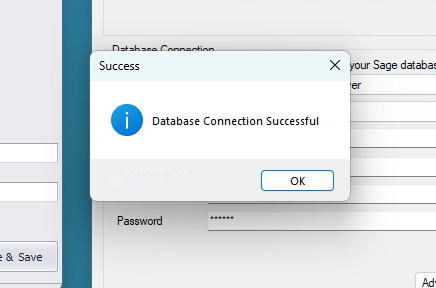
- You should see a notification that says that your Database Connection is successful. This would mean that the integration is setup.
Step 4. Mapping Currency
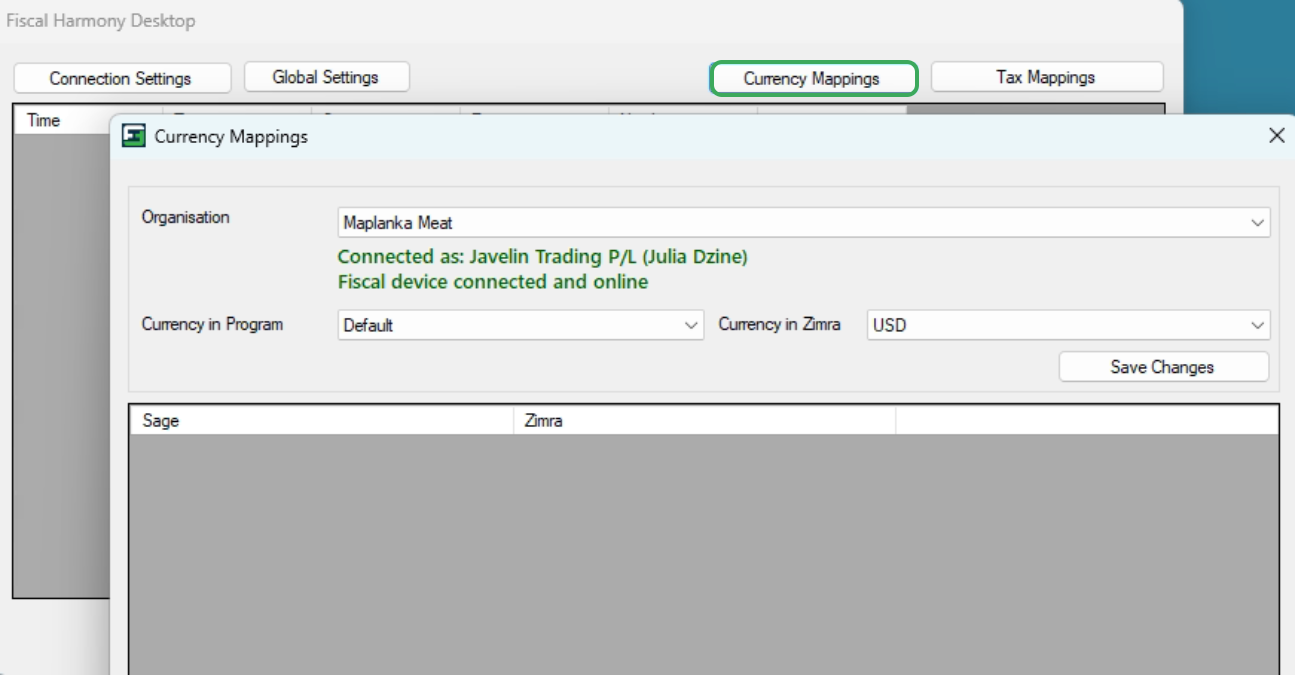
- Navigate to Currency Mappings in the plugin
- Select Currency in Program (e.g, USD, ZWG)
- Match to ZIMRA's currency
- After mapping the currencies, click Save Changes to save them.
Step 5. Mapping Tax
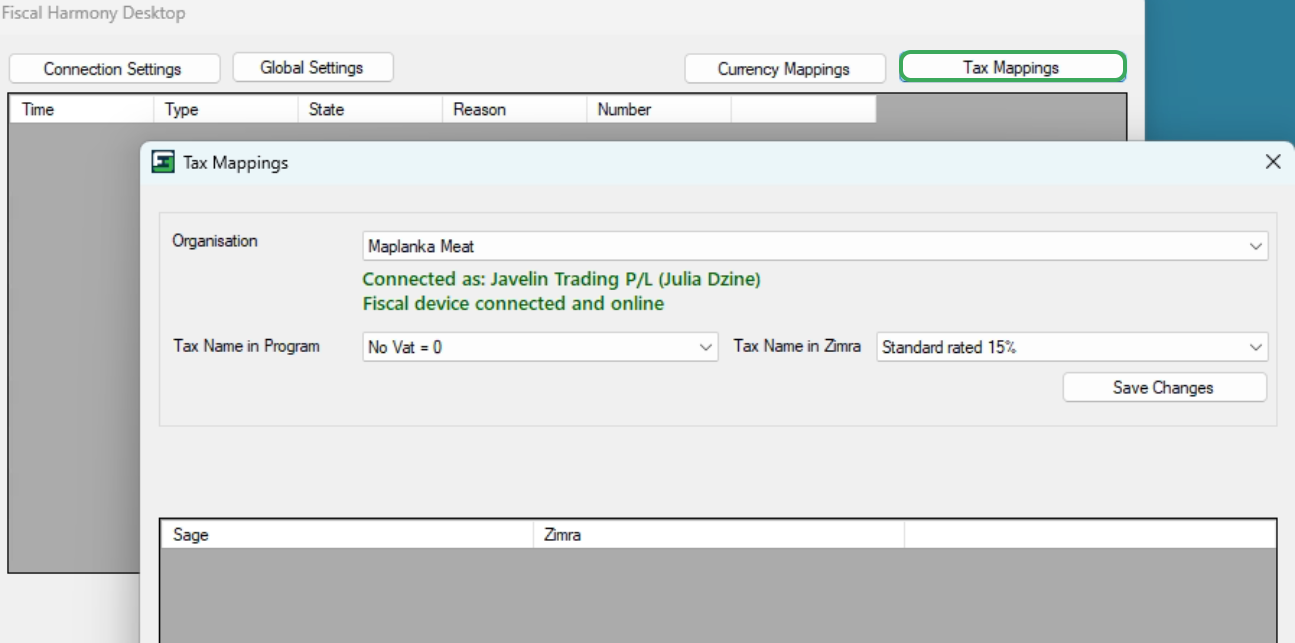
- Navigate to Tax Mappings
- Align Meat Matrix taxes with the ZIMRA codes which are as follows:
- Standard Rate - 15.5%
- Zero - rate - 0%
- Exempt
- After mapping the currencies and taxes, click Save Changes to save them.
Step 6: Create your invoices
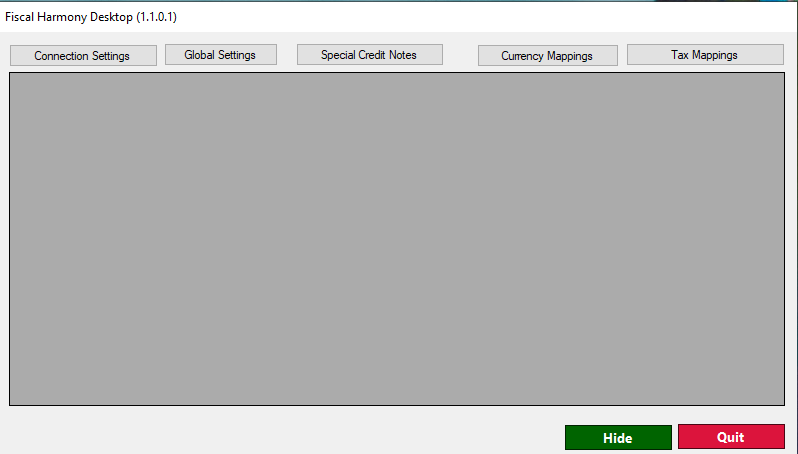
You can now open the Meat Matrix and Fiscal Harmony Application to begin processing invoices. Your invoices will be visible in the Fiscal Harmony dialogue box below :
For further assistance, reach out to our support team:
Call Centre: +263 8677 010 305
Call Centre: +263 8677 010 305
WhatsApp: +263 783 323 154
Related Articles
ERP Next and Fiscal Harmony Integration Guide
Overview This guide provides a step-by-step process for integrating ERP Next with the Fiscal Harmony plugin, facilitating the fiscalization of invoices and credit notes for compliance with the Zimbabwe Revenue Authority (ZIMRA). Prerequisites Setting ...QuickBooks and Fiscal Harmony Integration Guide
Overview This guide provides a step-by-step process for integrating QuickBooks with the Fiscal Harmony plugin, facilitating the fiscalization of invoices and credit notes for compliance with the Zimbabwe Revenue Authority (ZIMRA). Step 1. Downloading ...MS Excel and Fiscal Harmony Integration Guide
Overview This guide explains how to install and configure fiscalisation in Microsoft Excel using the Fiscal Harmony software. It walks you through downloading the required files, installing the necessary tools, and setting up the integration so that ...Manager.IO and and Fiscal Harmony Integration Guide
Overview This guide outlines the steps necessary to set up fiscalization using Manager IO and integrate it with Fiscal Harmony APIs. The process involves obtaining API credentials, configuring fields in Manager IO, and setting up the integration to ...Zoho Books and Fiscal Harmony Integration Guide
Overview Steps Step 1. Access and Set Up API Keys in Fiscal Harmony Log in to the client’s Fiscal Harmony account on https://app.fiscalharmony.co.zw/. Once logged in, navigate to Settings > API Keys to obtain your API Key and API Secret Key. Note ...