QuickBooks and Fiscal Harmony Integration Guide
Overview
This guide provides a step-by-step process for integrating QuickBooks with the Fiscal Harmony plugin, facilitating the fiscalization of invoices and credit notes for compliance with the Zimbabwe Revenue Authority (ZIMRA).
Step 1. Downloading the Plugin
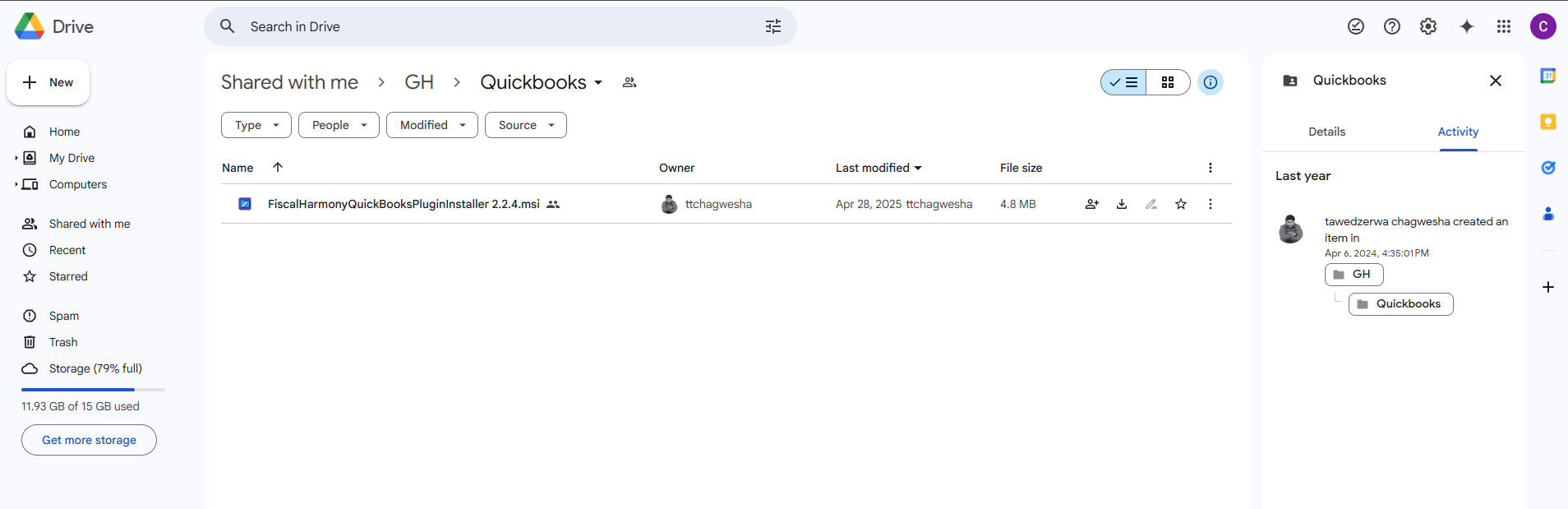
- Navigate to the Google Drive folder from this link.
- Download the file FiscalHarmonyQuickBooksPluginInstaller.msi.
Step 2. Installing the Plugin
- Once downloaded, go to the Downloads folder.
- Run the FiscalHarmonyQuickBooksPluginInstaller.msi.
- Follow the prompts to complete the installation.
- A desktop shortcut for the plugin will be created.
Step 3. Log in as Administrator
- Open QuickBooks and log in as an Administrator (full access user).
- This ensures that you have the necessary permissions for integration.
Step 4. Launching Fiscal Harmony Plugin
- Use the desktop shortcut to launch the Fiscal Harmony plugin.
Step 5. Establishing a Connection
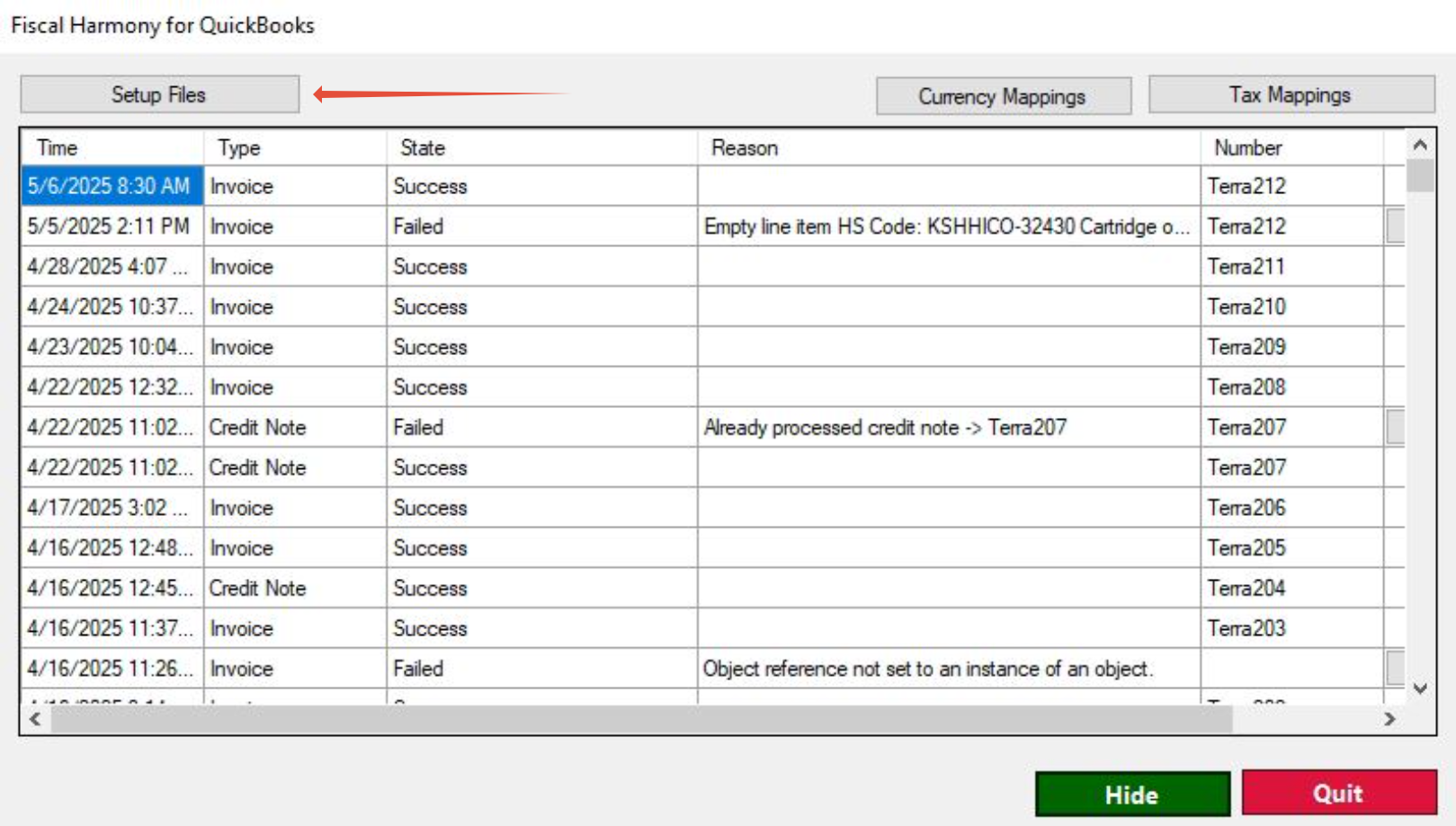
- In the Fiscal Harmony application, navigate to the “Setup files” tab.
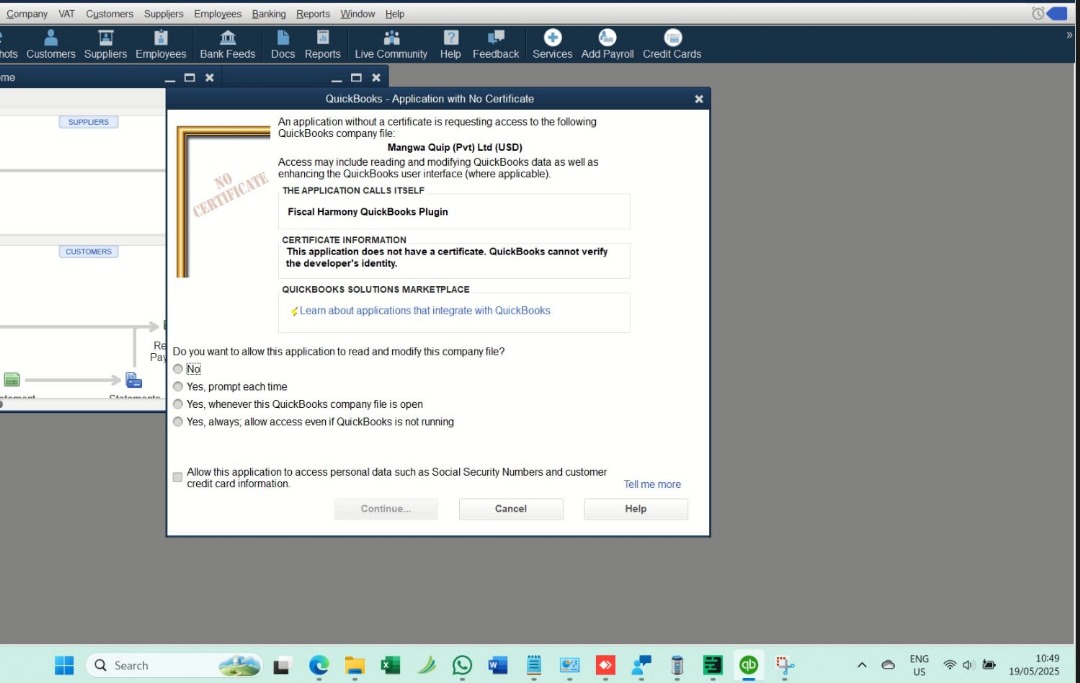
- Allow the connection between the Fiscal Harmony plugin and your QuickBooks Company file when prompted in QuickBooks.
Step 6. Defining Custom Fields
- Open the Customer Centre in QuickBooks.
- Create a new customer, then go to the "Additional Info" tab.
- Define two custom fields:
- TIN NUMBER
- VAT NUMBER
- Check the "Custom" box for both fields.
7. Mapping Currencies and Taxes:
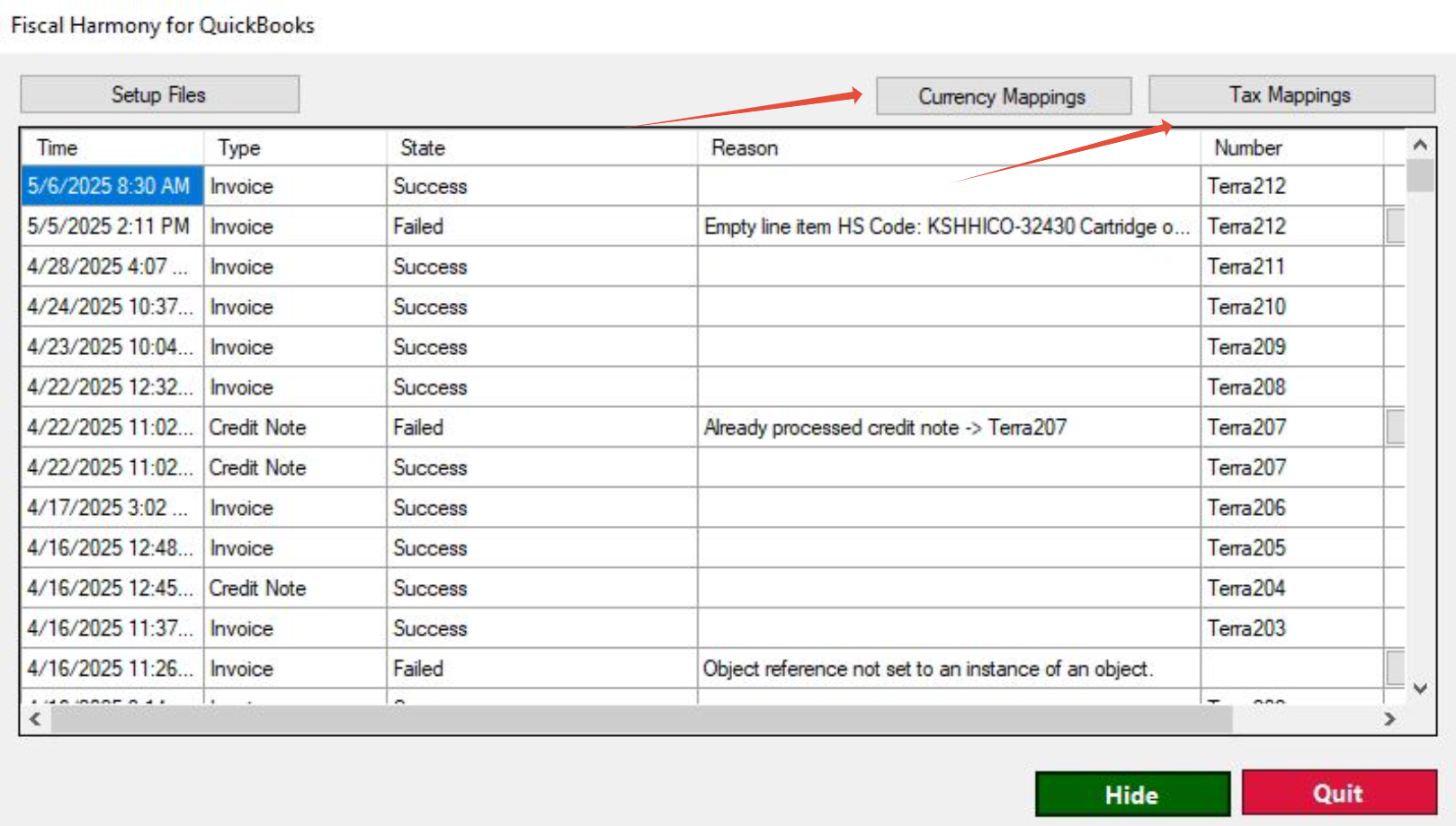
- In the FiscalHarmony plugin, map your QuickBooks currencies and taxes to the ones used by ZIMRA for correct reporting.
Step 8. System Restart
- Restart Your Computer.
- After setting up the plugin and mapping currencies, close both QuickBooks and the Fiscal Harmony plugin.
- Restart your computer to avoid errors like missing paths to .XML files, which may prevent the fiscalisation of invoices or credit notes.
For further assistance, reach out to our support team:
Call Centre: +263 8677 010 305
Call Centre: +263 8677 010 305
WhatsApp: +263 783 323 154
Related Articles
QuickBooks Online and Fiscal Harmony Integration Guide
Overview Steps to Access and Set Up API Keys in Fiscal Harmony Step 1. Log in to the Fiscal Harmony app on https://app.fiscalharmony.co.zw/. Once logged in, navigate to Settings > API keys. Create an API Key if you do not have one, making sure to ...Meat Matrix and Fiscal Harmony Integration Guide
Overview This guide outlines the steps to integrate Meat Matrix with the Fiscal Harmony plugin for the compliant fiscalisation of invoices and credit notes with the Zimbabwe Revenue Authority (ZIMRA). Prerequisites Download the Fiscal Harmony Plugin ...ERP Next and Fiscal Harmony Integration Guide
Overview This guide provides a step-by-step process for integrating ERP Next with the Fiscal Harmony plugin, facilitating the fiscalization of invoices and credit notes for compliance with the Zimbabwe Revenue Authority (ZIMRA). Prerequisites Setting ...MS Excel and Fiscal Harmony Integration Guide
Overview This guide explains how to install and configure fiscalisation in Microsoft Excel using the Fiscal Harmony software. It walks you through downloading the required files, installing the necessary tools, and setting up the integration so that ...Manager.IO and and Fiscal Harmony Integration Guide
Overview This guide outlines the steps necessary to set up fiscalization using Manager IO and integrate it with Fiscal Harmony APIs. The process involves obtaining API credentials, configuring fields in Manager IO, and setting up the integration to ...