QuickBooks Online and Fiscal Harmony Integration Guide
Overview
Steps to Access and Set Up API Keys in Fiscal Harmony
Step 1.
- Log in to the Fiscal Harmony app on https://app.fiscalharmony.co.zw/.
- Once logged in, navigate to Settings > API keys.
- Create an API Key if you do not have one, making sure to enter your 2FA Code. Once you have access to the API Key, copy the API Key and API Secret.

Note: API Secret is only shown once, so you need to store it securely. If you lose access to it, you need to click "Refresh Secret" to generate a new one.
Step 2.
- Open a new tab and go to https://plugins.fiscalharmony.com, then log in using your credentials.
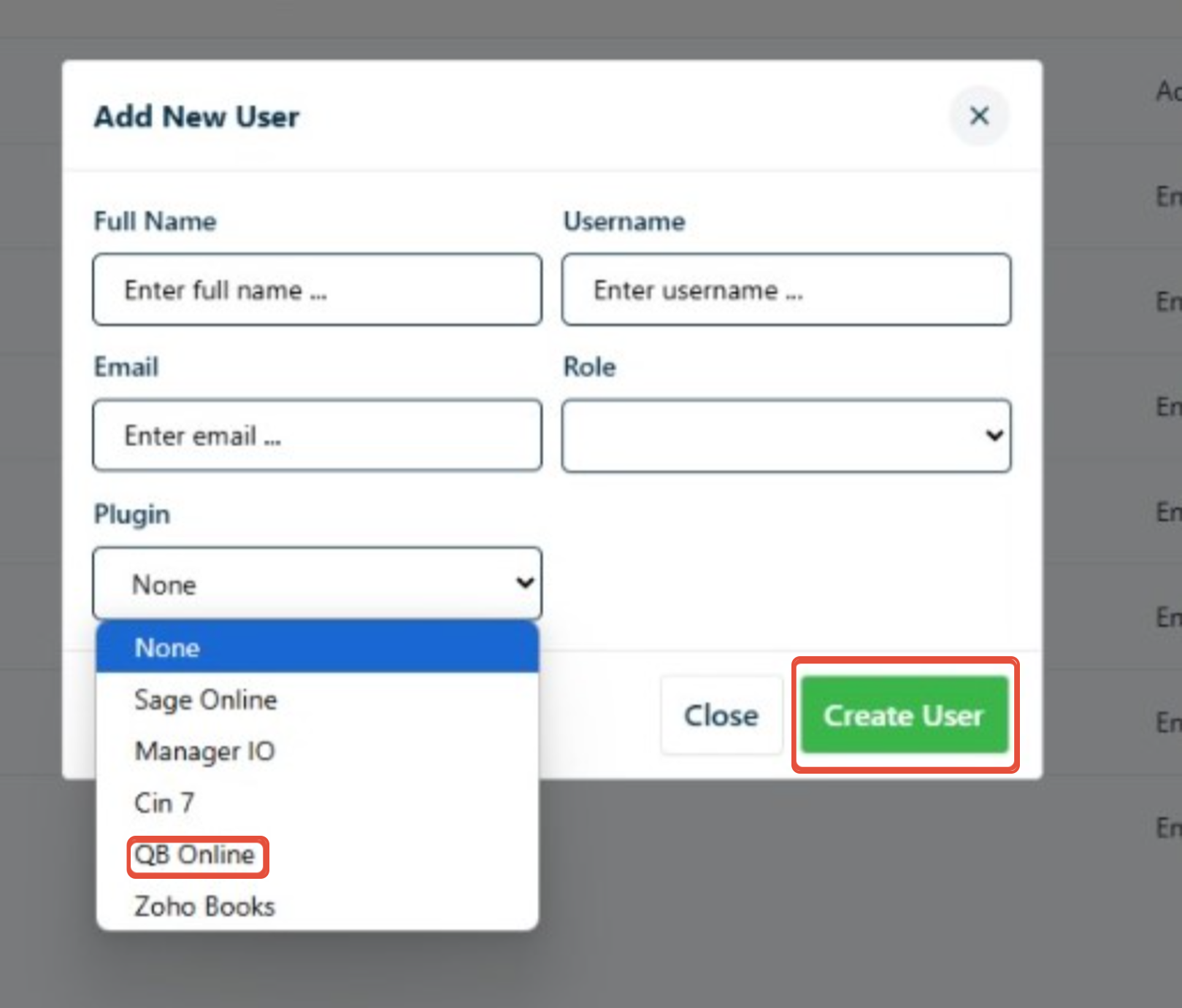
- Navigate to Users > Add Users.
- Fill in the required user details:
- Name
- Surname
- Email
- Role
- Plugin (select the appropriate plugin from the list)
- Click Create User to save the new user setup.
Step 3.
- You will receive an email with a link set a password. Click on the link to reach the set new password page.
- Enter the new password and then click "Save new password".

Connecting QuickBooks to Fiscal harmony
Step 1.
- Open a new tab and go to https://plugins.fiscalharmony.com, then log in using your credentials.
- On the top left corner click "Connect to QuickBooks". A QuickBooks authorization window will appear.

- Log in to the relevant QuickBooks Online account and then grant full access to Fiscal Harmony when prompted.
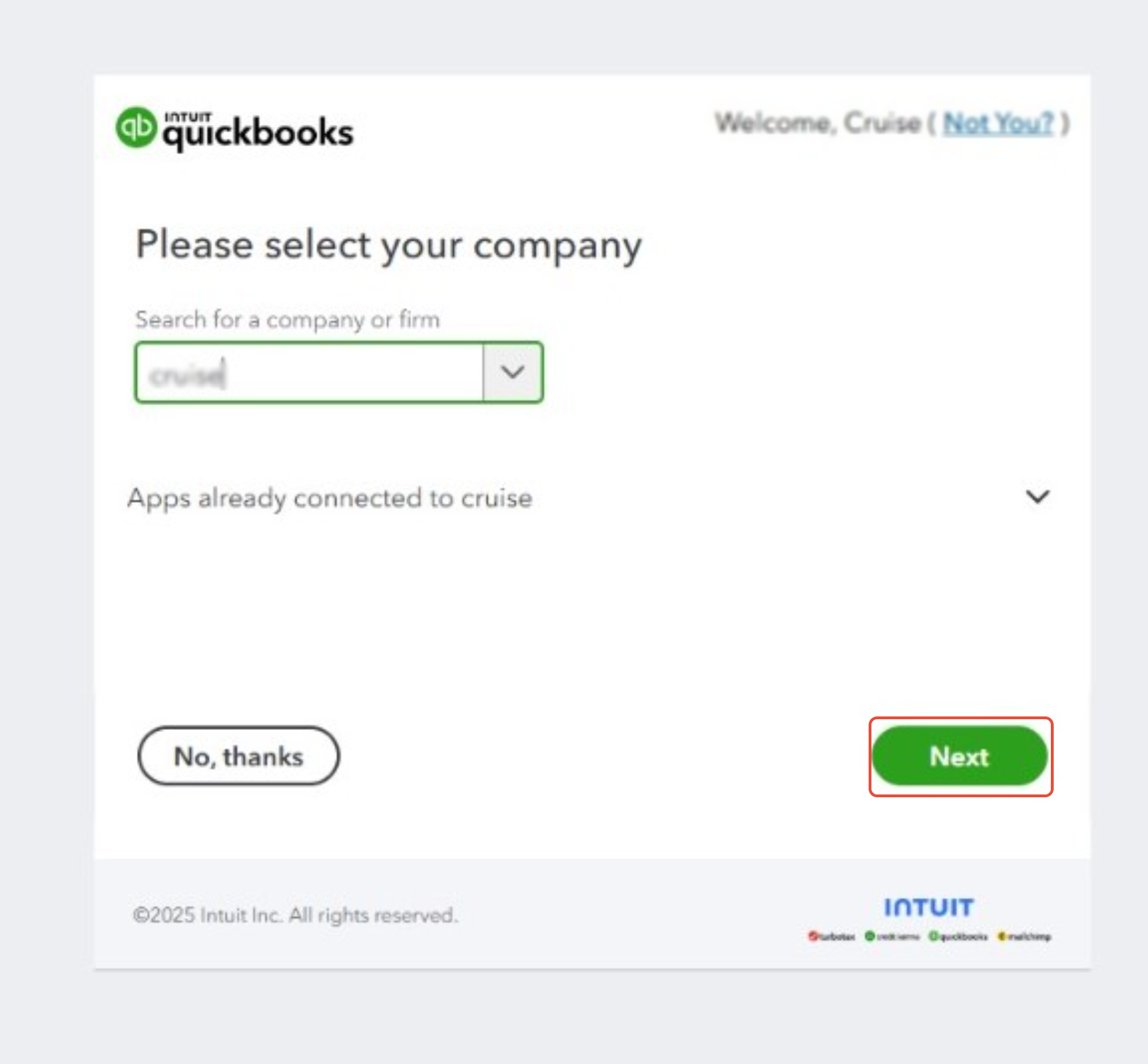
- Select the company profile and then click "Next".
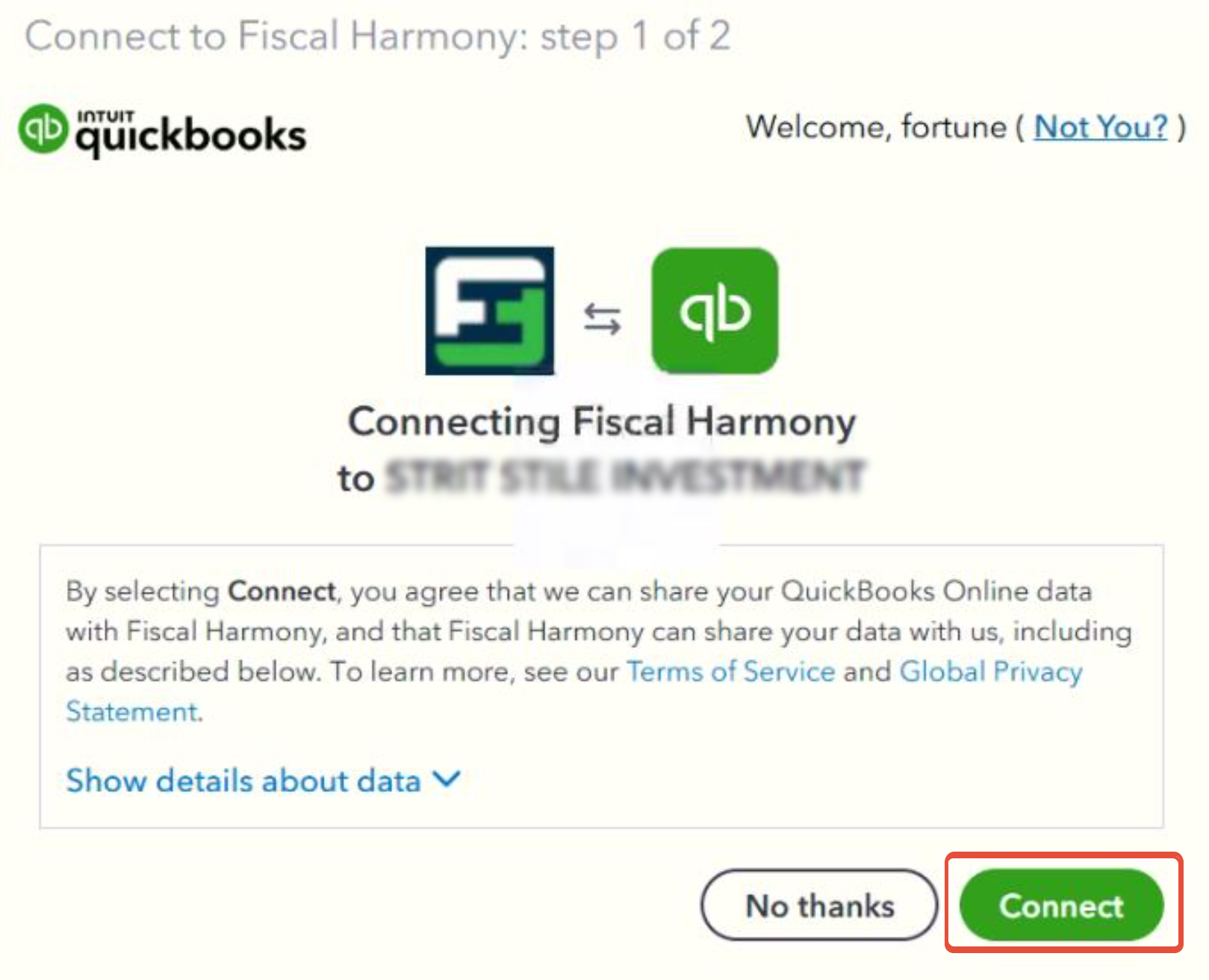
- Click "Connect" to perform the connection between the apps.
Adding Fiscal Device
Step 1. Navigate to where to add device
- Go to plugin at https://plugins.fiscalharmony.com/
- On the page, navigate to Home and click on "Click Here" on the Fiscal Device widget.
.

Step 2. Link the device
- Follow the on-screen prompts to complete the device linking process, then click "Link device".

Step 3. Get API Credentials:
- Log into your Fiscal Harmony app on https://app.fiscalharmony.co.zw/
- When logged in, navigate to Settings > API Keys to obtain your API Key and API Secret Key. Note that if you do not have an API Key, you should create one. Also note that if you already had one and lost access to the API Secret, you would need to click Refresh Secret to create a new one.
- Return to https://plugins.fiscalharmony.co.zw/settings and input fields the keys into the respective fields.
- After pasting, click the CONNECT DEVICE button to initiate the authentication.

- Click on Home on the side bar you should see your new device.

Step 4. Tax Mappings
- Navigate to Settings on the side bar and select "Tax Mapping" on the page.
- Add a new mapping by clicking "Add Mapping" after each mapping.
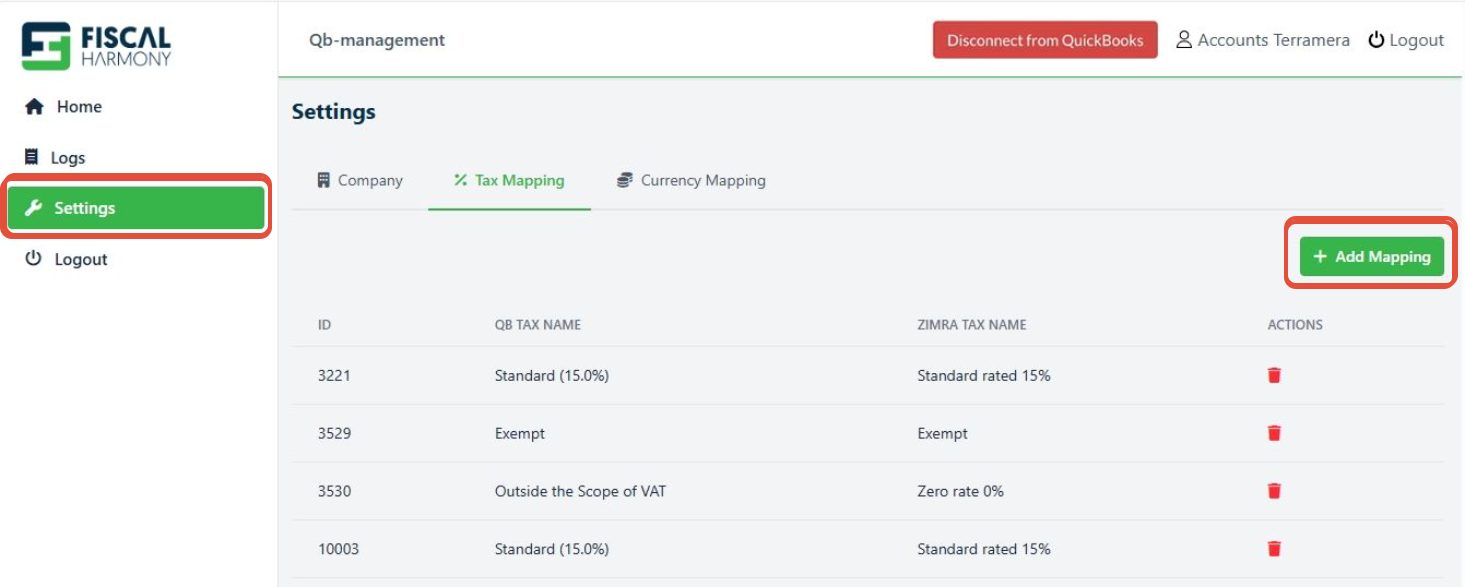
- Map the ZIMRA tax names correctly to the QuickBooks Tax Name

- Click "Add Mapping" after selecting the corresponding codes together and repeat the same for all the required tax codes you have.
Step 5. Currency Mappings
- Navigate to Settings on the side bar and select "Currency Mapping" on the page.
- Add a new mapping by clicking "Add Mapping" after each mapping.

- Map the ZIMRA currency correctly to the QuickBooks Currency

- Click "Add Mapping" to save and add it, then repeat for all the required currencies.
For further assistance, reach out to our support team:
Call Centre: +263 8677 010 305
Call Centre: +263 8677 010 305
WhatsApp: +263 783 323 154
Related Articles
QuickBooks and Fiscal Harmony Integration Guide
Overview This guide provides a step-by-step process for integrating QuickBooks with the Fiscal Harmony plugin, facilitating the fiscalization of invoices and credit notes for compliance with the Zimbabwe Revenue Authority (ZIMRA). Step 1. Downloading ...Sage Online and and Fiscal Harmony Integration Guide
Overview Before starting the integration, ensure that you have the following: API Keys and API Secret, which are provided by the client. You will also need a Fiscal Harmony Plugins account, as this allows you to create and manage new companies that ...Meat Matrix and Fiscal Harmony Integration Guide
Overview This guide outlines the steps to integrate Meat Matrix with the Fiscal Harmony plugin for the compliant fiscalisation of invoices and credit notes with the Zimbabwe Revenue Authority (ZIMRA). Prerequisites Download the Fiscal Harmony Plugin ...ERP Next and Fiscal Harmony Integration Guide
Overview This guide provides a step-by-step process for integrating ERP Next with the Fiscal Harmony plugin, facilitating the fiscalization of invoices and credit notes for compliance with the Zimbabwe Revenue Authority (ZIMRA). Prerequisites Setting ...MS Excel and Fiscal Harmony Integration Guide
Overview This guide explains how to install and configure fiscalisation in Microsoft Excel using the Fiscal Harmony software. It walks you through downloading the required files, installing the necessary tools, and setting up the integration so that ...