MS Excel and Fiscal Harmony Integration Guide
Overview
This guide explains how to install and configure fiscalisation in Microsoft Excel using the Fiscal Harmony software. It walks you through downloading the required files, installing the necessary tools, and setting up the integration so that fiscalised invoices can be created and managed efficiently.
Prerequisites
Before you begin, ensure that:
- Microsoft Office 365, or Microsoft Office 2013 or later, is installed on your computer.
- You have access to the required installation files from the following Google Drive folder:
Download Installation Files - Have Windows 8 and above for smooth installation
Step-by-Step Installation Guide
Step 1: Download Required Files
- Visit the Google Drive Excel folder Link here.
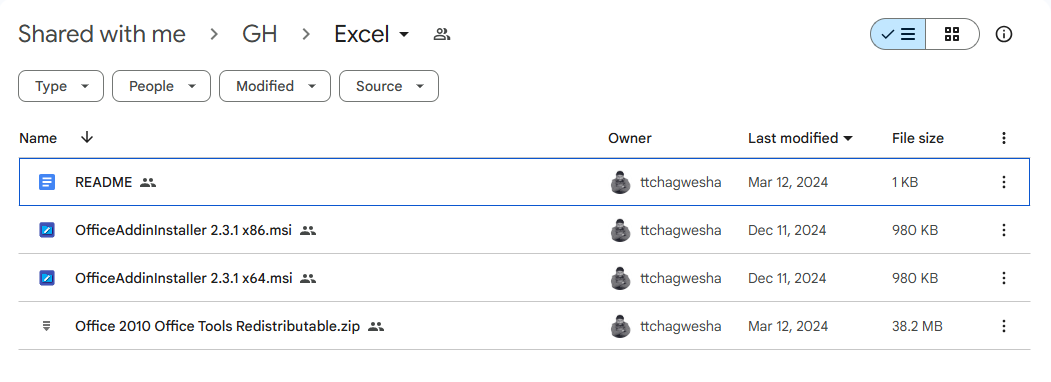
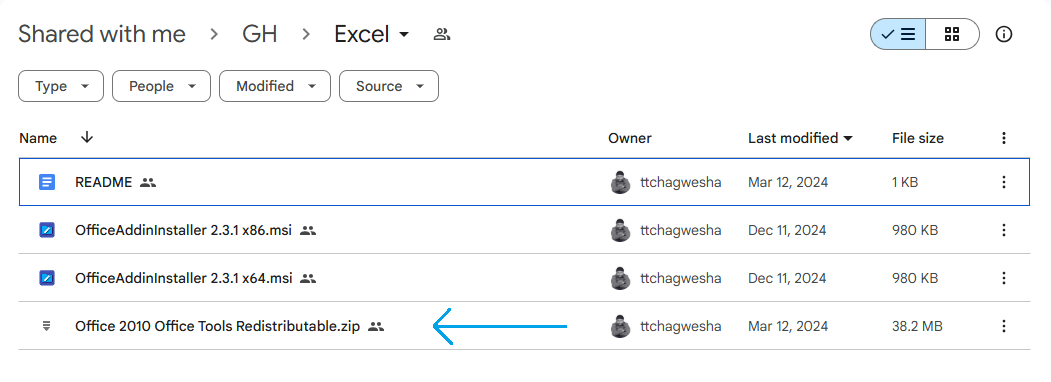
Step 2: Install Office 2010 Tools Redistributable
- Locate the downloaded files.
- Run the Office 2010 Tools Redistributable installer from your download folder.
Step 3: Click the License Agreement terms, then install the Office Add-In.
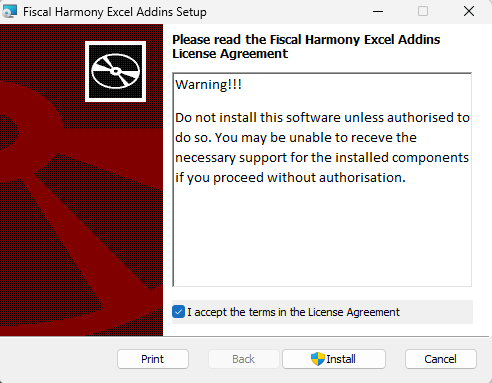
- Depending on your Excel version (x64 or x86), install the appropriate Office Add-In Installer.

NB: Open Excel go to Account ->go to About Excel then you will be able to see the Excel version
(x64 or x86 relating to x32)

Step 4: Access the Assembly Locator
- Open your Local disk (C:\) go to Program Files (x86), find the Fiscal Harmony folder. Alternatively, enter the path C:\Program Files (x86)\Fiscal Harmony.
- Navigate to the following path: Fiscal Harmony > MS Office > OfficeAddIn > Tools > Assembly Locator.
- Run AssemblyLocator.exe as an Administrator.


Step 5: Create the "Custom Office Templates" Folder (if needed)

If an error occurs when running the Assembly Locator:
- Create a new folder named Custom Office Templates in your Documents folder.
- Rerun AssemblyLocator.exe as an Administrator.

Step 6: Locate the Fiscal Harmony Template
- After successful installation, open your Documents folder and open the folder Custom Office Templates.
- Right-click on the folder path and click Copy Address.

Step 7: Configure Excel Options
- Open Microsoft Excel and navigate to Options (under Account/Feedback).
- Go to the Save tab.

- Paste the copied folder address into the field for Default personal templates location.

- Click Save.
Step 8: Access the Fiscal Harmony Template
- Close Excel and reopen it.
- When creating a new document, under the Personal tab, you should see the Fiscal Harmony Invoice Template.

Step 9: Enter Access Credentials
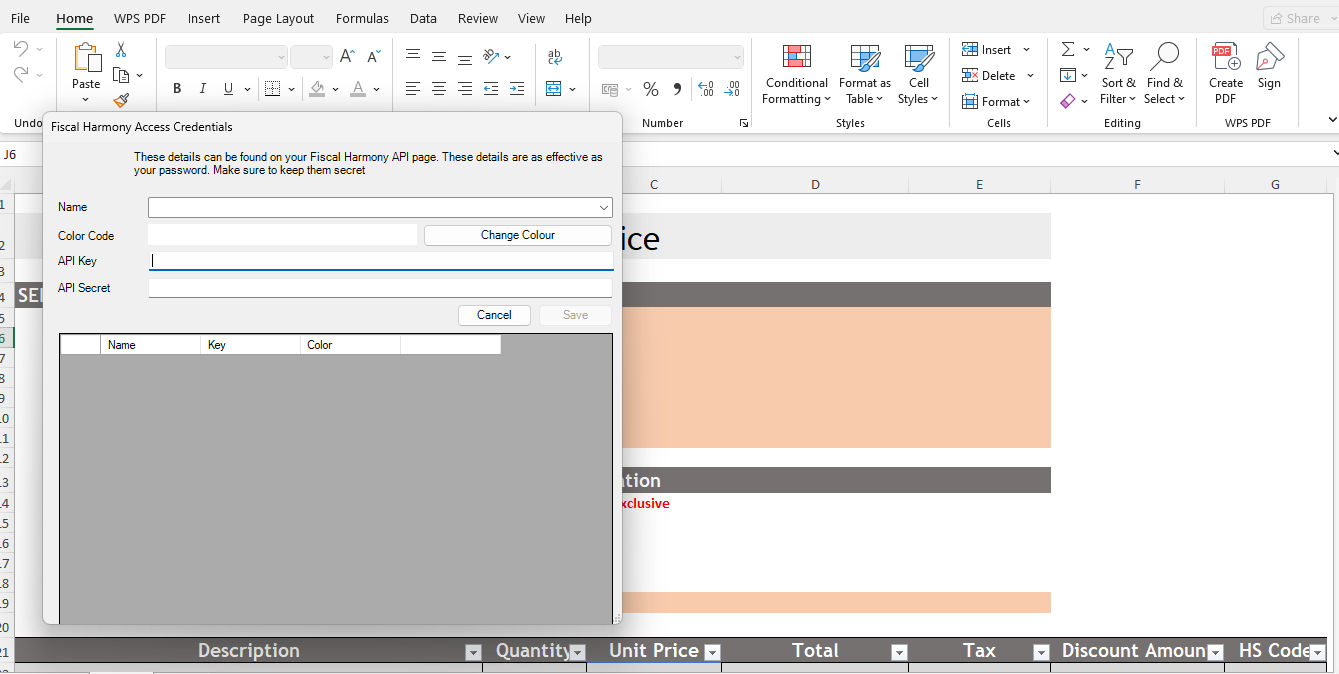
- Double-click the Invoice template and allow it to load. You will see a pop-up screen
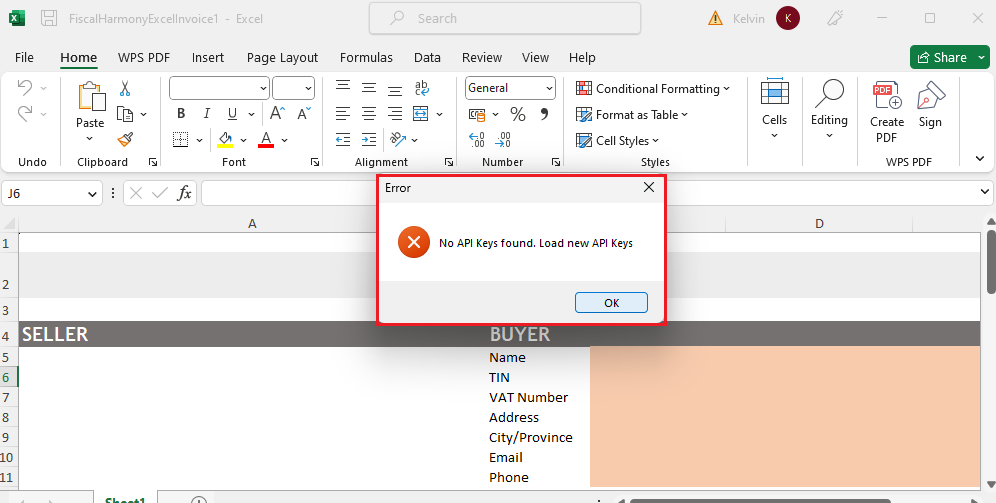
A popup form will appear asking for your Fiscal Harmony account credentials (username and password).
Step 10: Retrieve API Keys
- If your Excel plugin has the option for "Retrieve API Keys" or "Authorise", simply click on this, and this will direct you to the Authorisation page, where you can select your device it will automatically retrieve the API Keys.
- If your plugin lacks this option, or it fails to authorise:
- Navigate to the Fiscal Harmony app account on https://app.fiscalharmony.co.zw/ and enter your login details.
- Navigate to Settings > API Keys on the sidebar on the left of the screen.
- Click on where it says "Create API key" and give it a name "Excel". You would be prompted to enter your 2FA code from your authenticator app. If you already have an API Key, you would have to click "Refresh the Secret" to be able to access it.
Caution: Refreshing your Secret will cause any other apps using your old secret to stop working and they would need to be update with the new API Secret. - Copy both your API Key and API Secret and place them into the plugin's respective fields.

- Once you enter the API credentials into the Excel modal form, click Save as shown below.

Step 11: Complete the Setup
- Close Excel.
- Reopen Excel, and the Fiscal Harmony Invoice Template should now be ready for use.
For further assistance, reach out to our support team:
Call Centre: +263 8677 010 305
Call Centre: +263 8677 010 305
WhatsApp: +263 783 323 154
Related Articles
Meat Matrix and Fiscal Harmony Integration Guide
Overview This guide outlines the steps to integrate Meat Matrix with the Fiscal Harmony plugin for the compliant fiscalisation of invoices and credit notes with the Zimbabwe Revenue Authority (ZIMRA). Prerequisites Download the Fiscal Harmony Plugin ...ERP Next and Fiscal Harmony Integration Guide
Overview This guide provides a step-by-step process for integrating ERP Next with the Fiscal Harmony plugin, facilitating the fiscalization of invoices and credit notes for compliance with the Zimbabwe Revenue Authority (ZIMRA). Prerequisites Setting ...QuickBooks and Fiscal Harmony Integration Guide
Overview This guide provides a step-by-step process for integrating QuickBooks with the Fiscal Harmony plugin, facilitating the fiscalization of invoices and credit notes for compliance with the Zimbabwe Revenue Authority (ZIMRA). Step 1. Downloading ...Manager.IO and and Fiscal Harmony Integration Guide
Overview This guide outlines the steps necessary to set up fiscalization using Manager IO and integrate it with Fiscal Harmony APIs. The process involves obtaining API credentials, configuring fields in Manager IO, and setting up the integration to ...Zoho Books and Fiscal Harmony Integration Guide
Overview Steps Step 1. Access and Set Up API Keys in Fiscal Harmony Log in to the client’s Fiscal Harmony account on https://app.fiscalharmony.co.zw/. Once logged in, navigate to Settings > API Keys to obtain your API Key and API Secret Key. Note ...