ERP Next and Fiscal Harmony Integration Guide
Overview
This guide provides a step-by-step process for integrating ERP Next with the Fiscal Harmony plugin, facilitating the fiscalization of invoices and credit notes for compliance with the Zimbabwe Revenue Authority (ZIMRA).
Prerequisites
Setting up ERP Next with Fiscal Harmony requires you to:
- Be in the Frappe Bench environment to complete the setup.
- Access to the device's terminal
Steps
Step 1: Add the App to Bench
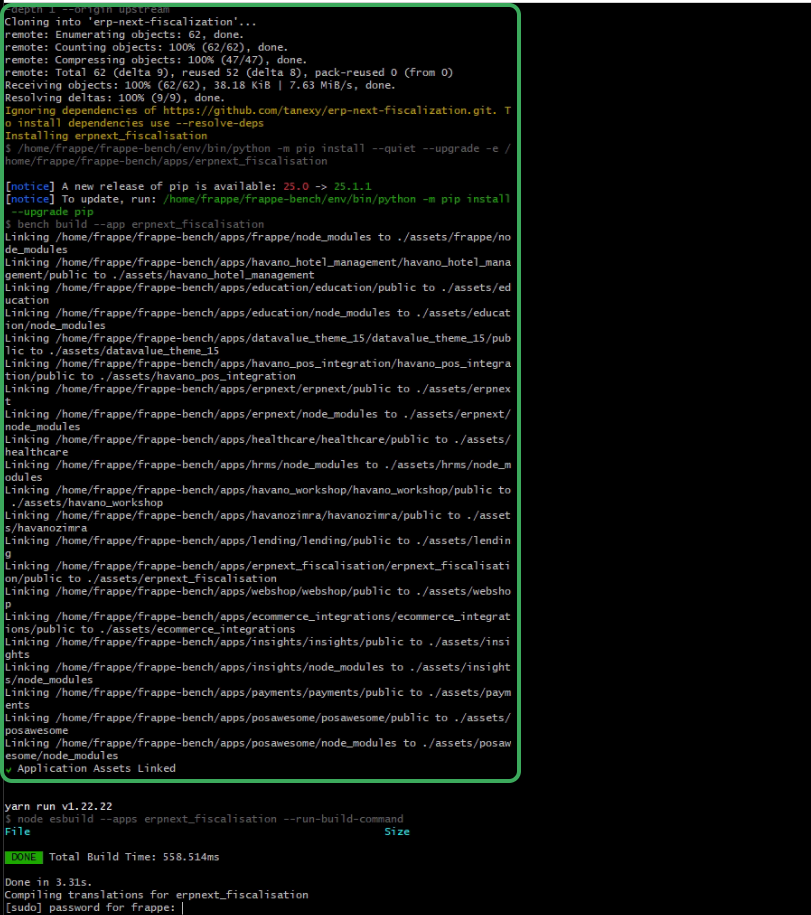
- First, install the application using the command below:
bench --site your_site_name install-app erpnext_fiscalisation - After running the command, you should see a message indicating that the application has been successfully installed.
Step 2: Migration
You need to migrate the database to ensure everything is set up correctly.
- Run the following command:
bench migrate

Step 3: Check if the App is Installed Successfully
- To verify whether the app is installed, run this command:
bench list-apps
You should see the app listed among the installed applications.

Step 4: Restart the Bench
- Once you’ve confirmed that everything is installed correctly, restart the bench using the following command:
bench restart
This will restart the entire bench terminal.

Step 5: Update ERP Next App with new configuration
- Go to your ERP Next app and refresh the page. You should see Fiscal Harmony among your applications.
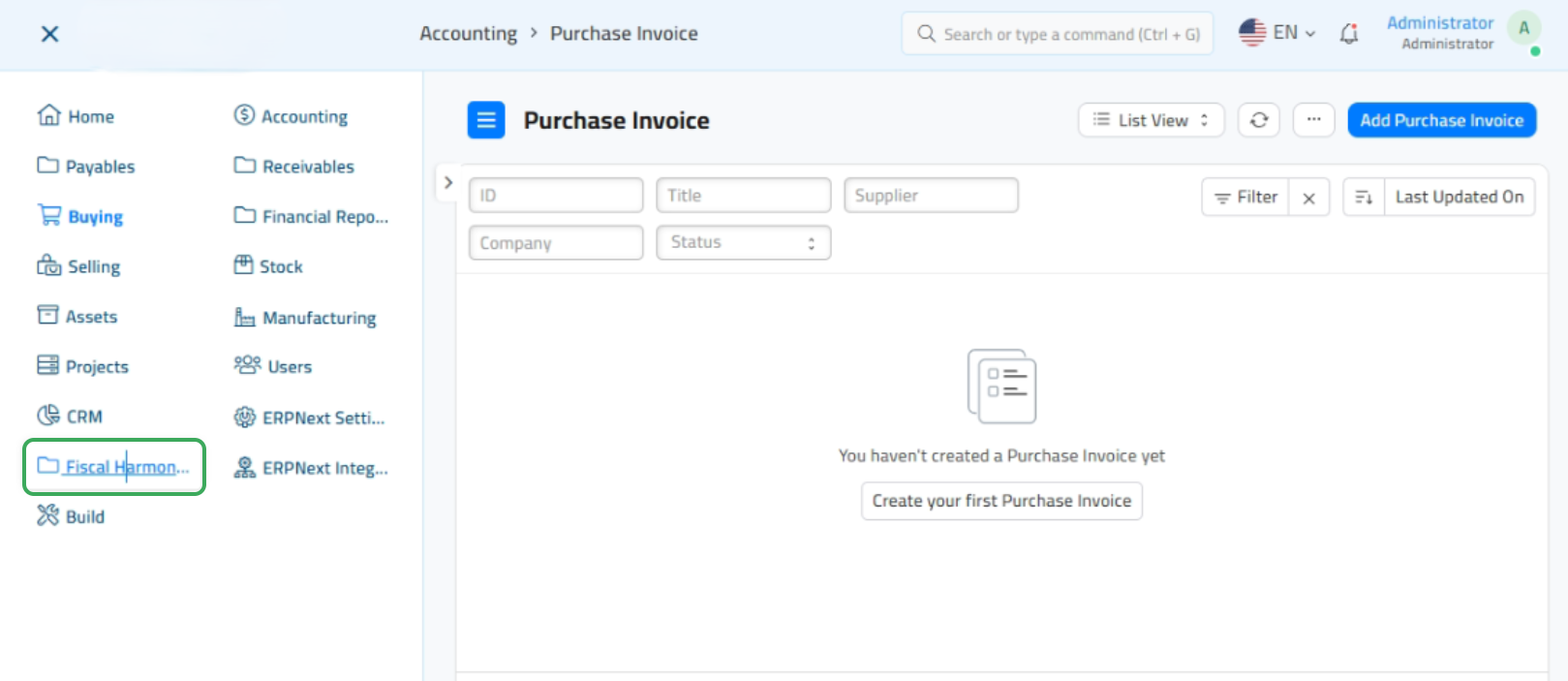
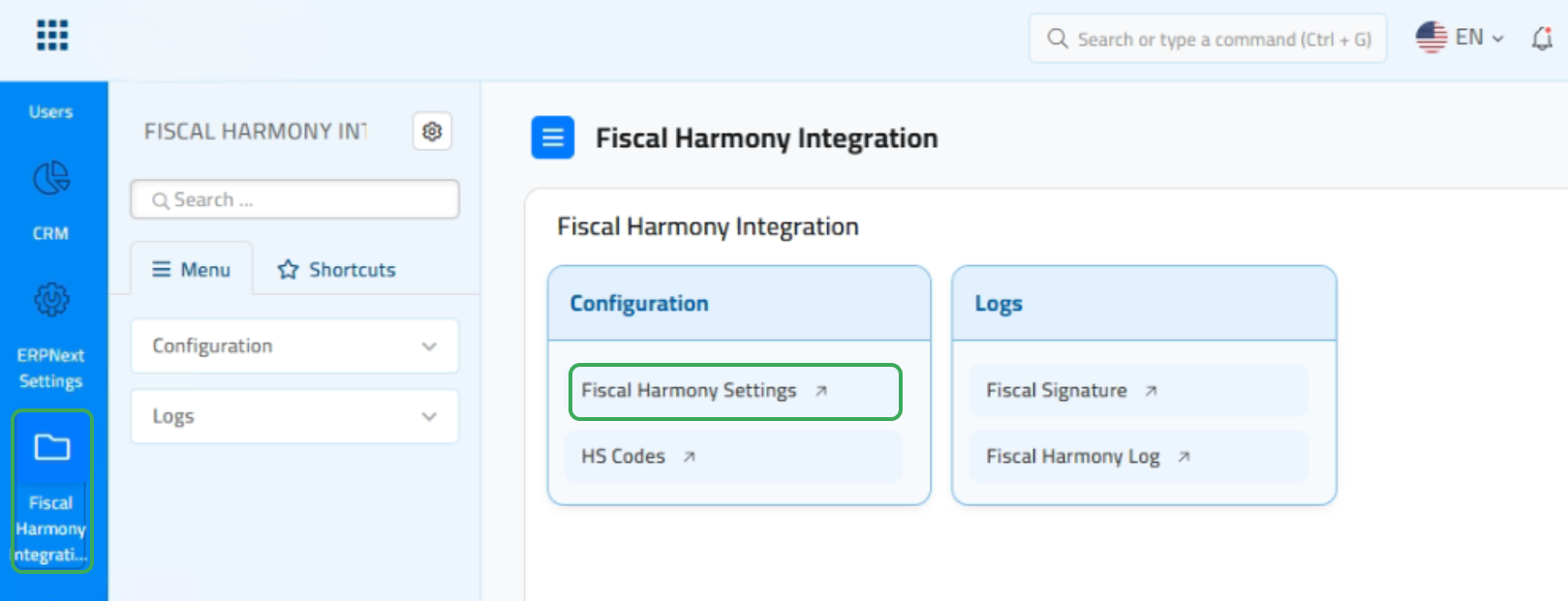
- Click on Fiscal Harmony Integration and then select Fiscal Harmony Settings to proceed with the setup.
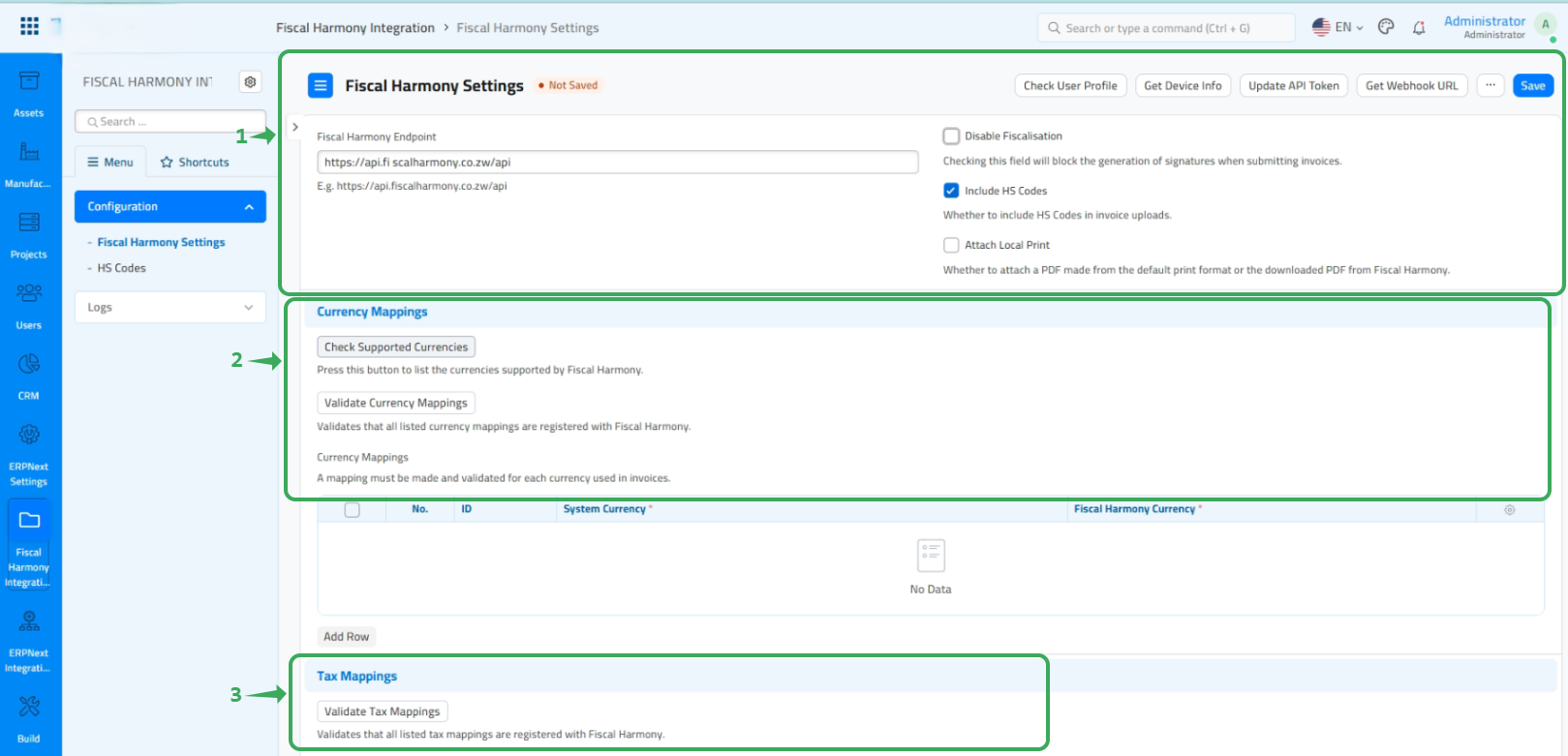
- On the Fiscal Harmony settings page, you need to focus on three sections to ensure successful fiscalisation:
Step 5. Configure Fiscal Harmony Settings
1. Fiscal Harmony Connection Test
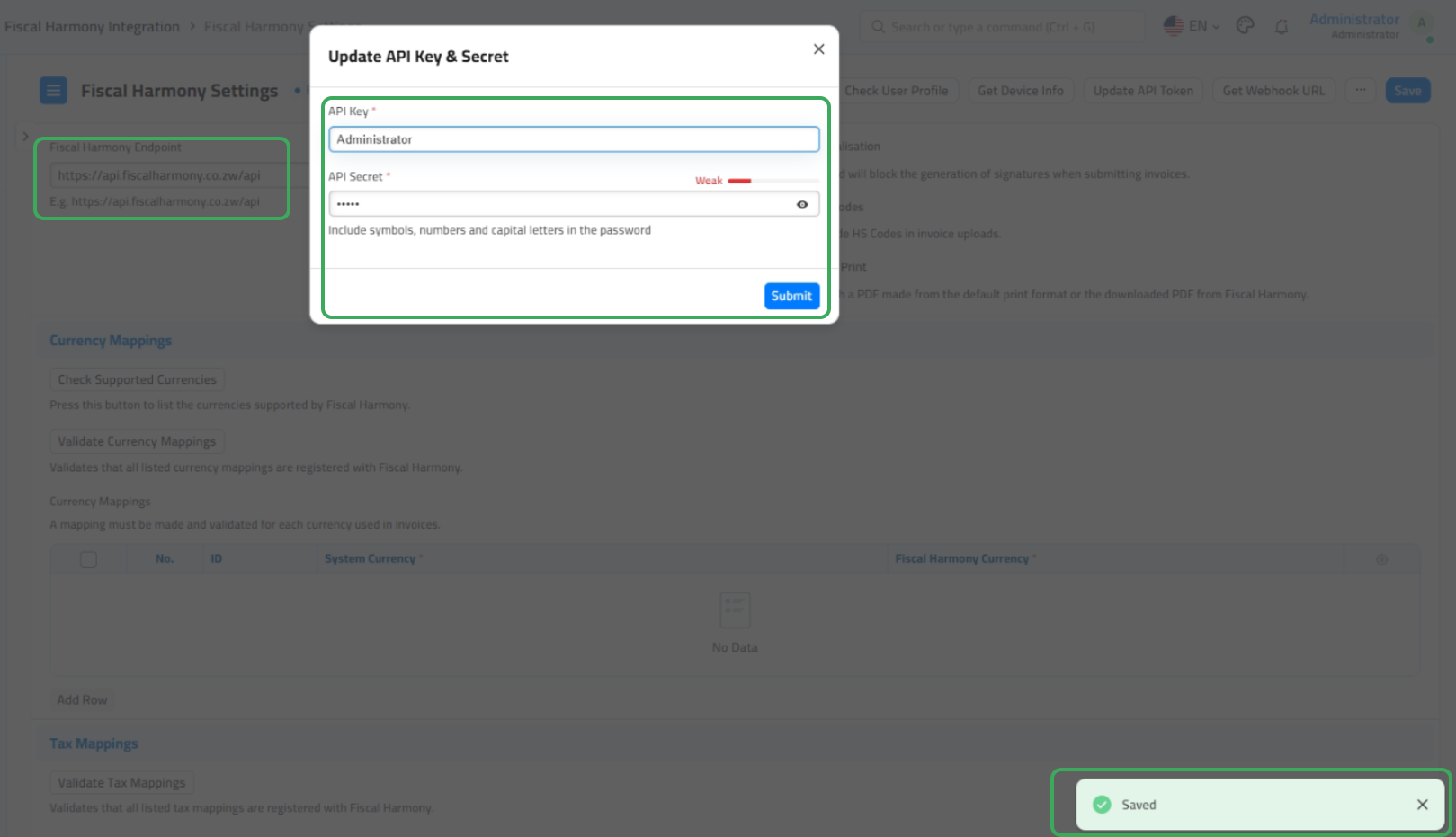
- First, click on Update API Token to add your API Keys and API Secret Keys, then click submit to save them.
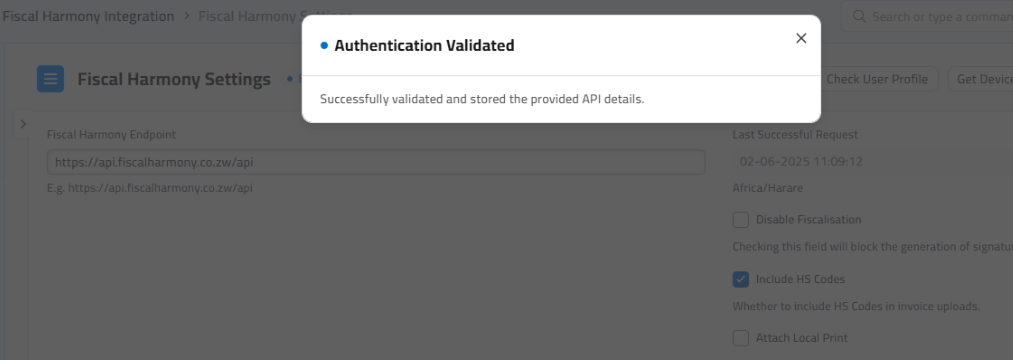
- Enter the following API endpoint: https://api.fiscalharmony.co.zw/api/. You should be able to get the result that it is validated.
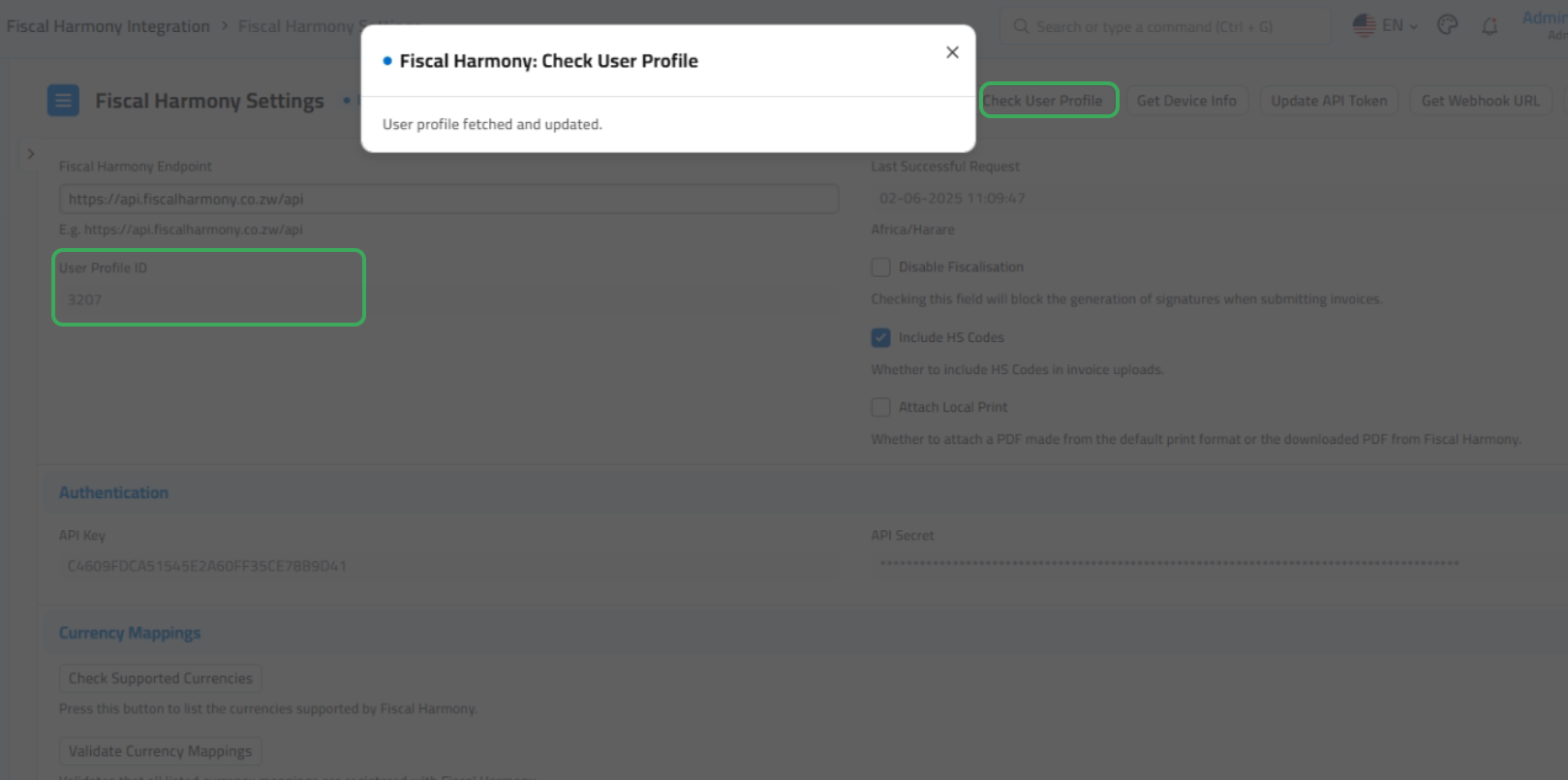
- Next, click on Check User Profile. You should see a status similar to the one in the provided image, along with your User Profile ID.
2. Currency Mappings
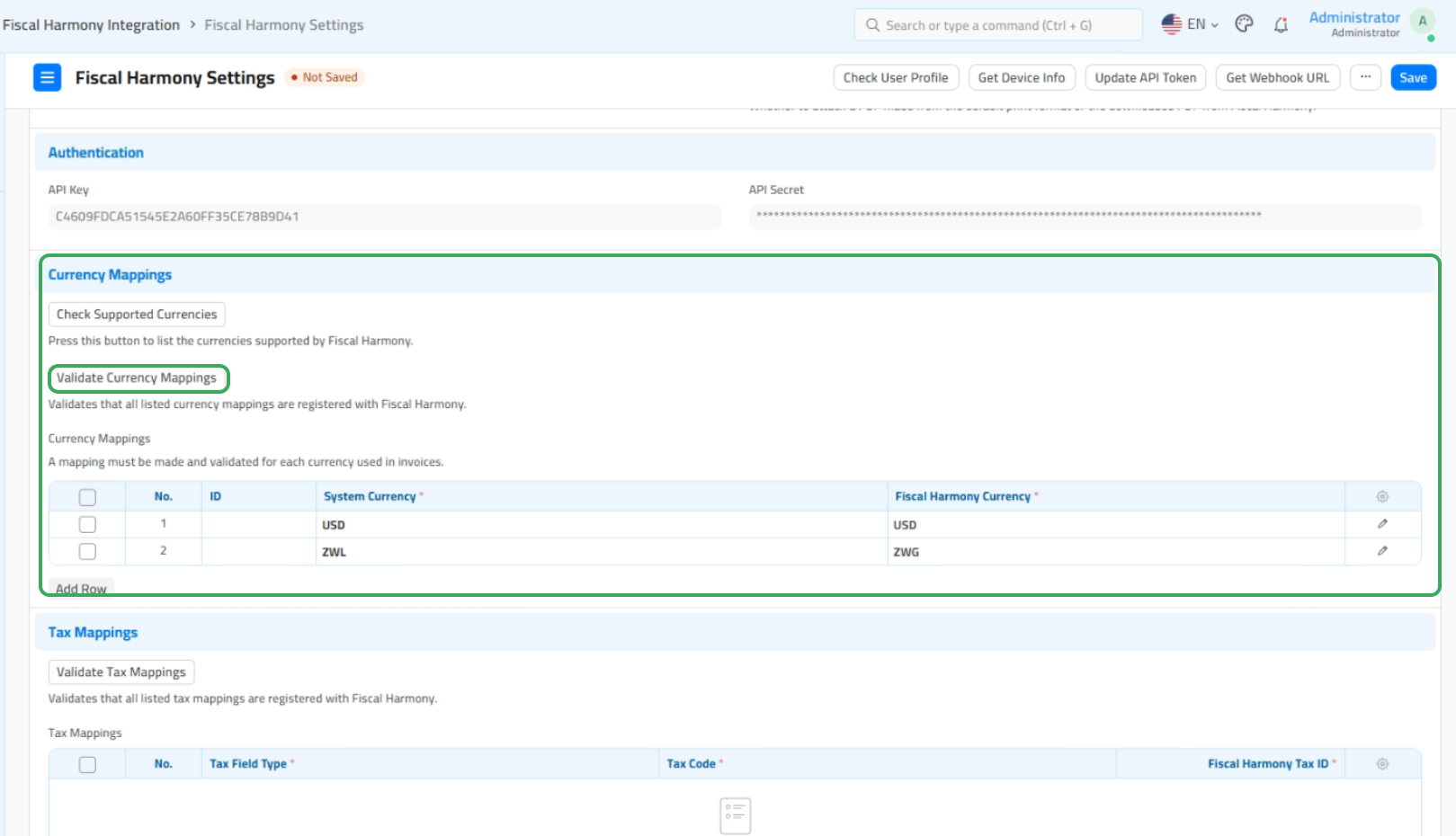
- The next step is to map your system's currency with Fiscal Harmony.
- After adding the necessary currency mappings, click Validate Currency Mappings.
3. Tax Mappings
- Add the tax mappings according to how you have configured your taxes in your ERP system and Validate your Taxes. These should correspond to:
- Standard Rate: 15.5%
- Zero Rated: 0%
- Exempt
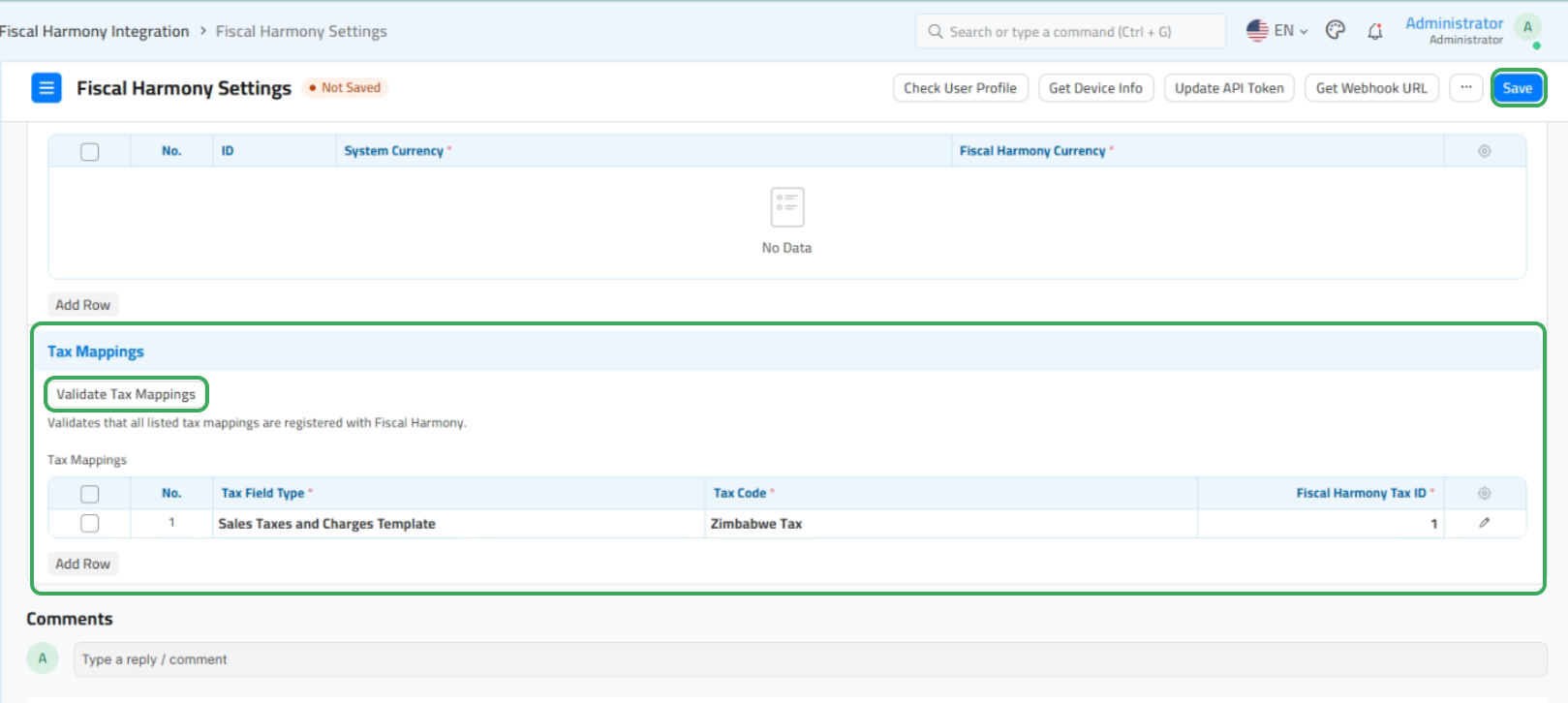
Step 8: Save Your Changes
After completing all the above steps, don’t forget to save everything by clicking "Save" after you have done to be ready for fiscalisation.
For further assistance, reach out to our support team:
Call Centre: +263 8677 010 305
Call Centre: +263 8677 010 305
WhatsApp: +263 783 323 154
Related Articles
Meat Matrix and Fiscal Harmony Integration Guide
Overview This guide outlines the steps to integrate Meat Matrix with the Fiscal Harmony plugin for the compliant fiscalisation of invoices and credit notes with the Zimbabwe Revenue Authority (ZIMRA). Prerequisites Download the Fiscal Harmony Plugin ...Sage Online and and Fiscal Harmony Integration Guide
Overview Before starting the integration, ensure that you have the following: API Keys and API Secret, which are provided by the client. You will also need a Fiscal Harmony Plugins account, as this allows you to create and manage new companies that ...QuickBooks and Fiscal Harmony Integration Guide
Overview This guide provides a step-by-step process for integrating QuickBooks with the Fiscal Harmony plugin, facilitating the fiscalization of invoices and credit notes for compliance with the Zimbabwe Revenue Authority (ZIMRA). Step 1. Downloading ...QuickBooks Online and Fiscal Harmony Integration Guide
Overview Steps to Access and Set Up API Keys in Fiscal Harmony Step 1. Log in to the Fiscal Harmony app on https://app.fiscalharmony.co.zw/. Once logged in, navigate to Settings > API keys. Create an API Key if you do not have one, making sure to ...MS Excel and Fiscal Harmony Integration Guide
Overview This guide explains how to install and configure fiscalisation in Microsoft Excel using the Fiscal Harmony software. It walks you through downloading the required files, installing the necessary tools, and setting up the integration so that ...