Sage Online and and Fiscal Harmony Integration Guide
Overview
Before starting the integration, ensure that you have the following:
- API Keys and API Secret, which are provided by the client.
- You will also need a Fiscal Harmony Plugins account, as this allows you to create and manage new companies that will be linked to Sage Online.
Process
Step 1.
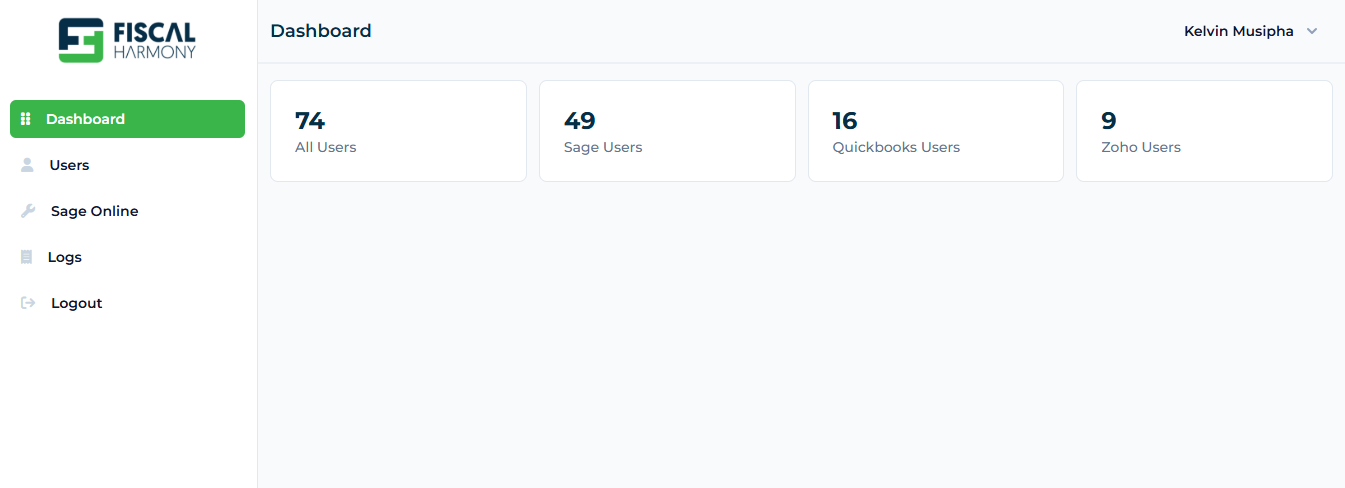
- Log in to your Fiscal Harmony Plugin account on https://plugins.fiscalharmony.co.zw/. Once logged in, you will be taken to the main dashboard.
Step 2.
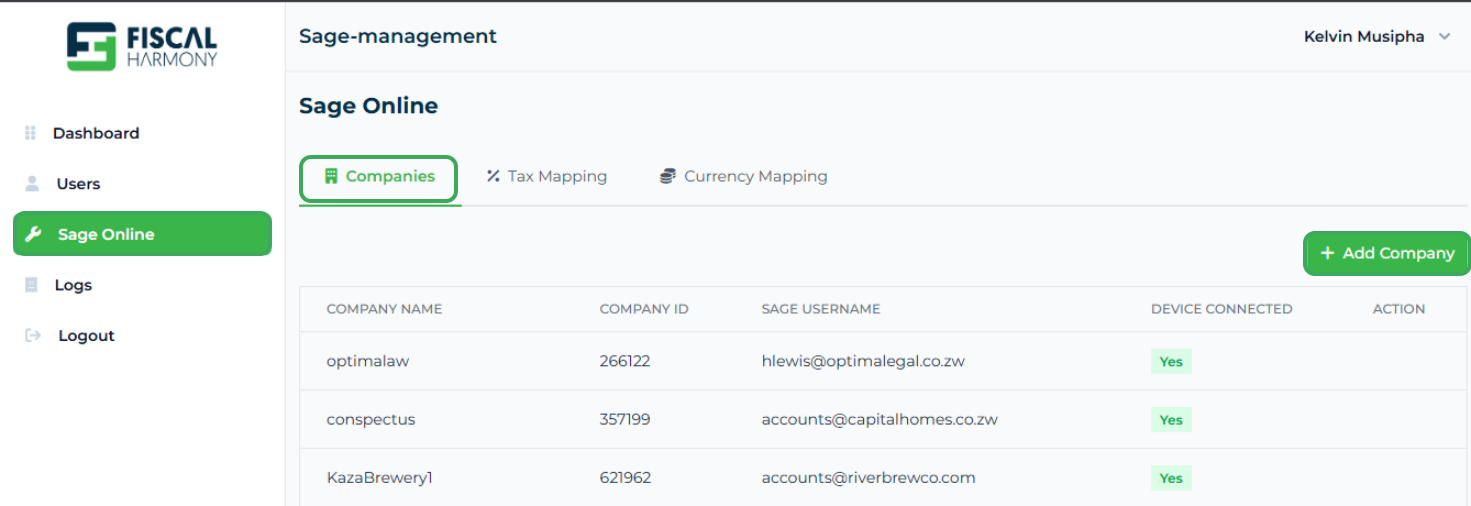
- From the dashboard menu, navigate to the Sage Online section. This is where you will add the new company details and later map the relevant taxes and currencies to ensure proper synchronization with ZIMRA standards.
Step 3.
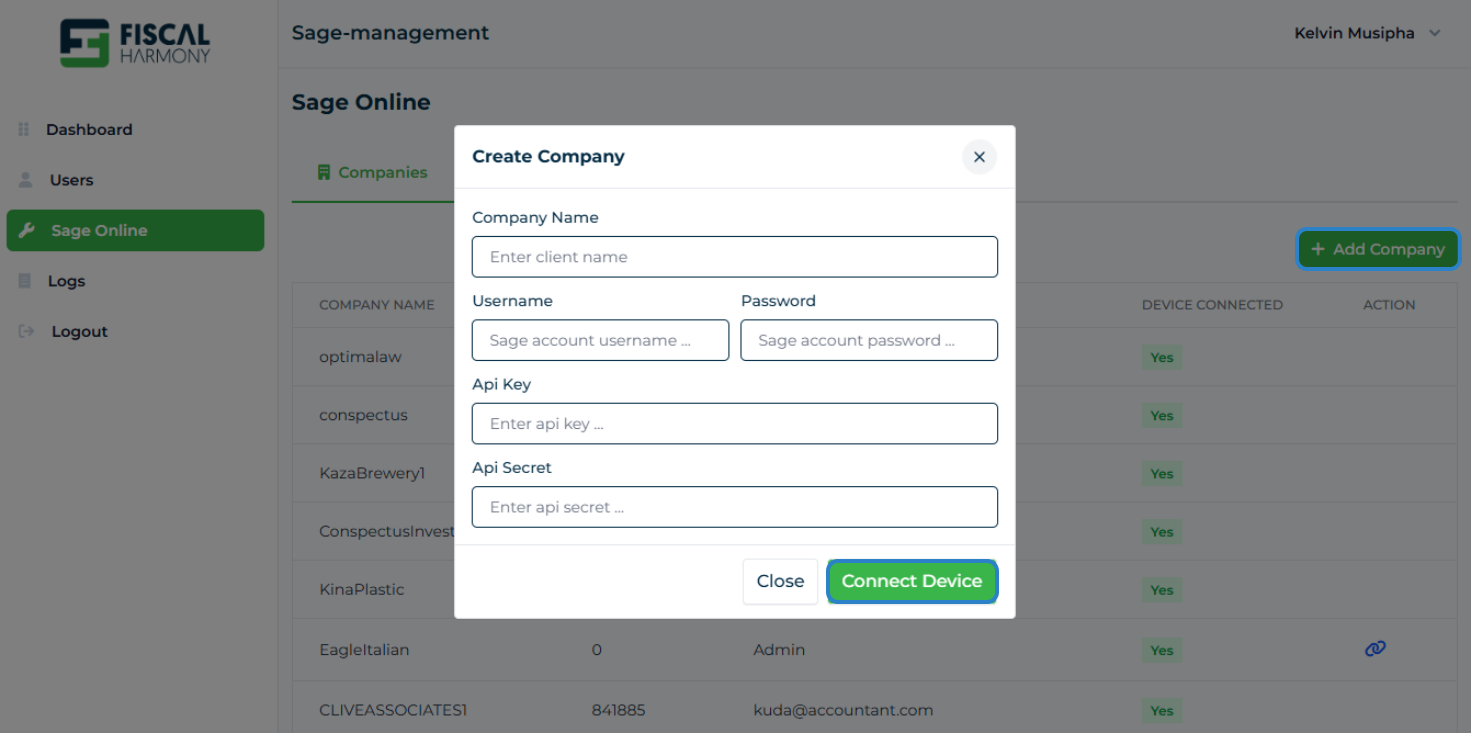
- Click the Add Company button. In the form that appears, enter the company name, ensuring it is written as one word (for example, companyone).
- Provide the Sage Online username, password, and the API Key and API Secret obtained from the client. Once all details are entered connect the fiscal device to complete this step.
Step 4.
- After adding the company, click the sync icon to initiate synchronization between Fiscal Harmony and Sage Online. This process retrieves the company’s tax and currency information, which will later be used for mapping. When the synchronization is complete, proceed to the Mappings section.

Step 5.
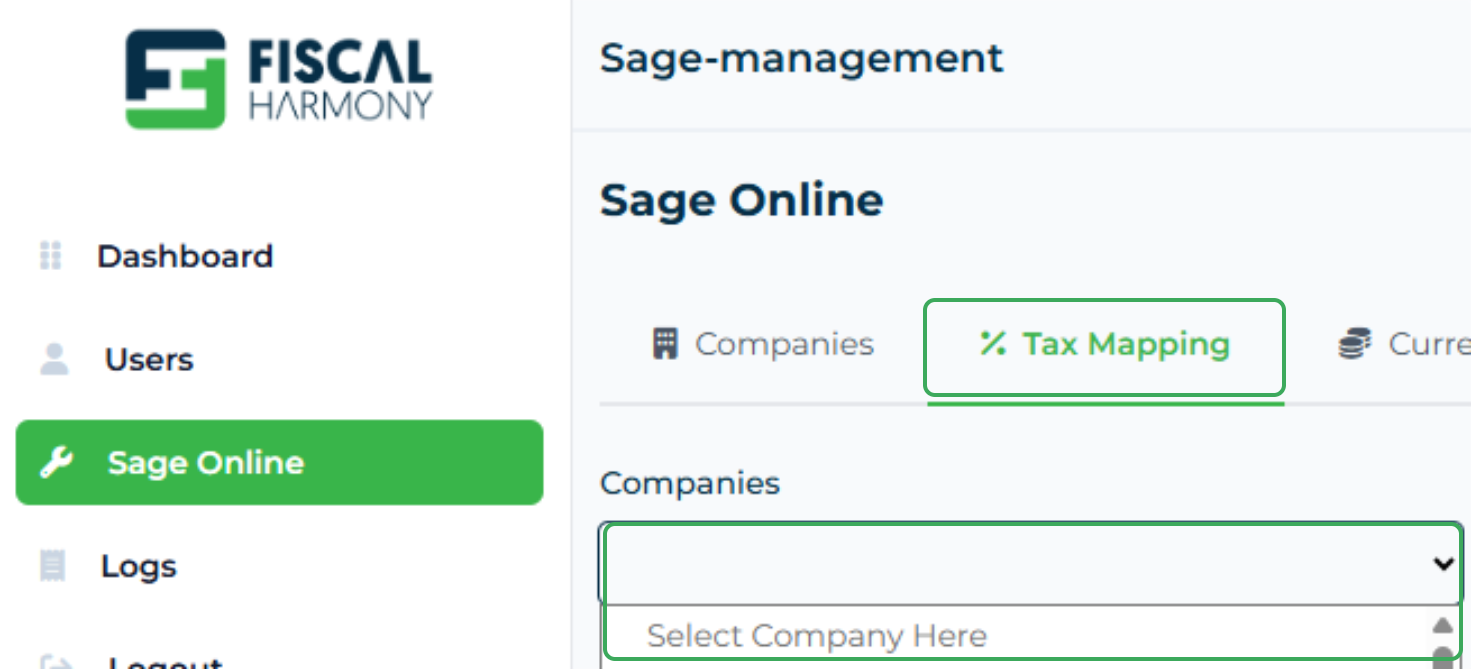
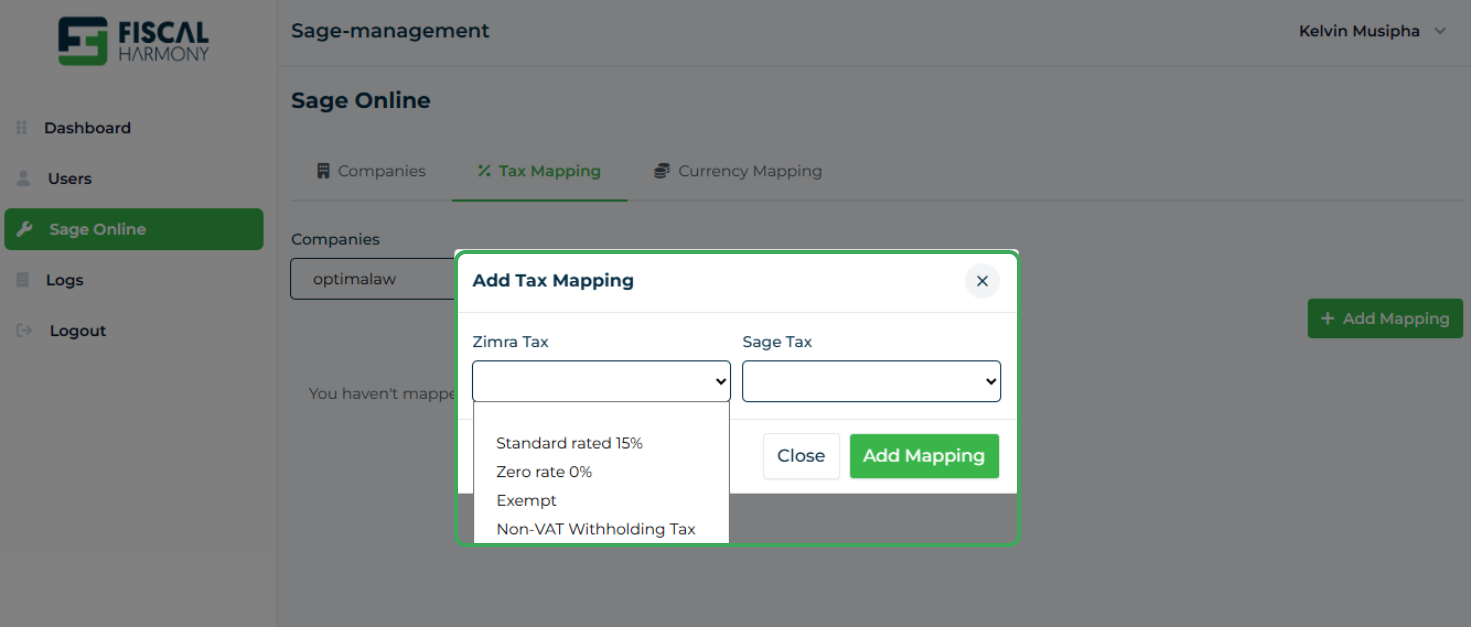
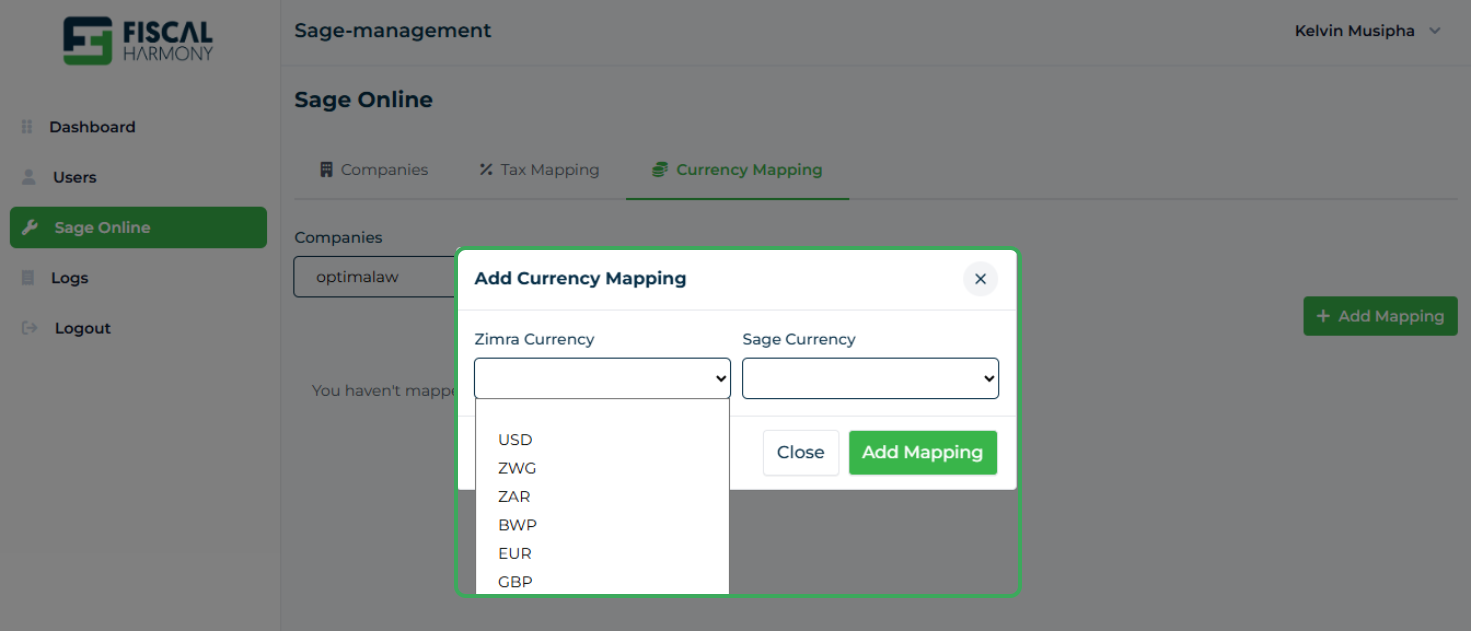
- In the Mappings section, select your company from the dropdown list. This area allows you to map your Sage Online tax methods and currencies to those recognized by ZIMRA for easier compliance.
Step 6.
- Start with the tax mappings. Match each Sage Online tax to the correct ZIMRA tax method and click Add Mapping when done.
Step 7.
- Next, proceed to currency mapping. Match each Sage Online currency with ZIMRA currency and click Add Mapping to confirm.
Once both mappings are complete, your Fiscal Harmony integration with Sage Online is successfully set up. Your taxes and currencies are now aligned with ZIMRA’s requirements, ensuring smooth and compliant fiscalisation going forward.
Step 8.
After you are done, make sure to provide the development team with the company name and API Key. This helps them link everything correctly on their side and confirm that your setup is working.
For further assistance, reach out to our support team:
Call Centre: +263 8677 010 305
Call Centre: +263 8677 010 305
WhatsApp: +263 783 323 154
Related Articles
QuickBooks Online and Fiscal Harmony Integration Guide
Overview Steps to Access and Set Up API Keys in Fiscal Harmony Step 1. Log in to the Fiscal Harmony app on https://app.fiscalharmony.co.zw/. Once logged in, navigate to Settings > API keys. Create an API Key if you do not have one, making sure to ...Sage Evolution and and Fiscal Harmony Integration Guide
Overview Step 1. Downloading the Plugin Click the link below to open the drive where you can download the evolution fiscalisation plugin: https://drive.google.com/drive/folders/1TYNRcRL2ASJ3XC6rIcT73ufasDaCZlCJ Download the latest version of the ...Sage Pastel and and Fiscal Harmony Integration Guide
Overview Step 1. Downloading the Plugin Click the link below to open the drive where you can download the pastel fiscalisation plugin: https://drive.google.com/drive/folders/1TYNRcRL2ASJ3XC6rIcT73ufasDaCZlCJ Download the latest version of the plugin ...Meat Matrix and Fiscal Harmony Integration Guide
Overview This guide outlines the steps to integrate Meat Matrix with the Fiscal Harmony plugin for the compliant fiscalisation of invoices and credit notes with the Zimbabwe Revenue Authority (ZIMRA). Prerequisites Download the Fiscal Harmony Plugin ...ERP Next and Fiscal Harmony Integration Guide
Overview This guide provides a step-by-step process for integrating ERP Next with the Fiscal Harmony plugin, facilitating the fiscalization of invoices and credit notes for compliance with the Zimbabwe Revenue Authority (ZIMRA). Prerequisites Setting ...