Sage Evolution and and Fiscal Harmony Integration Guide
Overview
Step 1. Downloading the Plugin
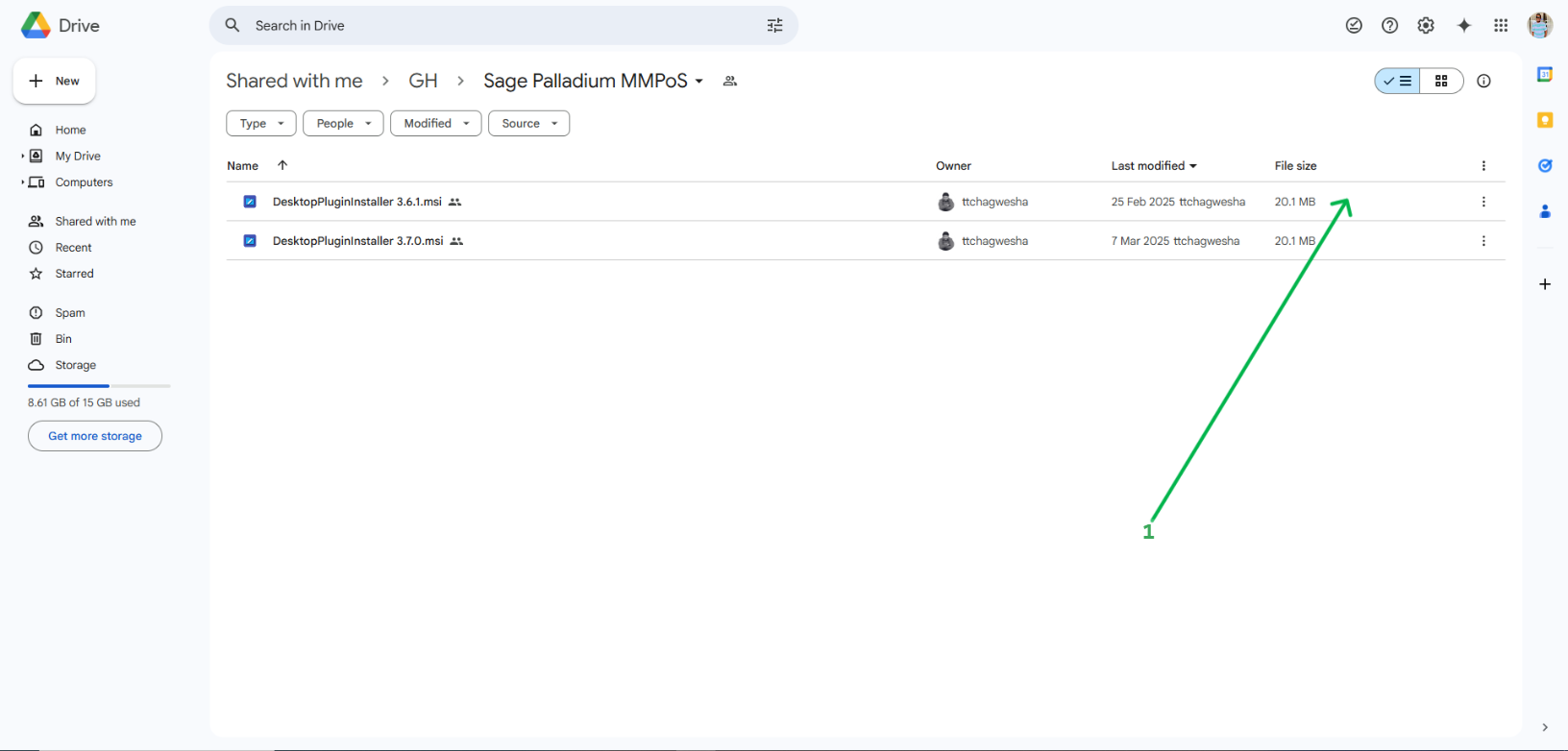
- Click the link below to open the drive where you can download the evolution fiscalisation plugin: https://drive.google.com/drive/folders/1TYNRcRL2ASJ3XC6rIcT73ufasDaCZlCJ
- Download the latest version of the plugin on the drive.
Step 2. Installing the Plugin
- Double click the downloaded plugin installer and follow all the steps to successfully install the app.
- After the installation, please run the plugin as administrator.
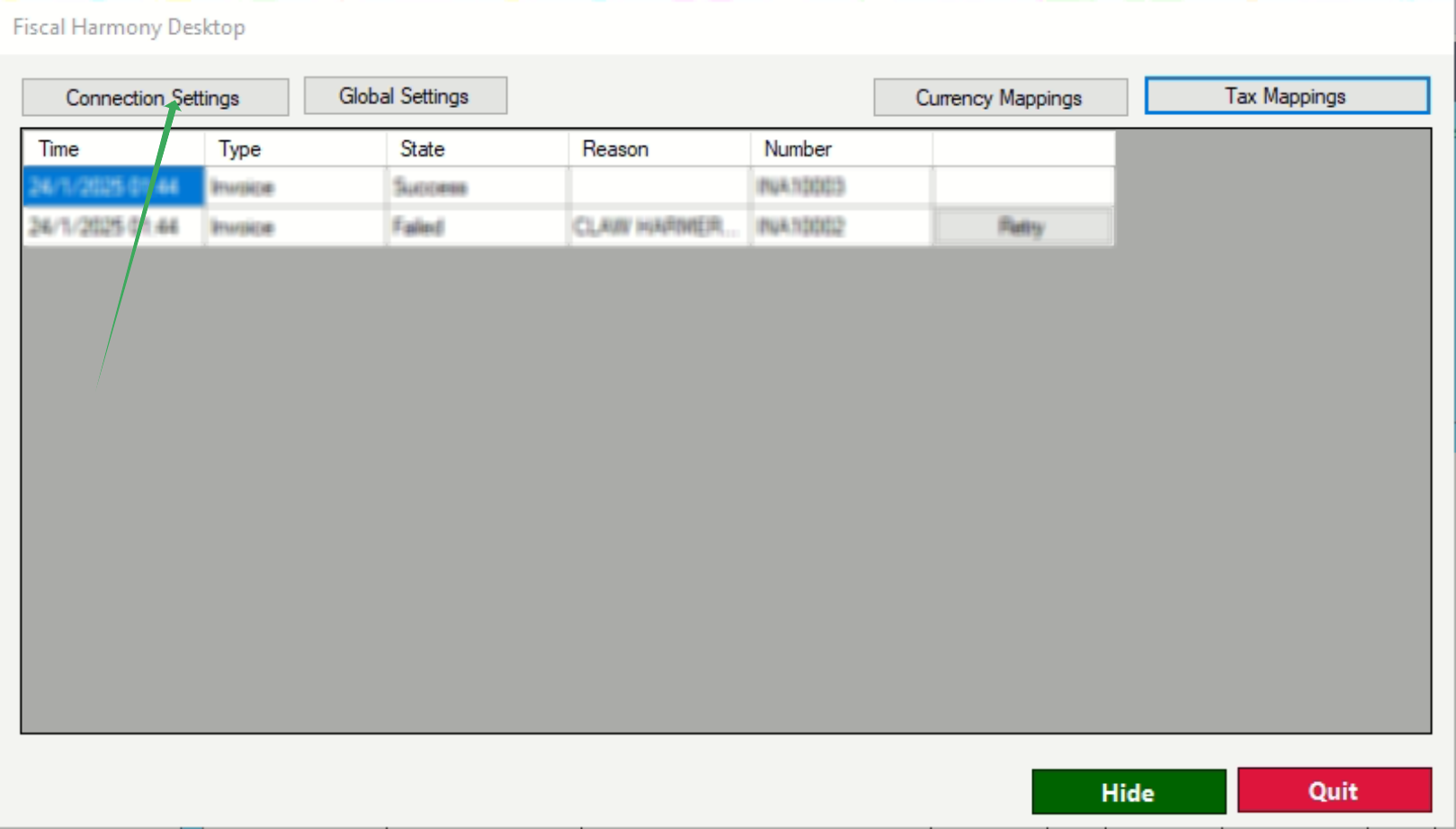
Step 3. Setup Connection Settings
- Click "Connection Settings", and the system will show a page like the one below.
- In the fields, fill in by entering:
- The company name.
- The API key and API Secret from https://app.fiscalharmony.co.zw/api-keys/
- Click the button with title "Test Fiscal Harmony Connection"
- If the system successfully tests the connection, proceed to the next step.
- However, if it fails, kindly check your internet connection, and you may also restart the computer.
- Enter all the required database connection credentials. Ensure you provide the correct credentials and driver, and select the appropriate application class, 'Sage Evolution'; otherwise, the system will fail to test the database connection.
- Click the button with title "Test Database Connection".
- Click the button titled "Save Organisation". The saved company will now appear on the Data grid if successfully saved.
NB. If you will to add more that one companies, please repeat the same procedure as above.
Step 4. Setting up the Global Settings
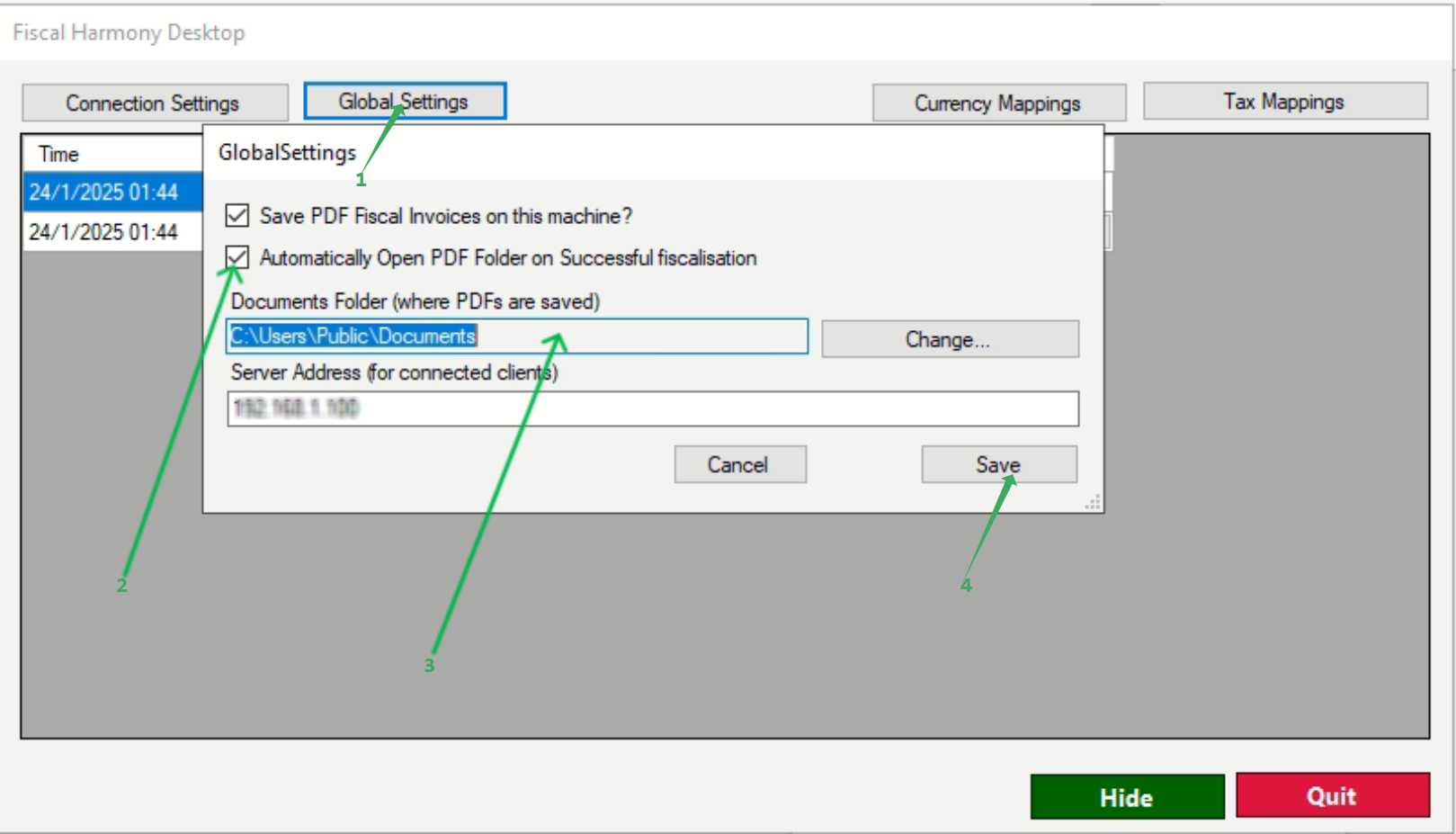
- Click the button with title "Global Settings"
- A page will popup and you check the checkbox with title "Automatically Open PDF Folder on Successful fiscalisation" if you want the folder with fiscalised invoices to open every time you run an invoice.
- Use the textbox to change the default location to save your fiscalised invoices.
- Click button "Save" to save your changes.
Step 5. Setting up the Currency and Tax Mappings
Currency Mappings
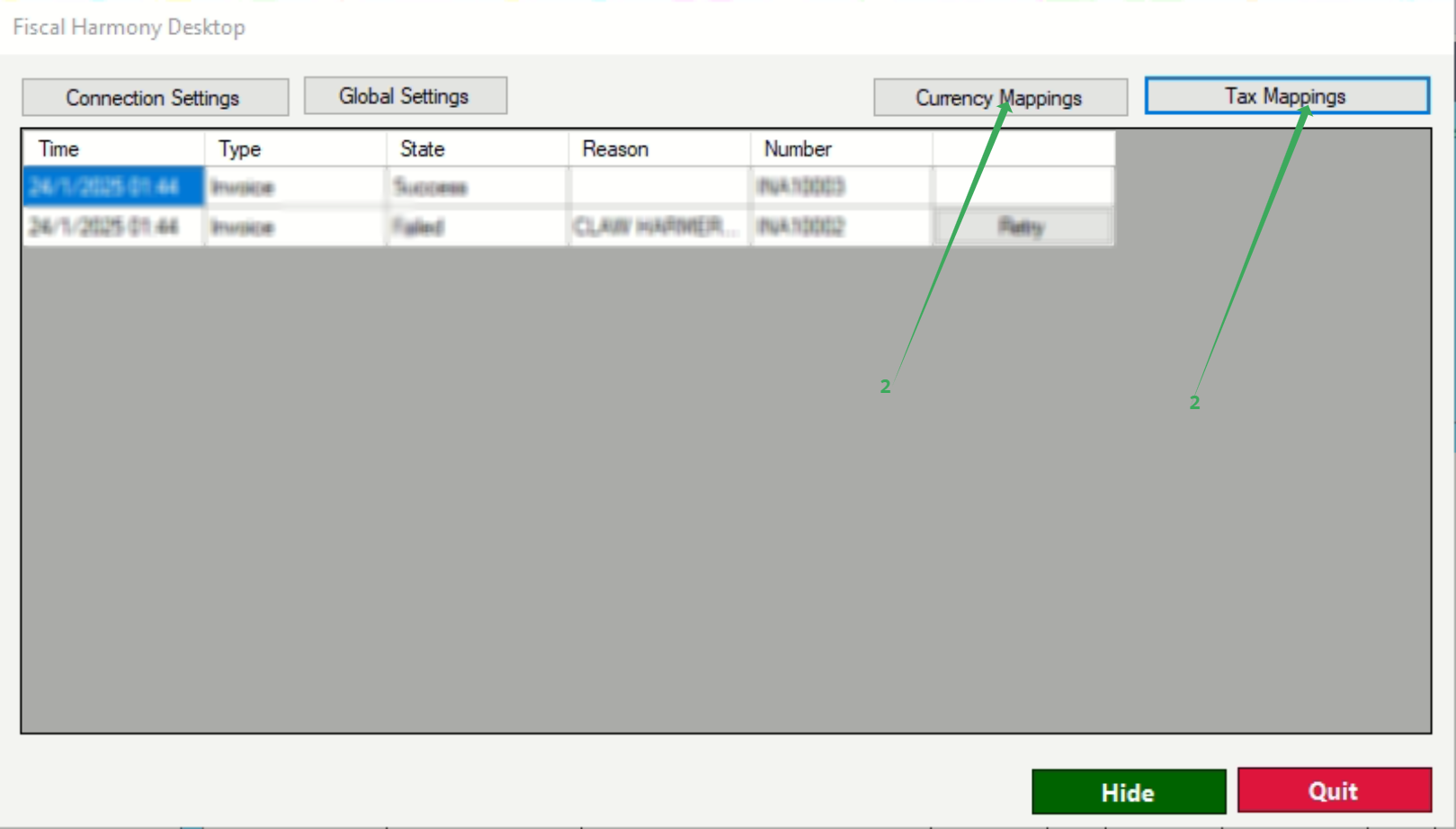
- Click the button with title "Currency Mappings".
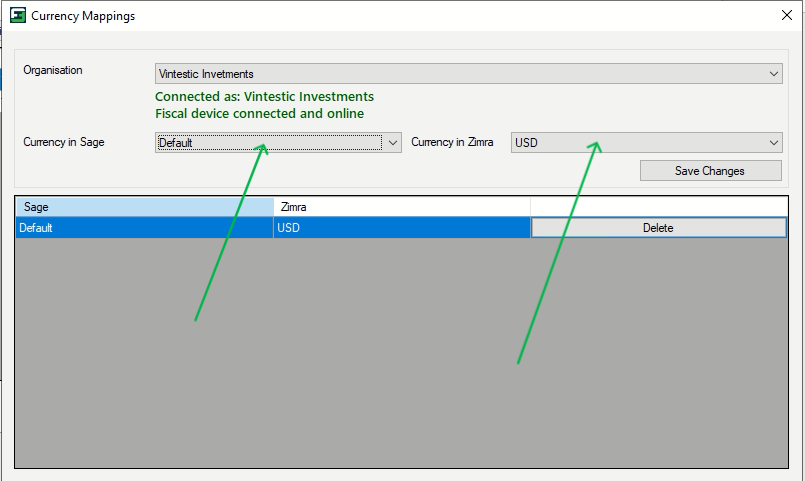
- Select the Currency in Sage and map it to the corresponding Currency in ZIMRA.
- Click Button "Save Changes"
NB: Please map all the currencies that you will be using to fiscalise.
Tax Mappings
- Click the button with title "Tax Mappings".
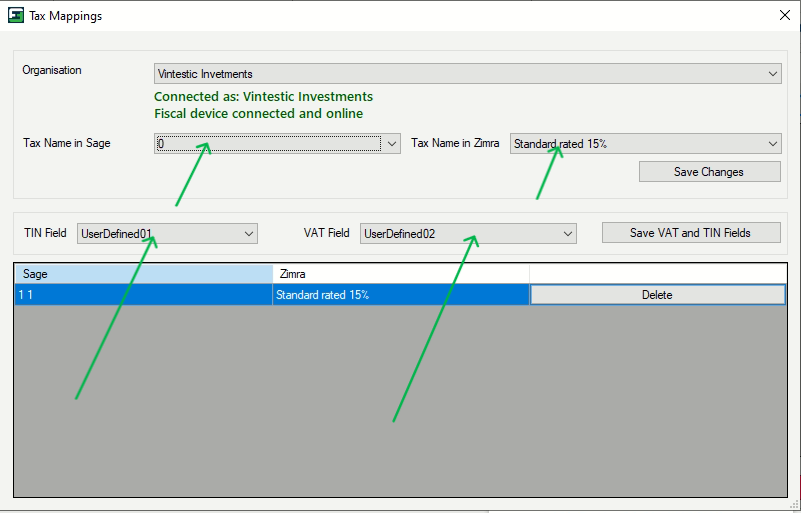
- Select the Tax name in Sage and map it to the corresponding Tax Name in ZIMRA.
- Click Button "Save Changes" to save your taxes
NB: Please map all the taxes that you will be using to fiscalise.
Step 6. TIN and VAT Number Setup
NB: Please note that the Tin and Vat Number fields are optional, user must select the Tin and Vat number to use in their Pastel under the Customer Accounts.
- Navigate to customers in your Sage Evolution and click "Edit"
- On the sidebar, click Tax
- Input the customer VAT Number in the Tax Number.
- Input the TIN Number in the Registration field.
- Click button "Ok" to save your changes.
NB: For example a client above decided to use the User Defined 1 for TIN Number and User Defined 2 for Vat Number.
Please be advised that your app must always be running in background for you to be able to fiscalise
You must always run the Plugin as administrator for you to be able to fiscalise.
For further assistance, reach out to our support team:
Call Centre: +263 8677 010 305
Call Centre: +263 8677 010 305
WhatsApp: +263 783 323 154
Related Articles
Sage Online and and Fiscal Harmony Integration Guide
Overview Before starting the integration, ensure that you have the following: API Keys and API Secret, which are provided by the client. You will also need a Fiscal Harmony Plugins account, as this allows you to create and manage new companies that ...Sage Pastel and and Fiscal Harmony Integration Guide
Overview Step 1. Downloading the Plugin Click the link below to open the drive where you can download the pastel fiscalisation plugin: https://drive.google.com/drive/folders/1TYNRcRL2ASJ3XC6rIcT73ufasDaCZlCJ Download the latest version of the plugin ...Meat Matrix and Fiscal Harmony Integration Guide
Overview This guide outlines the steps to integrate Meat Matrix with the Fiscal Harmony plugin for the compliant fiscalisation of invoices and credit notes with the Zimbabwe Revenue Authority (ZIMRA). Prerequisites Download the Fiscal Harmony Plugin ...ERP Next and Fiscal Harmony Integration Guide
Overview This guide provides a step-by-step process for integrating ERP Next with the Fiscal Harmony plugin, facilitating the fiscalization of invoices and credit notes for compliance with the Zimbabwe Revenue Authority (ZIMRA). Prerequisites Setting ...QuickBooks and Fiscal Harmony Integration Guide
Overview This guide provides a step-by-step process for integrating QuickBooks with the Fiscal Harmony plugin, facilitating the fiscalization of invoices and credit notes for compliance with the Zimbabwe Revenue Authority (ZIMRA). Step 1. Downloading ...