Manager.IO and and Fiscal Harmony Integration Guide
Overview
This guide outlines the steps necessary to set up fiscalization using Manager IO and integrate it with Fiscal Harmony APIs. The process involves obtaining API credentials, configuring fields in Manager IO, and setting up the integration to enable fiscalization of invoices.
Prerequisites
Before proceeding with the setup, ensure the following prerequisites are met:
- Manager IO Account: You must have an active Manager IO account.
- Fiscal Harmony Account: You must have access to the Fiscal Harmony app (https://app.fiscalharmony.co.zw/).
- Access Tokens: Obtain the necessary API tokens from both Manager IO and Fiscal Harmony.
Step-by-Step Setup Guide
Step 1: Obtain Manager IO API Token
- Log in to your Manager IO account.
- Navigate to the API Settings section.
- Follow the instructions outlined in the Access Tokens Guide to generate your Manager API token.
- Save the API token securely. It will be required during the integration setup.
Step 2: Create Custom Fields in Manager IO
To comply with fiscalisation requirements, you need to add specific custom fields to your Manager IO system. These fields include:
- VAT Number: For storing the VAT registration number of the business or customer.
- TIN Number: For storing the Tax Identification Number (TIN) of the business or customer.
- Reason: To specify the reason for the transaction (e.g., sale, refund, etc.).
- HS Code: For storing the Harmonised System (HS) code of the product or service.
Instructions:
- Log in to your Manager IO account.
- Go to Settings > Custom Fields.
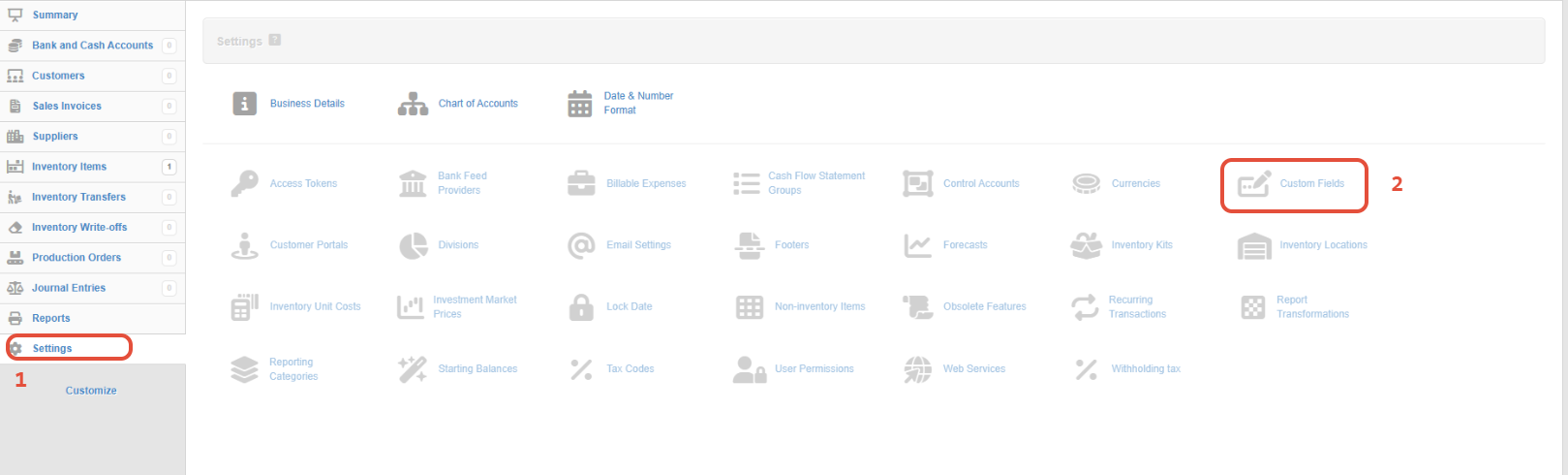
- Add the following fields under the relevant sections (e.g., Customers, Products, or Invoices):
 Field Name : VAT NumberType: TextPlacement: Customer
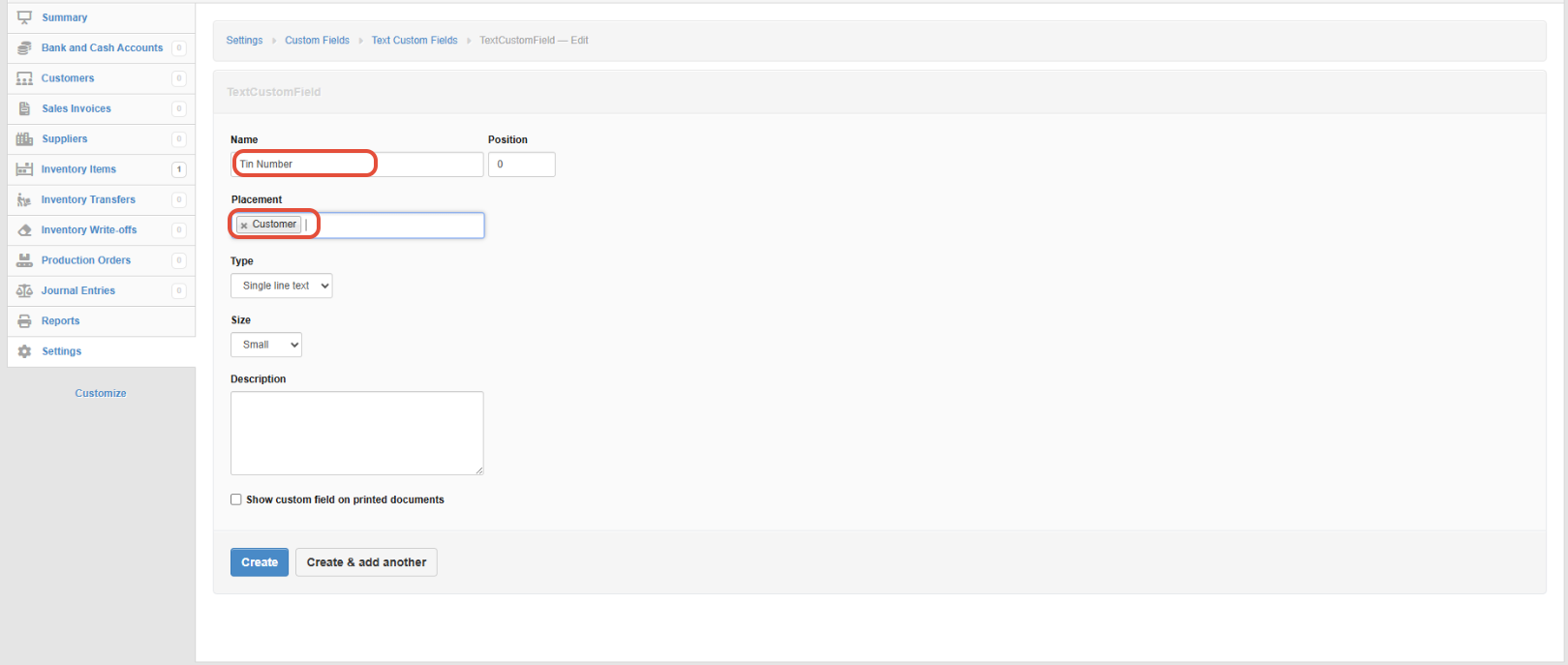 Field Name : TIN NumberType: TextPlacement: Customer
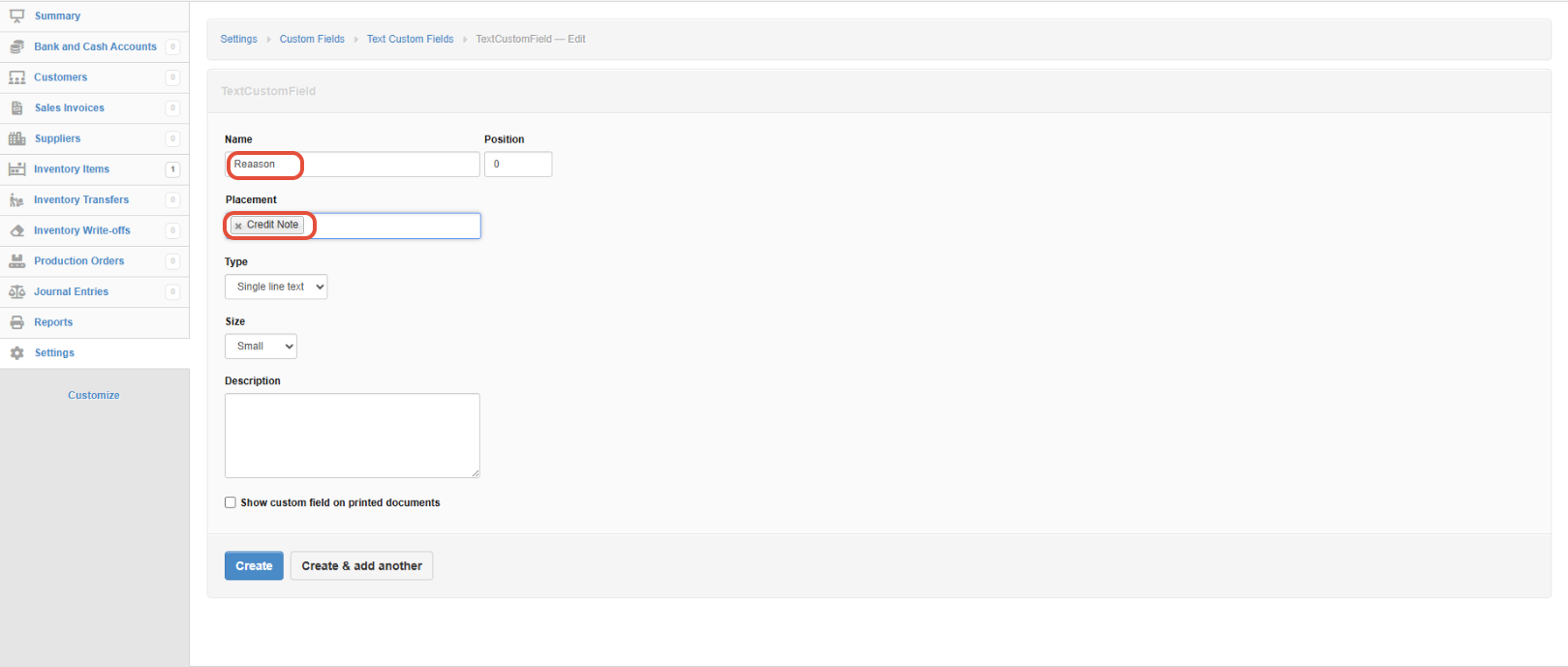 Field Name : ReasonType: Dropdown (e.g., Sale, Refund, Credit Note)Placement: Credit Note
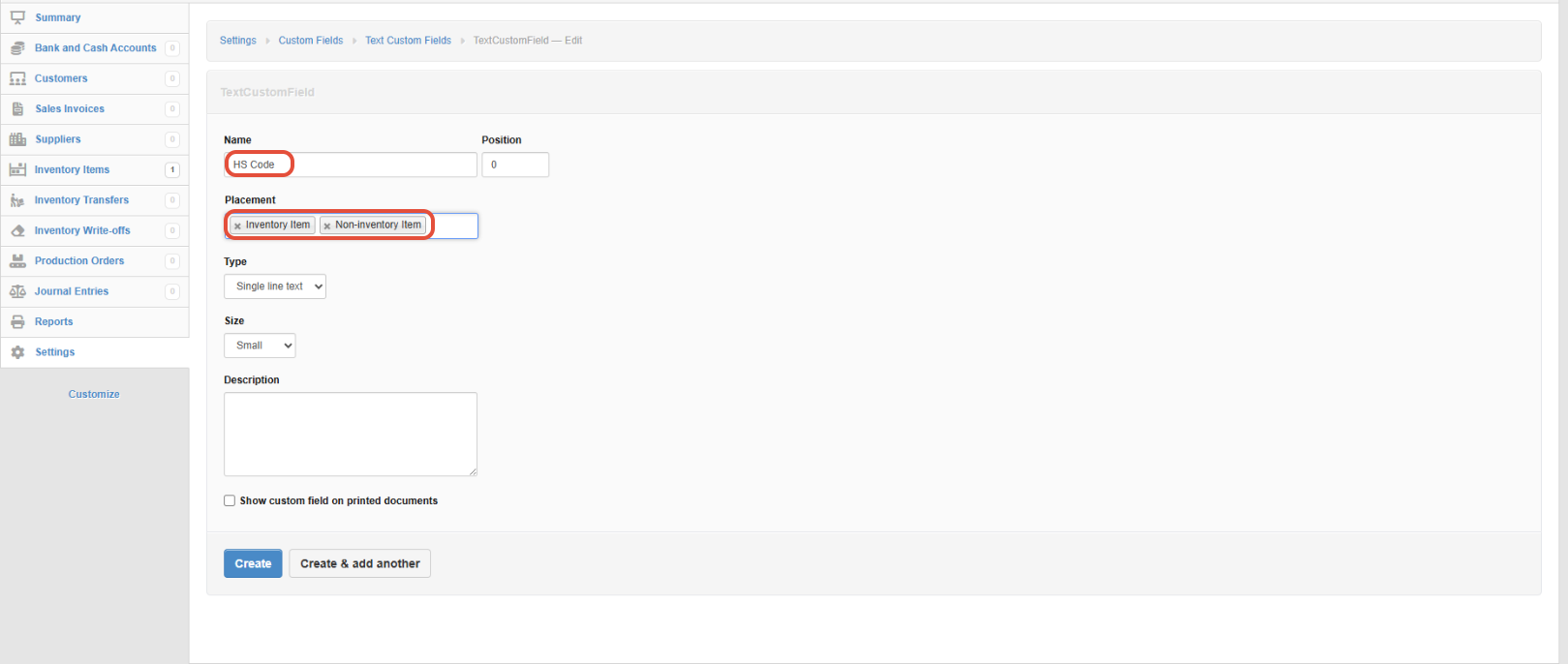 Field Name : HS CodeType: TextPlacement: Inventory item and Non-inventory item
 - Save the changes.
Step 3: Obtain Fiscal Harmony API Credentials
- Visit the Fiscal Harmony app at https://app.fiscalharmony.co.zw/login and log in to your account.
- Navigate to Settings > API Keys Page.
- Create an API key for your account and give it a name (e.g. Manager IO). Enter your 2FA and then save.
- Here the API key and API secret will be shown. Save the API key and secret securely in a safe place, as the API secret will only be shown once. It will be required during the integration setup.
Step 4: Set Up Integration on the Provider's End
Once you have the following information ready:
- Manager IO API Token
- Fiscal Harmony API Key and API Secret.
- Custom fields configured in Manager IO
Provide this information to the integration provider (or technical team). They will:
- Configure the backend to connect Manager IO with Fiscal Harmony.
- Map the custom fields (VAT Number, TIN Number, Reason, HS Code) to the corresponding fields in Fiscal Harmony.
- Test the integration to ensure seamless communication between the two systems.
Step 5: Receive the Relay Link
After the integration is complete, Fiscal Harmony will provide you with a Relay Link . This link enables you to fiscalise your invoices directly from Manager IO.
How It Works:
- When you create an invoice in Manager IO, the system will automatically send the invoice data (including VAT Number, TIN Number, Reason, and HS Code) to Fiscal Harmony via the Relay Link.
- Fiscal Harmony will validate the data and return a fiscalised invoice with a unique fiscal code.
- The fiscalized invoice will be updated in Manager IO for record-keeping.
Step 6: Adding the Relay Link
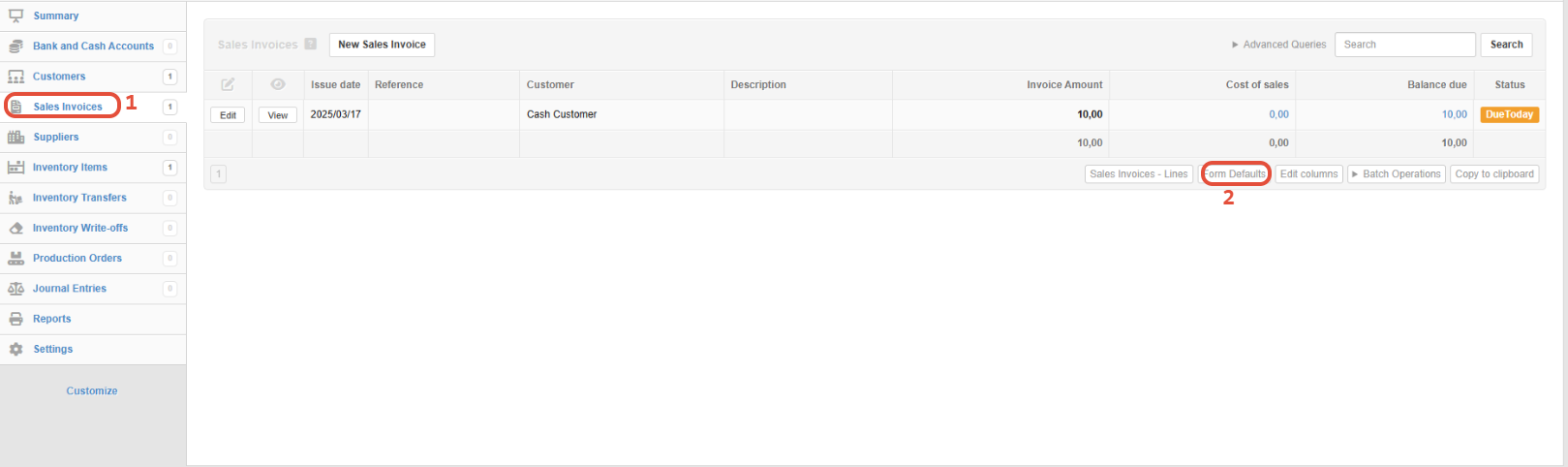
- Go to Sales Invoice - this will display all your invoices
- Click Form Defaults - this displays all forms to make default in Manager IO.
- Tick Relay and paste your Relay Link.
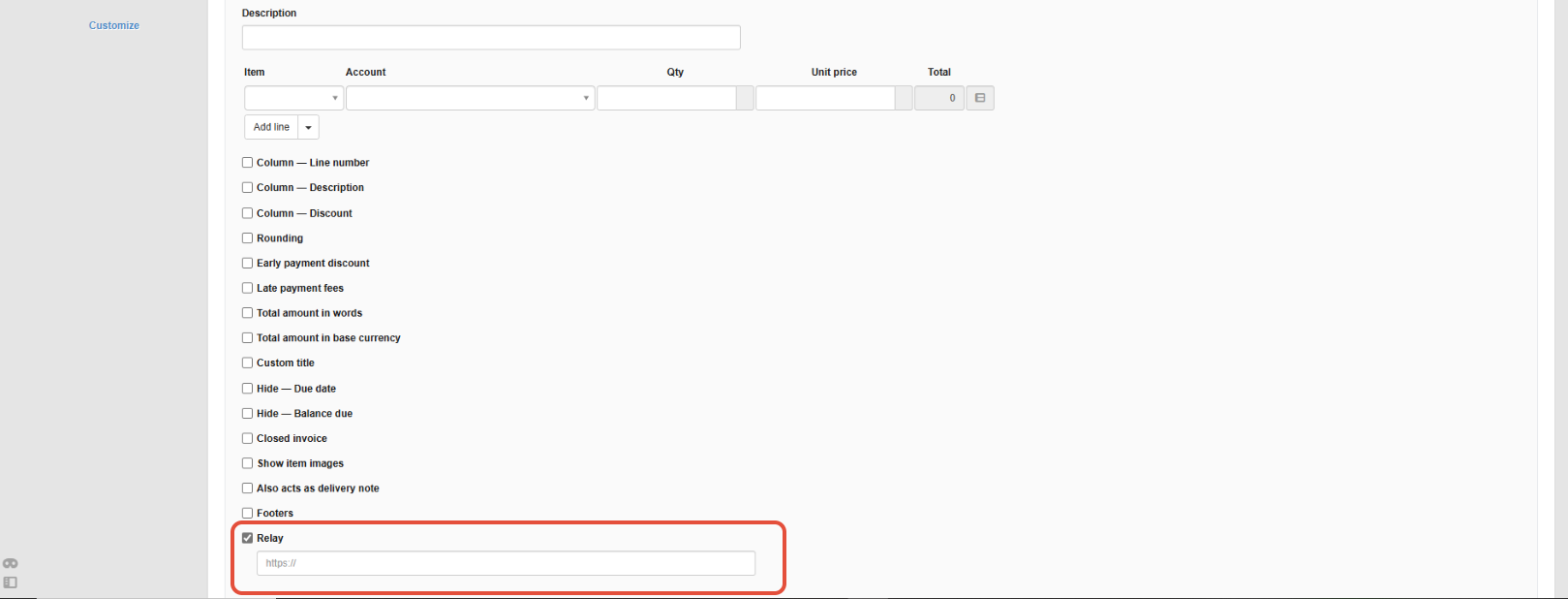
- Click "Update" to save changes.
This activates the Relay Button, which is used for fiscalising invoices.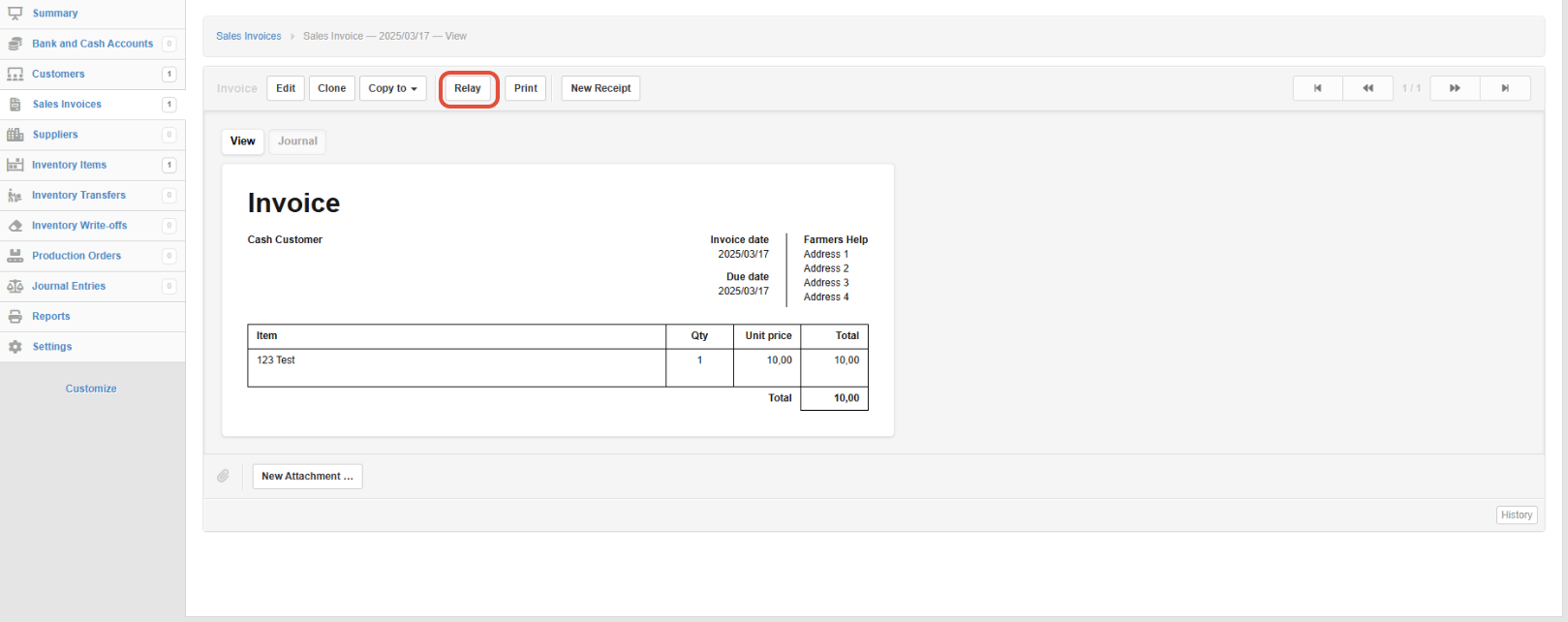
For further assistance, reach out to our support team:
Call Centre: +263 8677 010 305
Call Centre: +263 8677 010 305
WhatsApp: +263 783 323 154
Related Articles
Fiscalising an Invoice in Manager.io
Overview This guide provides a step-by-step process for fiscalizing an invoice using the Relay button in Manager IO after integrating with Fiscal Harmony. It also outlines the prerequisites and best practices to ensure successful fiscalisation. ...Meat Matrix and Fiscal Harmony Integration Guide
Overview This guide outlines the steps to integrate Meat Matrix with the Fiscal Harmony plugin for the compliant fiscalisation of invoices and credit notes with the Zimbabwe Revenue Authority (ZIMRA). Prerequisites Download the Fiscal Harmony Plugin ...ERP Next and Fiscal Harmony Integration Guide
Overview This guide provides a step-by-step process for integrating ERP Next with the Fiscal Harmony plugin, facilitating the fiscalization of invoices and credit notes for compliance with the Zimbabwe Revenue Authority (ZIMRA). Prerequisites Setting ...QuickBooks and Fiscal Harmony Integration Guide
Overview This guide provides a step-by-step process for integrating QuickBooks with the Fiscal Harmony plugin, facilitating the fiscalization of invoices and credit notes for compliance with the Zimbabwe Revenue Authority (ZIMRA). Step 1. Downloading ...MS Excel and Fiscal Harmony Integration Guide
Overview This guide explains how to install and configure fiscalisation in Microsoft Excel using the Fiscal Harmony software. It walks you through downloading the required files, installing the necessary tools, and setting up the integration so that ...