Fiscalising an Invoice in Manager.io
Overview
This guide provides a step-by-step process for fiscalizing an invoice using the Relay button in Manager IO after integrating with Fiscal Harmony. It also outlines the prerequisites and best practices to ensure successful fiscalisation.
Prerequisites
Before you can fiscalise an invoice, ensure the following prerequisites are met:
- Customer Information
- TIN Number (Tax Identification Number): Ensure the customer’s TIN is entered in their profile in Manager IO.
- VAT Number: Ensure the customer’s VAT registration number (if applicable) is entered in their profile.
- Inventory Items
- HS Code (Harmonized System Code): Each inventory item on the invoice must have an HS Code associated with it. This code classifies the product or service for tax purposes.
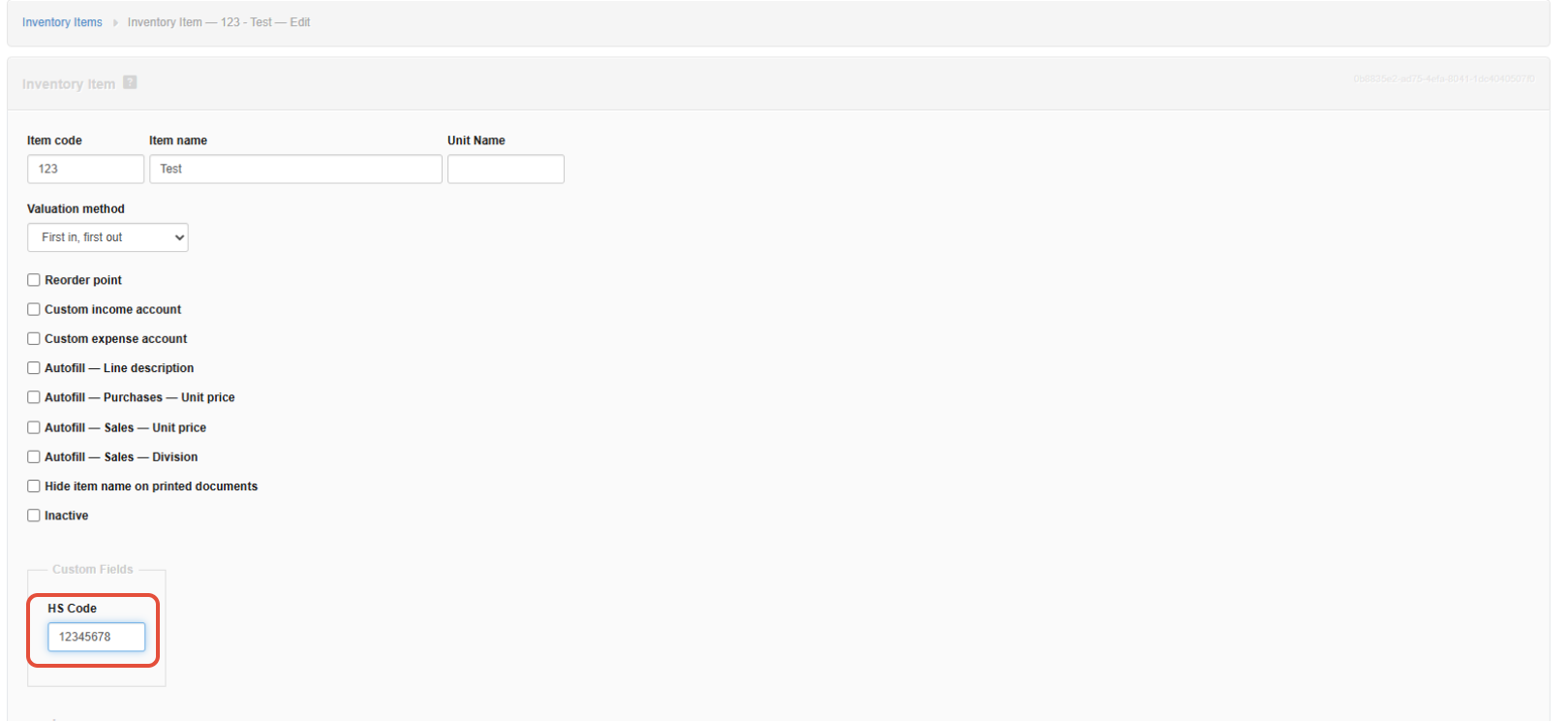
 NOTE: For clients without TIN Numbers, put a prefix of Cash (e.g., Cash John Doe) on the Customer Name
 Step-by-step Process
Step 1: Create or Open an Invoice
- Log in to Manager IO.
- Go to Sales > Invoices.
- Create a new invoice or open an existing unpaid invoice.
Step 2: Verify Customer & Item Details
- Confirm the customer has:
- TIN Number (or is prefixed with "Cash" if no TIN).
- VAT Number (if applicable).
- Ensure all items have an HS Code.
Step 3: Fiscalise the Invoice
- Click the "Relay" button (visible after integration setup).
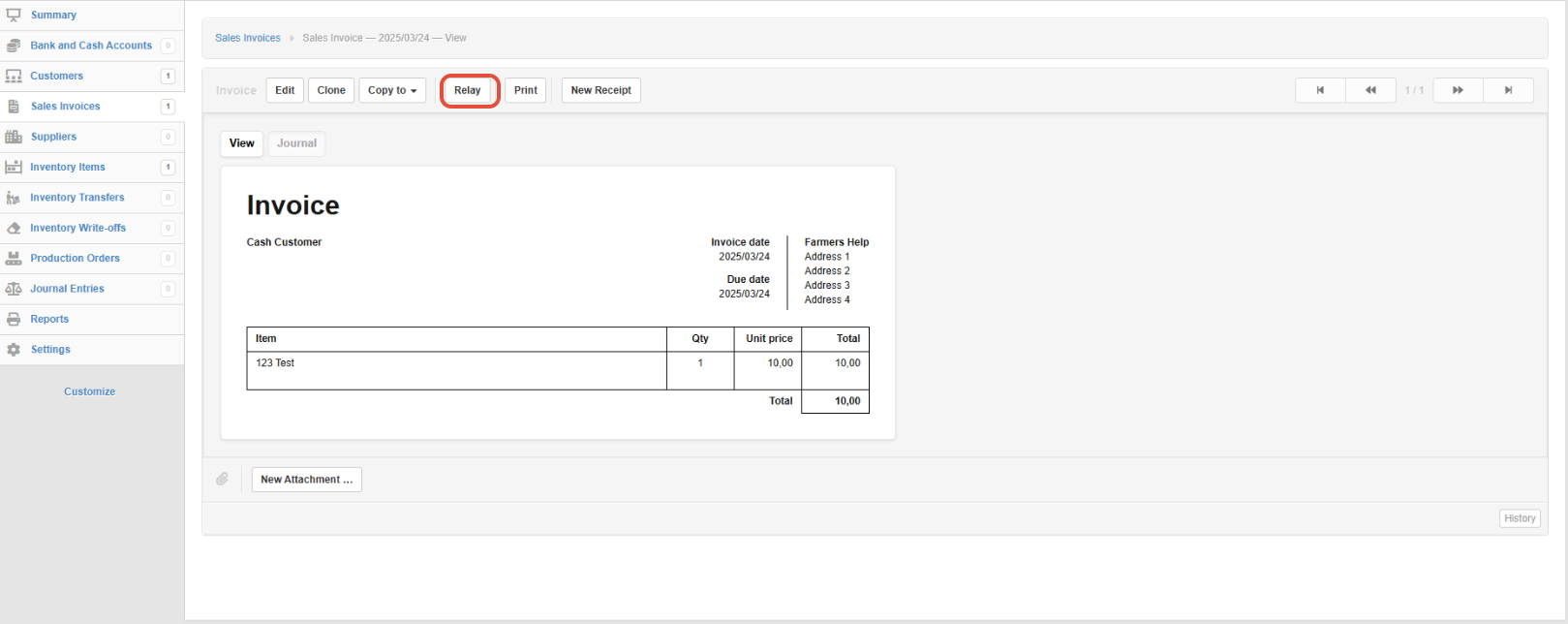 Manager IO will send the invoice data to Fiscal Harmony for fiscalisation.
 - Wait for confirmation: Go to your Fiscal Harmony app on https://app.fiscalharmony.co.zw/ and navigate to Logs on the side bar.
- If successful, the invoice will be updated on your Logs
- If failed, check error details and correct missing/invalid data.
Step 4: Save & Share the Fiscalised Invoice
- Once fiscalised, the invoice is marked as "Fiscalised".
- Print or email the invoice to the customer (it now includes fiscal compliance details).
Troubleshooting Common Issues
"Relay" button missing
Ensure the Relay Link is correctly pasted in Form Defaults.
"TIN Number missing" error
Add the TIN in the customer’s profile or use "Cash [Name]".
"HS Code missing" error
Assign an HS Code to all items in Inventory Settings.
API connection failure
Verify Manager IO API keys & Fiscal Harmony API keys are correct.
Invoice not updating after fiscalisation
Refresh the page or check the Fiscal Harmony app transaction logs.
Best Practices
- Always verify customer TIN and VAT before fiscalising.
- Use the "Cash" prefix for walk-in customers without a TIN.
- Ensure HS Codes are up-to-date for all products.
- Test with a sample invoice before processing live transactions.
Related Articles
Fiscalising an Invoice in Xero
Overview Prerequisites To fiscalise with this integration, you would need: Your Xero Account is connected to Fiscal Harmony. Step-by-step Process Step 1. Navigate to the Invoices. Locate the Sales module on the top nav. Clicking this will open a ...Fiscalizing a Credit Note in Manager.io
Overview Step-by-step Process Step 1: Create Credit Note Go to the invoice for which you want to issue a Credit Note. Click on the "Clone to Credit Note" button. This will generate a Credit Note based on the selected invoice. Once the Credit Note ...Creating and Fiscalising Credit Notes in Palladium Accounting
Overview Please follow the following steps to fiscalise credit notes using Palladium accounting. Steps Step 1. Opening Application Running the Fiscal Harmony Plugin Right click on the app and click "Run as administrator" option. Click the upward ...Creating and Fiscalising Credit Notes in Sage Pastel Express Accounting
Overview Please follow the following steps to fiscalise credit notes using Sage Pastel Express Accounting. Step-by-step process Step 1. Opening the application Running the Fiscal Harmony Plugin Right click on the app and click "Run as administrator" ...Creating and Fiscalising invoice in Palladium Accounting
Overview Please follow the following steps to fiscalise an invoice using Palladium accounting. Steps Step 1. Opening Application Running the Fiscal Harmony Plugin Right click on the app and click "Run as administrator" option. Click the upward arrow ...