Creating and Fiscalising Credit Notes in Sage Pastel Express Accounting
Overview
Please follow the following steps to fiscalise credit notes using Sage Pastel Express Accounting.
Step-by-step process
Step 1. Opening the application
- Running the Fiscal Harmony Plugin
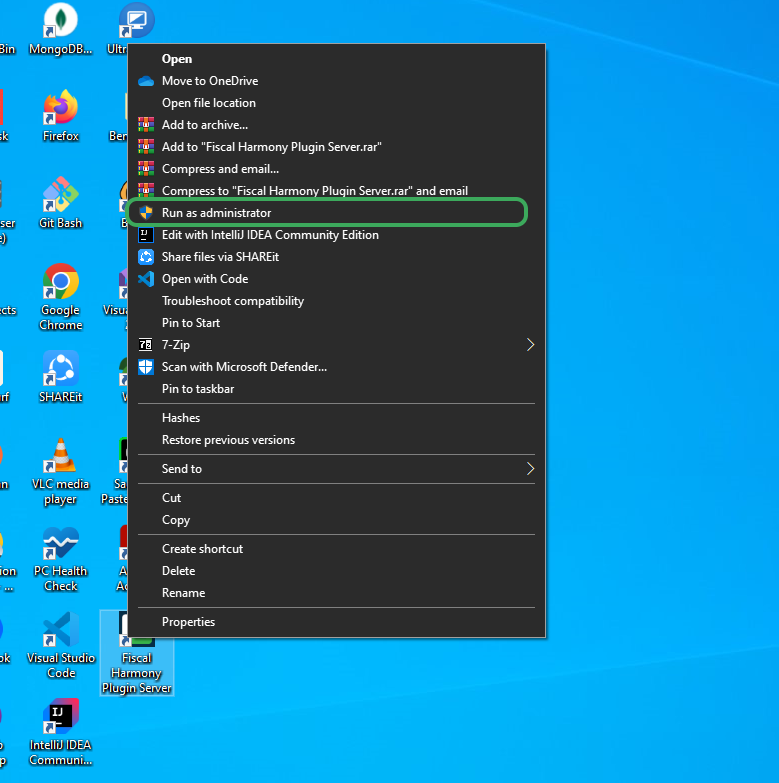
- Right click on the app and click "Run as administrator" option.
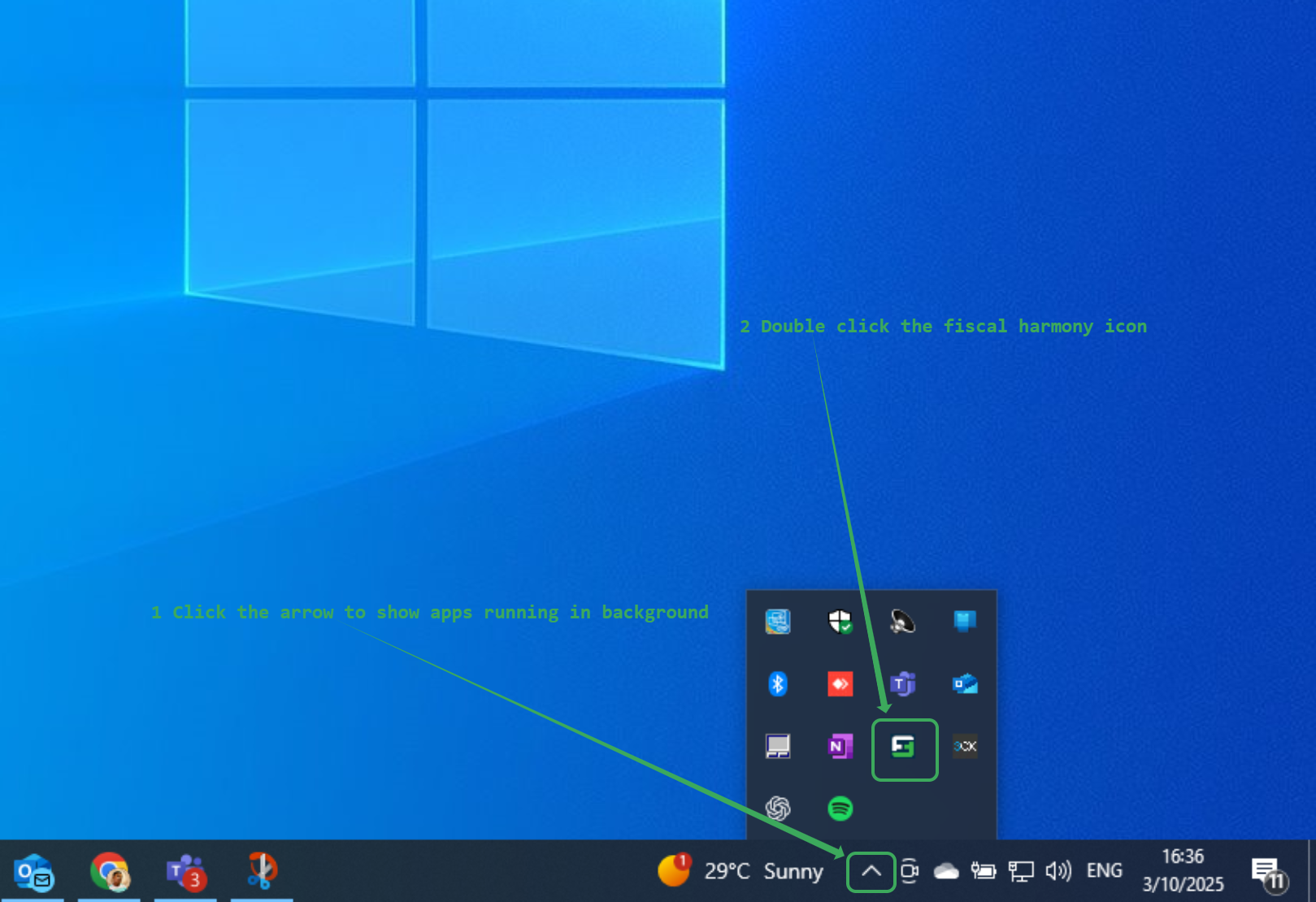
- Click the upward arrow on the taskbar to show the apps running in the background
- Double-click the fiscal harmony icon to show the credit notes status.
Step 2. Creating Credit Note
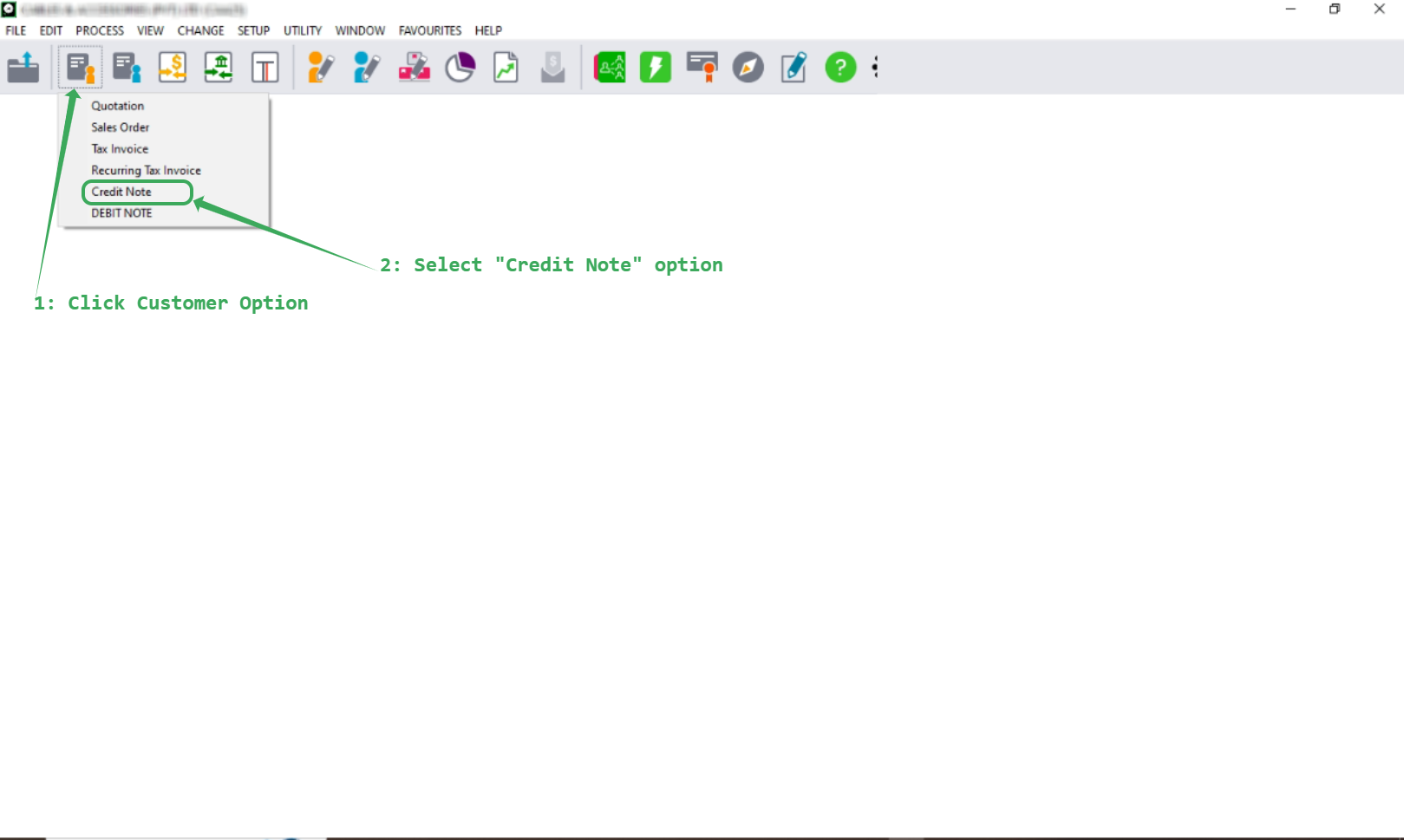
Please follow the following steps to create a credit note
- Click "Customer Option".
- Select "Credit Note".
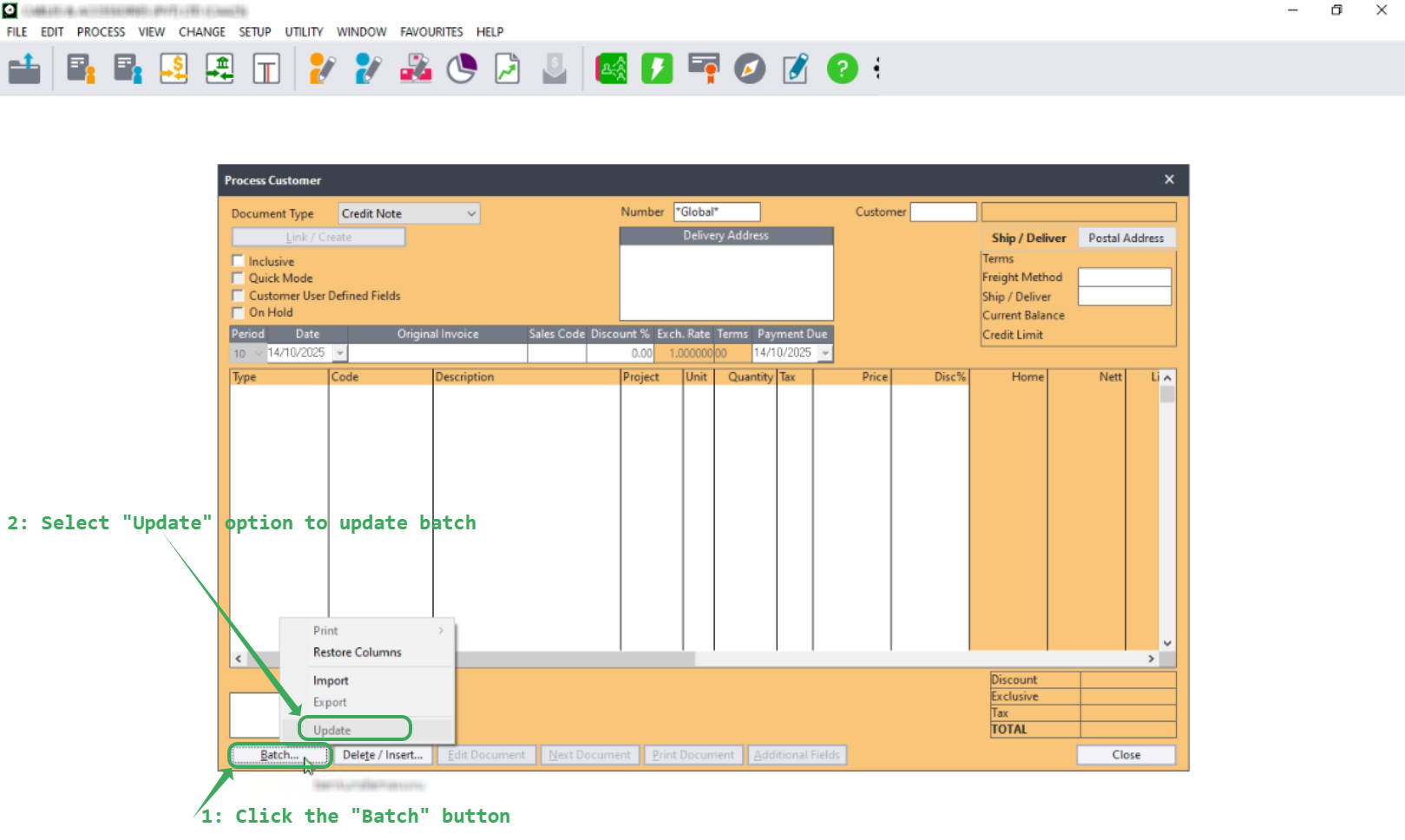
Step 3. Fiscalising the Credit Note
Please follow the steps below to fiscalise the credit note:
- Enter all the relevant details, including customer information, credit note details, line items, and any discounts.
- Make sure the credit note is linked to the original fiscalised invoice.
- Click the "Update" button to initialise the credit note for fiscalisation.
Points to Note
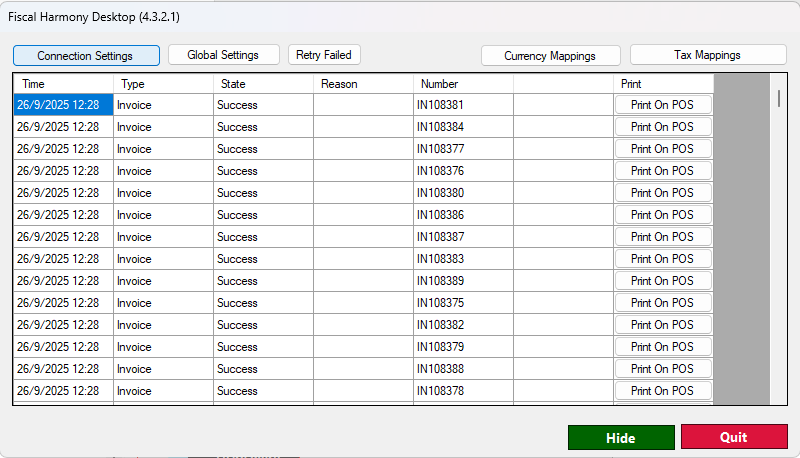
- After clicking “Update”, the credit note will appear in the DataGridView, where you can view its status: whether it has been fiscalised, failed to fiscalise, or is available for retry.
- If the credit note is successfully fiscalised, the “Reason” field will be empty.
- If the credit note fails to fiscalise, the reason for the failure will be displayed in the “Reason” column.
- Please note that the default path for fiscalised credit notes is:
C:\Users\Public\Documents\Pervasive\Downloads
Related Articles
Creating and Fiscalising invoice in Sage Pastel Express Accounting
Overview Please follow the following steps to fiscalise an invoice using Sage Pastel Express accounting. Step-by-step process Step 1. Opening Application Running the Fiscal Harmony plugin. Right-click on the app and click the "Run as administrator" ...Creating and Fiscalising Credit Notes in Palladium Accounting
Overview Please follow the following steps to fiscalise credit notes using Palladium accounting. Steps Step 1. Opening Application Running the Fiscal Harmony Plugin Right click on the app and click "Run as administrator" option. Click the upward ...Creating a Credit Note in Sage Pastel Partner
Overview When an invoice needs adjusting due to an error or a customer return, you must create a Credit Note to correctly update the customer’s account balance. Step-by-step process Here are the steps to create a Credit Note in Sage Pastel Step 1. ...Fiscalising a Credit Note in Sage Evolution
Overview Sage 200 Evolution is an Enterprise Resource Planning (ERP) software system designed to help businesses manage various aspects of their operations, including finance, customer relationships, and supplier relationships. It goes beyond ...Creating and Fiscalising invoice in Palladium Accounting
Overview Please follow the following steps to fiscalise an invoice using Palladium accounting. Steps Step 1. Opening Application Running the Fiscal Harmony Plugin Right click on the app and click "Run as administrator" option. Click the upward arrow ...