Creating a Credit Note in Sage Pastel Partner
Overview
When an invoice needs adjusting due to an error or a customer return, you must create a Credit Note to correctly update the customer’s account balance.
Step-by-step process
Here are the steps to create a Credit Note in Sage Pastel
Step 1. Creating the Credit Note
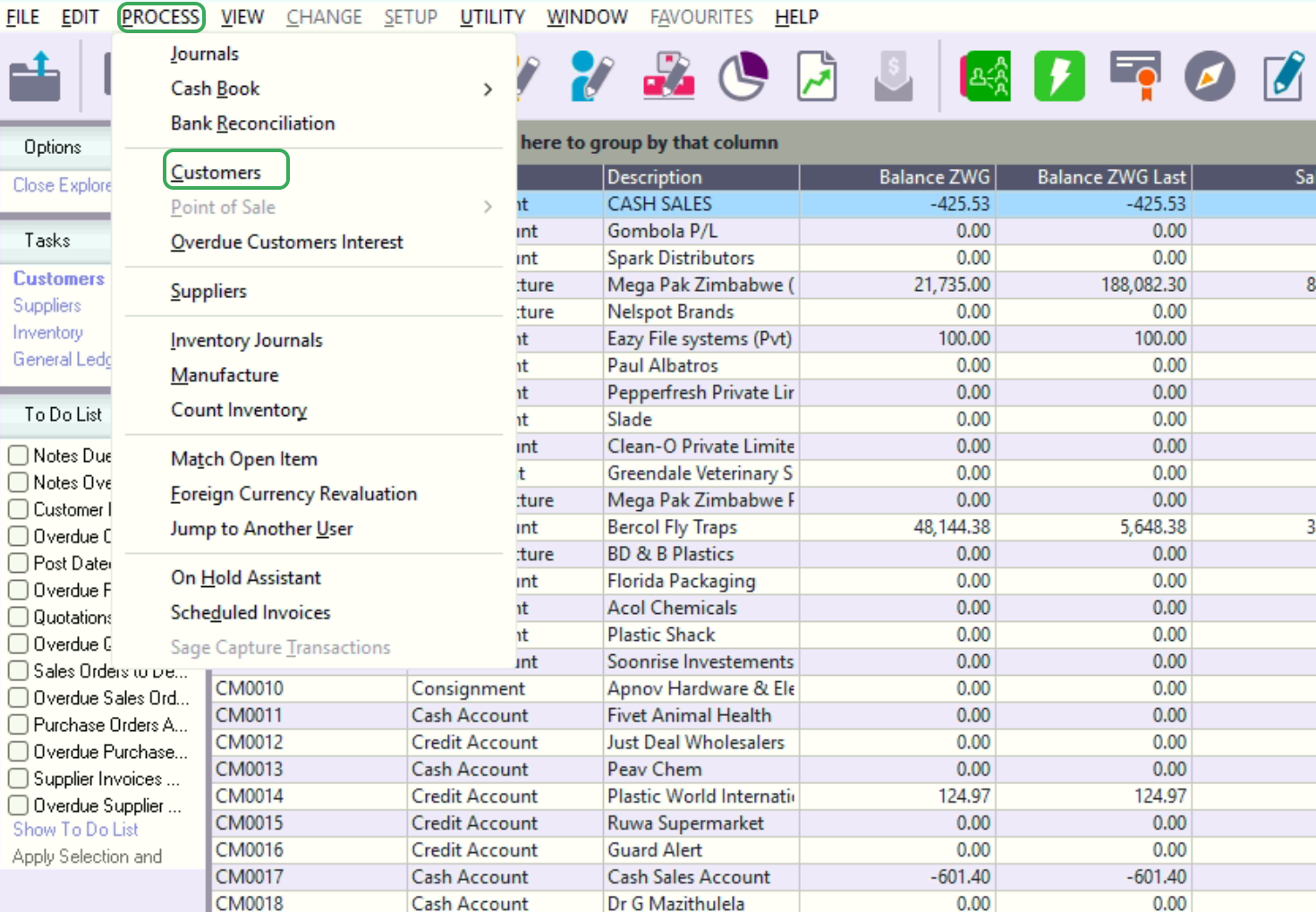
- Navigate to Process, then click Customers. This opens the Process Customer screen.
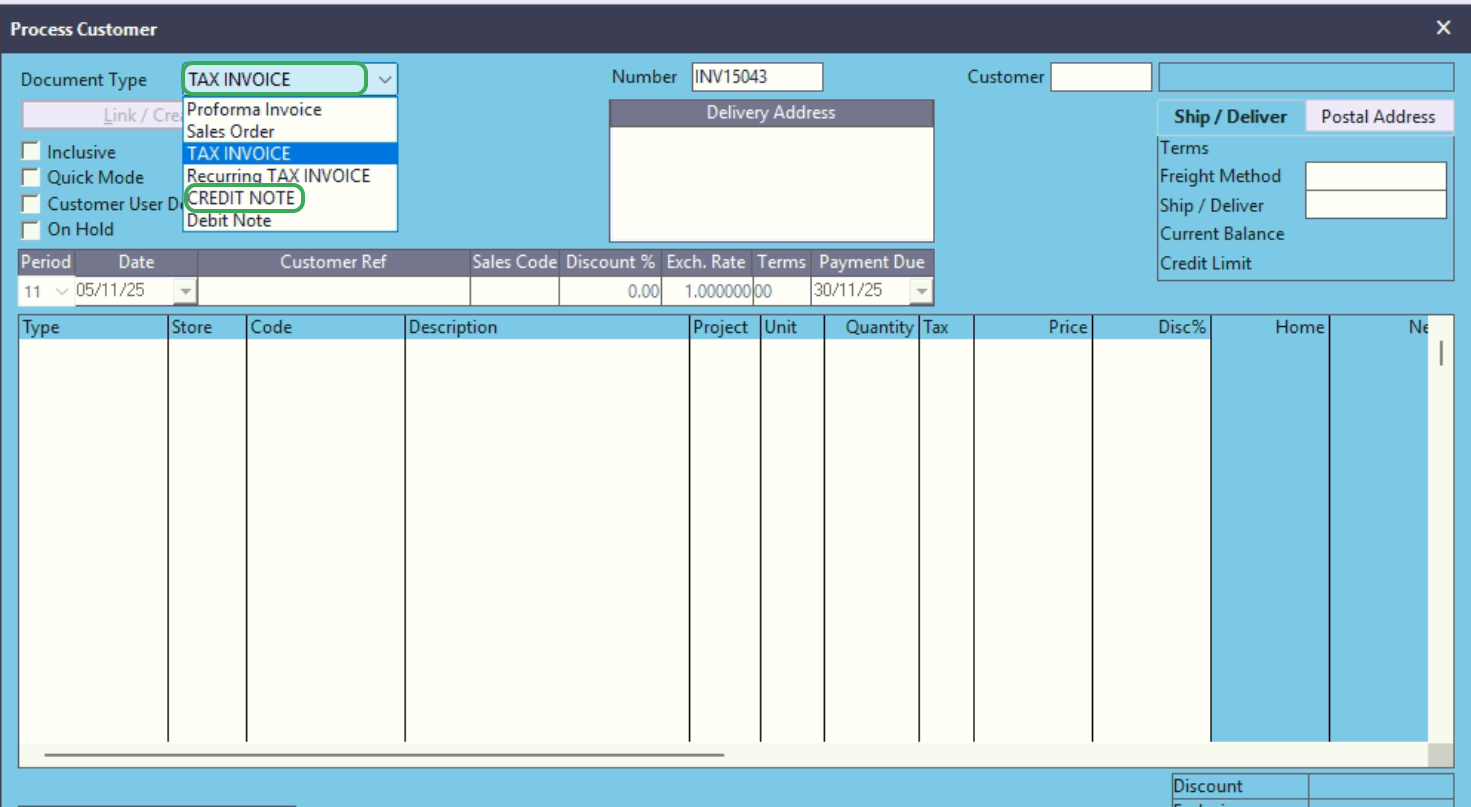
- On the Process Customer screen, click the Document Type dropdown and select Credit Note.
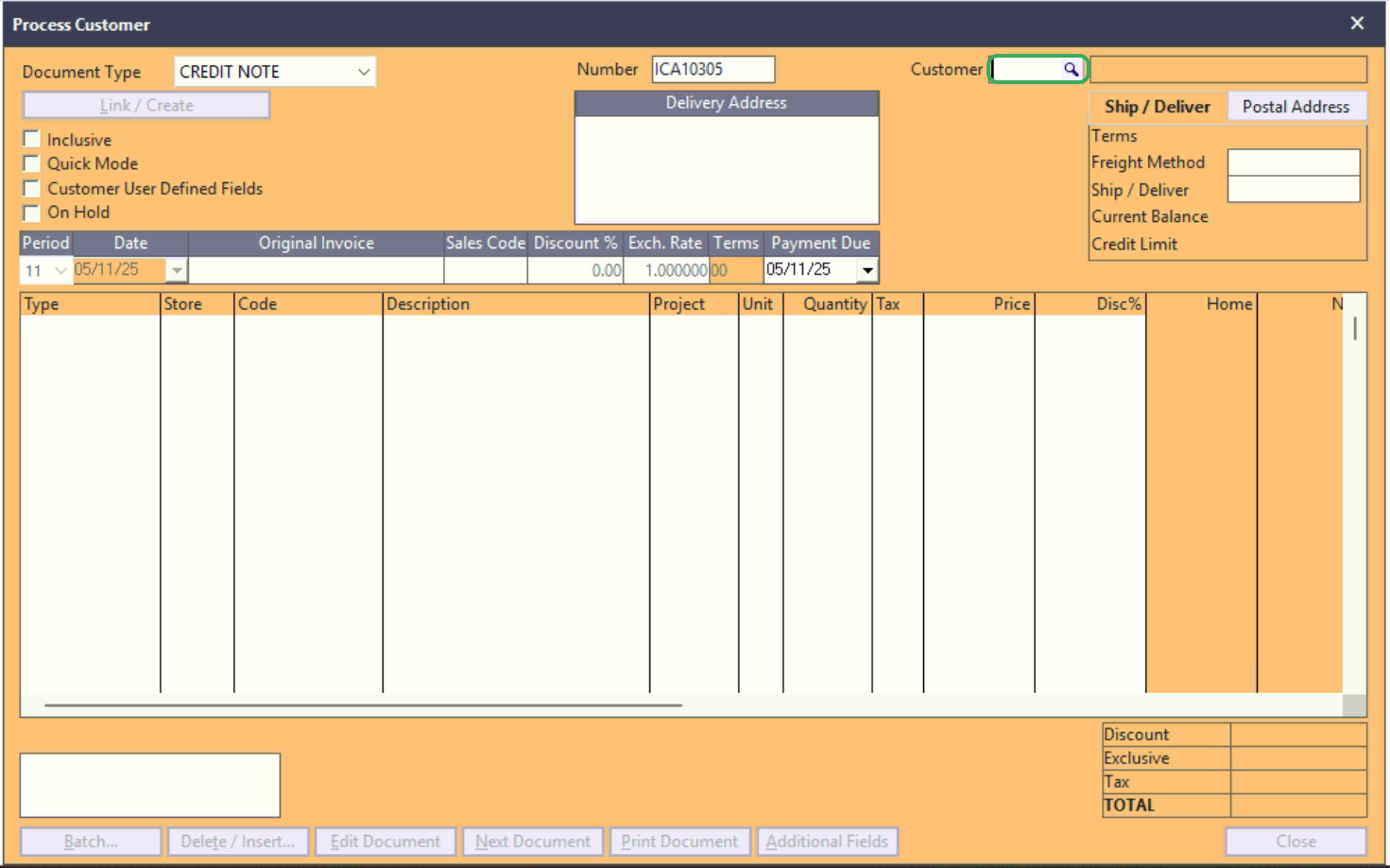
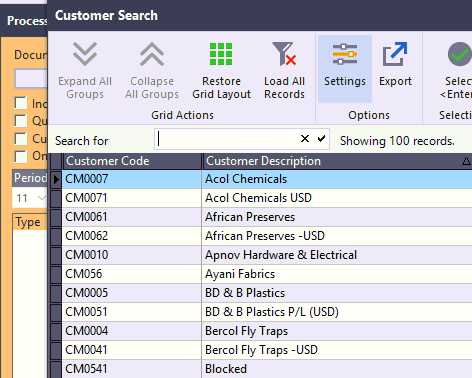
- Select the Customer by clicking the search icon next to the Customer field, and then choose the correct customer from the list.
- Click the Link / Create button
- Select "Link".
- Select the relevant original invoice number from the list of outstanding documents.
- Review the final Credit Note document to ensure all details are correct
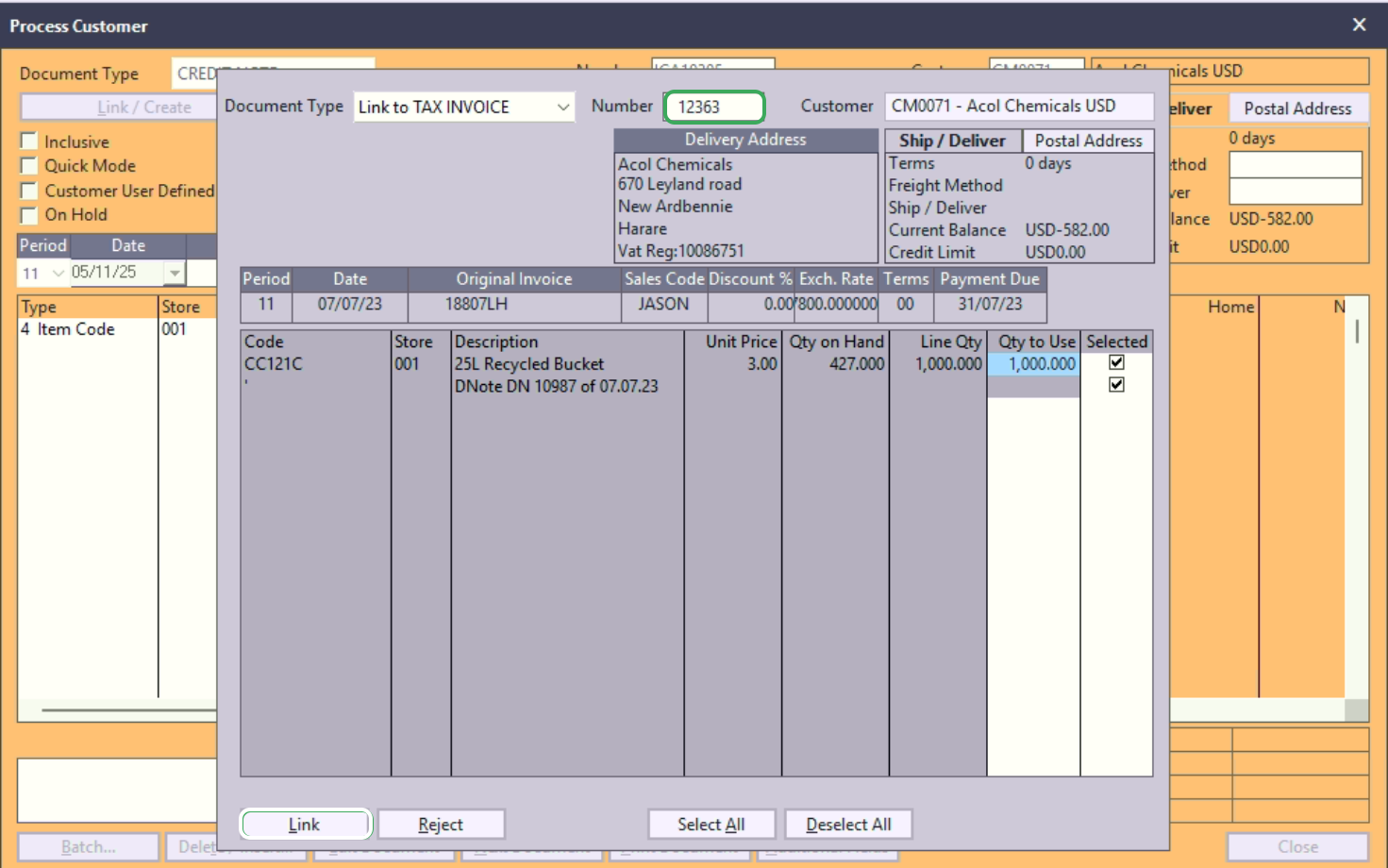
- The original invoice details will populate in the linking window.
- Verify the line items
- Click "Link".
Step 2. Fiscalising Credit Note
- Click Batch and Update to fiscalise the credit note.
- Open the Fiscal Harmony plugin to verify the fiscalised credit note if successful.
- When confirmed to be successful, you can open the folder where you keep your fiscalised invoices and find the PDF document of the fiscalised credit note.
Related Articles
Creating and Fiscalising Credit Notes in Sage Pastel Express Accounting
Overview Please follow the following steps to fiscalise credit notes using Sage Pastel Express Accounting. Step-by-step process Step 1. Opening the application Running the Fiscal Harmony Plugin Right click on the app and click "Run as administrator" ...Creating and Fiscalising invoice in Sage Pastel Express Accounting
Overview Please follow the following steps to fiscalise an invoice using Sage Pastel Express accounting. Step-by-step process Step 1. Opening Application Running the Fiscal Harmony plugin. Right-click on the app and click the "Run as administrator" ...Fiscalising a Credit Note in Sage Online
Overview Sometimes an error is made after an invoice has been created, or a customer may return goods. In this case, you need to create a Credit Note to correct or reduce the customer's balance. Step-by-step process Step 1. Locate the Original ...Fiscalising a Credit Note in Sage Evolution
Overview Sage 200 Evolution is an Enterprise Resource Planning (ERP) software system designed to help businesses manage various aspects of their operations, including finance, customer relationships, and supplier relationships. It goes beyond ...Creating and Fiscalising Credit Notes in Palladium Accounting
Overview Please follow the following steps to fiscalise credit notes using Palladium accounting. Steps Step 1. Opening Application Running the Fiscal Harmony Plugin Right click on the app and click "Run as administrator" option. Click the upward ...