Fiscalising a Credit Note in Sage Online
Overview
Sometimes an error is made after an invoice has been created, or a customer may return goods. In this case, you need to create a Credit Note to correct or reduce the customer's balance.
Step-by-step process
Step 1. Locate the Original Invoice
- Go to your list of invoices in your Sage Online.
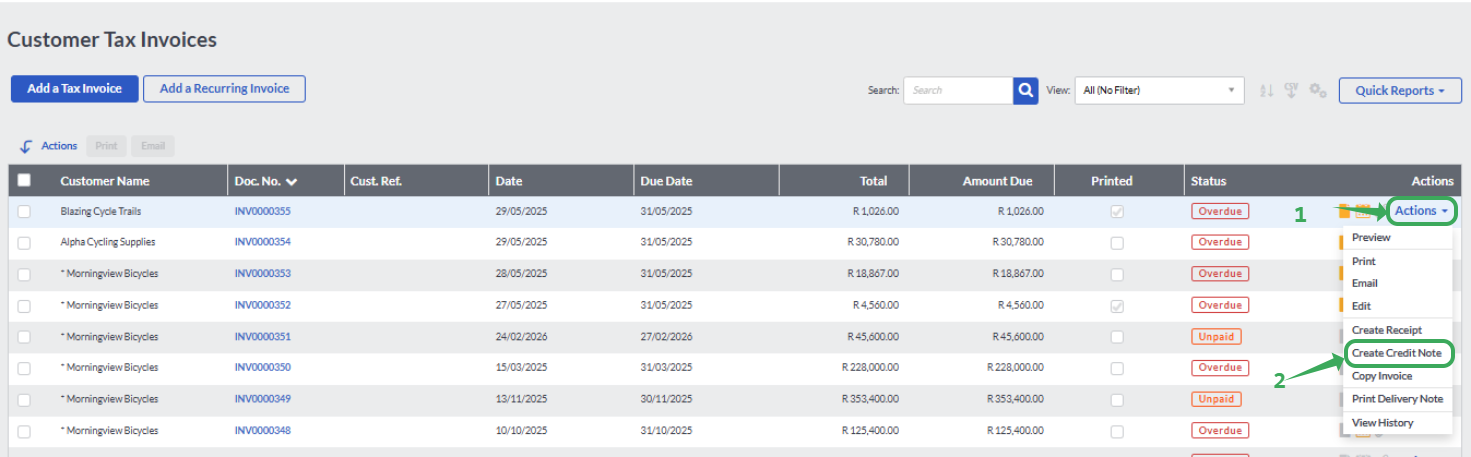
- Click on the specific invoice you need to create the credit note for.
Step 2. Start the Credit Note Process
- Once you have found the invoice, look for the Actions button ( in the top right corner).
- Click on Actions, and then select Create Credit Note from the menu.
Step 3. Review and Justify the Credit Note
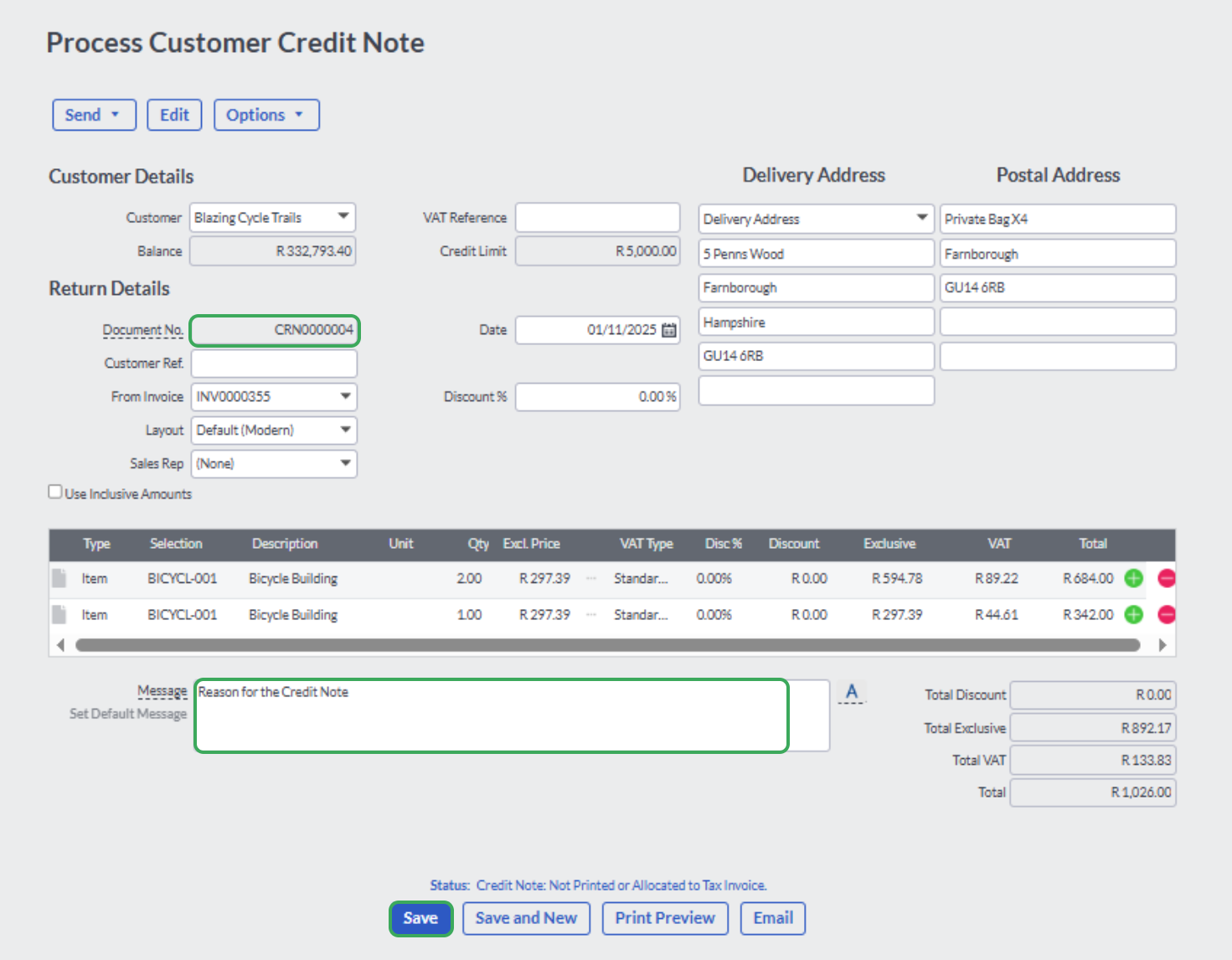
- The system will instantly change the document status from Invoice to Credit Note.
- It's important to write the reason for creating the credit note. For example, it might be an incorrect item quantity, a wrong address, or an invoice error. This is important for record-keeping.
Step 4. Fiscalise and Save
- After reviewing the details and entering the reason, click Save.
- By clicking Save, you are fiscalising the credit note.
Step 5. Verify the Credit Note
- The system will automatically take you to the Credit Notes page. You will find your newly created and fiscalised credit note attached.
- Look for the yellow pin icon - this symbol confirms that the credit note has been successfully fiscalised.

Related Articles
Creating and Fiscalising Credit Notes in Sage Pastel Express Accounting
Overview Please follow the following steps to fiscalise credit notes using Sage Pastel Express Accounting. Step-by-step process Step 1. Opening the application Running the Fiscal Harmony Plugin Right click on the app and click "Run as administrator" ...Fiscalising a Credit Note in Sage Evolution
Overview Sage 200 Evolution is an Enterprise Resource Planning (ERP) software system designed to help businesses manage various aspects of their operations, including finance, customer relationships, and supplier relationships. It goes beyond ...Fiscalising an Invoice in Sage Online
Overview Producing a fiscal tax invoice is an important step for every business. It ensures your clients can easily view, verify and scan their invoices for authenticity and ZIMRA compliance. Prerequisites Before you begin, make sure you have the ...Creating and Fiscalising Credit Notes in Palladium Accounting
Overview Please follow the following steps to fiscalise credit notes using Palladium accounting. Steps Step 1. Opening Application Running the Fiscal Harmony Plugin Right click on the app and click "Run as administrator" option. Click the upward ...Creating a Credit Note in Sage Pastel Partner
Overview When an invoice needs adjusting due to an error or a customer return, you must create a Credit Note to correctly update the customer’s account balance. Step-by-step process Here are the steps to create a Credit Note in Sage Pastel Step 1. ...