Fiscalising an Invoice in Sage Online
Overview
Producing a fiscal tax invoice is an important step for every business. It ensures your clients can easily view, verify and scan their invoices for authenticity and ZIMRA compliance.
Prerequisites
Before you begin, make sure you have the following:
- TIN Number
- VAT Number
- HS Codes (You can refer to the published HS Code document for guidance)
Step-by-step Process
Step 1. Set up Buyer Information
- Start by logging into your Sage Online account.
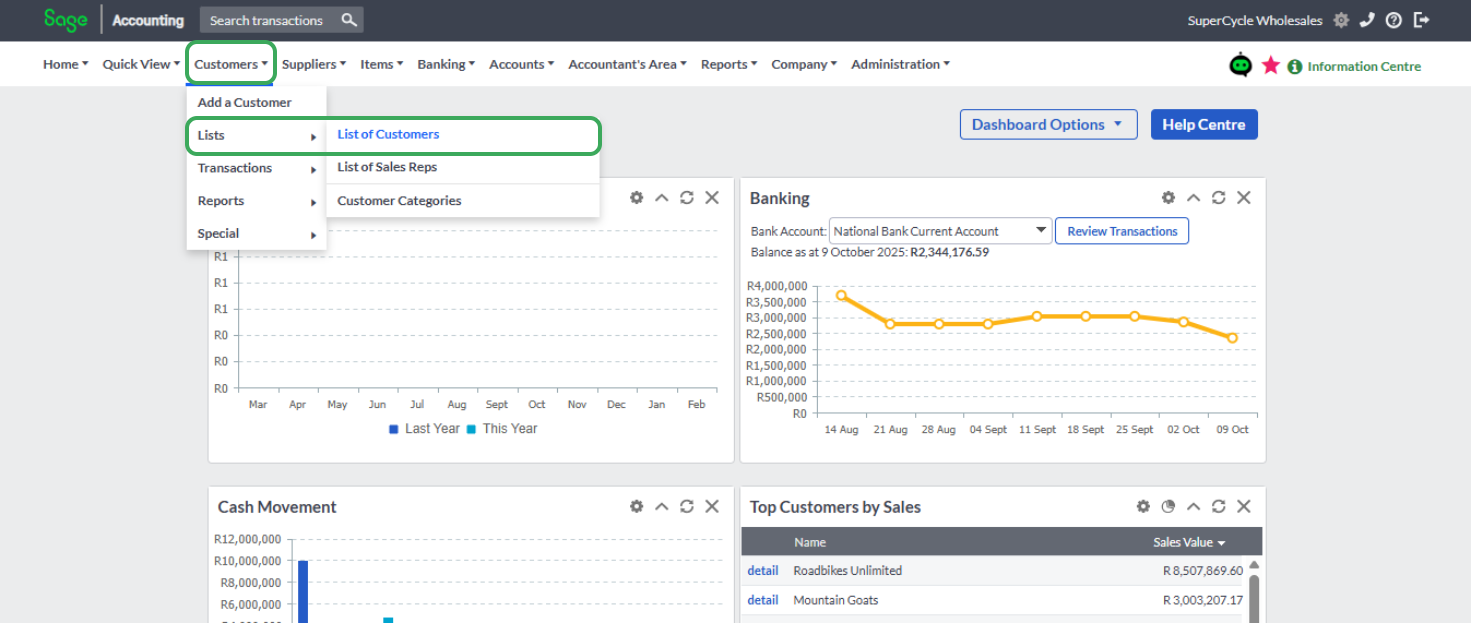
- Once you’re in, navigate to Customers → List → List of Customers. This is where you’ll find all your existing clients.
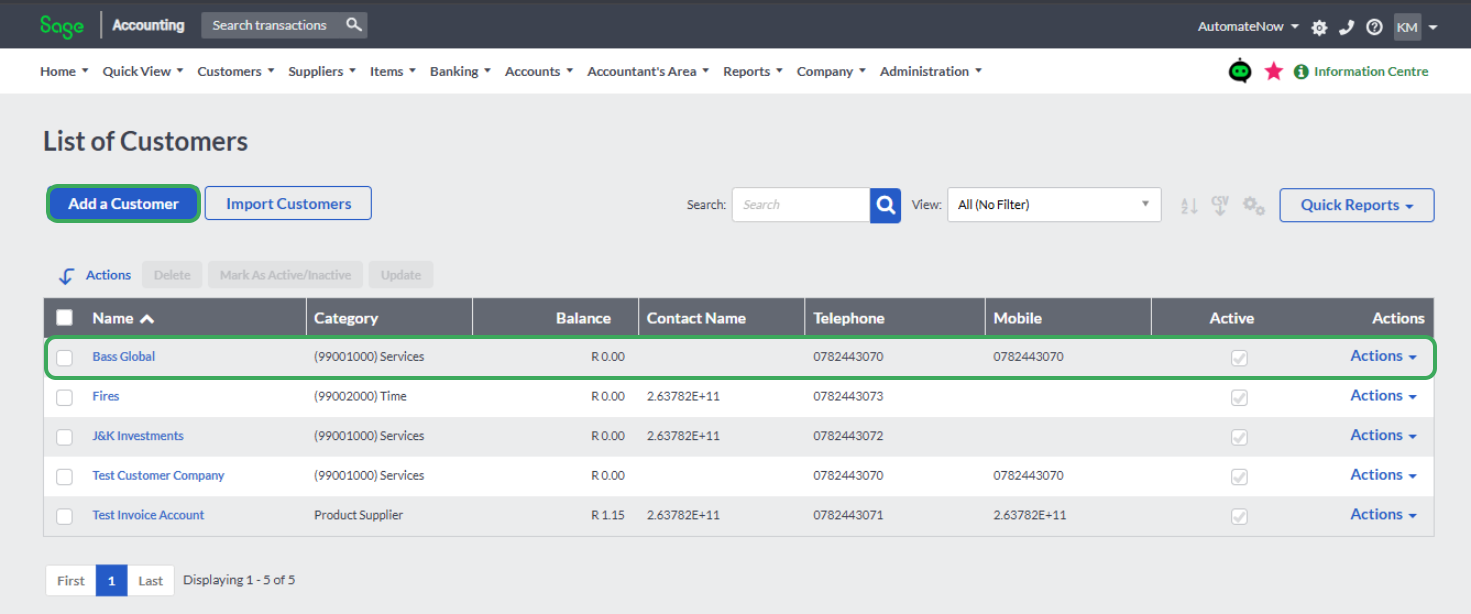
- Here, you can view all your customer records. If the customer you want to invoice already exists, simply click on their name. If not, click Add a Customer and fill in their details such as name, contact information, and address.
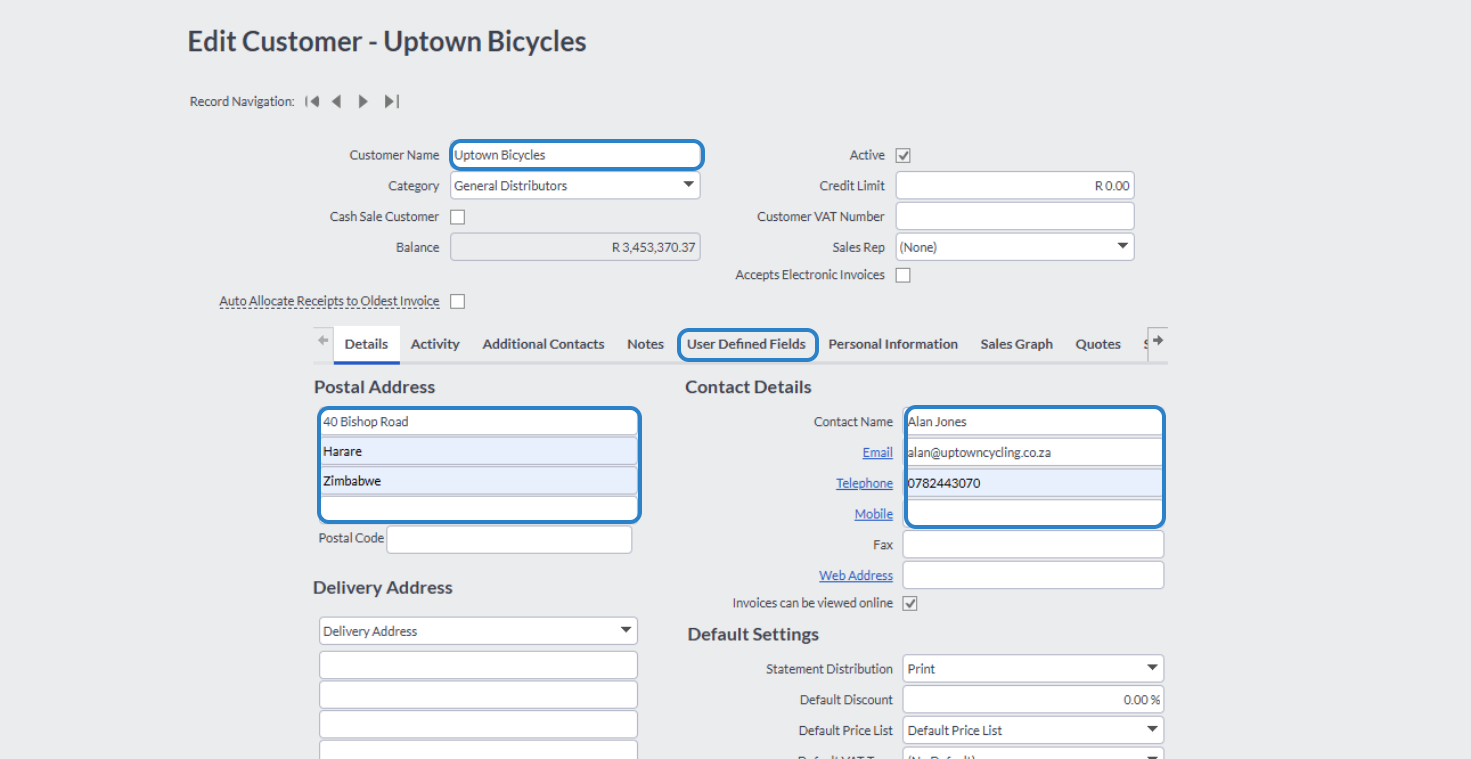
- When the customer profile opens, check that all the highlighted fields (usually in blue) are properly filled in. This includes key information like their physical address, phone number, and email address.
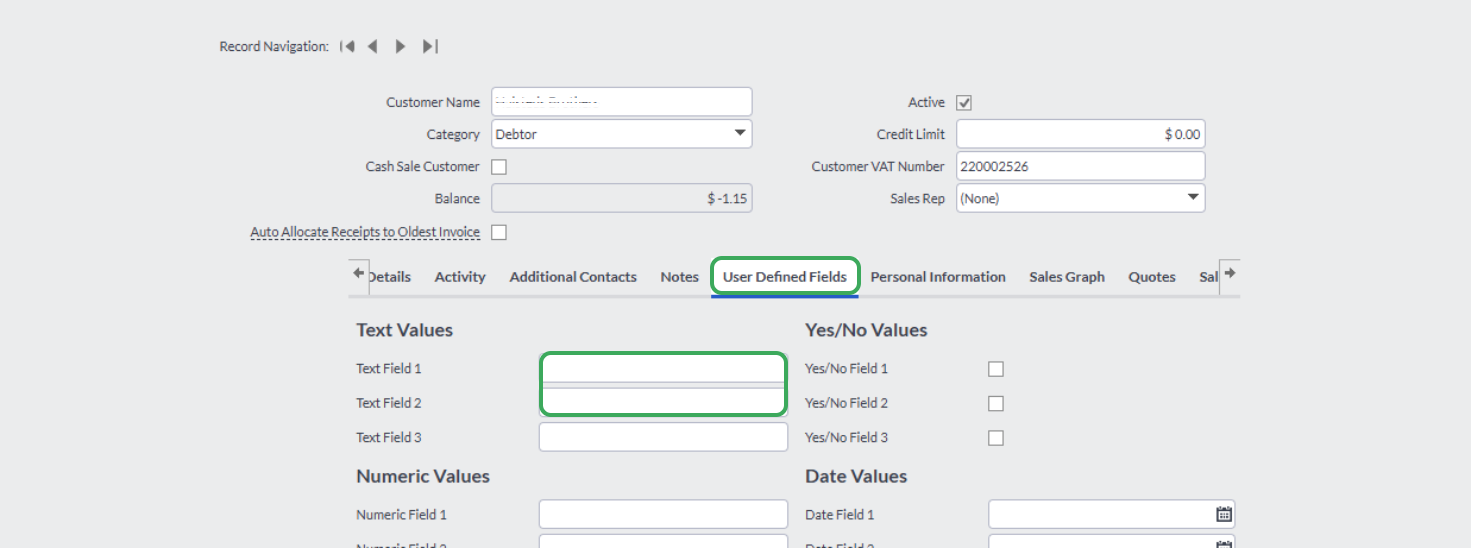
- Next, make sure to add your client’s TIN Number and VAT Number in the highlighted fields. These two fields are very important — without them, the invoice won’t be fiscalised successfully.
Step 2. Create the invoice
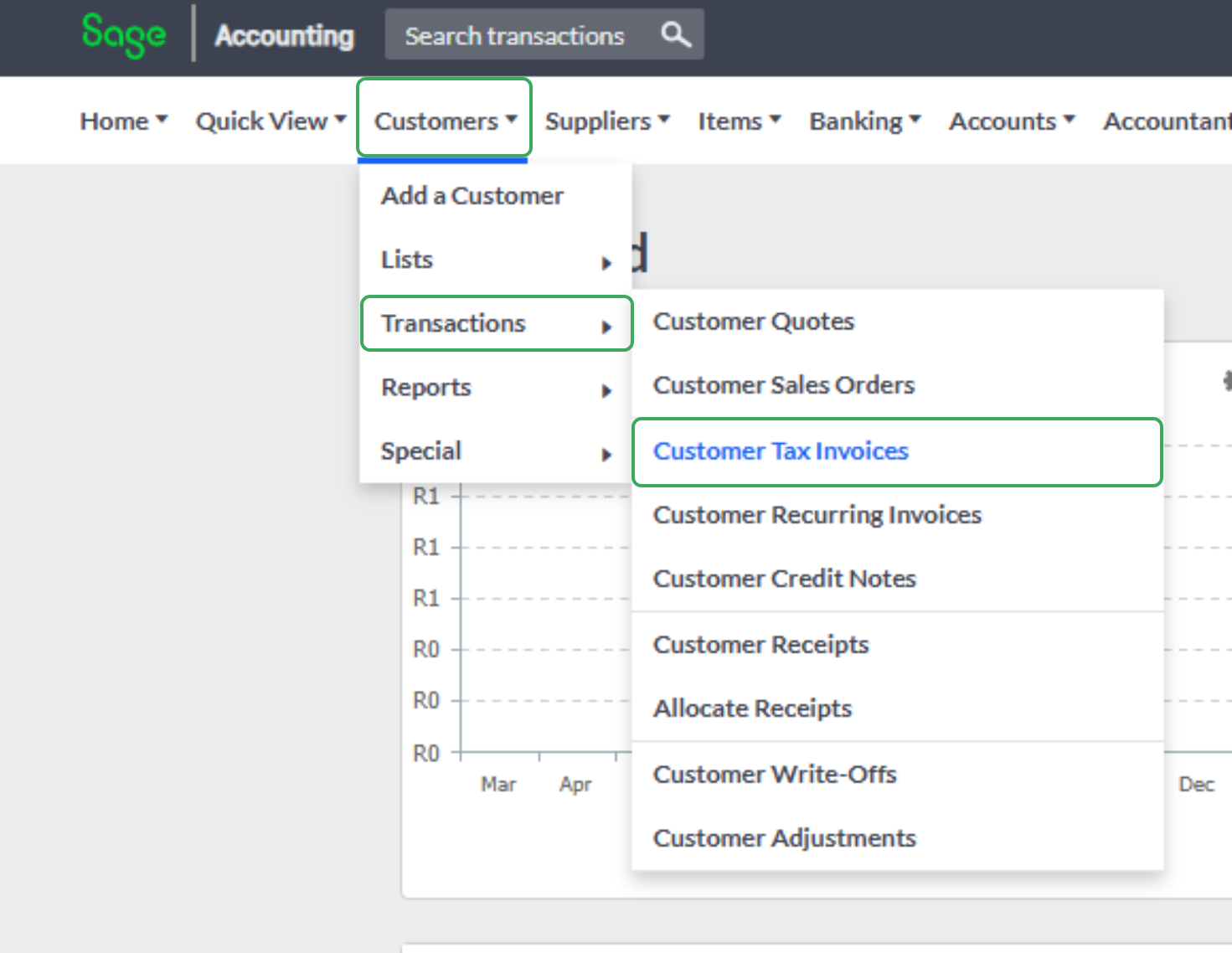
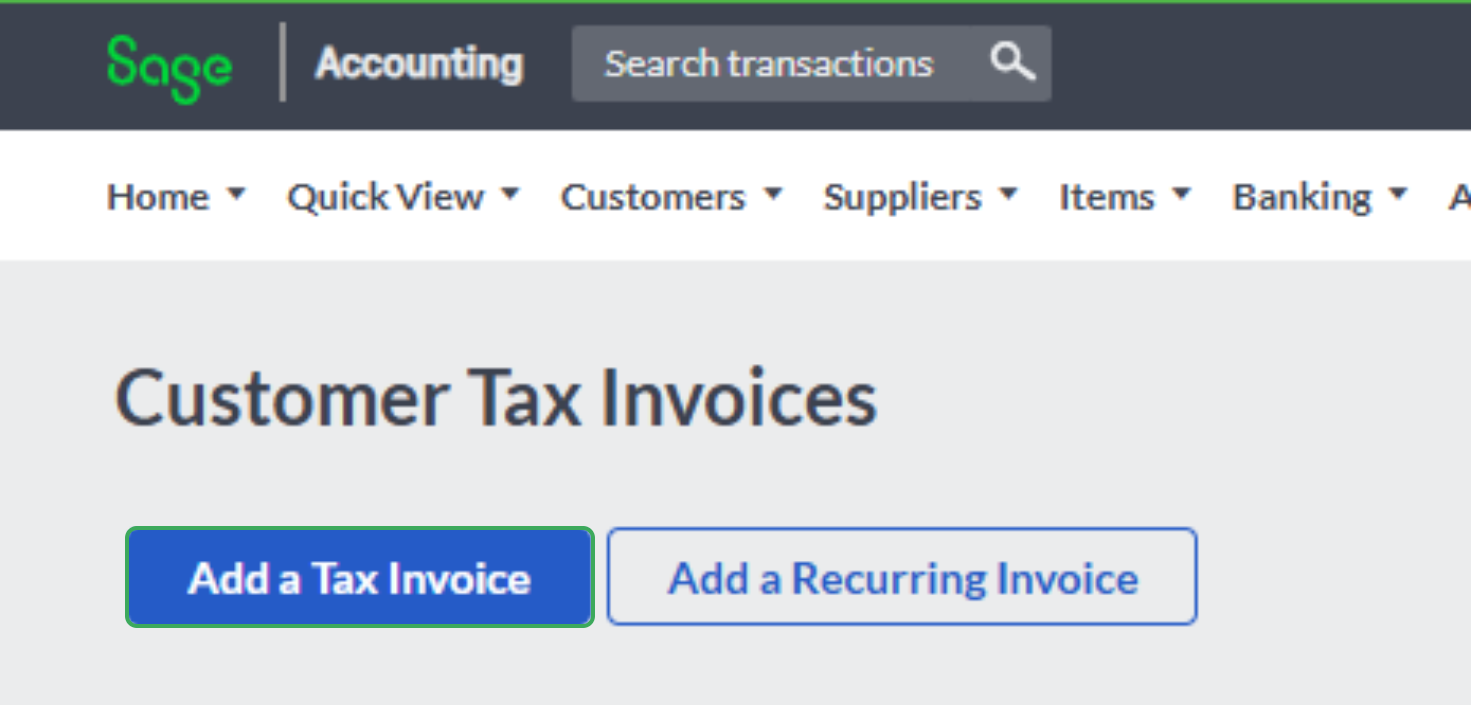
- Once that’s done, it’s time to create your invoice. Go to Customers → Transactions → Customer Tax Invoices, then click “Add a Tax Invoice.” This will open the invoice form where you can enter all the necessary details.
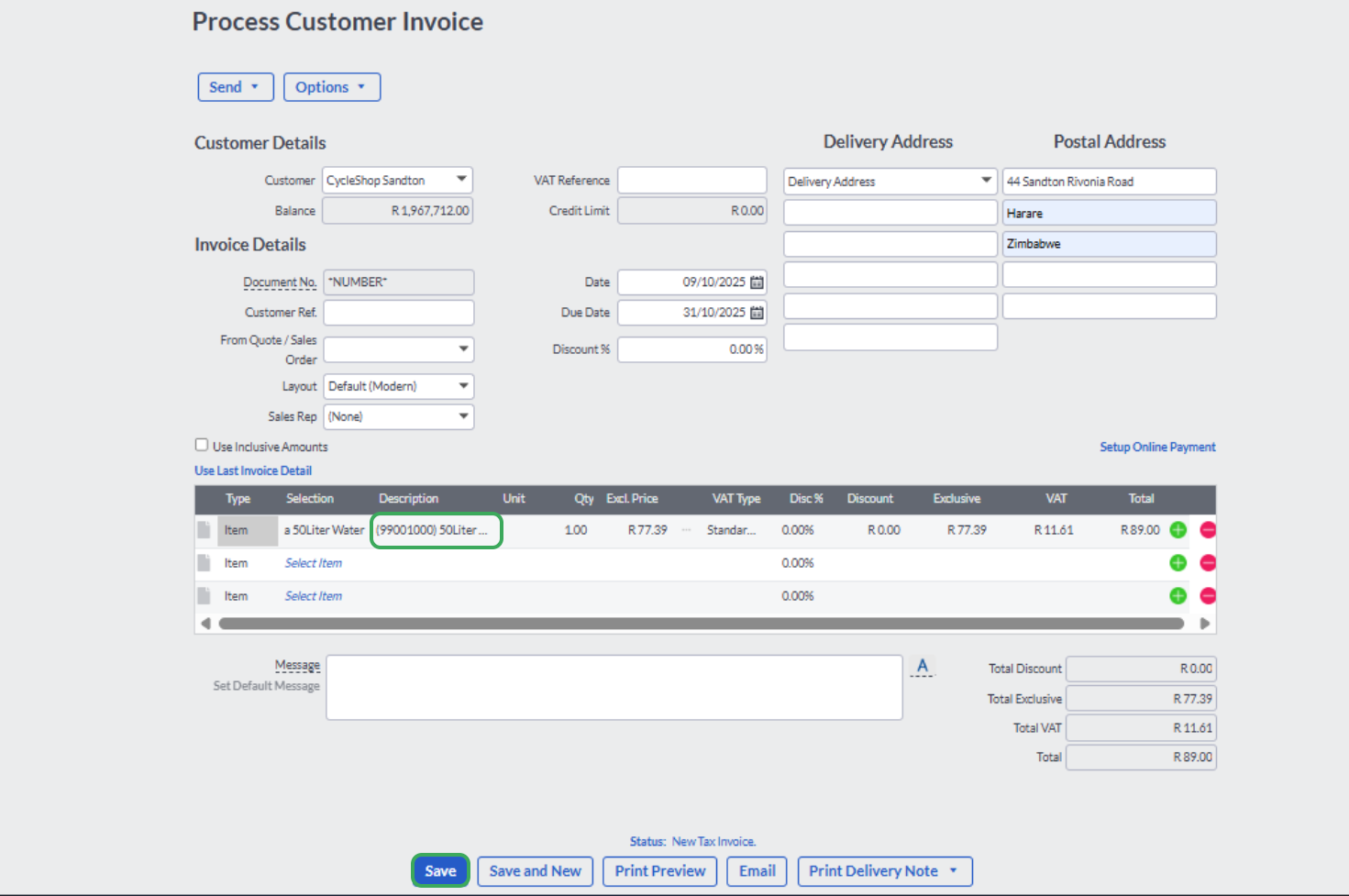
- Fill in the invoice details as you normally would, but make sure that each item includes the correct HS Code in the description.
Step 3. Getting fiscalising Invoice
- Check everything and when you are ready to fiscalise, click Save.
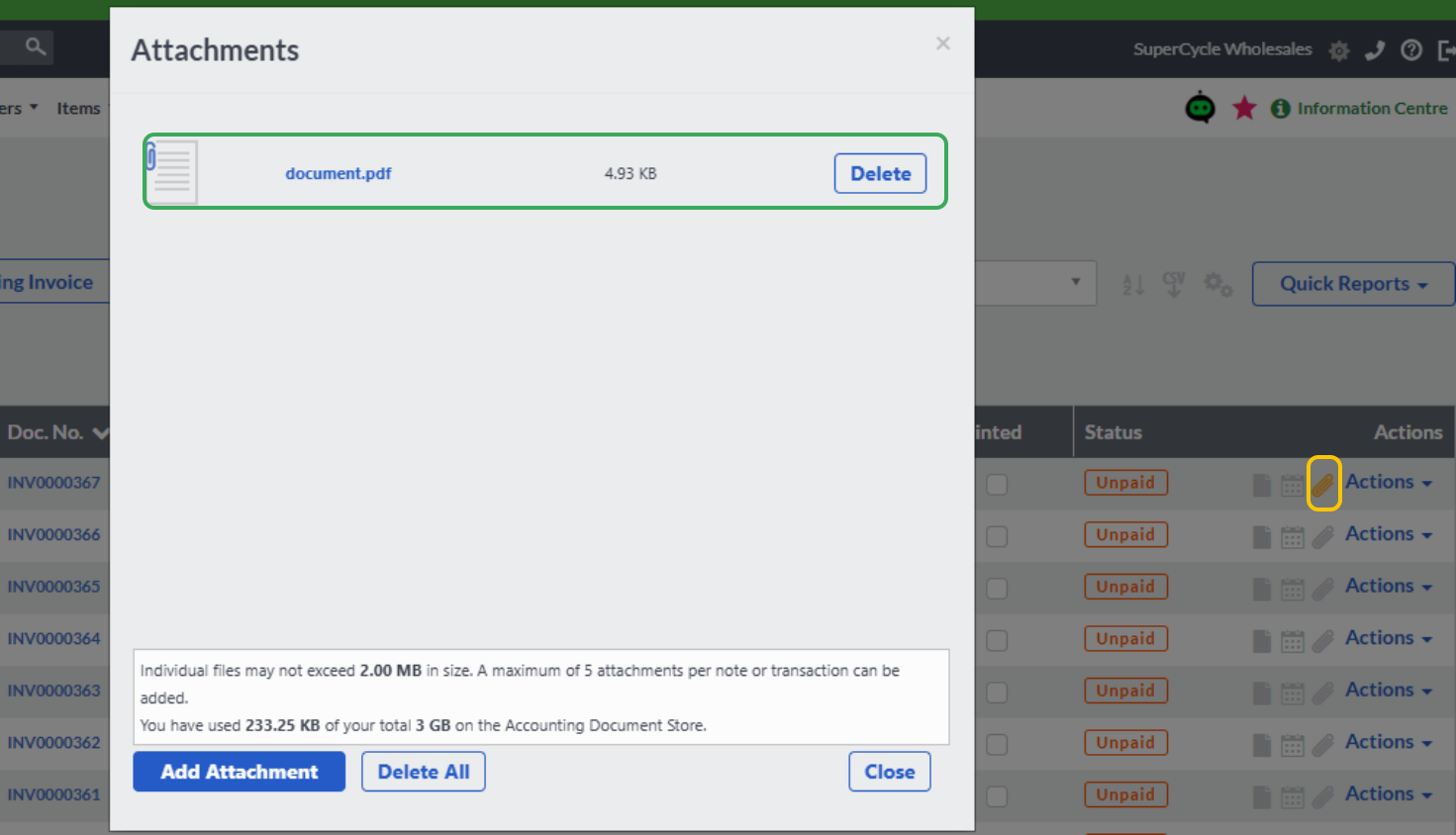
- After saving, go back to your list of invoices. You should now see your newly created fiscalised PDF invoice attached with a yellow icon.

- To download your fiscalised invoice, click on the yellow icon next to it. Then select the pin icon, and a pop-up window will appear allowing you to download the fiscalised version of your invoice.
Related Articles
Fiscalising a Credit Note in Sage Online
Overview Sometimes an error is made after an invoice has been created, or a customer may return goods. In this case, you need to create a Credit Note to correct or reduce the customer's balance. Step-by-step process Step 1. Locate the Original ...Creating and Fiscalising Credit Notes in Sage Pastel Express Accounting
Overview Please follow the following steps to fiscalise credit notes using Sage Pastel Express Accounting. Step-by-step process Step 1. Opening the application Running the Fiscal Harmony Plugin Right click on the app and click "Run as administrator" ...Fiscalising an Invoice in Sage Pastel Partner
Overview Step by step process To be able to create an invoice, log in to Sage Pastel. Step 1. Create Invoice Navigate to Customers > Documents > Fiscal Tax Invoice. Select the correct Customer from the list. Enter the Invoice Date, Reference Number, ...Fiscalising an Invoice in Sage Evolution
Overview Sage 200 Evolution is an Enterprise Resource Planning (ERP) software system designed to help businesses manage various aspects of their operations, including finance, customer relationships, and supplier relationships. It goes beyond ...Creating and Fiscalising invoice in Sage Pastel Express Accounting
Overview Please follow the following steps to fiscalise an invoice using Sage Pastel Express accounting. Step-by-step process Step 1. Opening Application Running the Fiscal Harmony plugin. Right-click on the app and click the "Run as administrator" ...