Fiscalising an Invoice in Sage Evolution
Overview
Sage 200 Evolution is an Enterprise Resource Planning (ERP) software system designed to help businesses manage various aspects of their operations, including finance, customer relationships, and supplier relationships. It goes beyond traditional accounting software, offering a range of features and add-on modules to support different business needs. In Sage Evolution, creating a sales invoice involves entering customer details, invoice date, reference, and item details like description, price, and tax rate.
Steps to Fiscalise
Step 1. Creating Invoice
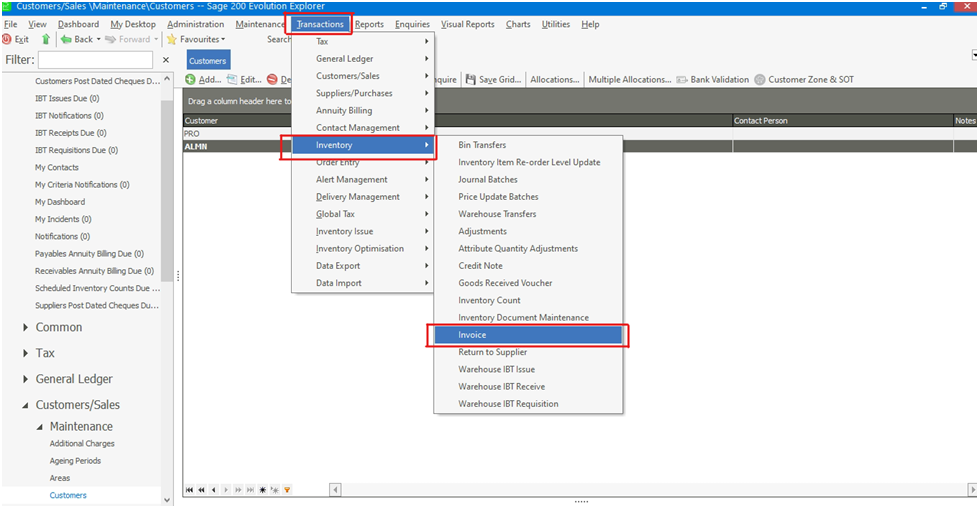
- In the Sage Evolution Application, you will access the Invoice.
- Click on the ‘Transactions’ tab at the top of the application
- In the drop-down, select the ‘Inventory’ option
- Select the ‘Invoice’ option.
- A new invoice window will pop up for editing as shown below.
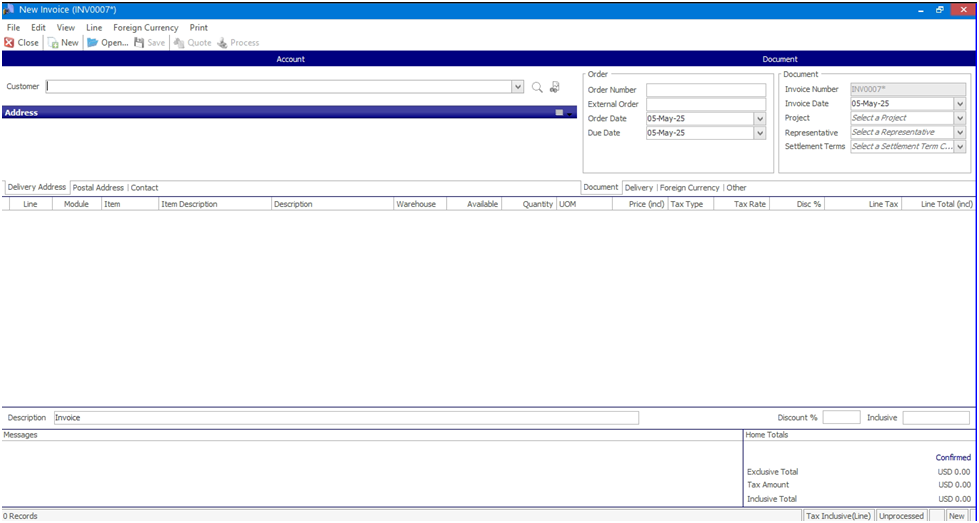
- You will now select the client you want to create an invoice for.
- Navigate to the ‘Customer’ field and click on it.
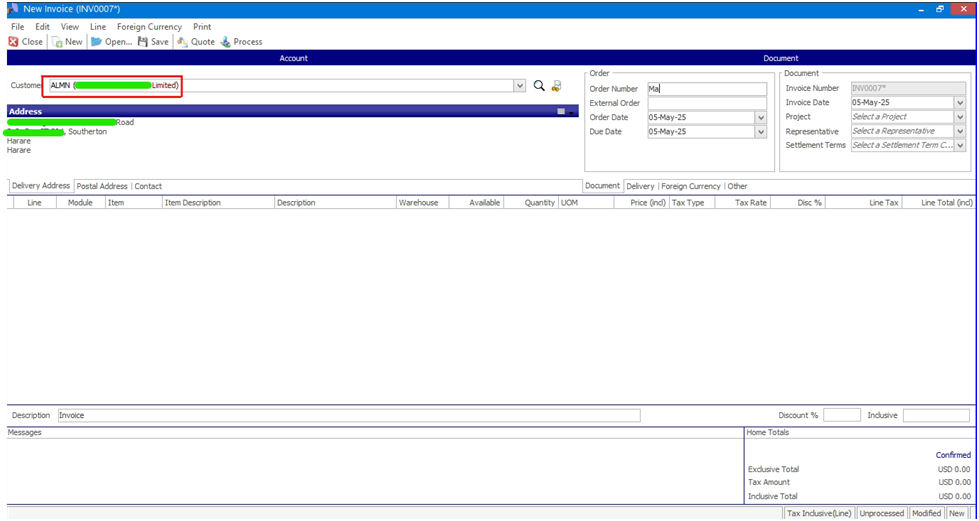
- A dropdown menu will appear showing your client list. Select the client you need to invoice for.
- Once selected, the client’s name will now appear in the ‘Customer’ field as shown below.
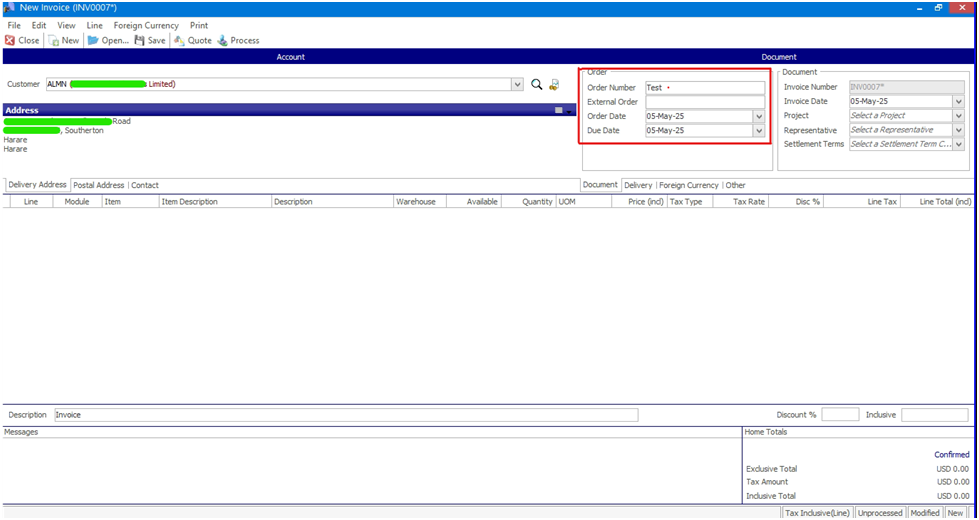
- The order details can now be entered into the ‘Order’ fields that are highlighted below.
- The ‘Date’ fields will automatically be filled unless you wish to alter the date
- The invoice line will automatically appear for population.
- You will be able to choose the product item you want to add to the invoice in the ‘Item’ field.
- Products will appear in the drop-down menu.
- Note: that products will appear on the ‘Item’ drop-down menu only if you have already saved the product details within the system itself before invoicing.
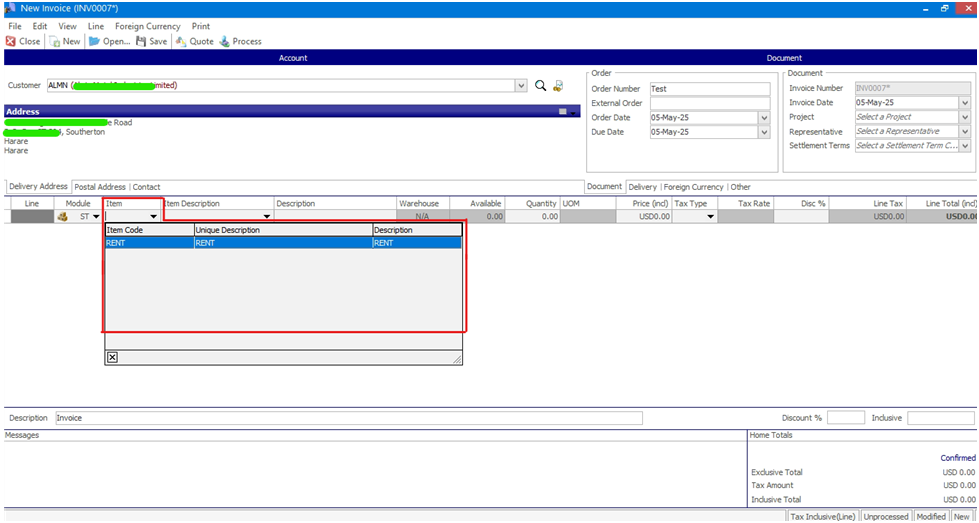
- An item description will be added in the ‘Description’ field. This is where you will enter the suitable product description to identify the product.
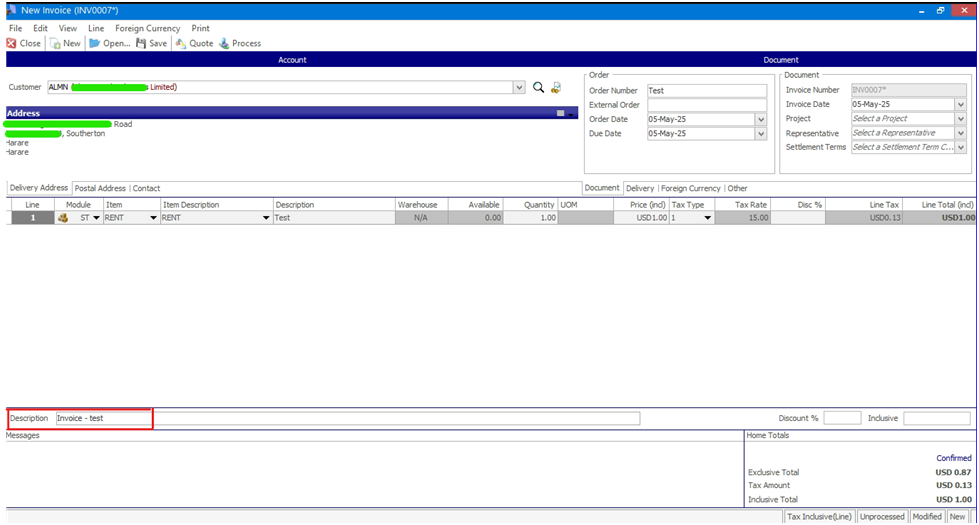
- You can add a ‘Description’ to the invoice being created in the highlighted field. This will simply describe the nature of your invoice.
Step 2. Fiscalising Invoice
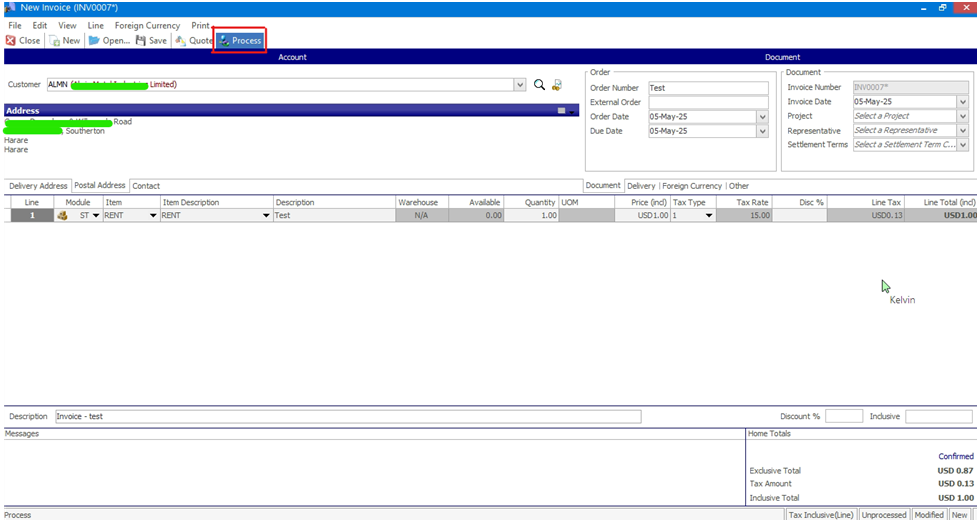
- Click the ‘Process’ button at the top to process your invoice.
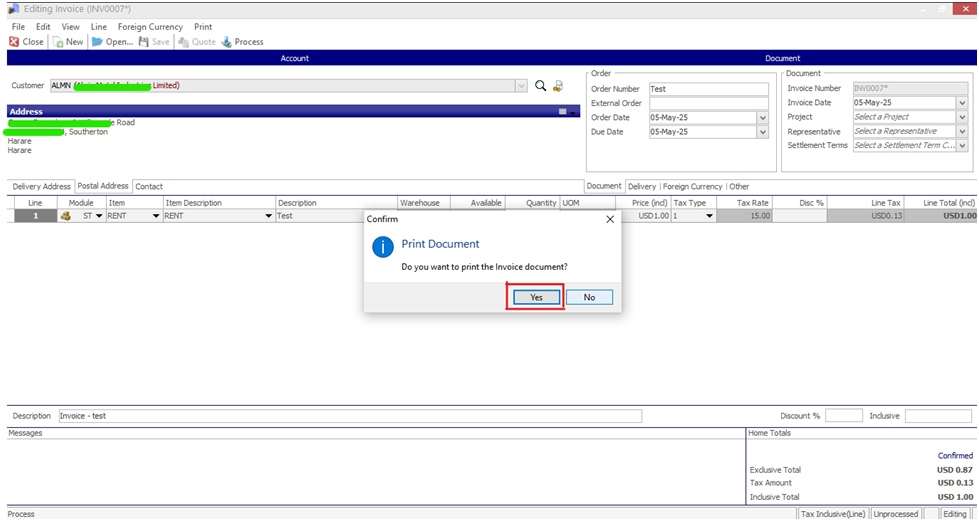
- Once the invoice has been processed, you will print the document. A pop-up message will appear asking you if you would like to print the invoice document. You will click on ‘Yes’.
- In your taskbar, the file explorer icon will turn orange/amber to show that your invoice has been downloaded to your files.
- Click on the file explorer icon to access your invoice.
- The folder with your invoices will appear

- The invoice you have fiscalised will appear as highlighted, as shown below.
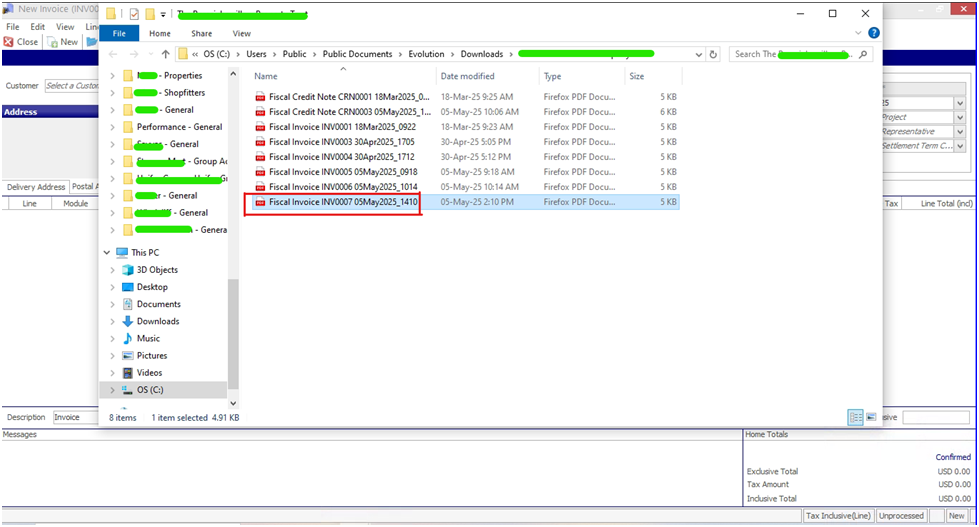
- Double-click on it to view it.
- The fiscalised invoice will open.
- The invoice will show both your seller details on the left side and the buyer details on the right.
- The invoice will also show your fiscal device details and the date and time when you also fiscalised.
- The product details will also appear.
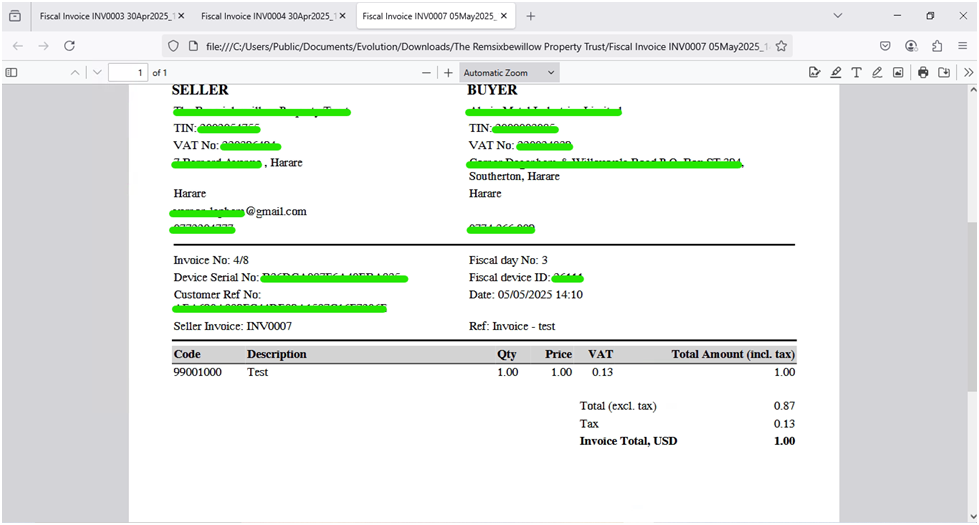
You have successfully fiscalised your invoice in Sage Evolution.
Related Articles
Fiscalising a Credit Note in Sage Evolution
Overview Sage 200 Evolution is an Enterprise Resource Planning (ERP) software system designed to help businesses manage various aspects of their operations, including finance, customer relationships, and supplier relationships. It goes beyond ...Creating and Fiscalising Credit Notes in Sage Pastel Express Accounting
Overview Please follow the following steps to fiscalise credit notes using Sage Pastel Express Accounting. Step-by-step process Step 1. Opening the application Running the Fiscal Harmony Plugin Right click on the app and click "Run as administrator" ...Fiscalising an Invoice in Sage Pastel Partner
Overview Step by step process To be able to create an invoice, log in to Sage Pastel. Step 1. Create Invoice Navigate to Customers > Documents > Fiscal Tax Invoice. Select the correct Customer from the list. Enter the Invoice Date, Reference Number, ...Fiscalising an Invoice in Sage Online
Overview Producing a fiscal tax invoice is an important step for every business. It ensures your clients can easily view, verify and scan their invoices for authenticity and ZIMRA compliance. Prerequisites Before you begin, make sure you have the ...Fiscalising a Credit Note in Sage Online
Overview Sometimes an error is made after an invoice has been created, or a customer may return goods. In this case, you need to create a Credit Note to correct or reduce the customer's balance. Step-by-step process Step 1. Locate the Original ...