How to Troubleshoot "Could not Connect to Database" Error
Overview
When you are integrating Sage Pastel with the Fiscal Harmony application, you might see an error message like the one below:
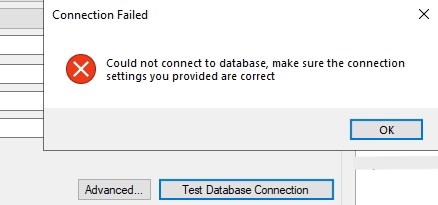
This means Fiscal Harmony can't reach your SQL Server. Until this is fixed, you won't be able to complete the setup or fiscalize invoices.
Prerequisites
Before proceeding with the troubleshooting, make sure the connection settings you provided are correct, especially the ones highlighted in green below:
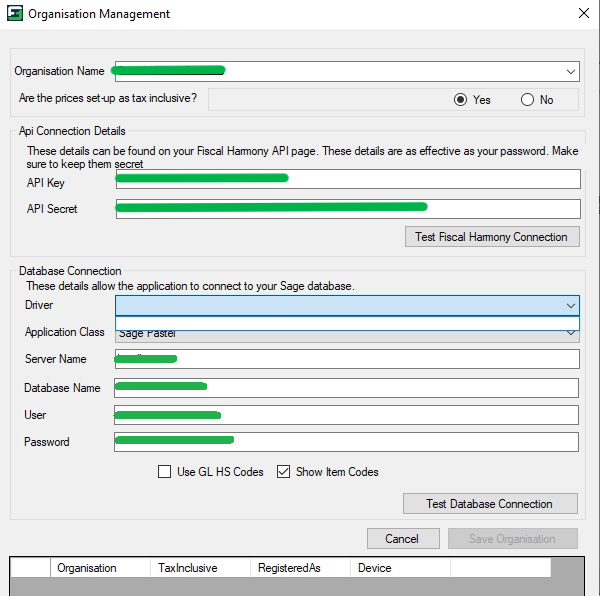
If the error message - “Could not connect to Database” still shows, here are the next steps to take.
Solution
Step 1. Download and install the ODBC Driver for SQL Server
Download the latest ODBC Driver because it acts as an interpreter. It takes Fiscal Harmony requests, turns them into commands SQL Server understands, and then translates the results back so Fiscal Harmony can use them.
If the driver is installed, but the problem persists, see step 2.
Step 2. Download SQL Server Management Studio (SSMS)
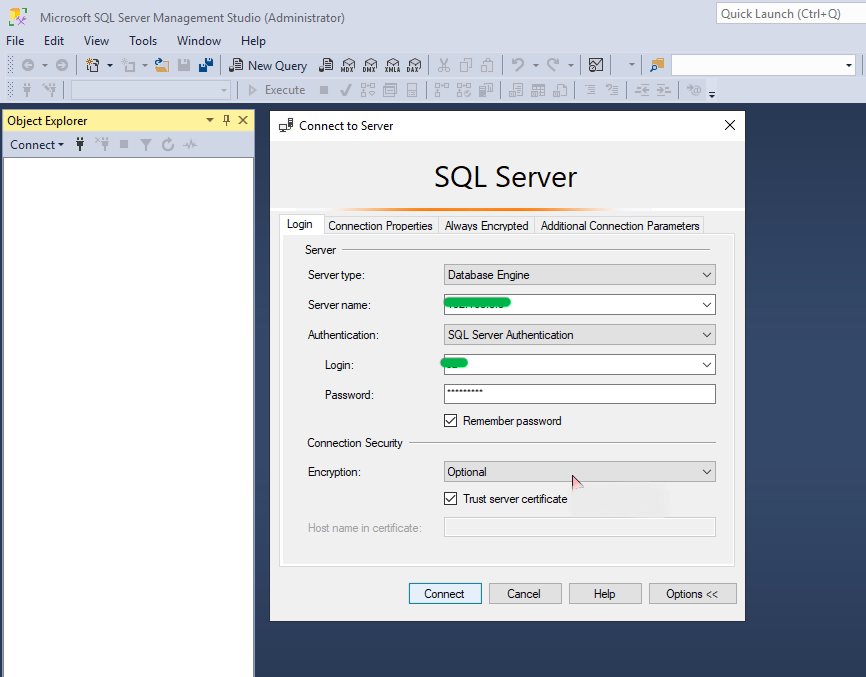
SSMS gives you a simple graphical user interface to test your database connection. After you have installed, enter the same Server Name, Authentication Mode, Username, and Password you use in Fiscal Harmony. If the SSMS connects successfully, you know the network and login details are correct.
Step 3. Re-run the Fiscal Harmony Application
When you are done with the testing, close the Fiscal Harmony application and re-run. This should solve the integration problems, and your fiscalization will start to work smoothly.
If you follow these steps and cannot connect to the database, take screenshots of all the error messages. Then reach out to Fiscal Harmony Support Team for further assistance.
For further assistance, reach out to our support team:
Call Centre: +263 8677 010 305
Call Centre: +263 8677 010 305
WhatsApp: +263 783 323 154
Related Articles
QuickBooks Errors and Solutions: A Comprehensive Guide
Overview Here are a list of errors that you may have encountered, which have solutions that we provided in order to guide you to fixing them. No Buyer Details Provided The "No Buyer Details Provided" error typically occurs when a user is trying to ..."Printer Unavailable" Error Message on the New HPOS Interface
"Printer Unavailable" Error Message on the New HPOS Interface To resolve the printing error, please kindly follow the steps below: Long press on the power button on the left of the device Select the 'Services' option. Then select 'Auto-Init' It will ...Dashboard Explanation
Overview Here is the information about the dashboard and signing into the application. You can navigate to the Fiscal Harmony app by going to https://app.fiscalharmony.co.zw/. App Users This is for information on how to navigate to the dashboard for ...Fiscalising an Invoice in Manager.io
Overview This guide provides a step-by-step process for fiscalizing an invoice using the Relay button in Manager IO after integrating with Fiscal Harmony. It also outlines the prerequisites and best practices to ensure successful fiscalisation. ...Meat Matrix and Fiscal Harmony Integration Guide
Overview This guide outlines the steps to integrate Meat Matrix with the Fiscal Harmony plugin for the compliant fiscalisation of invoices and credit notes with the Zimbabwe Revenue Authority (ZIMRA). Prerequisites Download the Fiscal Harmony Plugin ...