QuickBooks Errors and Solutions: A Comprehensive Guide
Overview
Here are a list of errors that you may have encountered, which have solutions that we provided in order to guide you to fixing them.
No Buyer Details Provided
The "No Buyer Details Provided" error typically occurs when a user is trying to create or save a transaction (like an invoice or sales receipt) and the system expects buyer or customer details, but they are either missing or incomplete.
Preliminary Steps
Gather Client Information
VAT Registered Clients: If the client is VAT registered, enter the following details:
- Registered Name: The official name of the client/business.
- TIN (Taxpayer Identification Number): The unique tax identification number assigned to the client.
- VAT Number: The VAT number issued to the client.
Non-VAT Registered Clients: If the client is not VAT registered, enter "CASH SALE" as the name of the client/buyer. Below are the steps to create a cash sale account.
Solution
Step 1.
- Click “Customers” on the toolbar in QuickBooks.
- Click “Customer Centre” button.

Step 2.
- Click and Select “New Customer” to add a new client
- Type in “Cash Sale” as the client’s name
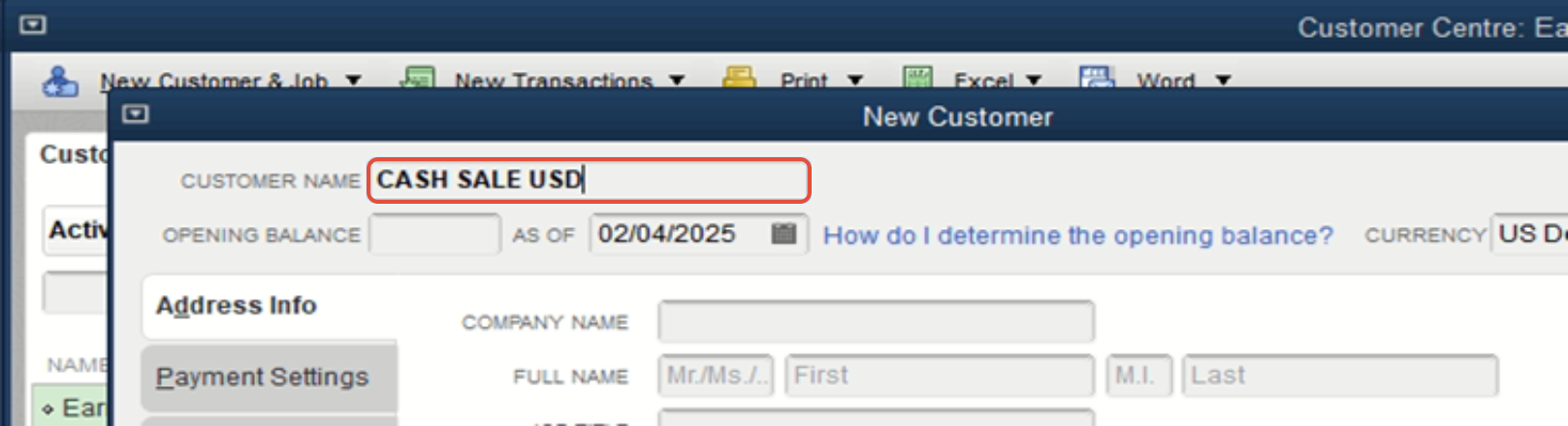
- Click "Save" to save the customer profile.

Note: After the cash sale account is created, go to the fiscal harmony application and retry to process the invoice again
FISCAL HARMONY APP NOT RESPONDING
Why the app may not be responding
- Lost connection between the Fiscal Harmony API keys and QuickBooks.
- Fiscal Harmony application certificates may not be installed or running in the QuickBooks background.
SOLUTION
Step 1.
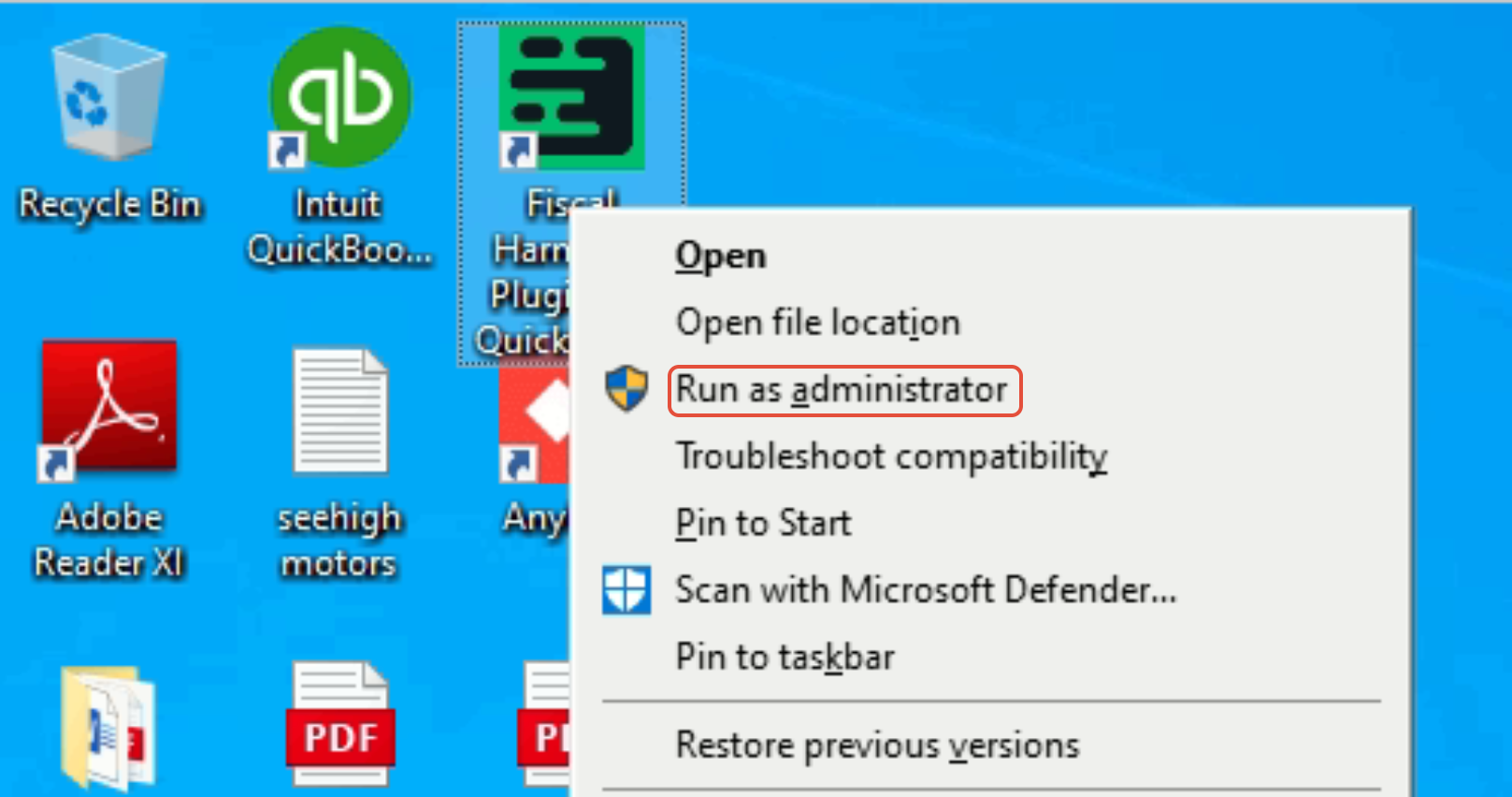
- Close the QuickBooks application if it is open.
- Sign in as an administrator on your computer.
- Open the Fiscal Harmony plugin as administrator.
Step 2.
Try processing the invoices again to restore the connection and complete the task. This should help resolve the issue regarding the failed connection between Fiscal Harmony and QuickBooks.
Attempt to process an invoice or credit note, from the Fiscal Harmony Application.
How to put HS-Codes in QuickBooks
HS codes, also known as Harmonised System Codes, are standardized numerical codes used to classify products in international trade. They are unique codes that identify and describe a product or service.
To implement HS-Codes in QuickBooks, go to this article: How to Add HS Codes in QuickBooks
"Object reference not set to an instance of an object" Error

Cause of error message on the Fiscal Harmony App log
The inserted HS Code characters on the product/service may be less or more than the required. HS Codes normally contain 8 characters.
Note: HS Codes are unique identifiers that describe/ locates the product or service.
SOLUTION 1
- Launch QuickBooks and log in to your account if you have not already done so.
- Navigate to the "List" Menu.
- Select "Item List": From the drop-down menu under "List" click on "Item List". This will take you to a list of all products and services that are set up in QuickBooks .
- In the Item List, scroll through the list or search for the specific product or service to which you want to add or update the HS Code.
- In the item details window, look for the "Custom Fields" button. This button allows you to add additional information to the item.
- Click on the "Custom Fields" button to open the custom fields settings. Click "Define Fields" and type HS CODE.
- Once you locate the HS CODE field, input the correct HS CODE string for the item or service.
- After entering the correct HS CODE, click "OK" or "Save" to apply and save the changes to the item or service.
- After updating the HS CODE in QuickBooks, go back to the Fiscal Harmony plugin.
- Retry the Invoice: Now that the HS CODE has been added or updated, try to generate or process the invoice again in the Fiscal Harmony plugin.
SOLUTION 2
Step 1.
- From the drop-down menu under "List," click on "Item List". This will take you to a list of all products and services that are set up in QuickBooks
- In the Item List, scroll through the list or search for the specific product or service to which you want to add or update the HS CODE.
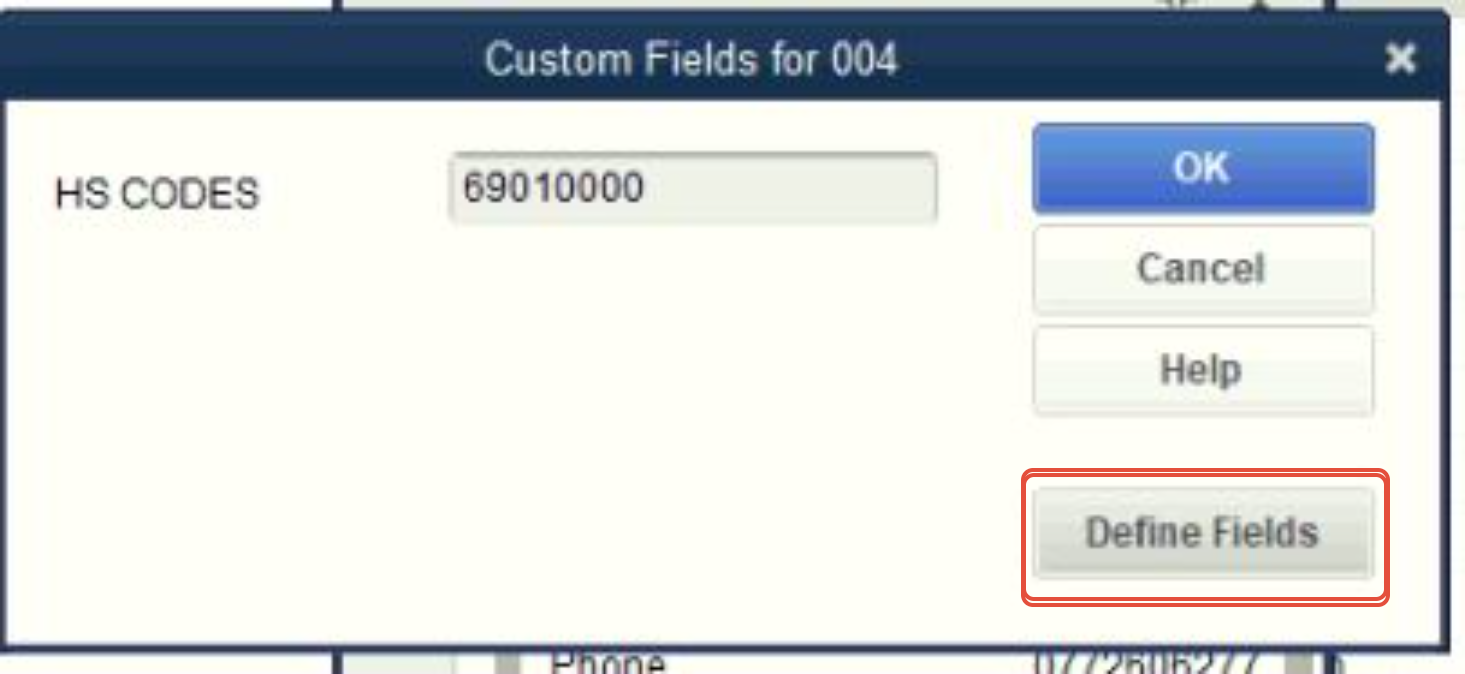
- In the item details window, look for the "Custom Fields" button. This button allows you to add additional information to the item.
Step 2.
- Click on the "Custom Fields" button to open the custom fields settings. Click "Define Fields" and type HS CODE.
Step 3.
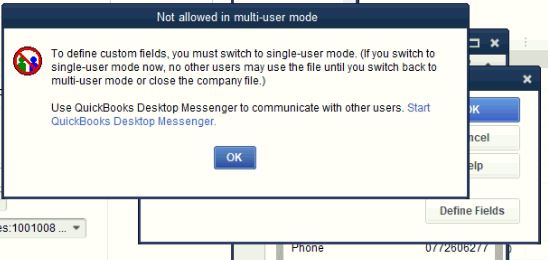
- In this stage the message box tells the user that QuickBooks is in Multi-user mode, kindly switch to "SINGLE USER MODE" and try to process the invoice again
"Not Found" Error
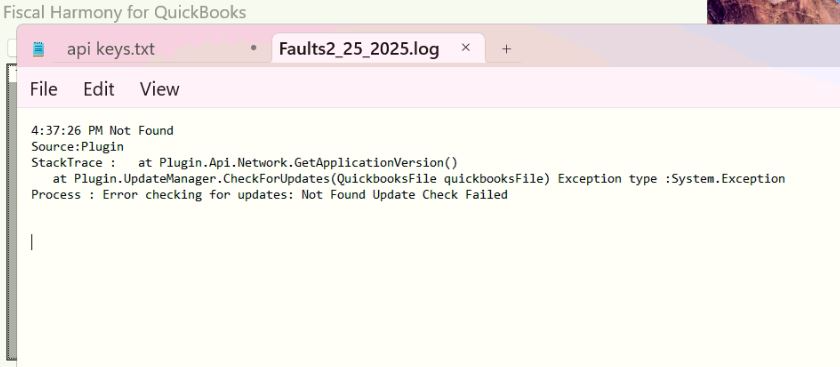
The error message indicates that something is "Not Found" during the update process, which might suggest that either a file is missing, an incorrect path was used, or there was a server issue while trying to fetch the update.
How to locate the error
Navigate to C:\ProgramData\FiscalHarmony\QuickBooksPlugin\Log\Error on your computer.
Cause of error
This is caused by Internet Connectivity Problems, where your computer may not have a stable or active internet connection.
Solution
- Close the QuickBooks application if it is open.
- Sign in as an administrator on your computer.
- Open the Fiscal Harmony application as an administrator.
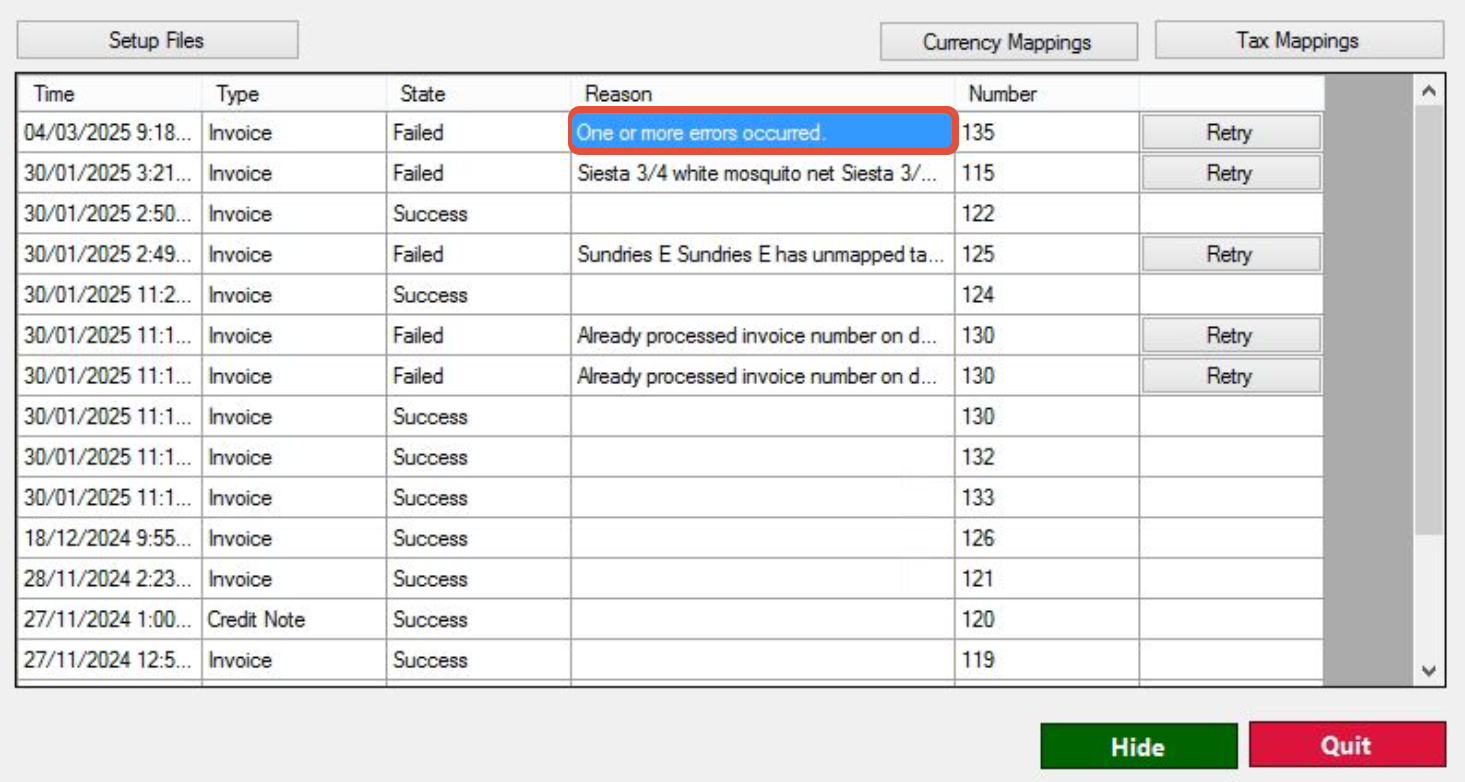
"One or more errors occurred" Error
What causes this error?
This error also occurs when QuickBooks is trying to process an invoice that lacks critical information. The error in QuickBooks is triggered by missing essential elements in an invoice and in particular, missing quantities, item descriptions, or unit prices. Another cause of the issue is loss of internet connectivity
Solution for missing essential items
Step 1.
- Crosscheck every item listed on the invoice, ensuring you have specified the quantity. If it is a service rather than a product, check that the quantity field is populated (even if it is just "1" for a service rendered).
- Further make sure that for every item listed on the invoice, you have specified the description of the product. If it's a service rather than a product, check that the description field is populated.
- Make sure that the unit price is entered for every item or service on the invoice. This can either be manually entered or pulled from the product/service list in QuickBooks if the item is set up with a predefined price.
Step 2.
- Click "Save" in QuickBooks, you're saving the invoice or transaction you are working on.
- Return to the Fiscal Harmony plugin, click "Retry" button in the app to attempt to process the invoice again after QuickBooks has been updated.
Note: This step ensures that any changes or updates made to the invoice (after you click “Save” in QuickBooks) are reflected in the Fiscal Harmony plugin.
Solution for internet connection error
Step 1. Check Internet Connectivity
- Ensure that your device is connected to the internet. You can do this by checking if other apps or websites are working.
- You can also check your device’s network settings to confirm it is connected to the right network.
Step 2. Retry in the Fiscal Harmony plugin.
- Open the Fiscal Harmony plugin and try to click the “Retry” button, wait a few minutes and try again.
- Check "Log" or "Error" button, check it for more details about why the issue occurred.
For further assistance, reach out to our support team:
Call Centre: +263 8677 010 305
Call Centre: +263 8677 010 305
WhatsApp: +263 783 323 154
Related Articles
QuickBooks and Fiscal Harmony Integration Guide
Overview This guide provides a step-by-step process for integrating QuickBooks with the Fiscal Harmony plugin, facilitating the fiscalization of invoices and credit notes for compliance with the Zimbabwe Revenue Authority (ZIMRA). Step 1. Downloading ...How to Troubleshoot "Could not Connect to Database" Error
Overview When you are integrating Sage Pastel with the Fiscal Harmony application, you might see an error message like the one below: This means Fiscal Harmony can't reach your SQL Server. Until this is fixed, you won't be able to complete the setup ...Fiscal Harmony Reseller Guide
Getting Started As a Fiscal Harmony reseller, you unlock exclusive benefits, high-profit potential and the opportunity to grow your business portfolio with our industry-leading software solutions. Our program equips you with competitive discounts, ...QuickBooks Online and Fiscal Harmony Integration Guide
Overview Steps to Access and Set Up API Keys in Fiscal Harmony Step 1. Log in to the Fiscal Harmony app on https://app.fiscalharmony.co.zw/. Once logged in, navigate to Settings > API keys. Create an API Key if you do not have one, making sure to ...How To Change VAT in Quickbooks Desktop
Overview To change a VAT rate in QuickBooks Desktop, you must create a new VAT item with the revised rate and then mark the old one as inactive, as existing rates cannot typically be edited directly. Step-by-Step Guide Step 1. Navigate to VAT Taxes ...