How To Process a Credit note in Quickbooks Desktop
Overview
A credit note is issued by a seller to a buyer for the purposes of correcting, writing off errors or making adjustments in a previous invoice. It is commonly issued in cases of overcharging, return of goods, discrepancies in the goods or services provided, unapplied discounts, order cancellations, or shipping errors. Credit notes ensure accurate financial records, adjust outstanding balances, and prevent financial discrepancies. By issuing credit notes, businesses can resolve issues promptly, ensuring fairness and transparency in transactions while fostering trust with customers.
Steps to process a credit note
Step 1.
- Navigate to the Sales or Invoices Section.
- Locate the Invoice, find the specific invoice that needs to be credited. One can search by the invoice number, customer name, or date.
- Open the Invoice, click on the invoice to open it and review the details before proceeding with the credit.
- Click “Refund/Credit” (top right corner of the screen, in green)
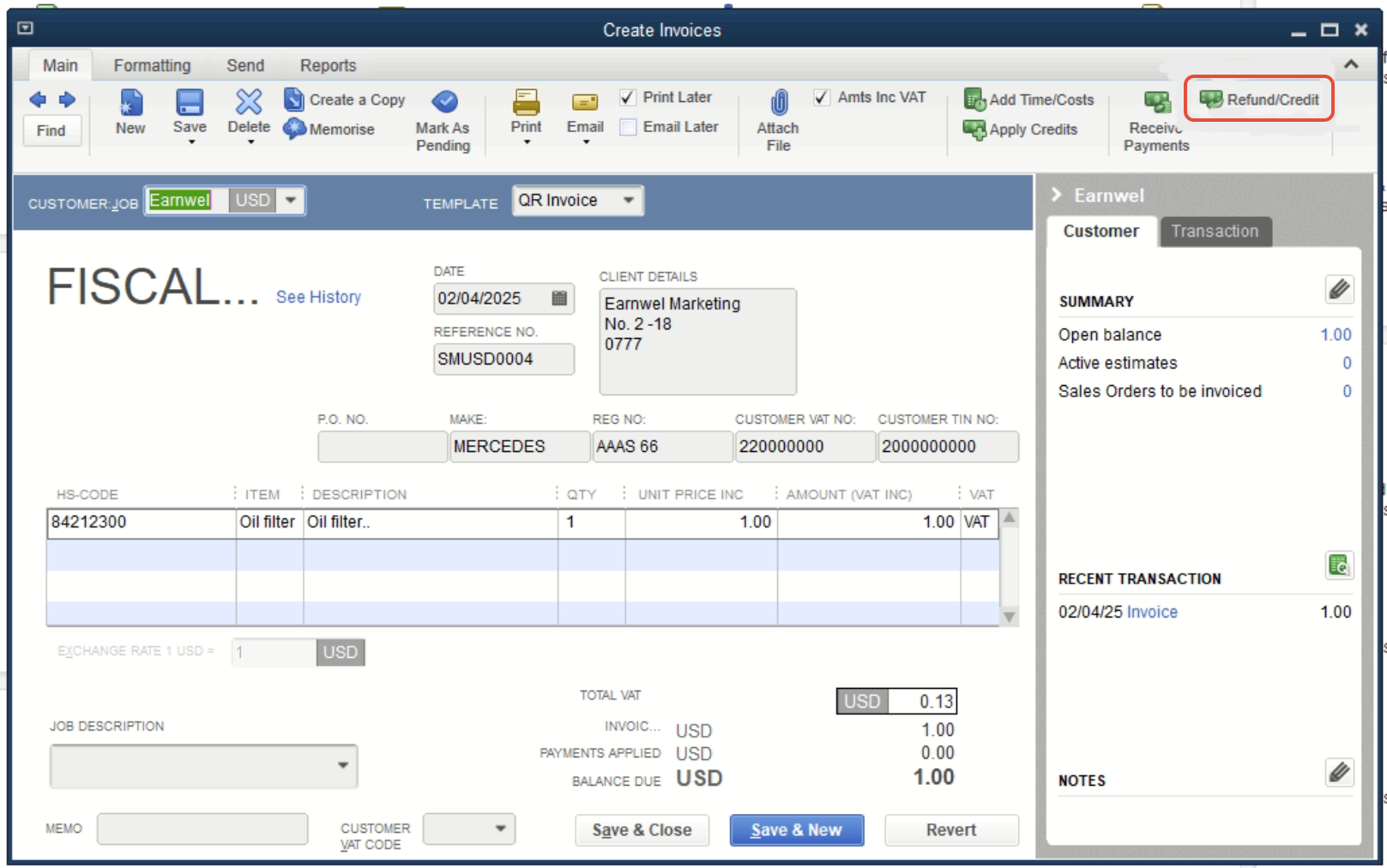
Step 2.
- Click "Use credit to apply to invoice" option 2 highlighted below (top right corner of the screen, in green)
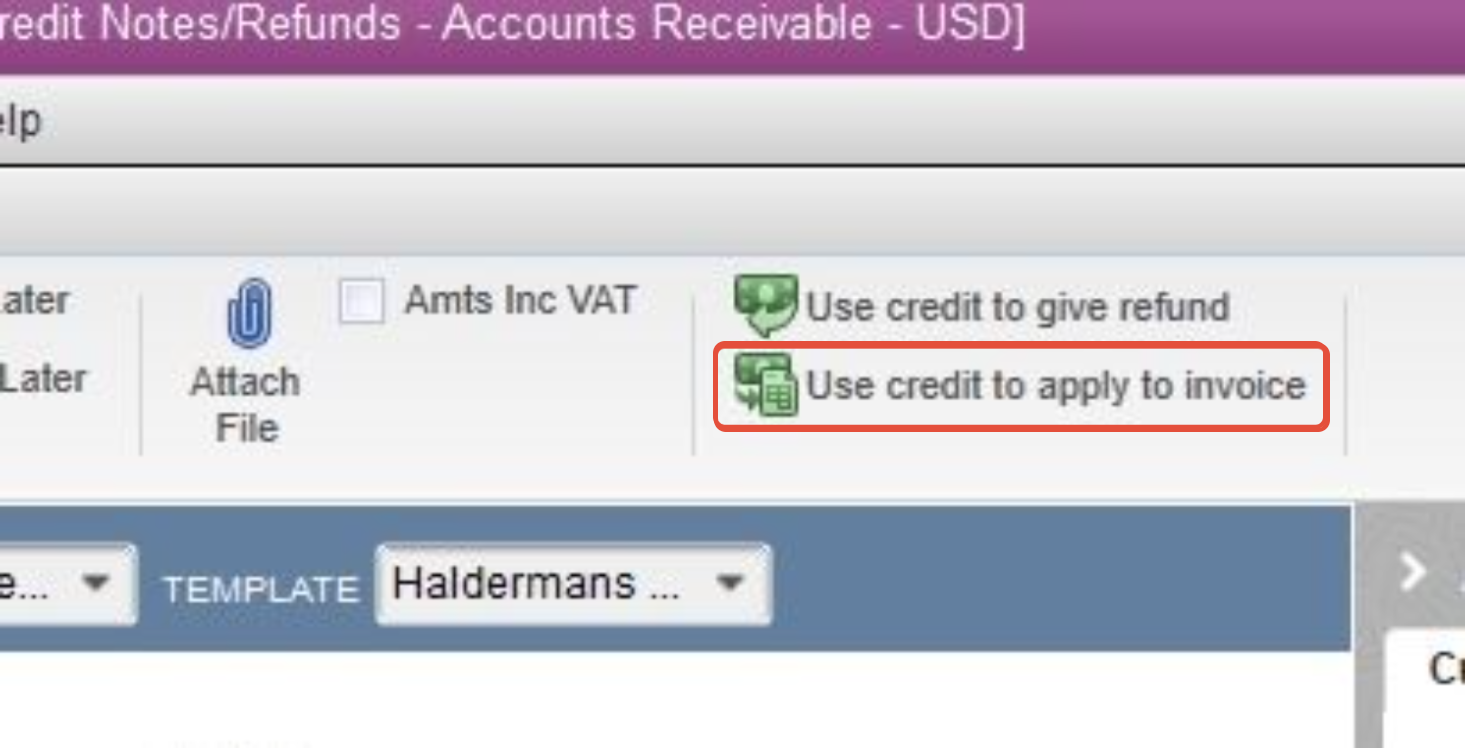
Step 3.
- Click "Apply to an invoice". When you apply the credit note to an invoice, you're essentially using the credit to reduce the amount owed on the invoice, either partially or fully.
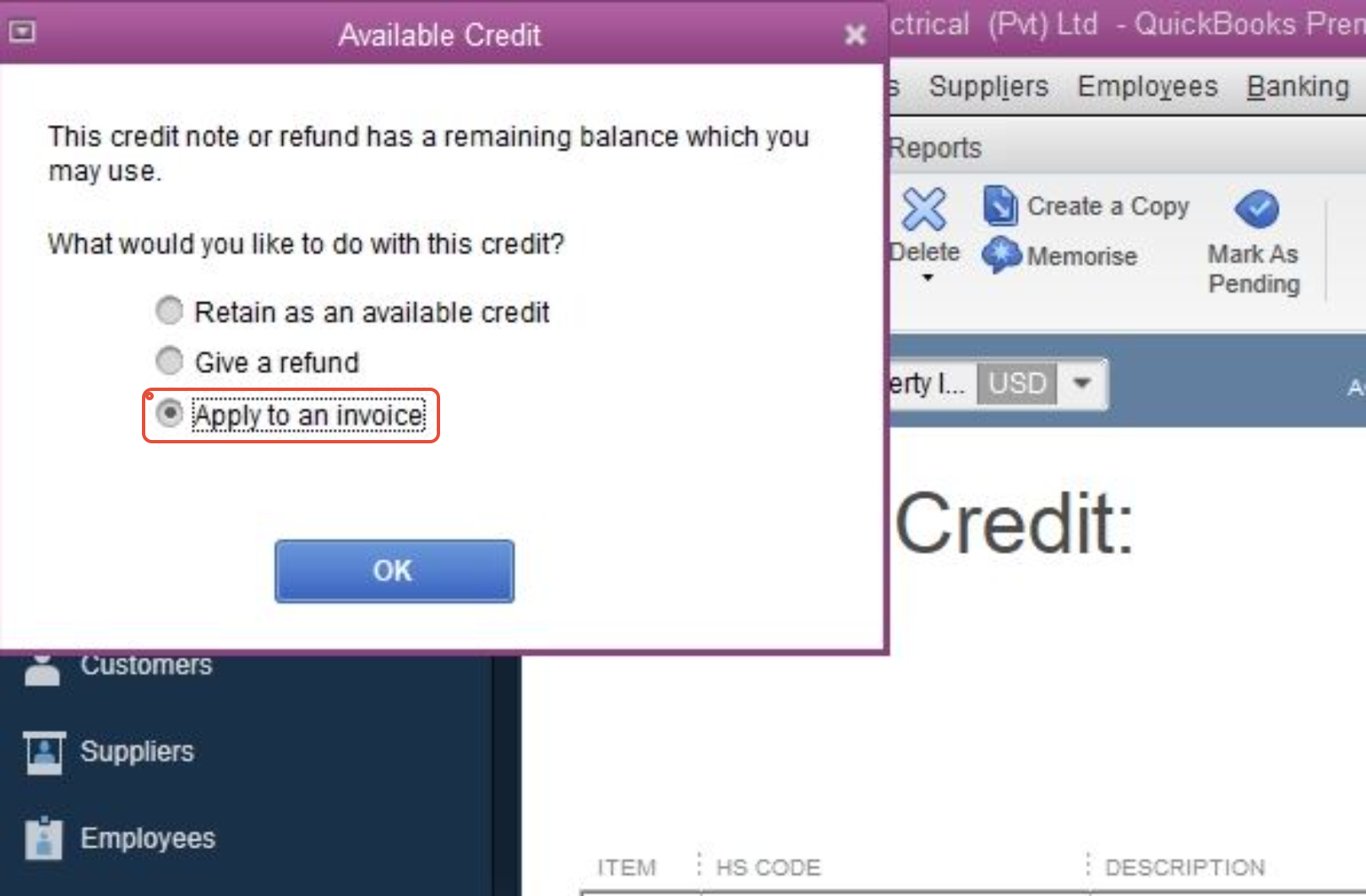
Step 4.
- Click "Save and Close". This will save your work or close the current window or document you’re working on. Make sure to save any important data before closing.
- Click the hidden icon arrow. On the bottom right corner of your screen (typically in the system tray near the clock), you see a small arrow that, when clicked, reveals hidden icons. This is where the Fiscal Harmony plugin app might appear.
- Double-click the “Fiscal Harmony” icon to open it.
- Once you click the hidden icon arrow, look for the "Fiscal Harmony" icon in the list of hidden icons. Double-click on it to open the application or program.

Related Articles
Creating and Fiscalising Credit Notes in Sage Pastel Express Accounting
Overview Please follow the following steps to fiscalise credit notes using Sage Pastel Express Accounting. Step-by-step process Step 1. Opening the application Running the Fiscal Harmony Plugin Right click on the app and click "Run as administrator" ...Fiscalising a Credit Note in Sage Online
Overview Sometimes an error is made after an invoice has been created, or a customer may return goods. In this case, you need to create a Credit Note to correct or reduce the customer's balance. Step-by-step process Step 1. Locate the Original ...Fiscalising a Credit Note in Xero
Overview A credit note in Xero is a document that is used to reduce the amount owed on an invoice or bill, essentially acting as a correction or adjustment to a previous transaction. It’s commonly used for scenarios such as returns and issues, ...How To Create An Invoice Using Quickbooks Desktop
Overview Invoicing is the lifeblood of any business. It's how you get paid for your hard work, maintain cash flow, and build professional client relationships. In this article, you will learn how to create an invoice in QuickBooks step by step. ...Fiscalising a Credit Note in Sage Evolution
Overview Sage 200 Evolution is an Enterprise Resource Planning (ERP) software system designed to help businesses manage various aspects of their operations, including finance, customer relationships, and supplier relationships. It goes beyond ...