How To Create An Invoice Using Quickbooks Desktop
Overview
Invoicing is the lifeblood of any business. It's how you get paid for your hard work, maintain cash flow, and build professional client relationships. In this article, you will learn how to create an invoice in QuickBooks step by step. Setting up your client details, adding payment details, and sending the invoice directly to your customer will cover everything you need to streamline your billing process.
Step-by-step process
Step 1: Create a New Customer
- Navigate to the Customer Center and select "New Customer & Jobs" to create a new client.
- Fill in the necessary customer details.
Step 2: Enter Additional Information
- Go to the "Additional Info" section.
- Enter the TIN (Tax Identification Number) and VAT Number for the customer.
Step 3: Set Up Items and Services
- For every charge you make, create a list of items or services.
- Go to "Item New" and select "Custom Fields" to include the appropriate HS Codes.
Step 4: Return to the Home Page
- Click on the Home Icon to go back to the main dashboard.
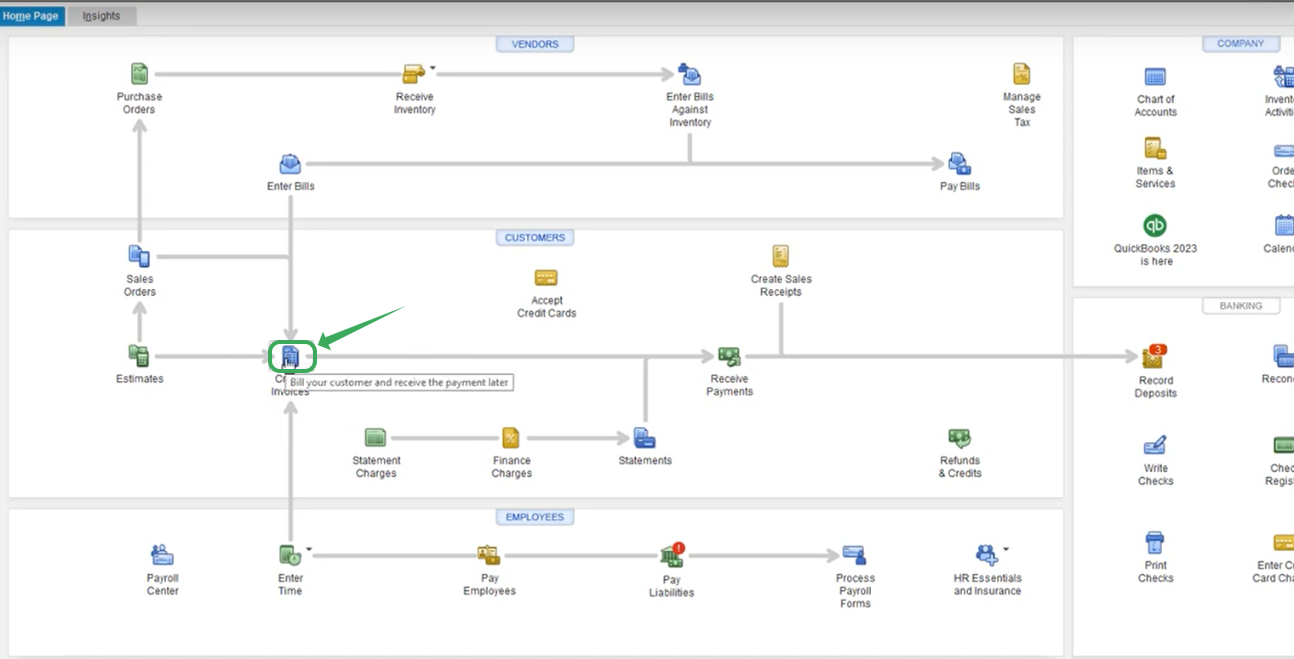
Step 5: Create a New Invoice
- From the Home Page, navigate to "Create Invoices" and create a new invoice
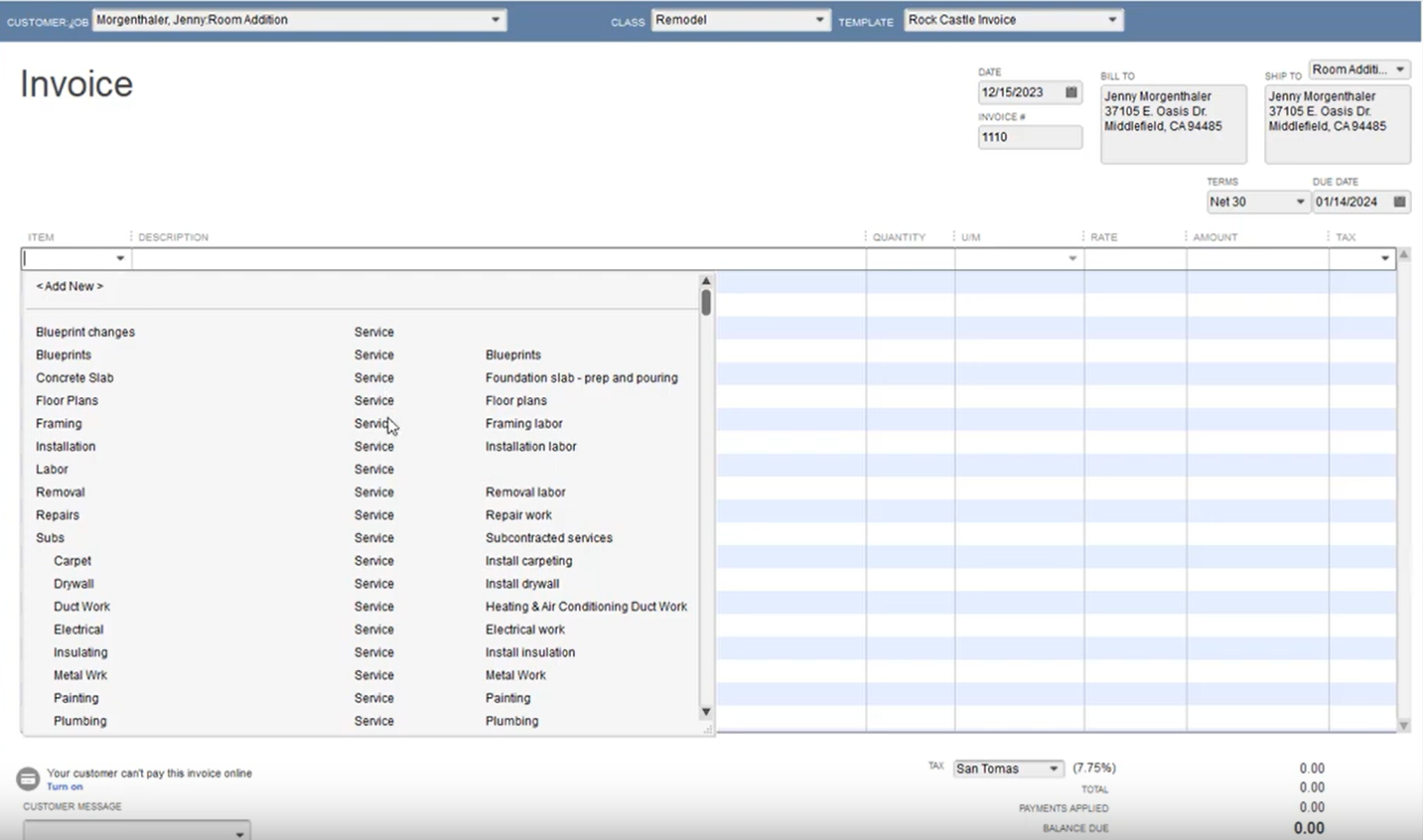
Step 6: Fill Out Invoice Details
- Enter the customer’s name, the sale date, the items or services provided, and any other required information
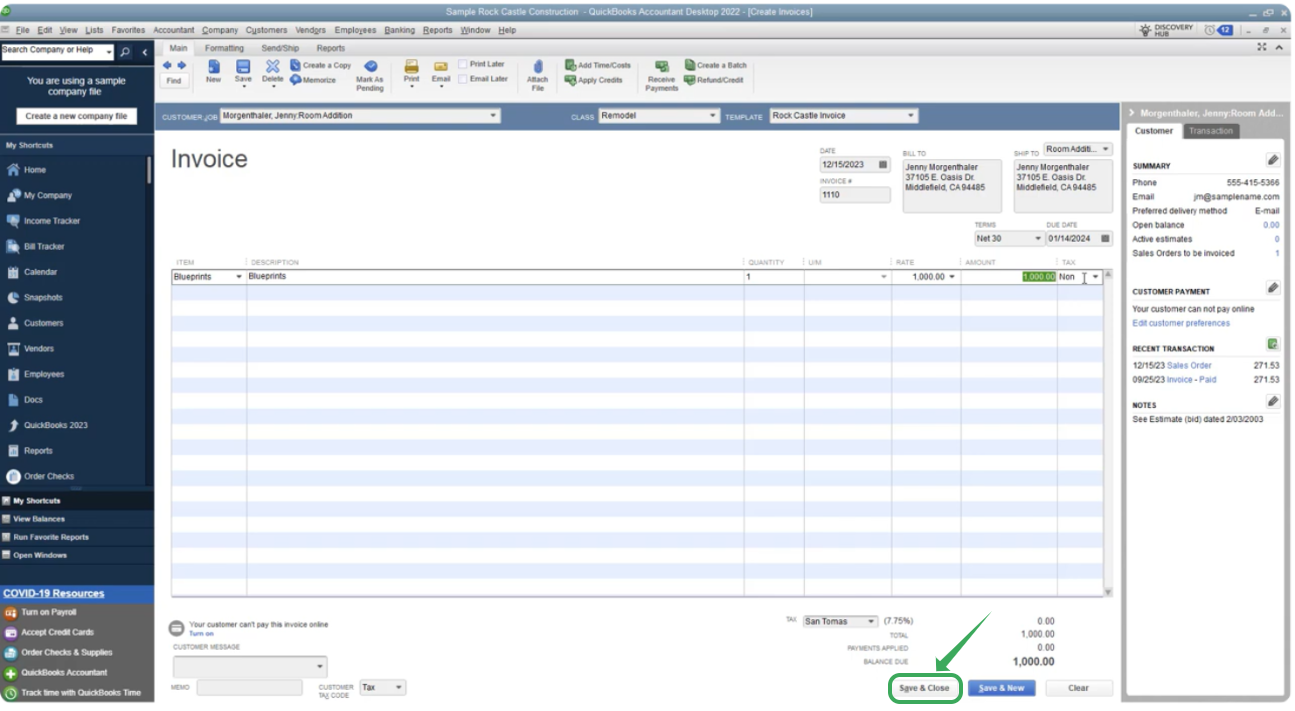
Step 7: Save and Close the Invoice
- After completing the invoice, save and close it. The invoice will be fiscalized automatically.
Step 8: Check your Fiscal Harmony Application
- Click on your Fiscal Harmony application, and you will see the fiscalised invoice number highlight "Success".
Related Articles
How To Change VAT in Quickbooks Desktop
Overview To change a VAT rate in QuickBooks Desktop, you must create a new VAT item with the revised rate and then mark the old one as inactive, as existing rates cannot typically be edited directly. Step-by-Step Guide Step 1. Navigate to VAT Taxes ...How To Process a Credit note in Quickbooks Desktop
Overview A credit note is issued by a seller to a buyer for the purposes of correcting, writing off errors or making adjustments in a previous invoice. It is commonly issued in cases of overcharging, return of goods, discrepancies in the goods or ...Creating and Fiscalising Credit Notes in Palladium Accounting
Overview Please follow the following steps to fiscalise credit notes using Palladium accounting. Steps Step 1. Opening Application Running the Fiscal Harmony Plugin Right click on the app and click "Run as administrator" option. Click the upward ...Creating and Fiscalising Credit Notes in Sage Pastel Express Accounting
Overview Please follow the following steps to fiscalise credit notes using Sage Pastel Express Accounting. Step-by-step process Step 1. Opening the application Running the Fiscal Harmony Plugin Right click on the app and click "Run as administrator" ...Creating and Fiscalising invoice in Palladium Accounting
Overview Please follow the following steps to fiscalise an invoice using Palladium accounting. Steps Step 1. Opening Application Running the Fiscal Harmony Plugin Right click on the app and click "Run as administrator" option. Click the upward arrow ...