Fiscalising a Credit Note in Xero
Overview
A credit note in Xero is a document that is used to reduce the amount owed on an invoice or bill, essentially acting as a correction or adjustment to a previous transaction. It’s commonly used for scenarios such as returns and issues, allowing businesses to rectify errors or offer refunds.
Prerequisites
For you to create a credit note, you need to have:
- An invoice with an outstanding payment or a customer’s account with a credit balance.
- The correct user role is needed to create and approve credit notes.
Step-by-step Process
Step 1. Locating Invoice
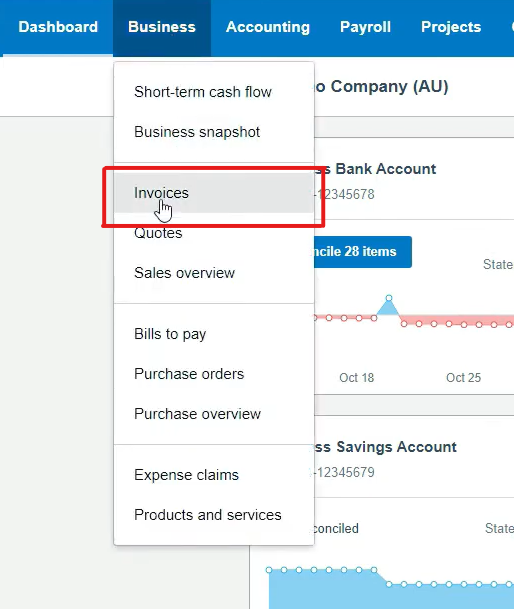
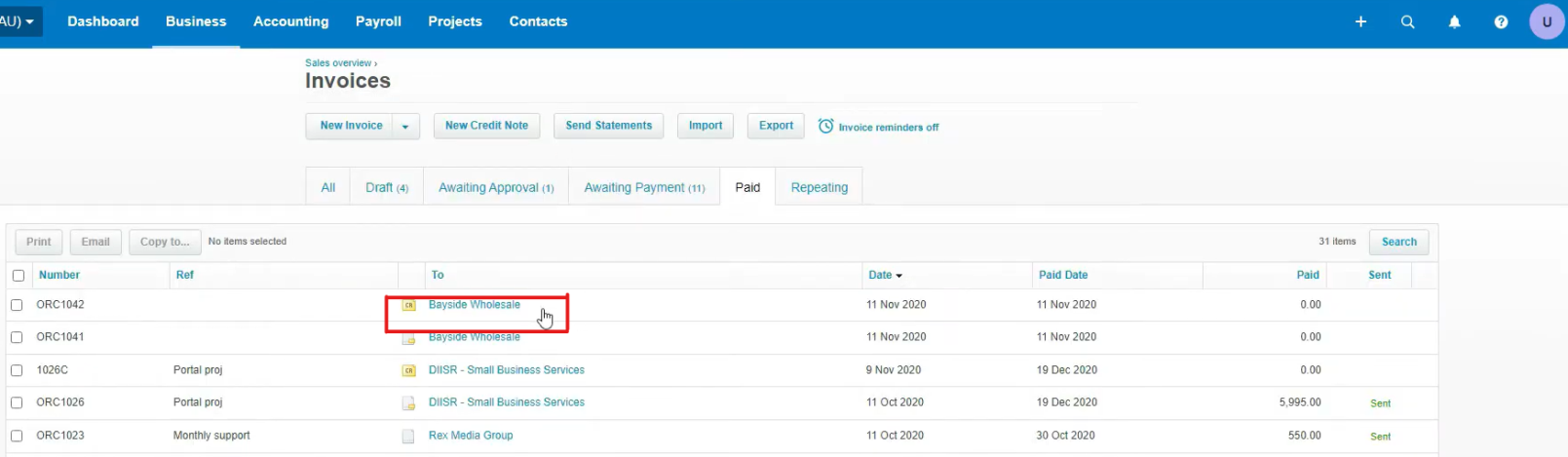
- Navigate to the Business Section on the top nav, and in the drop-down menu, select Invoices.
- Locate the Business section in order for you to identify the ‘Invoices’ tab.
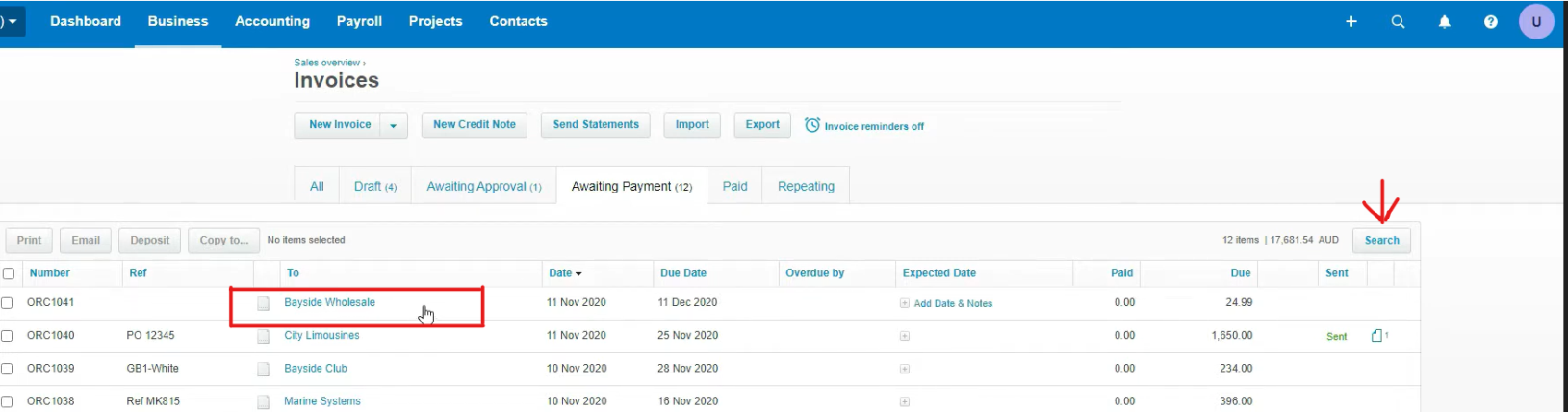
- Select the invoice you want to create a credit note for.
- Locate the Invoice you are looking for. This can be done by searching for the specific invoice number, customer name, or by date using the search tab in the top-right corner of the invoices list.
- Click on the invoice to open it and review the details before proceeding with the credit initiation.
Step 2. Creating Credit Note
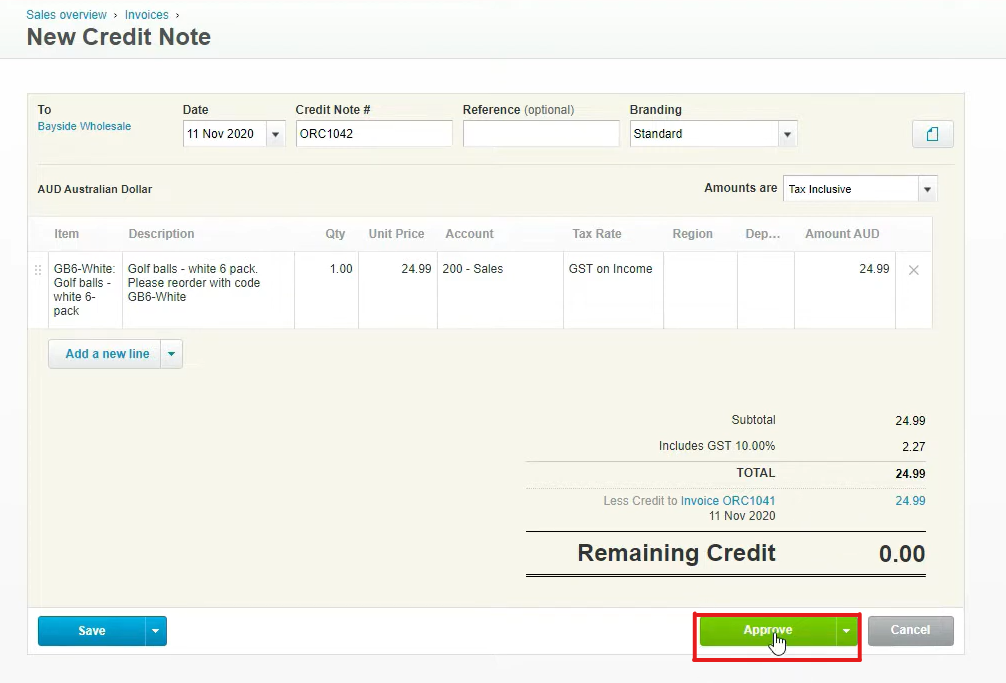
- In the top right corner, click on ‘Invoice options’ and select the ‘Add Credit Note’ option.

- Click on ‘Approve’ in the bottom right corner. This will apply the credit note to an invoice and save it. You will essentially be using the credit note to reduce the amount owed on the invoice, either partially or fully.
Step 3. Viewing Fiscalised Credit Note
- You will see that the credit note has been successfully approved as shown below.
- A green popup message will appear at the top confirming that the Credit note has indeed been approved.
- An error message will appear instead if there was an error or if the system was unable to process the credit note.
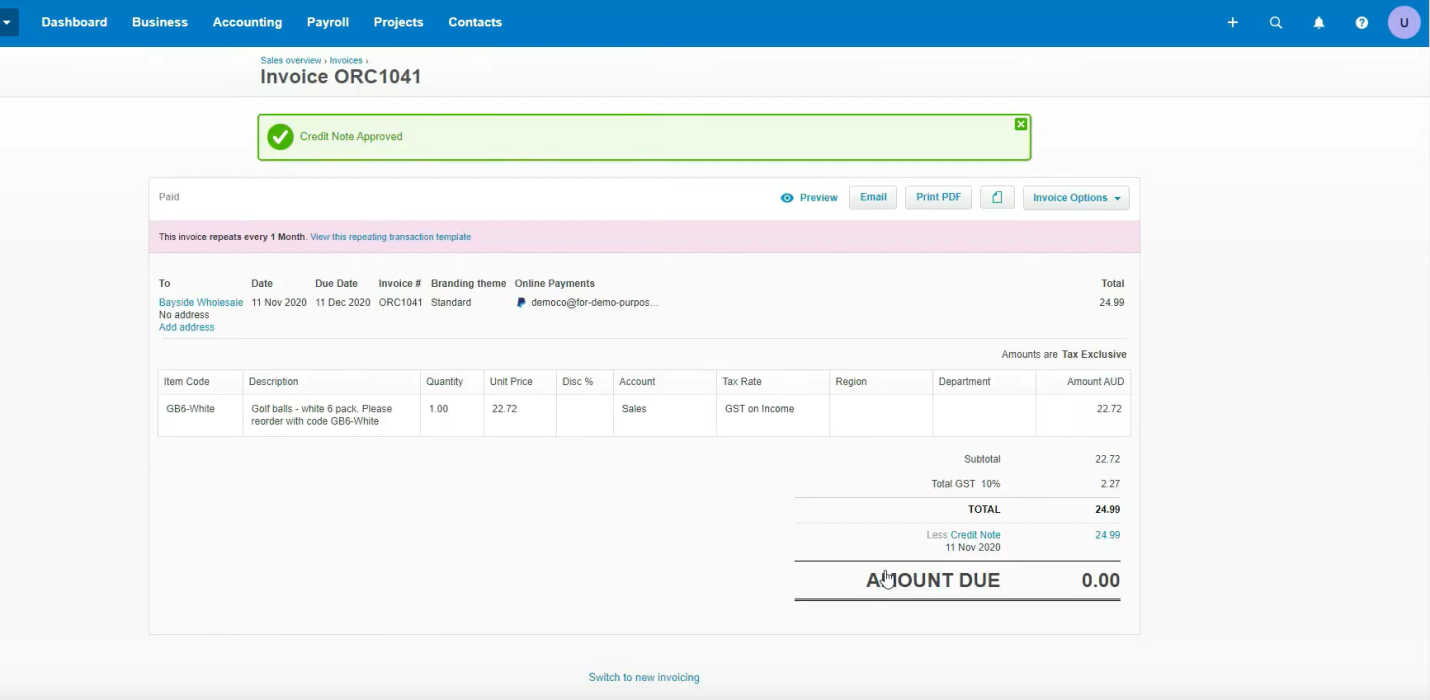
- To check your credit note in the Invoices tab, Double-click on it to open the credit note.
Related Articles
Creating and Fiscalising Credit Notes in Palladium Accounting
Overview Please follow the following steps to fiscalise credit notes using Palladium accounting. Steps Step 1. Opening Application Running the Fiscal Harmony Plugin Right click on the app and click "Run as administrator" option. Click the upward ...Creating and Fiscalising Credit Notes in Sage Pastel Express Accounting
Overview Please follow the following steps to fiscalise credit notes using Sage Pastel Express Accounting. Step-by-step process Step 1. Opening the application Running the Fiscal Harmony Plugin Right click on the app and click "Run as administrator" ...Fiscalising a Credit Note in Sage Online
Overview Sometimes an error is made after an invoice has been created, or a customer may return goods. In this case, you need to create a Credit Note to correct or reduce the customer's balance. Step-by-step process Step 1. Locate the Original ...Fiscalising an Invoice in Xero
Overview Prerequisites To fiscalise with this integration, you would need: Your Xero Account is connected to Fiscal Harmony. Step-by-step Process Step 1. Navigate to the Invoices. Locate the Sales module on the top nav. Clicking this will open a ...Fiscalising a Credit Note in Sage Evolution
Overview Sage 200 Evolution is an Enterprise Resource Planning (ERP) software system designed to help businesses manage various aspects of their operations, including finance, customer relationships, and supplier relationships. It goes beyond ...