How to Change VAT from 15% → 15.5%
To change a VAT rate in QuickBooks Desktop, you must create a new VAT item with the revised rate and then mark the old one as inactive, as existing rates cannot typically be edited directly.
Step-by-Step Guide
- Login to your Quickbooks Desktop company using the admin login details
- Create a New VAT Item:
- Go to the "VAT" menu
- Select "VAT Code List".
- Go to the "VAT" menu
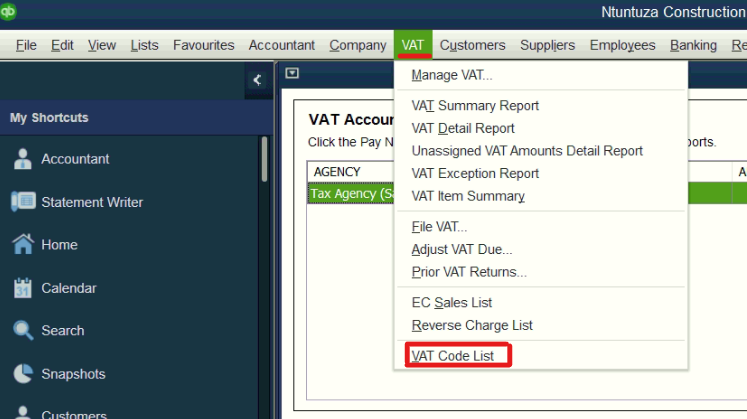
- Your already existing vat rates will be listed in the pop up.
- You would rather leave the old vat rate there to preserve your old transactional history or in case you want to do credit notes for invoices that were done using the 15%.
- To add a new vat rate, you can click on the "VAT Code" option then select "New"
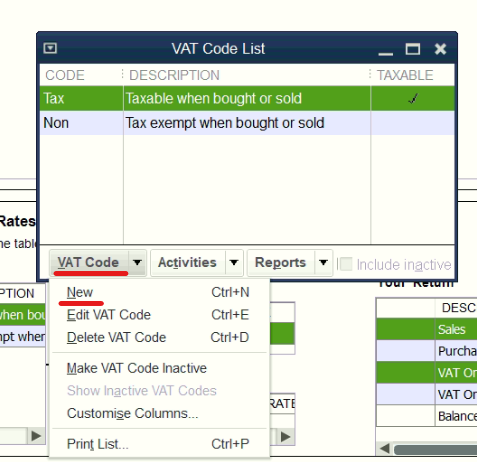
- In the New VAT Code window, fill in all the necessary details.
- Enter a new "Tax Name/VAT Code" that clearly identifies the new rate (e.g., "VAT/TAX"). The new one should be different from the old 15% vat rate so that you can easily differentiate it when making invoices.
- Enter the "Description" (e.g., "15.5%").
- Select the "Taxable" option below the description.
- For the "VAT Item for Purchases/Sales", click the corresponding drop down menu to select the "Tax on purchases/sales options".
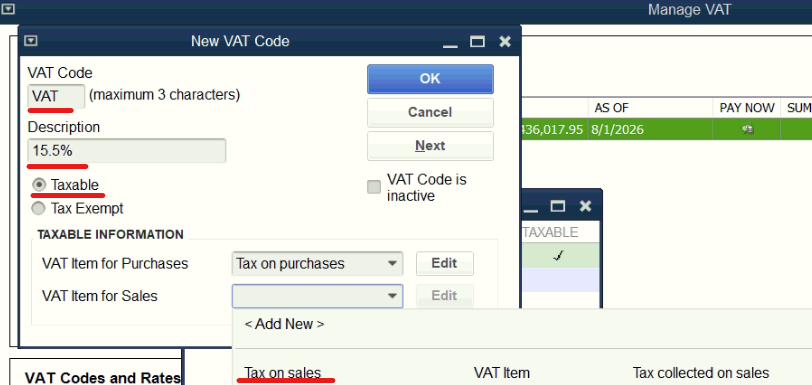
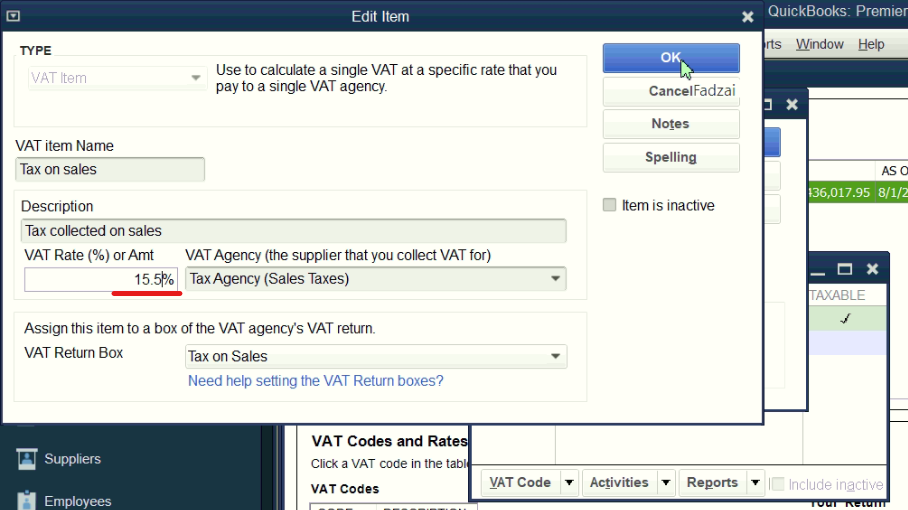
- For each of those two options, you will edit them to add the 15.5% rate so that it is appled correctly for all transactions.
- Enter the new Rate (e.g., 15.5%) as highlighted on the screenshot below.
- Click "OK" to save the change then click "OK" again to save the new tax rate.
3. Old VAT Rate:
- You can leave the old vat rate as active in case you will need to do credit notes for your 2025 invoices or to preserve historical datas.
- Just ensure not to select that vat rate option for new transactions.
4. Update Default Settings and Templates:
- For new sales transactions
- When creating a new invoice or sales receipt, ensure the correct new VAT item is selected in the relevant tax field.
- For customers
- You can set a default tax code for individual customers by editing their profile in the Customer Center and going to the Sales Tax settings.
- For items
- Ensure your products/services in the Item List have the appropriate new VAT code assigned.
- Templates
- If you use custom invoice templates, verify that the sales tax fields are correctly referencing the active VAT items.
- If you use custom invoice templates, verify that the sales tax fields are correctly referencing the active VAT items.
- Updating the plugin (you may have to do this step to help pull the latest settings from ZIMRA)
- First, close and reopen the plugin once QuickBooks is open. Ensure that you open the plugin with "Run as Administrator".
- Once the plugin is open (if you do not see it, it will be on the side tray and the pop-up will let you know where it is), simply navigate to "Setup Files".
- Once there, click on "Test Connection" to ensure it is running well and connected to our backend. A pop-up should show to confirm it.
- Click "Save" to save the settings, as this will save the new configuration from ZIMRA.
- Note: if the save button is greyed out, simply try to copy the API key, remove it and paste it back so that you can access the "Save" button again.
- Once saved, close the window and navigate to "Tax mappings"
- On this menu, click on the Tax name used in the program (the first dropdown) and select the Tax Code you use in QuickBooks for your 15.5%, e.g., "VAT/TAX".
- Then click on Tax name in Authority (second dropdown) and select the "Standard rate 15.5%". Then click "Save changes" to update the tax.
- After closing the window, simply make a test invoice using the new VAT or retry any failed invoice from this year that has the new VAT applied to ensure it is working
When you open the plugin and it gives the error of "Illegal string path", note that Quickbooks needs to be opened with "Run as Administrator" first. So close and reopen it with "Run as administrator", and then close and reopen the plugin (also with "Run as administrator" to follow through the steps.
By following these steps, you will correctly implement the new VAT rate for all future transactions in QuickBooks Desktop.
For specific guidance, you can refer to the official Intuit QuickBooks support resources or your local tax authority, such as GOV.UK if applicable to your region.
If you need further assistance from the team, please reach out to us on our support by creating a ticket or contacting us.
Was this article helpful?
That’s Great!
Thank you for your feedback
Sorry! We couldn't be helpful
Thank you for your feedback
Feedback sent
We appreciate your effort and will try to fix the article