Step-by-Step Guide for Resellers to Register a New Client on their Platform
Overview
As a Fiscal Harmony reseller, you unlock exclusive benefits, high-profit potential and the opportunity to grow your business portfolio with our industry-leading software solutions. Our program equips you with expert training and dedicated marketing support to drive your success. By offering trusted software alongside tailored customisation, training, and ongoing support, you can enhance customer experiences and strengthen long-term relationships. This guide walks you through a seamless onboarding process for your clients.
Prerequisites
To follow through with this guide, you need to:
- Become a Fiscal Harmony Reseller (You can become a Reseller by following the Reseller Guide).
Step-by-Step Process
Step 1. Initial Client Setup
- Send an Excel template to your client for data collection.
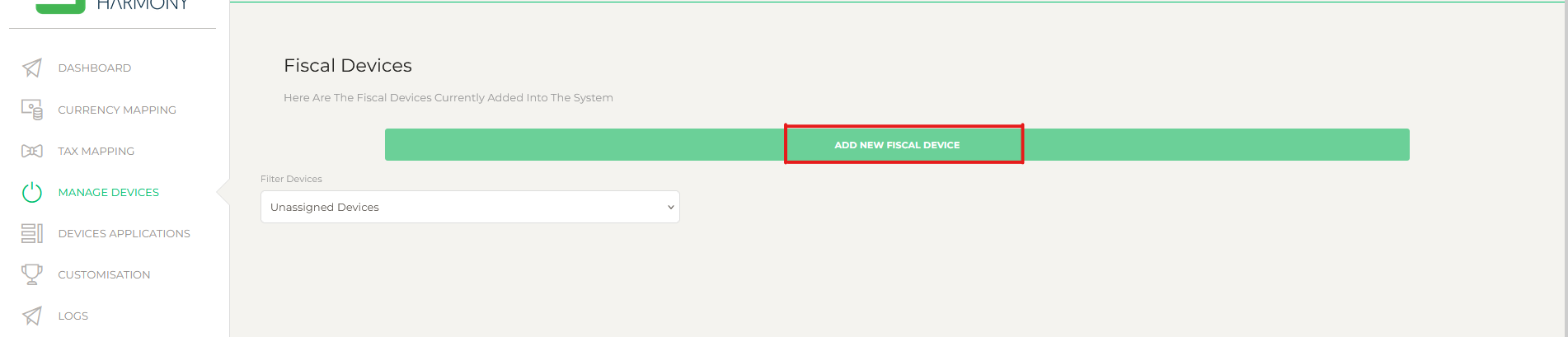
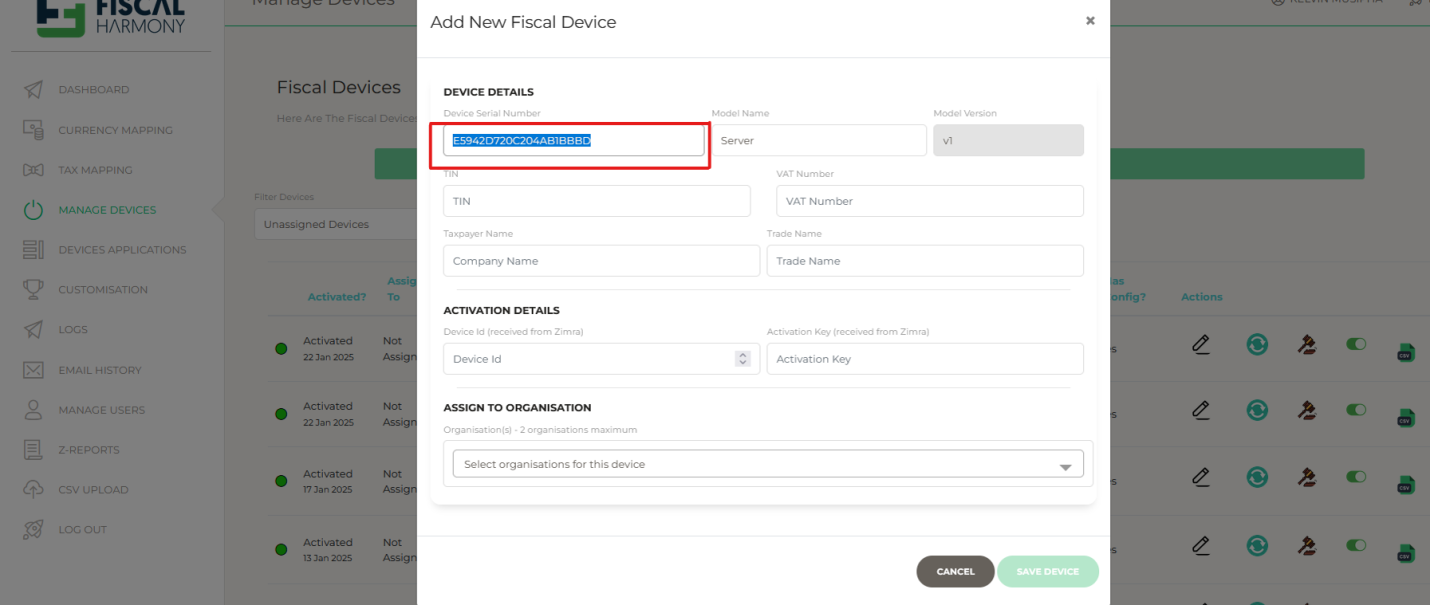
- Once you receive the customer details, select the ‘Add new Fiscal Device’ option in the ‘Manage Devices’ tab.
- The client serial number will be auto-filled and will be added to the device details.
Step 2. Verification with ZIMRA
- Send the customer details, including the serial number, to ZIMRA for verification.
- Wait for device approval from ZIMRA before proceeding.
Step 3. Adding a New Device
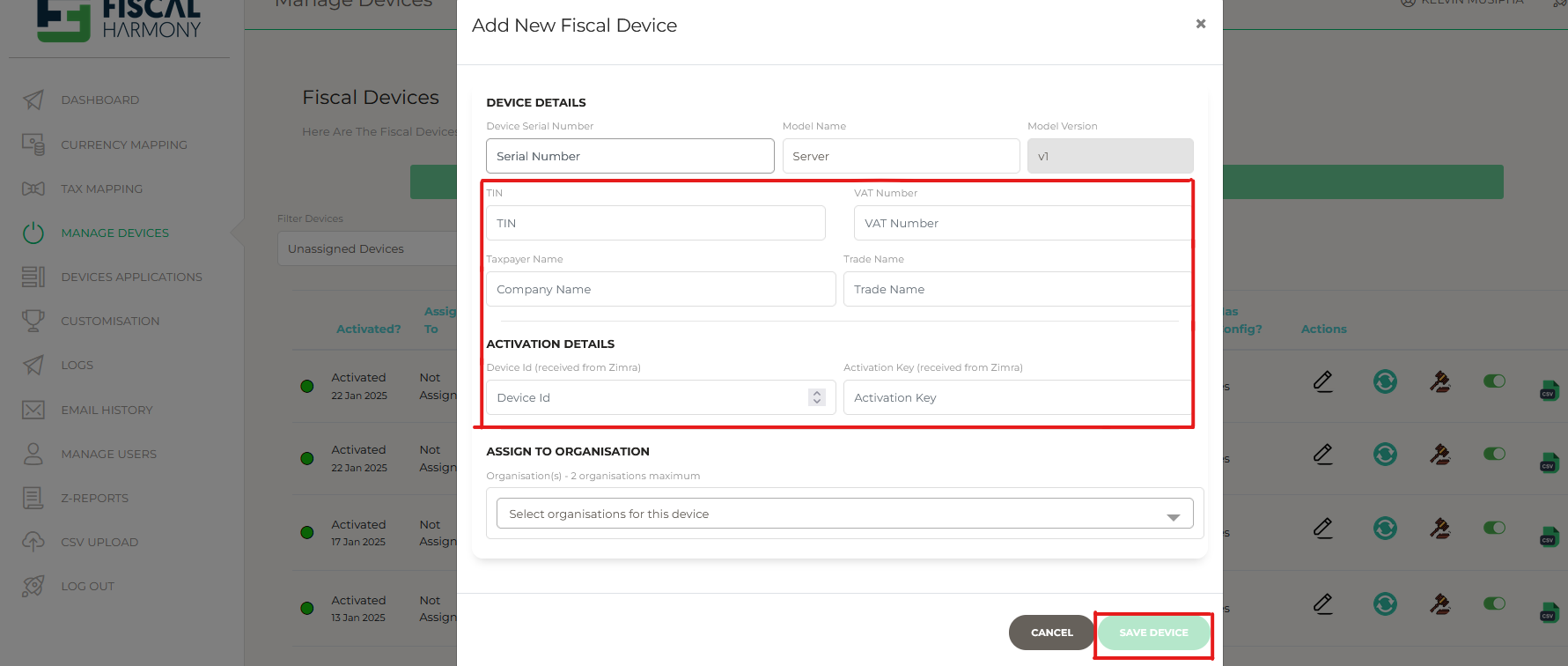
- Once approved, navigate to “Add New Fiscal Device” once again.
- Replace the serial number with the one you previously submitted to ZIMRA.
- Input additional required details:
- TIN and VAT Number
- Taxpayer Name and Trade Name
- Device ID and Activation Key from ZIMRA
- Click “Save Device” once completed.
Step 4. Assigning the Device to a User
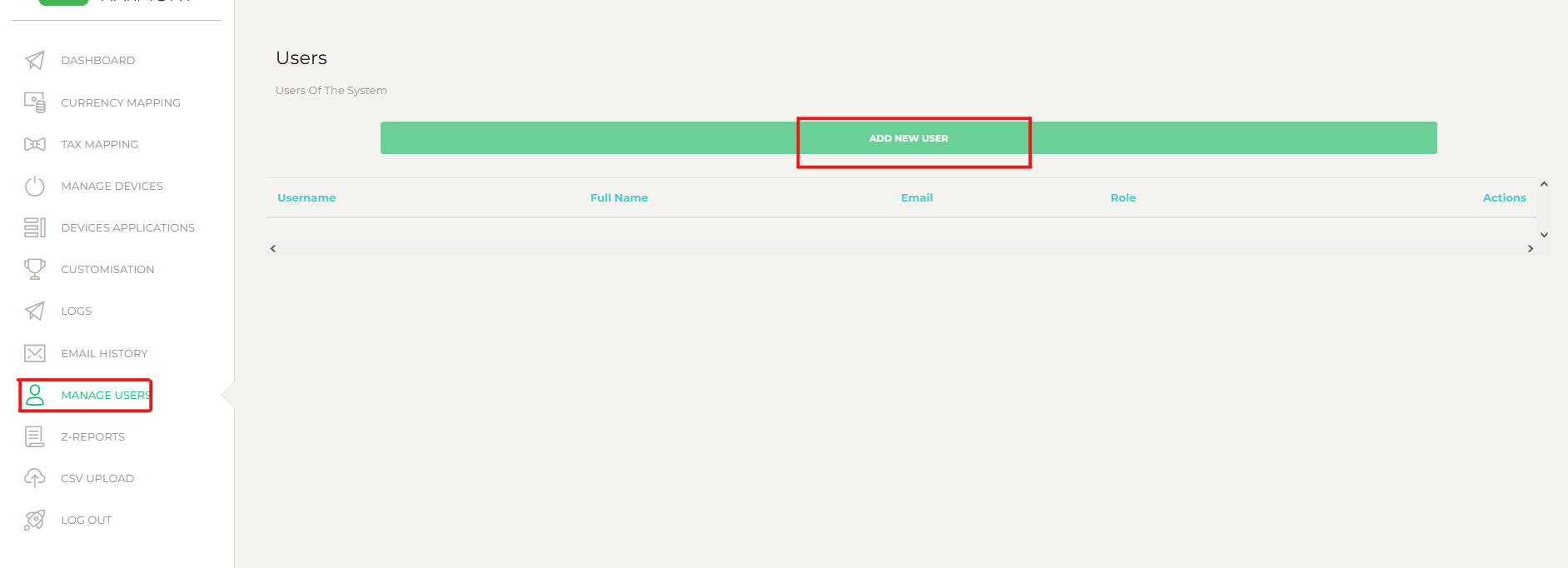
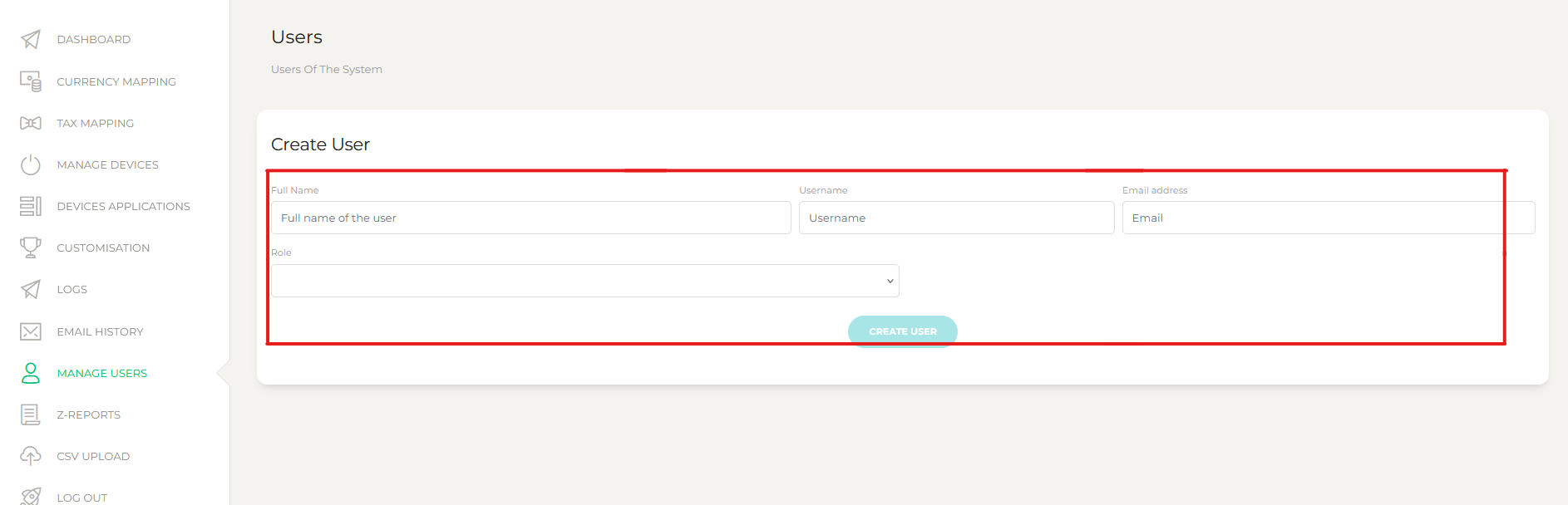
- Go to ‘Manage Users’ in the left panel menu.
- Click ‘Add a New User’ to create a user account for device assignment.
- Enter all the details required for the user. E.g. ‘Full Name,’ ‘Username,’ ‘Email,’ and their ‘Role’.
- Click ‘Create User’ after completing.
Step 5. Email Verification
- Ensure the email address used for the new user matches the address on the Excel template.
- The new user will receive a link sent to their email address for them to set a new password.
- The user will have to follow the prompts to set their new password.
Step 6. Finalising User Assignment
- Return to the ‘Manage Devices’ tab on the left panel to assign the new user to the device.
- Click ‘Save’ to complete the assignment process.

Next Steps
- Stay Informed:
Regularly check your portal for updates and changes to the Reseller Agreement. - Leverage Support:
Utilise the training and marketing support provided by Fiscal Harmony. - Comply Strictly:
Adhere to all Fiscal Harmony policies and guidelines to ensure a smooth partnership.
Related Articles
Custom Document Design Platform
Overview Allows users to create, customize, and manage documents tailored to their specific needs. This platform is designed to streamline document creation processes, ensuring consistency, accuracy, and professionalism. Key Features Here are the ...Fiscal Harmony Reseller Guide
Getting Started As a Fiscal Harmony reseller, you unlock exclusive benefits, high-profit potential and the opportunity to grow your business portfolio with our industry-leading software solutions. Our program equips you with competitive discounts, ...Buyer Details Verification Guide
This Buyer Details Verification Guide walks you through a simple, step-by-step process to confirm important buyer information. It shares practical tips, useful tools, and key compliance points to help businesses set up a smooth, secure verification ...QuickBooks Errors and Solutions: A Comprehensive Guide
Overview Here are a list of errors that you may have encountered, which have solutions that we provided in order to guide you to fixing them. No Buyer Details Provided The "No Buyer Details Provided" error typically occurs when a user is trying to ...QuickBooks and Fiscal Harmony Integration Guide
Overview This guide provides a step-by-step process for integrating QuickBooks with the Fiscal Harmony plugin, facilitating the fiscalization of invoices and credit notes for compliance with the Zimbabwe Revenue Authority (ZIMRA). Step 1. Downloading ...