Custom Document Design Platform
Overview
Allows users to create, customize, and manage documents tailored to their specific needs. This platform is designed to streamline document creation processes, ensuring consistency, accuracy, and professionalism.
Key Features
Here are the primary features of the platform:
Document Templates
Access pre-designed templates for:
- Invoices
- Credit Notes
Use these templates as a starting point for your documents.
Customisation Tools
Modify templates by:
- Adding logos
- Changing fonts
- Adjusting colors
- Inserting custom text
Tailor the design to match your brand and preferences.
Preview Mode
- View real-time previews of your customised documents before finalizing them.
- Ensure the document meets your expectations before saving or exporting.
Customising Default Template
Step 1. Access the Platform
- Navigate to your Fiscal Harmony app on https://app.fiscalharmont.co.zw/ and log in with your credentials (or register for an account if you're a new user).
- On the dashboard, go to Settings > Customisation from the side nav.
- On the page, click on the button "Create customisation".
Step 2. Adding Customisation
- Enter your Contact Information:
- Enter the desired Email address that you want to appear on the fiscalised invoice. This will help clients contact you easily
- Input the Phone number you wish to display on the fiscalised invoice.
- Ensure its accurate and accessible to your clients.
- Set the Printer Layout:
- From the drop-down, select your preferred printer layout, where it can be A4 or letter dimensions.
- Settings and buyer requirements
- If your device is on the Enterprise Plan, you can switch on the setting for Automatic Emails for fiscalised documents to clients, allowing buyers to receive emails on fiscalisation if they provide their email.
- Set the buyer requirements, where invoices can be required to have:
- TIN number
- VAT number
- Phone number
- Physical address
- Email address
- If you want to have multiple discount lines to be combined into a single item, you can switch on Consolidate Discount Lines on Invoices to have a cleaner look.
- Banking Details:
- Provide the necessary banking details for USD transactions. These will be visible on the invoice for clients who need to make payments in USD
- Similarly, add the banking details for ZWG transactions. This ensures clients can pay in the appropriate currency
- If you support other currencies, repeat the same steps for those currencies.
- Add company Logo:
- To personalise your invoices, upload your company logo by clicking on Pick New Logo.
- Select the file from your device and confirm
- Save changes:
- Save all your changes by clicking Save Customisation.
Getting Started with Advanced Customization
Follow these steps to begin using the platform:
Step 1. Access the Platform
- Navigate to your Fiscal Harmony app on https://app.fiscalharmont.co.zw/ and log in with your credentials (or register for an account if you're a new user).
- On the dashboard, go to Settings > Customisation from the side nav.
- On the page, if the option is available, select Start Customising Your Templates.
Step 2. Choose a Template
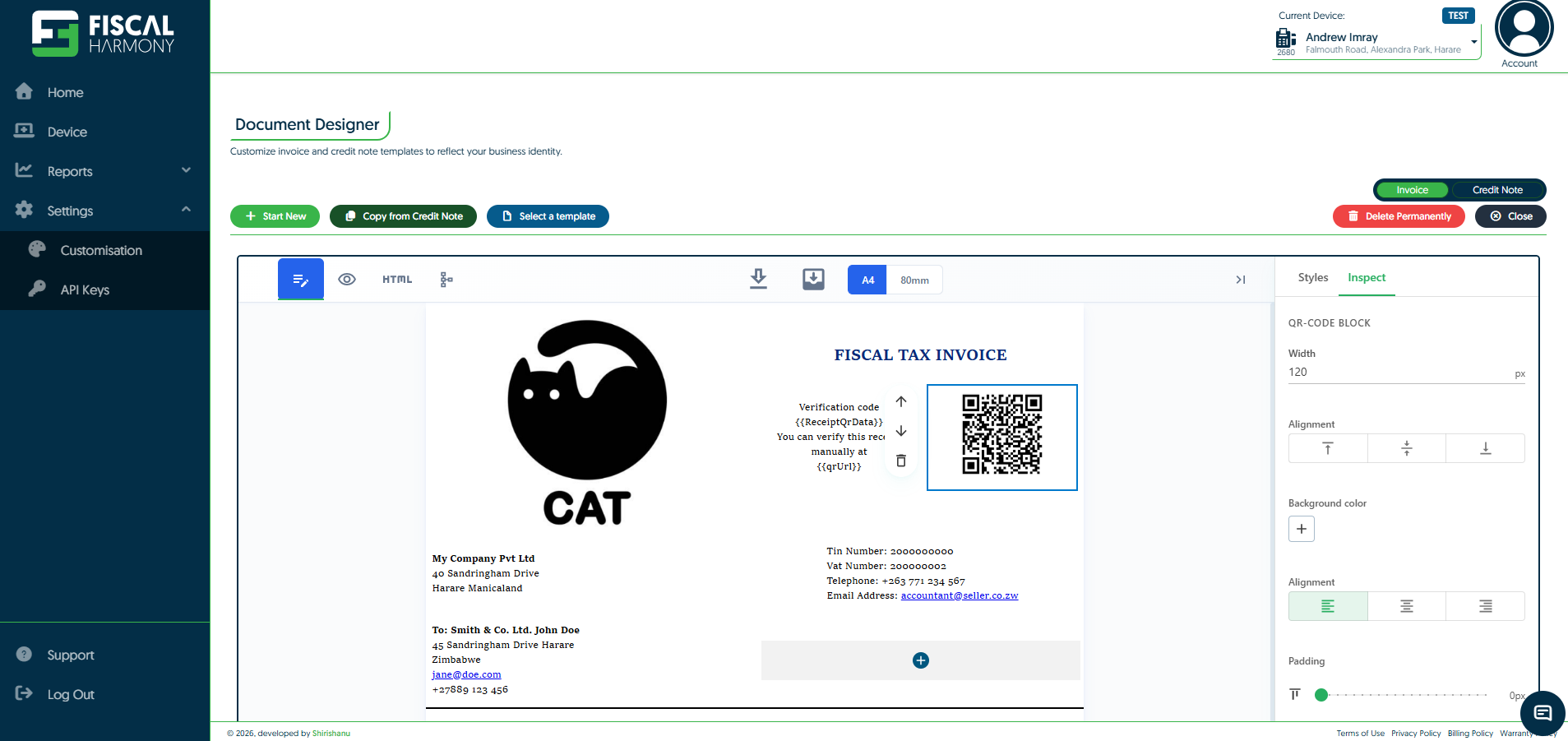
- On the page, browse the available templates in the library by clicking "Select a template".
- Select a template that best suits your requirements (e.g., Invoice or Credit Note).
Step 3. Customize Your Document
- Use the toolbar to:
- Add images (e.g., company logo)
- Adjust layouts (e.g., move sections around)
- Modify content (e.g., change text, colours, fonts)
Step 4. Preview and Save
- Use the Preview feature to ensure your document looks as desired.
- Save your work to continue later or finalise it.
Creating a Template from Scratch
If you prefer to design a document entirely from scratch, follow these steps:
Step 1. Start Afresh
- Press the Start New button to begin creating a new template.
- A blank canvas will appear, allowing you to build your document step by step.

CAUTION: Starting a new template will erase any unsaved designs.
Step 2. Add Sections
- Divide your document into logical sections:
- Header: Includes company logo, name, and contact details.
- Body: Contains the main content (e.g., item lists, descriptions).
- Footer: Includes terms and conditions, payment information, or signatures.
- Use drag-and-drop tools to position elements like:
- Text boxes
- Tables
- Images
- Edit each field to suit your needs.
4.3 Copying Template Themes
If you want to reuse a design from an existing template:
Select the template you wish to copy (e.g., Invoice or Credit Note).
Apply its theme to another document type (e.g., Credit Note to Invoice).
This ensures consistency across your documents while saving time.
Step 4. Saving Your Template
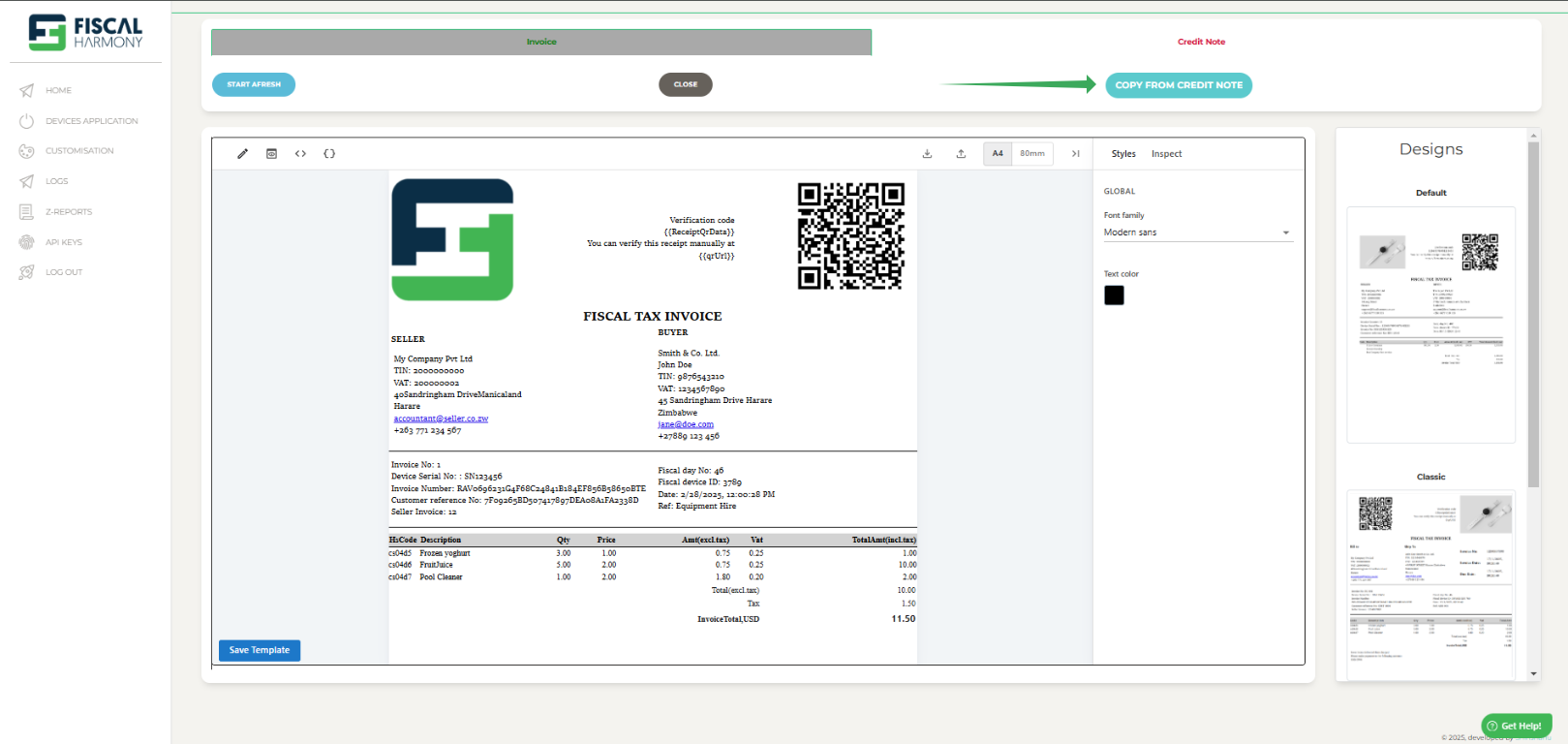
- Click Save Template button at the bottom of the page to save your work.
- A preview of your document will be displayed.
Saving Options:
- Save and Activate:
Activates your template immediately. When you fiscalise, this is the template that appears. - Save Draft:
This keeps your template as a draft for future editing. You can return to it and continue working when ready.
Troubleshooting
If you encounter any issues while using the platform, refer to the solutions below:
Unable to Log In
- Ensure you're entering the correct username and password.
- If forgotten, reset your password using the "Forgot Password" option.
Template Not Loading
- Check your internet connection and refresh the page.
- If the issue persists, contact support.
Related Articles
Step-by-Step Guide for Resellers to Register a New Client on their Platform
Overview As a Fiscal Harmony reseller, you unlock exclusive benefits, high-profit potential and the opportunity to grow your business portfolio with our industry-leading software solutions. Our program equips you with expert training and dedicated ...Dashboard Explanation
Overview Here is the information about the dashboard and signing into the application. You can navigate to the Fiscal Harmony app by going to https://app.fiscalharmony.co.zw/. App Users This is for information on how to navigate to the dashboard for ...Deregistering from a previous supplier to Fiscal Harmony
Migration Overview This document outlines the essential steps to migrate to Fiscal Harmony's fiscalisation system. Follow each step to ensure smooth integration and deregistration of your previous device. Step-by-Step Migration Guide Step 1: Acquire ...Implementing HS Codes in ERPNext
Overview An HS Code (Harmonised System Code) is an 8-digit number that uniquely identifies a product. There is no specific field for entering an HS Code, but ideally, in the ERPNext Fiscalisation app, it is added in the Fiscal HS Code document. The ...System Explanation
What is Fiscalisation? Fiscalisation refers to the process by which a business electronically records all taxable transactions. In Zimbabwe, businesses are required by law to ensure that every sale is recorded using a ZIMRA-approved fiscal device. ...