Payment Process
Introduction
Welcome to our guide to the Fiscal Harmony Payment Process! This guide will walk you through the different payment processes you may encounter, including upcoming, overdue, onboarding, and upgrading payments. We’ve designed these processes to be straightforward and hassle-free.
1. Upcoming Payments
You will receive notifications about upcoming payments before they’re due. These payments include items such as your subscription renewals and other scheduled charges.
How to Make an Upcoming Payment:
Step 1. Receive the notification
You will receive a reminder via email with the due date and amount to pay for that subscription. The email will show the details for you to correctly know which device(s) need their subscription to be paid. If you want to topup
Step 2. Payment Link:
Once you receive that email, proceed to log in to your portal on the Fiscal Harmony app on https://app.fiscalharmony.co.zw. Once logged in, navigate to the Account icon labelled "Account" in the top-right corner. From there, click on "Billing" to take you to your subscriptions.
Step 3. Select your subscription to topup
On the billing page, filter through the subscriptions by selecting the filter dropdown and selecting "Active".
Here you can select the subscription for a top-up payment by clicking on "Pay Upcoming" button.
Step 4. Select payment method
Select the payment method you would want to pay with (i.e. ‘Ecocash’, ‘Innbucks’, ‘Zimswitch’, ‘Credit card’).

Note that if you wish to make a payment using bank transfer or on-site, you can select the options shown. and skip the following step.
Step 5. Confirm Online Payment:
Review the details and confirm your payment. Once confirmed, you can make the payment by clicking Checkout. This will take you to the payment gateway where you can follow the instructions provided based on the payment method selected and then verify the subscription from your end.
NOTE: Take note of our privacy policy, terms of use and billing policy to understand the terms based on your subscription charges and how your information will be handled in the application.
Once your payment is processed, you will receive a receipt, and the subscriptions you selected will be billed for once we receive the payments.
2. Overdue Payments
If a payment has been missed, you will be notified that your payment is overdue. Overdue payments may result in service interruptions.
How to Make an Overdue Payment:
Step 1. Receive Notification
An email or SMS will notify you of the overdue status.
Step 2. Access Payment Page
Once you receive that email, navigate to the Fiscal Harmony app portal on https://app.fiscalharmont.co.zw/. Once logged in, navigate to the Account icon labelled "Account" in the top-right corner. From there, click on "Billing" to take you to your subscriptions.
Step 3. Select Overdue subscriptions
On the billing page, filter through the subscriptions by selecting the filter dropdown and selecting "Overdue".
Here you can select the overdue subscriptions with the checkbox on the corner and select the button to "Pay for Selected"
Step 4. Make Payment
To make the payment immediately, then click on the amount due, you should be taken to the billing page where you will be presented with the screen to pay the amount due and then checkout.
Step 6. Service Restoration
After your payment is successful, services will be restored, and you will receive confirmation.
3. Onboarding Payments
Onboarding payments are part of the initial registration process when you sign up for our services.
How to Make an Onboarding Payment:
Step 1. Registration
After filling out your registration form, you will be asked to make your first payment.
Step 2. Payment Options
Select payment method you would want to make payment with i.e
‘Ecocash’, ‘Innbucks’, ‘Zimswitch’, ‘Visa’ or ‘Mastercard’, you can then click on checkout.
Step 3. Payment Confirmation
Complete the payment, and your account will be activated upon successful payment.
4. Upgrading Payments
When you decide to upgrade your plan or service, you'll need to make an additional payment.
How to Make an Upgrading Payment:
Step 1. Choose Upgrade Plan
Open the Fiscal Harmony app on https://app.fiscalharmony.co.zw/ dashboard and navigate to your Billing from the Account icon on the top-right corner.
Step 2. Payment Details
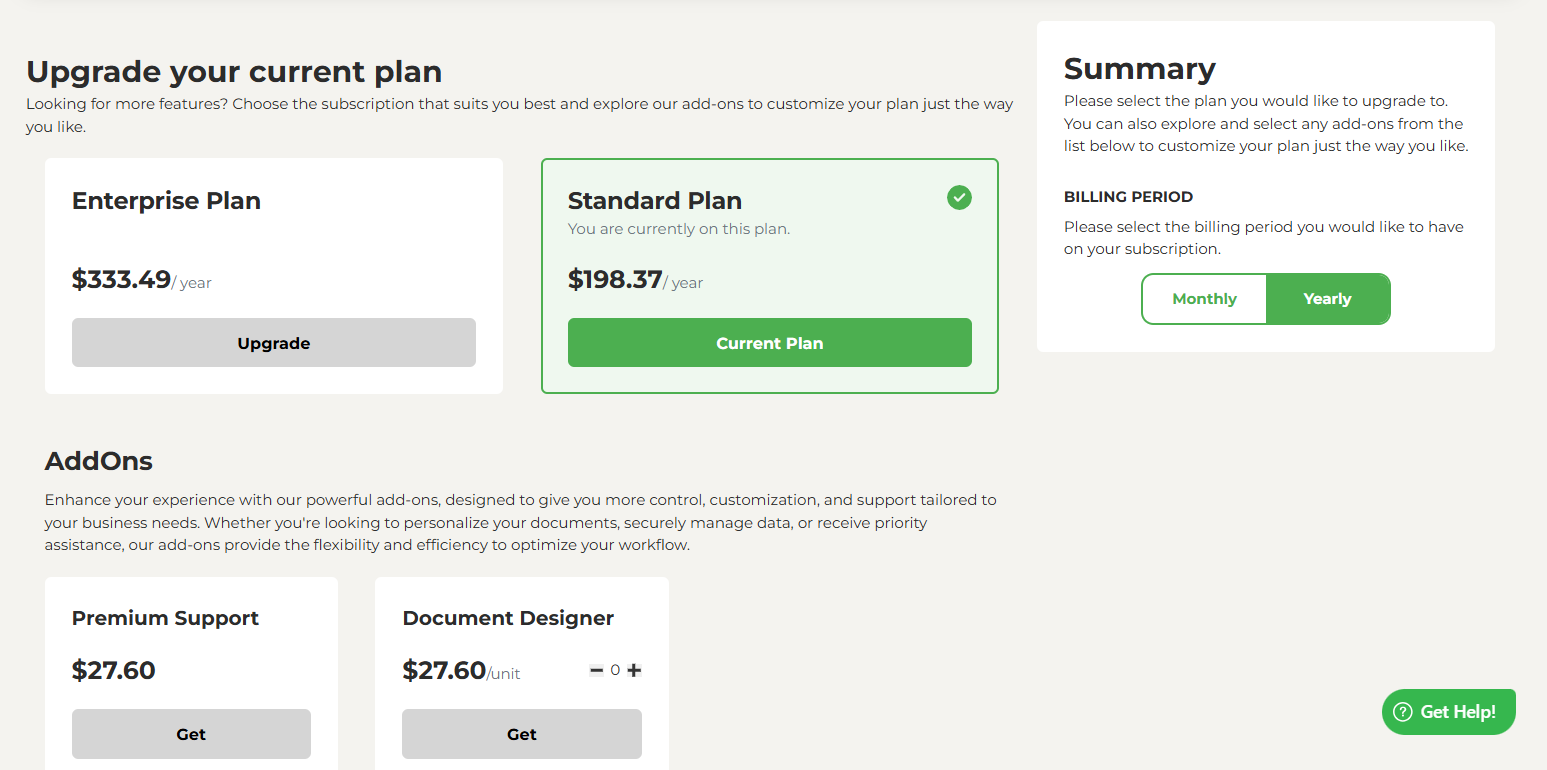
When on the billing page, you can select the subscription you want to upgrade, and then click on the button that says "Upgrade Plan" on the bottom of the card.
You will now be given options to select the plan you would wish to upgrade to, plus the add-ons you can have.
You can select the items you would like to have.
Step 3. Checking Out
After selecting the plans and add-ons, you can then click on checkout, after selecting the payment gateway you like to pay with.
Troubleshooting Payment Issues
If you face any issues during the payment process, here’s how to resolve them:
Payment Declined: Double-check your payment details or contact your bank for more information.
Technical Issue: Refresh the page or try again later. If issues persist, contact our support team.
Missing Receipt: If you did not receive a payment confirmation, check your spam folder. You can also view your payment history from your account dashboard.
For further assistance, reach out to our support team:
Call Centre: +263 8677 010 305
Call Centre: +263 8677 010 305
WhatsApp: +263 783 323 154
Related Articles
How to Pay Your Fiscal Harmony Account
Introduction Welcome to the guide to the Payment Process. This guide will walk you through the different payment processes you might encounter, including upcoming, overdue, onboarding, and upgrading payments. We’ve designed these processes to be ...Fiscalising an Invoice in Meat Matrix POS
Overview This guide will walk you through the four steps required to process a sale and generate a fiscalized invoice using the Meat Matrix Point of Sale POS system. Steps Step 1. Initiate the Sale Open the Meat Matrix POS application. In the ...How To Process a Credit note in Quickbooks Desktop
Overview A credit note is issued by a seller to a buyer for the purposes of correcting, writing off errors or making adjustments in a previous invoice. It is commonly issued in cases of overcharging, return of goods, discrepancies in the goods or ...Fiscal Harmony Reseller Guide
Getting Started As a Fiscal Harmony reseller, you unlock exclusive benefits, high-profit potential and the opportunity to grow your business portfolio with our industry-leading software solutions. Our program equips you with competitive discounts, ...How to Upgrade Fiscal Harmony subscription
Upgrading your Fiscal Harmony subscription is a smart move for individuals and businesses looking to access more powerful financial tools and enhanced service features, upgrading ensures your subscription keeps pace with your growing needs. handle ...