Fiscalising an Invoice in Meat Matrix POS
Overview
This guide will walk you through the four steps required to process a sale and generate a fiscalized invoice using the Meat Matrix Point of Sale POS system.
Steps
Step 1. Initiate the Sale
- Open the Meat Matrix POS application.
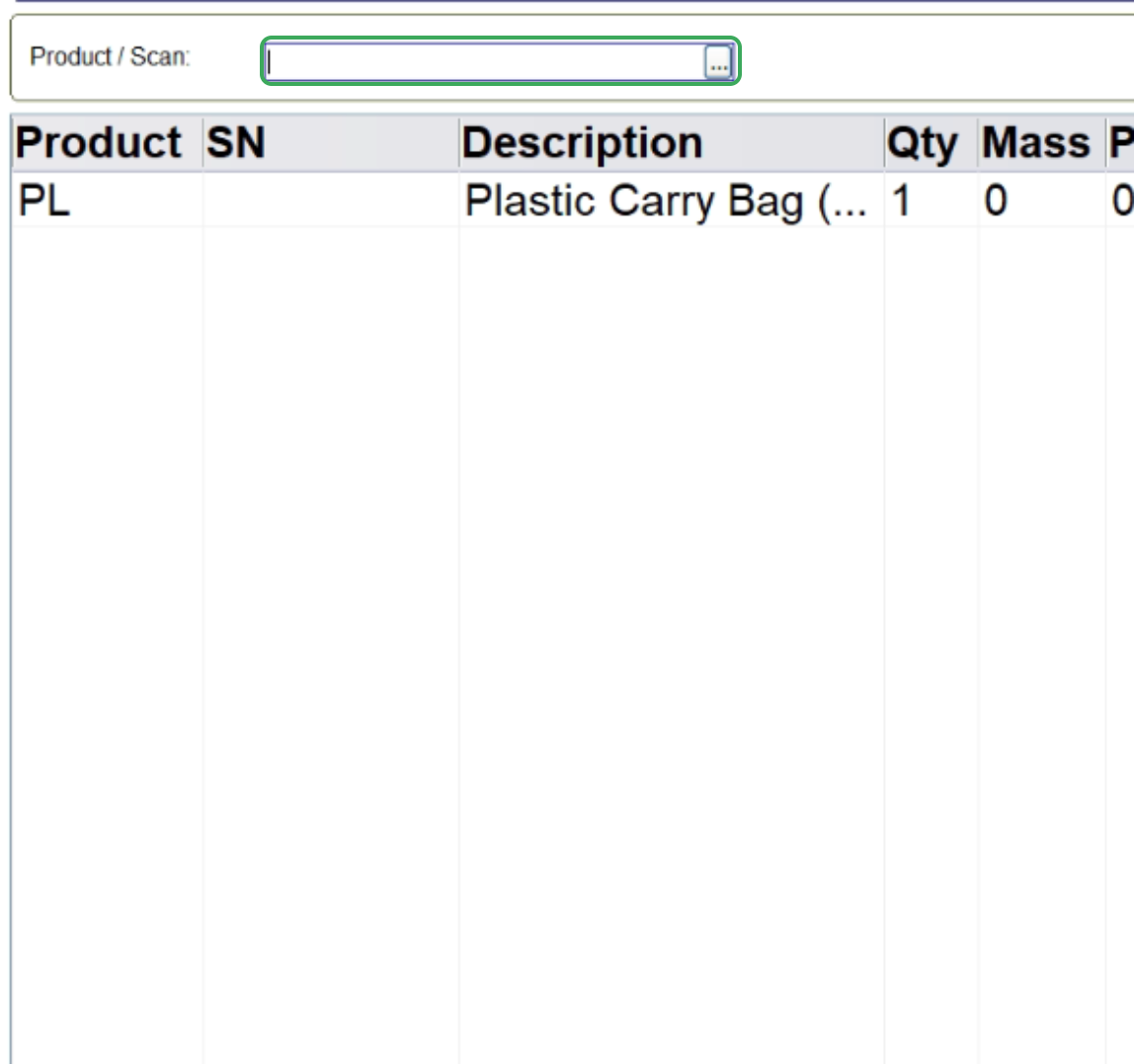
- In the Product/Scan field, either type or scan the product you are selling. The product Description, Quantity, Mass, Price, and Value will automatically populate the sales grid.
Step 2. Start the Fiscalization Process
- Once all items are added, click the Tender/Finalise button on the right side of the screen. This initiates the payment and invoicing process.

Step 3. Process the Payment
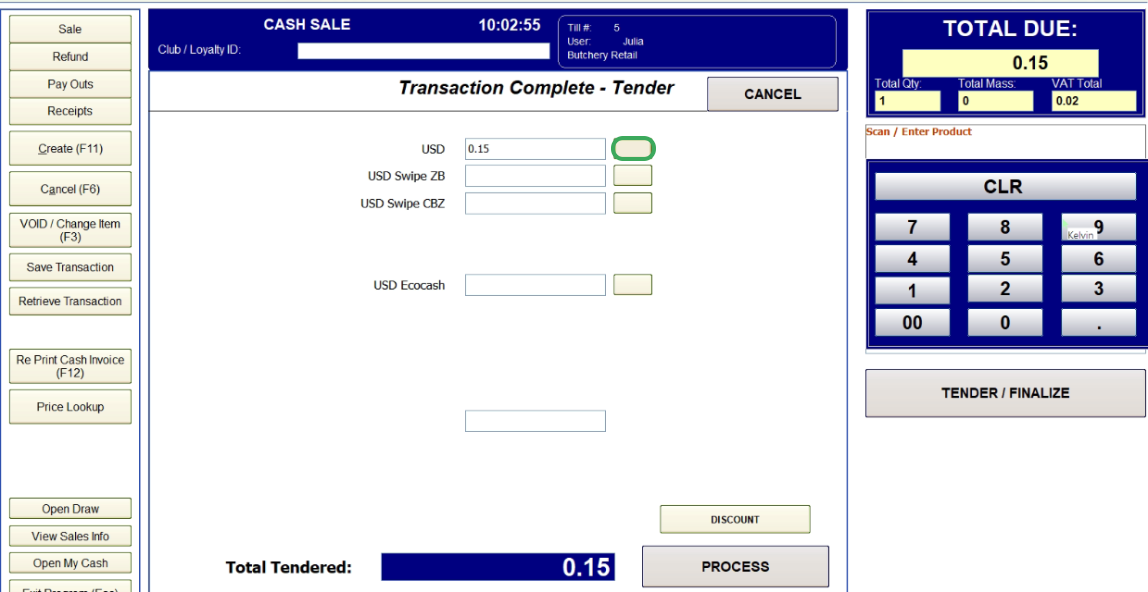
The POS screen will change to Transaction Complete Tender view.
- For a cash payment click the small button next to the USD field. This will automatically transfer the Total Due amount into the field and populate the Total Tendered amount at the bottom.
Step 4. Fiscalise the Invoice
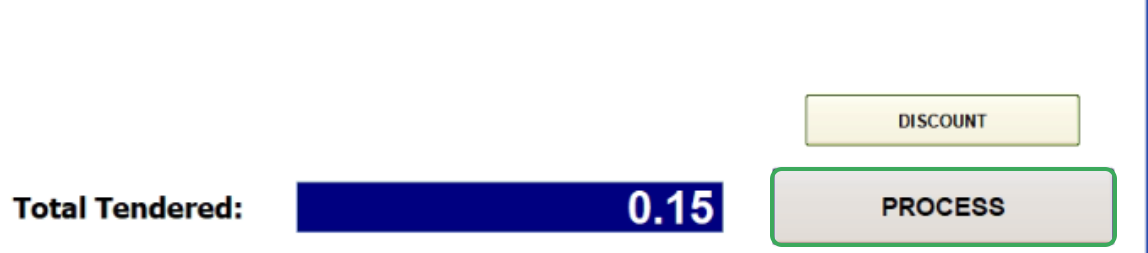
- After you have reviewed the amounts click the Process button.
- The invoice will be saved and your machine will communicate with the fiscal device.
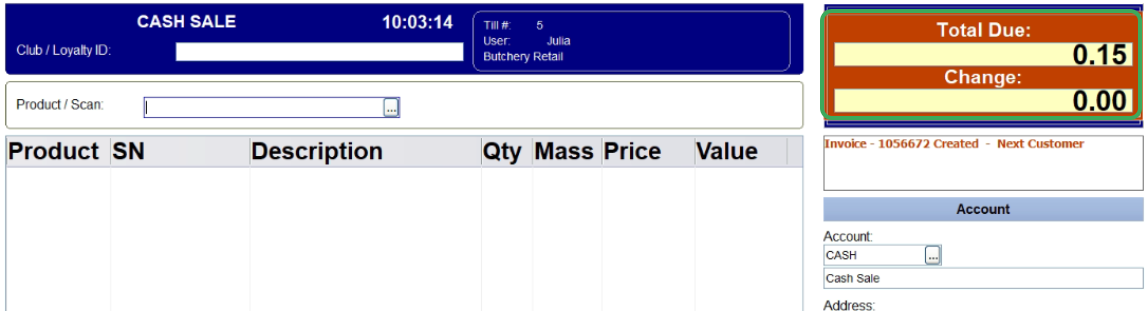
- The system will confirm the invoice creation, and the invoice number will appear in an orange color. The screen will then reset for the next transaction.
This completes the process of fiscalising an invoice in Meat Matrix POS.
For further assistance, reach out to our support team:
Call Centre: +263 8677 010 305
Call Centre: +263 8677 010 305
WhatsApp: +263 783 323 154
Related Articles
Processing a Credit Note in Meat Matrix POS
Overview A Credit Note is processed in the Meat Matrix POS as a Refund. This requires supervisor authorization for security and accurate accounting. Steps Step 1. Initiate the Refund On the main POS screen, click the Refund button located on the menu ...Fiscalising an Invoice in Xero
Overview Prerequisites To fiscalise with this integration, you would need: Your Xero Account is connected to Fiscal Harmony. Step-by-step Process Step 1. Navigate to the Invoices. Locate the Sales module on the top nav. Clicking this will open a ...Creating and Fiscalising Credit Notes in Palladium Accounting
Overview Please follow the following steps to fiscalise credit notes using Palladium accounting. Steps Step 1. Opening Application Running the Fiscal Harmony Plugin Right click on the app and click "Run as administrator" option. Click the upward ...Creating and Fiscalising Credit Notes in Sage Pastel Express Accounting
Overview Please follow the following steps to fiscalise credit notes using Sage Pastel Express Accounting. Step-by-step process Step 1. Opening the application Running the Fiscal Harmony Plugin Right click on the app and click "Run as administrator" ...Creating and Fiscalising invoice in Palladium Accounting
Overview Please follow the following steps to fiscalise an invoice using Palladium accounting. Steps Step 1. Opening Application Running the Fiscal Harmony Plugin Right click on the app and click "Run as administrator" option. Click the upward arrow ...