How to Upgrade Fiscal Harmony subscription
Upgrading your Fiscal Harmony subscription is a smart move for individuals and businesses looking to access more powerful financial tools and enhanced service features, upgrading ensures your subscription keeps pace with your growing needs. handle higher transaction volumes
Step 1.
Log-in your Fiscal harmony app on https://app.fiscalharmony.co.zw/login
Step 2.
Once logged in check to the top right side of your screen and click "Account" and then click on Billing.
Step 3.
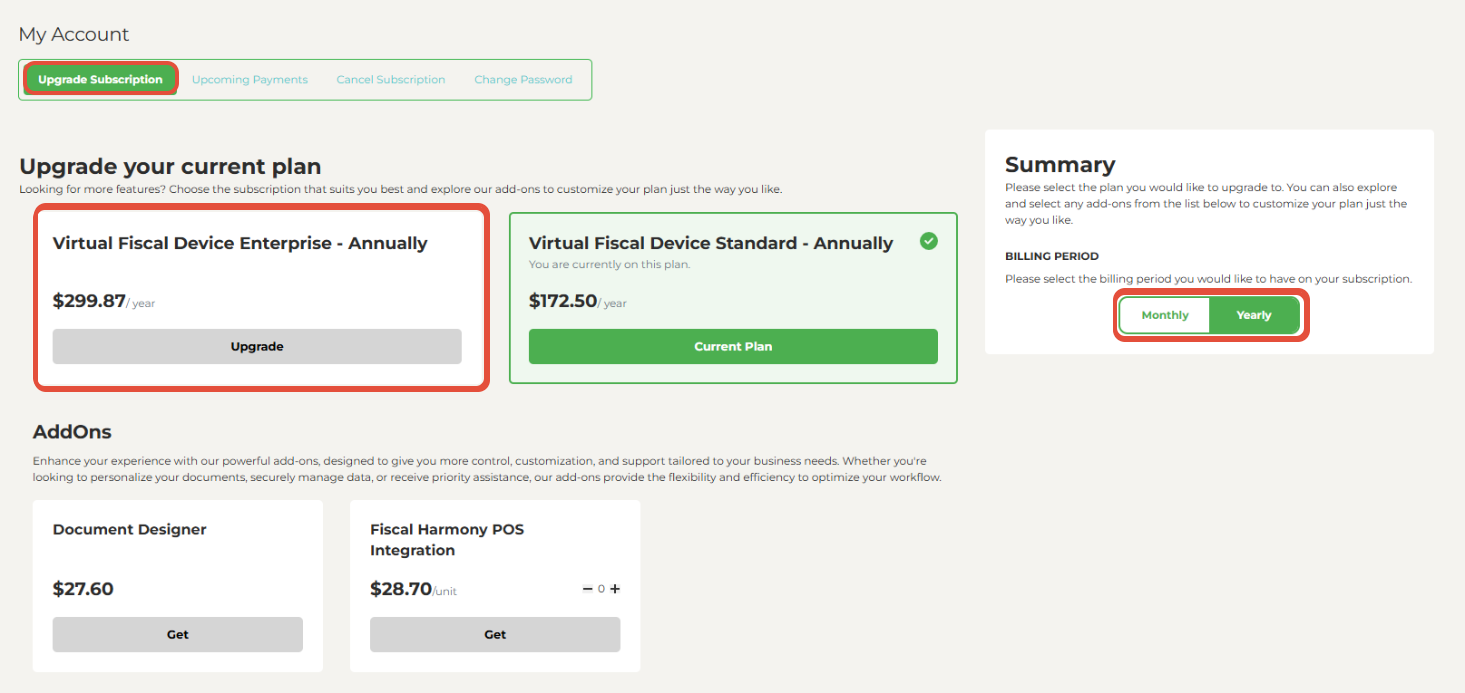
Navigate to the subscription you want to upgrade and click "Upgrade Subscription".
This will take you to the payment page.
Step 4.
Here you can make payments based on the following methods:
- Ecocash
- InnBucks
- ZimSwitch
- Visa
- Mastercard
Follow the prompts to complete your payment. Online payments are processed instantly, and your account will be credited immediately.
Advantages of Upgrading Your Fiscal Harmony Enterprise Subscription
API Access for Custom Integrations
Upgrading gives you full access to Fiscal Harmony’s API, so you can tailor the system to fit your unique workflow. Whether you're connecting it with your existing accounting tools or building custom features, the flexibility is in your hands.
Unlimited Transactions Per Month
With an upgraded Enterprise subscription, you can process as many transactions as your business needs—ideal for companies experiencing growth or managing high volumes of financial activity.
Multiple Installations on a Single Device
The upgrade lets you run multiple instances of Fiscal Harmony on the same device, making it easy to switch between entities without needing extra hardware.
Monthly Consolidated Z Report
Gain a comprehensive overview of your business performance with automatically generated monthly consolidated Z reports
Automated Email Delivery to Clients
Save time and improve communication efficiency with automatic email delivery of invoices, directly to your clients.
For further assistance, reach out to our support team:
Call Centre: +263 8677 010 305
Call Centre: +263 8677 010 305
WhatsApp: +263 783 323 154
Related Articles
How to Pay Your Fiscal Harmony Account
Introduction Welcome to the guide to the Payment Process. This guide will walk you through the different payment processes you might encounter, including upcoming, overdue, onboarding, and upgrading payments. We’ve designed these processes to be ...Fiscal Harmony Reseller Guide
Getting Started As a Fiscal Harmony reseller, you unlock exclusive benefits, high-profit potential and the opportunity to grow your business portfolio with our industry-leading software solutions. Our program equips you with competitive discounts, ...Odoo and Fiscal Harmony Integration
Overview Prerequsites Please kindly note that in order to integrate with ODOO, you will need to: Engage the ODOO accounting service provider to host the FISCAL HARMONY plug-in on system's database, whether it is hosted online or locally. Attached ...Self-Onboarding for Fiscal Harmony
To start onboarding your company with Fiscal Harmony, follow the detailed steps below: Step 1. Access the Fiscal Harmony Application Navigate to our web app on https://app.fiscalharmony.co.zw. Here you can click on the link that says "Sign Up", which ...Meat Matrix and Fiscal Harmony Integration Guide
Overview This guide outlines the steps to integrate Meat Matrix with the Fiscal Harmony plugin for the compliant fiscalisation of invoices and credit notes with the Zimbabwe Revenue Authority (ZIMRA). Prerequisites Download the Fiscal Harmony Plugin ...