Implementing HS Codes in QuickBooks Desktop
Overview
HS codes, also known as Harmonised System Codes, are standardized numerical codes used to classify products in international trade. They are unique codes that identify and describe a product or service.
Step-by-step Guide
Step 1. Navigate to Item List
You can navigate to the Item List using the top nav or using the navigation bar.
Method 1: Using top nav
- Firstly, navigate to the top menu bar of the application or website.
- Once you have achieved this, search and click for the option labeled 'Lists.'
- A drop-down menu will appear, showing various options. From that menu, select 'Item List' to view or manage the list of items.
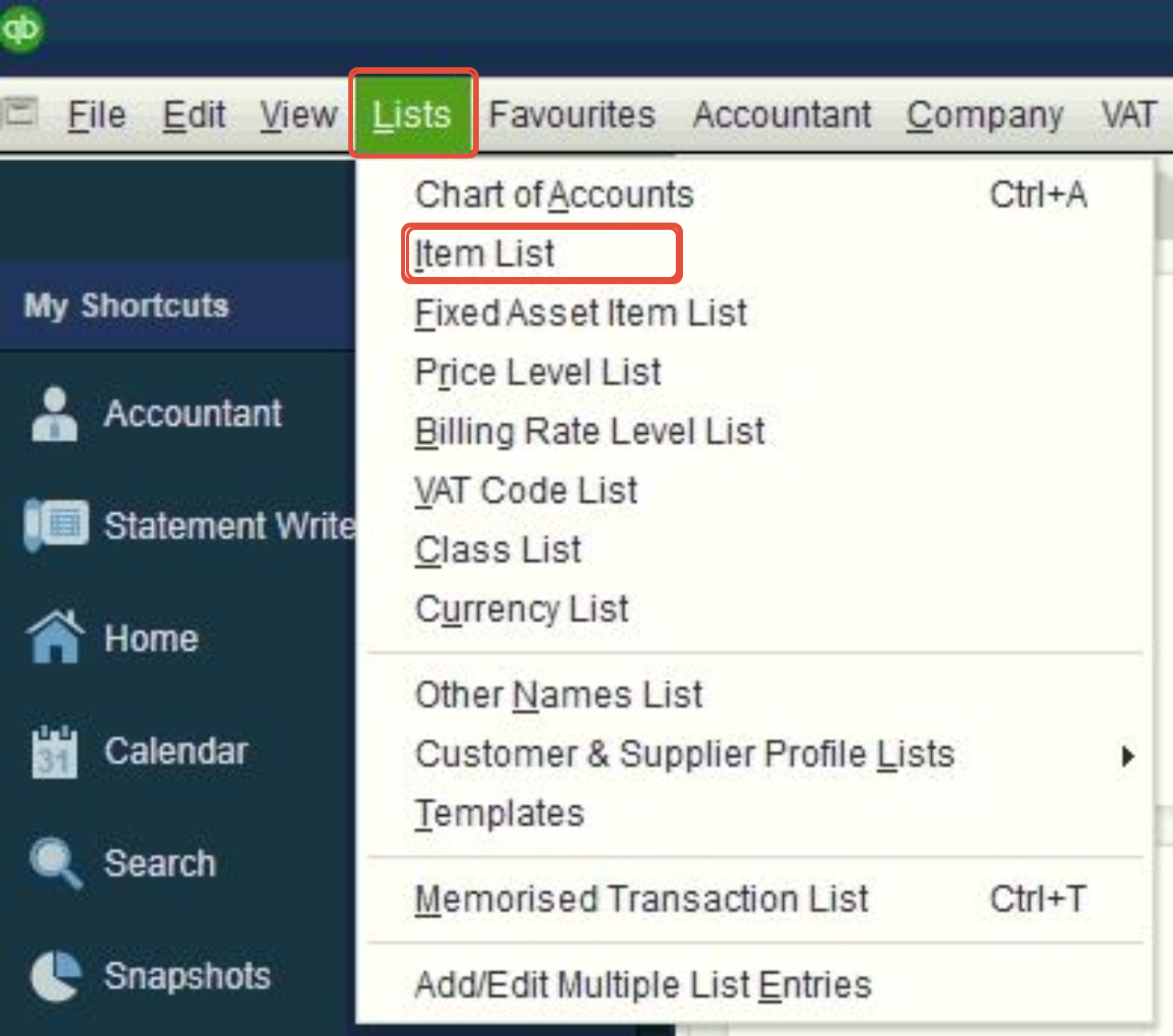
Method 2: Using the Navigation Bar
- Click on "View" at the top of the screen.
- Select "Item List" from the available options.
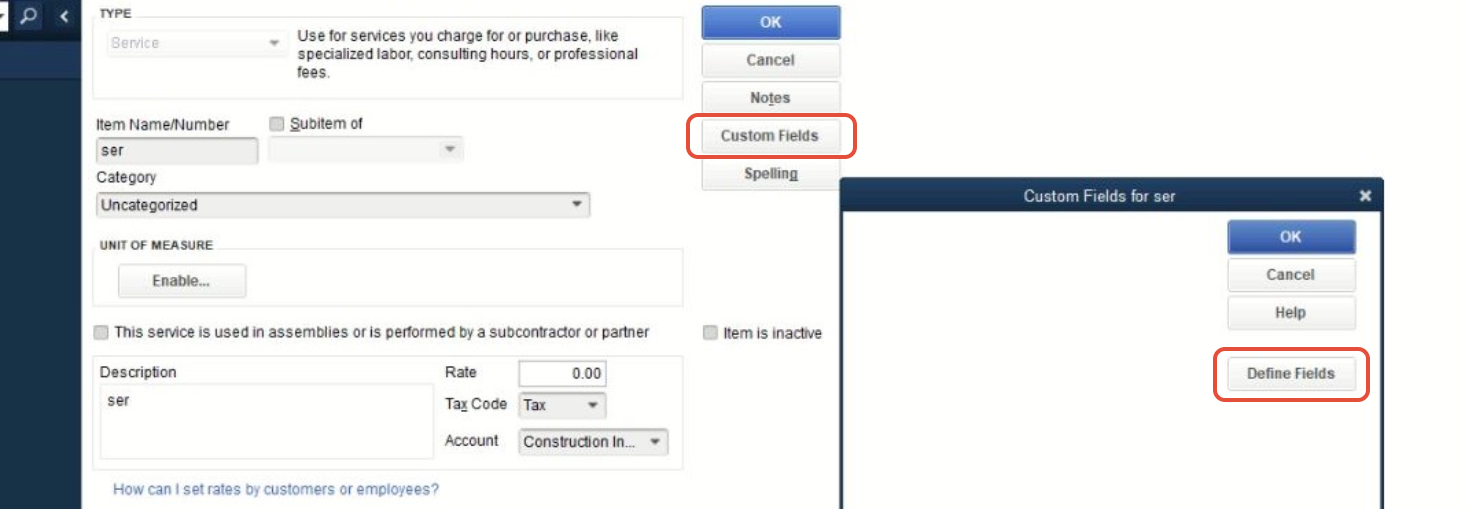
- Click "Custom Fields".
- Click "Define Fields" to configure custom fields.
Step 2. Enter the HS Codes
- Type "HS CODE" in the text box displayed and check the checkbox "Use".
- NB > kindly check under what kind of data is using "Any Text"
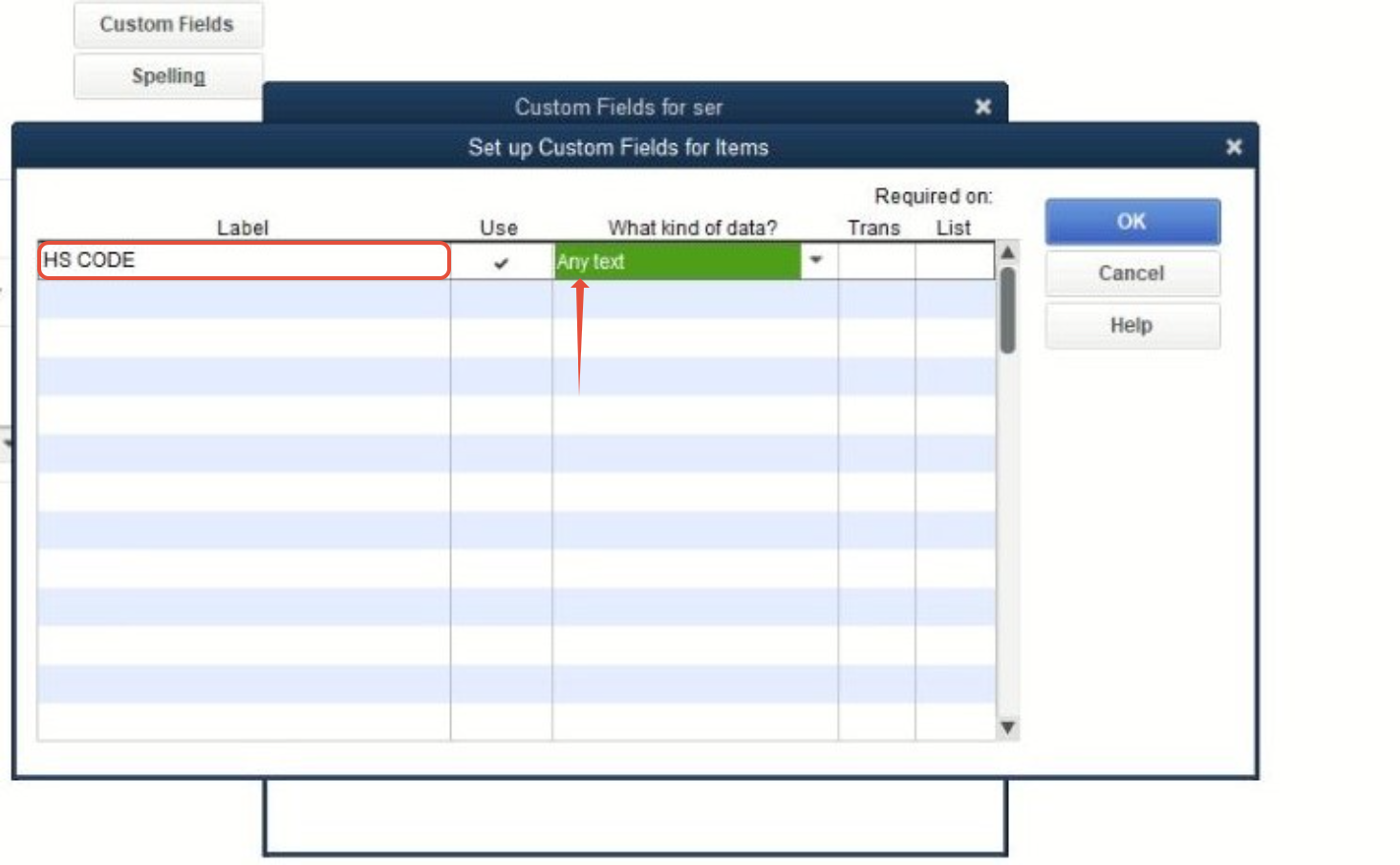
- Click "OK" to save.
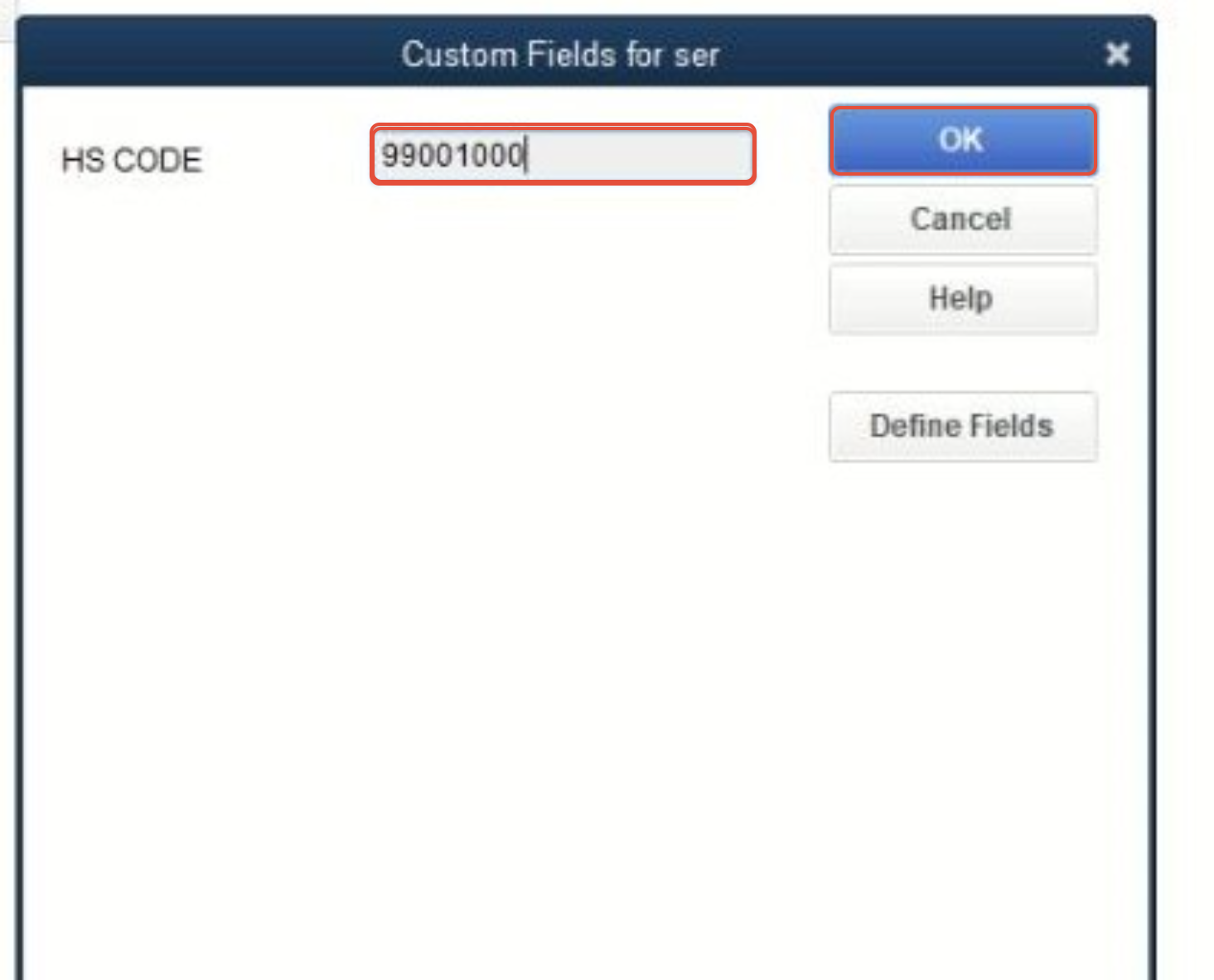
- Navigate to the product and select custom fields.
- On the pop-up, enter the HS CODE for that product.
Step 3. Fiscalising with HS Codes
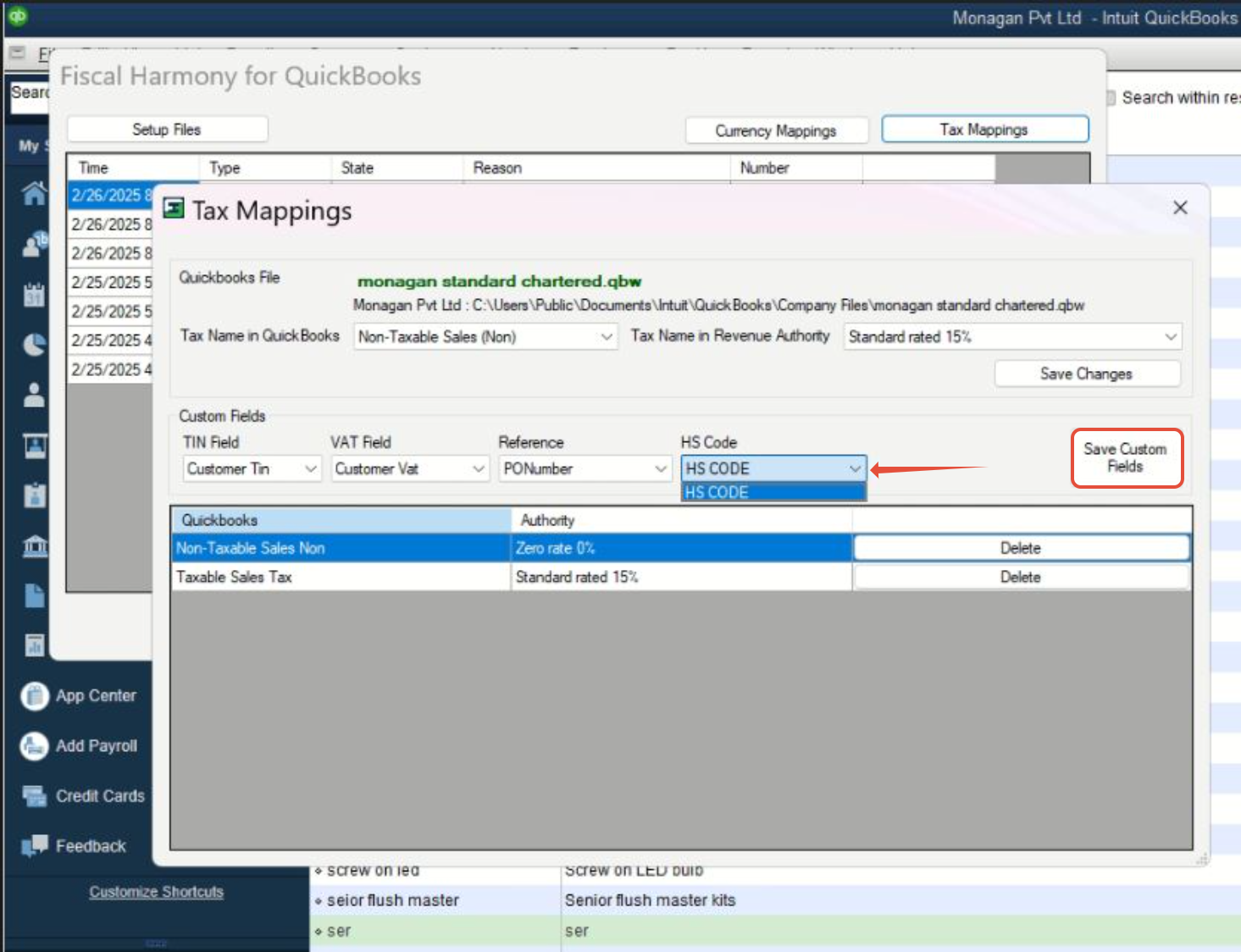
- Open the Fiscal Harmony plugin on your desktop.
- Locate and open the "Tax Mappings" section.
- Find the "HSCODE" custom field, then click the drop-down menu and select "HSCODE."
- Click "Save Custom Fields" to save your changes.
Related Articles
How to add HS Codes in QUICKBOOKS
What are HS-Codes ? HS codes, also known as Harmonized System Codes, are standardized numerical codes used to classify products in international trade. They are unique codes that identify and describe a product or service. How to implement HS Codess ...Implementing HS Codes in ERPNext
Overview An HS Code (Harmonised System Code) is an 8-digit number that uniquely identifies a product. There is no specific field for entering an HS Code, but ideally, in the ERPNext Fiscalisation app, it is added in the Fiscal HS Code document. The ...Implementing HS Codes in Palladium Accounting
Overview Harmonized System (HS) Codes are standardized numerical classifications used globally to identify and categorize traded products. These codes ensure uniformity in customs declarations, tariffs, and trade documentation. Key Features of HS ...Implementing HS Codes in Excel Using Fiscal Harmony Template
Overview Harmonised System (HS) Codes are standardised numerical classifications used globally to identify and categorise traded products. These codes ensure uniformity in customs declarations, tariffs, and trade documentation. Key Features of HS ...Implementing HS Codes in Manager.io
Overview HS Code (Harmonised System Code): Each inventory item on the invoice must have an HS Code associated with it. This code classifies the product or service for tax purposes. Step-by-step Process Step 1. Set up Custom Fields Go to Settings in ...