Implementing HS Codes in Manager.io
Overview
HS Code (Harmonised System Code): Each inventory item on the invoice must have an HS Code associated with it. This code classifies the product or service for tax purposes.
Step-by-step Process
Step 1. Set up Custom Fields
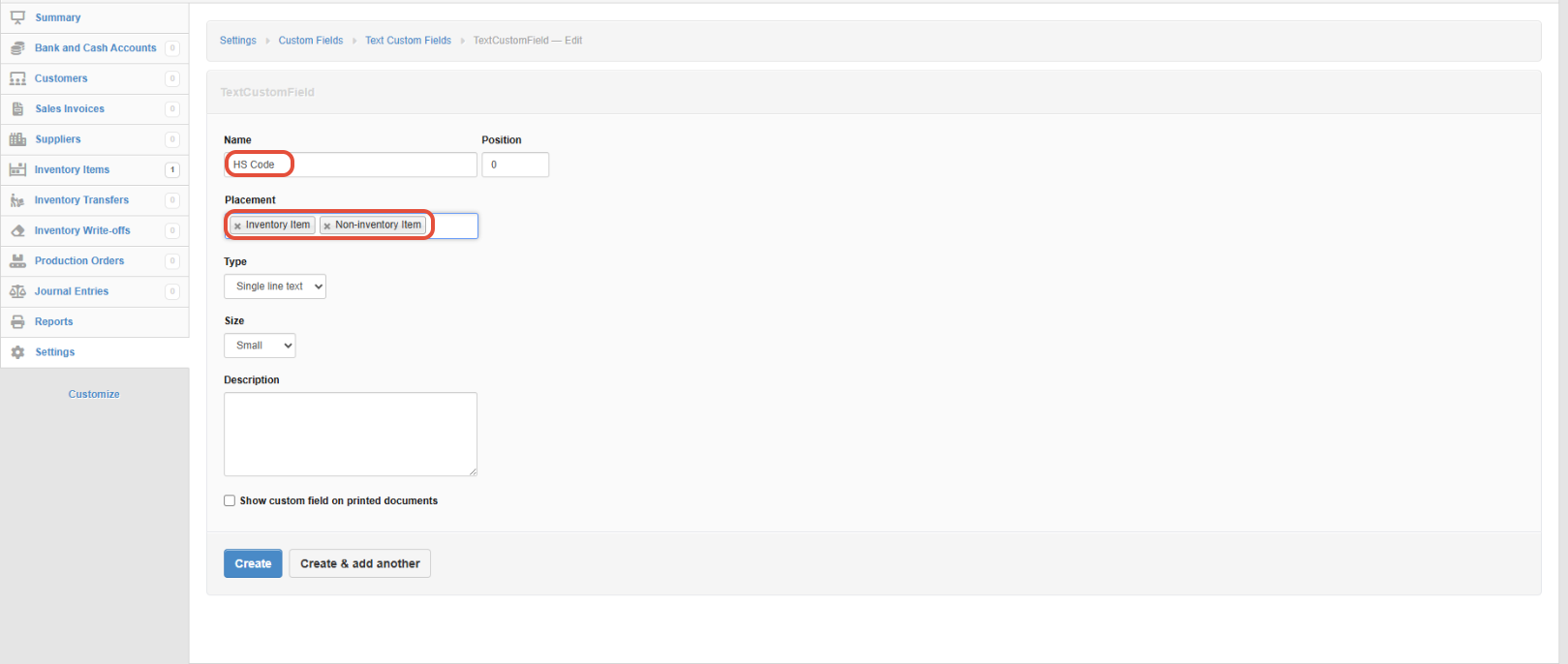
- Go to Settings in your Manager.io application.
- Select Custom Fields.

- Name the Text Field HS Code.
- On the Placement Field, put Inventory Item and Non-Inventory Item.
- Click Create to save the changes.
Step 2. Add HS Code to Invoice
- Navigate to Sales > Invoices.
- Create a new invoice or open an existing unpaid invoice.
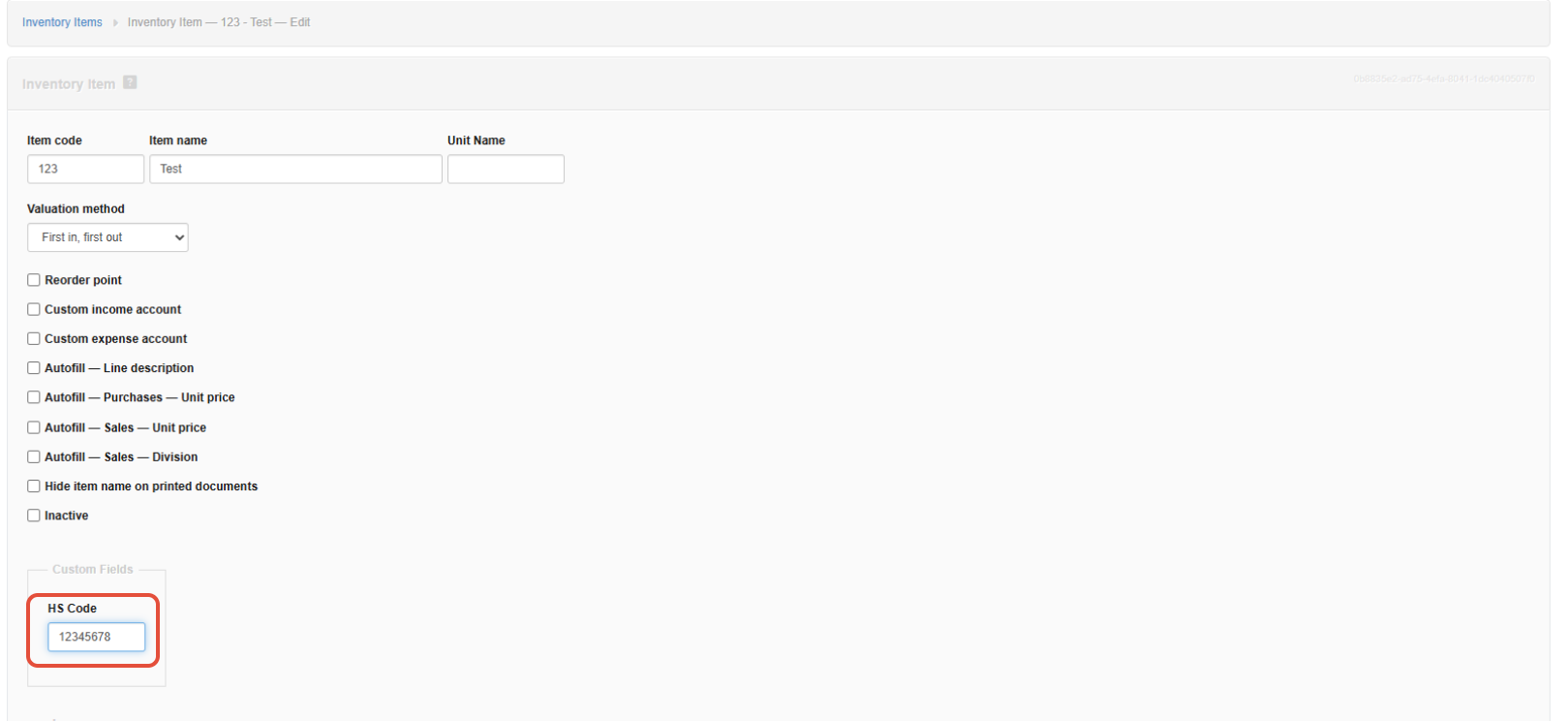
- Put the HS Code in the text field under Custom Fields.
Related Articles
Implementing HS Codes in ERPNext
Overview An HS Code (Harmonised System Code) is an 8-digit number that uniquely identifies a product. There is no specific field for entering an HS Code, but ideally, in the ERPNext Fiscalisation app, it is added in the Fiscal HS Code document. The ...Implementing HS Codes in Palladium Accounting
Overview Harmonized System (HS) Codes are standardized numerical classifications used globally to identify and categorize traded products. These codes ensure uniformity in customs declarations, tariffs, and trade documentation. Key Features of HS ...Implementing HS Codes in QuickBooks Desktop
Overview HS codes, also known as Harmonised System Codes, are standardized numerical codes used to classify products in international trade. They are unique codes that identify and describe a product or service. Step-by-step Guide Step 1. Navigate to ...Implementing HS Codes in Excel Using Fiscal Harmony Template
Overview Harmonised System (HS) Codes are standardised numerical classifications used globally to identify and categorise traded products. These codes ensure uniformity in customs declarations, tariffs, and trade documentation. Key Features of HS ...HS Codes for FDMS
01: Live Animals & Livestock Expanded Semantic Context Live animals used for agriculture, breeding, transport, or food supply chains. Includes cattle, swine, poultry, horses, and other farmed livestock in live form. Covers breeding stock, young ...