How to add HS Codes in QUICKBOOKS
What are HS-Codes ?
HS codes, also known as Harmonized System Codes, are standardized numerical codes used to classify products in international trade. They are unique codes that identify and describe a product or service.
How to implement HS Codess
Step 1.
- Firstly, navigate to the top menu bar of the application or website.
- Once you have achieved this, click on the option "Lists". A drop-down menu will appear, showing various options.
- From that menu, select 'Item List' to view or manage the list of items.
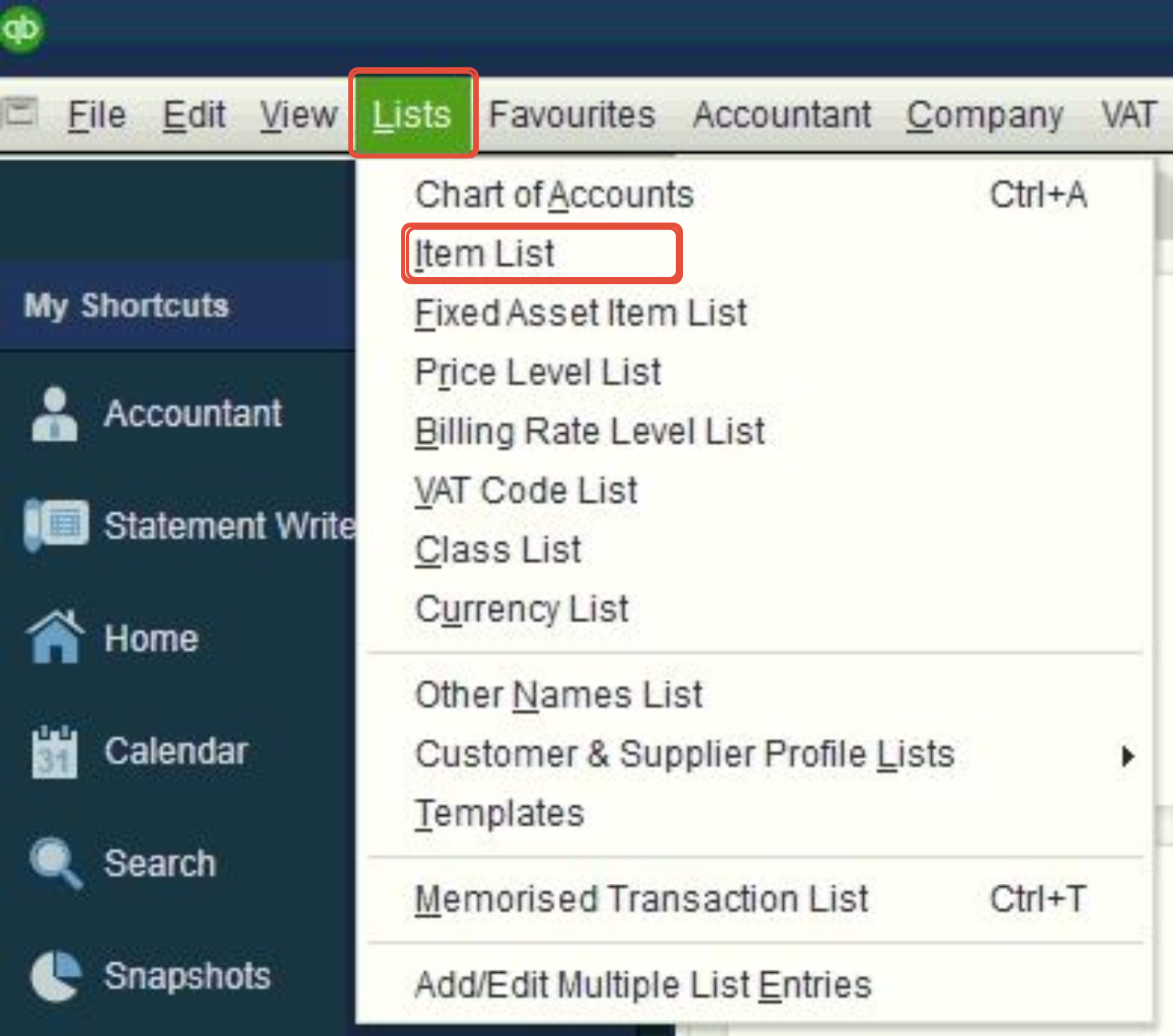
Method 2 (Using the Navigation Bar)
- Click on "View" at the top of the screen.
- Select "Item List" from the available options.
- Click "Custom Fields".
- Click "Define Fields" to configure custom fields.
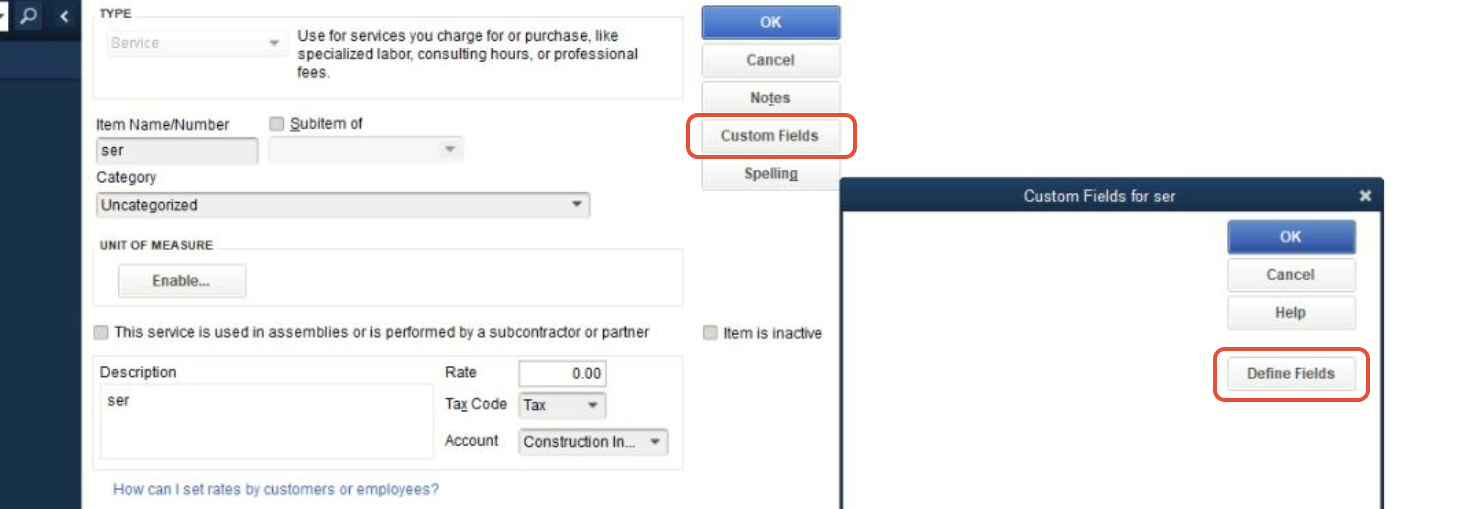
Step 2.
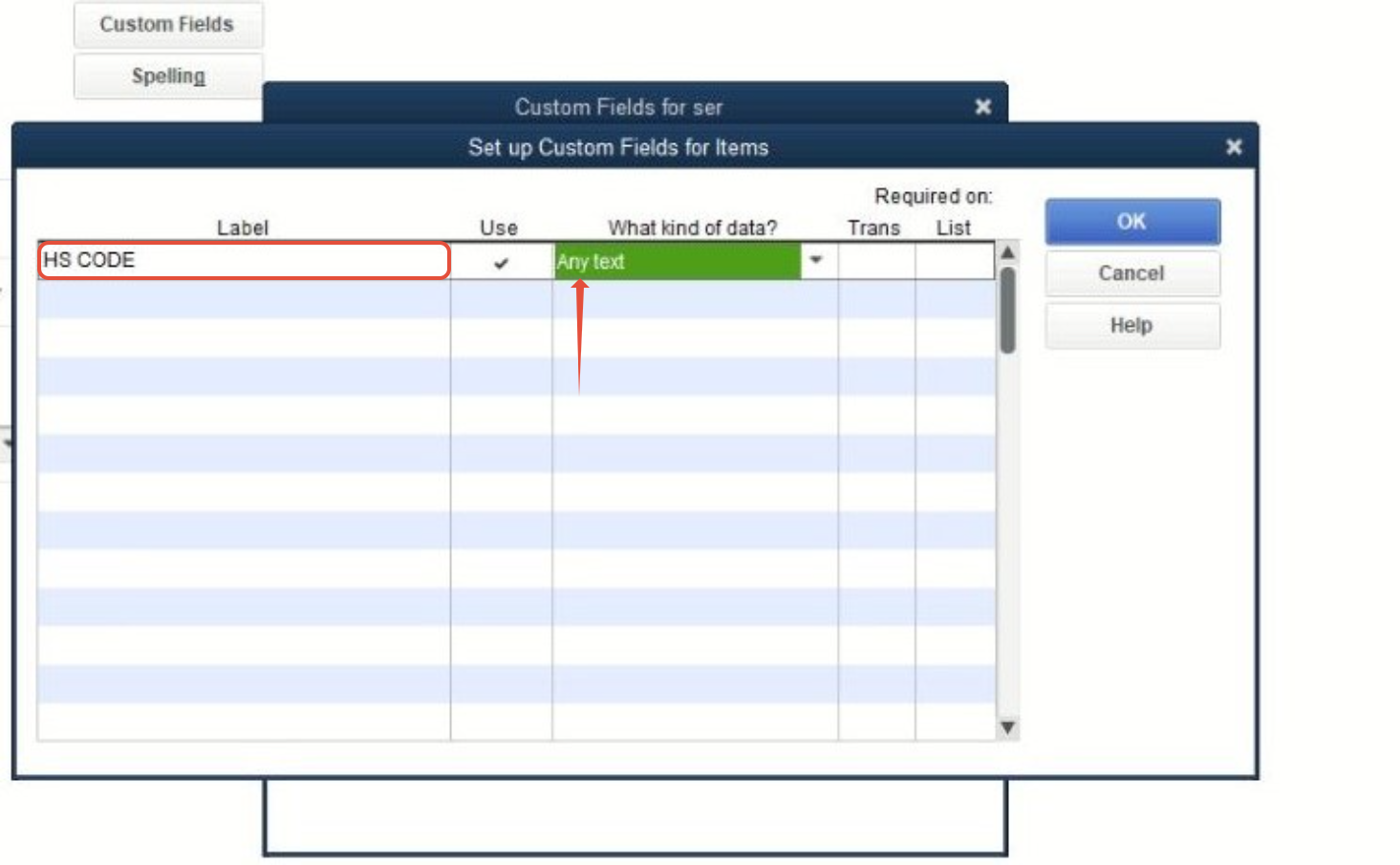
- Type "HS CODE" in the text box displayed and check the checkbox "Use".

Note: kindly check under what kind of data is using "Any Text"
2. Enter the HS CODE respectively to the product and then click "OK" to save.
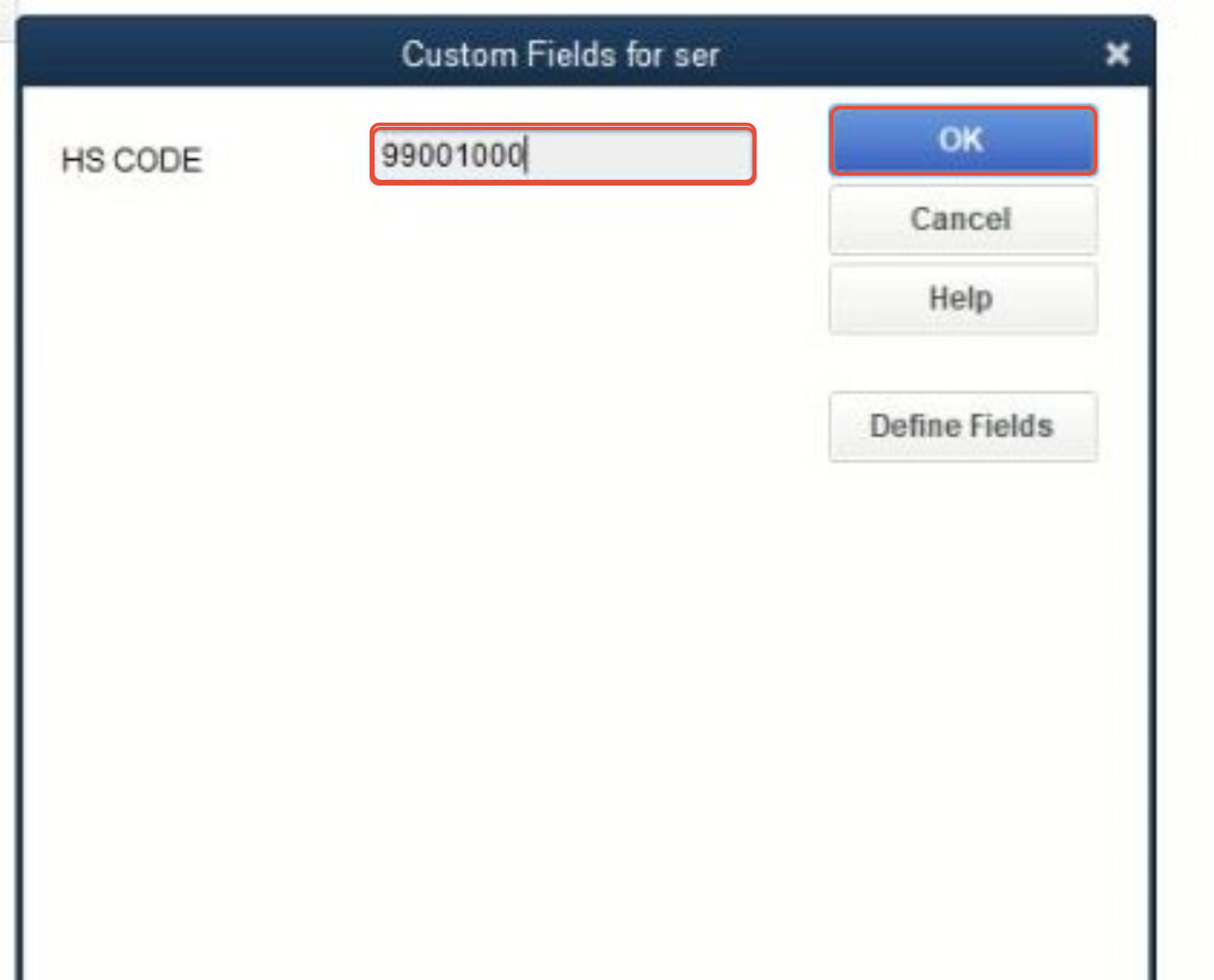
Step 3.
- Download the latest QUICKBOOKS Plugin, in the link - FiscalHarmonyQuickbooksPluginInstaller 2.2.3.msi.
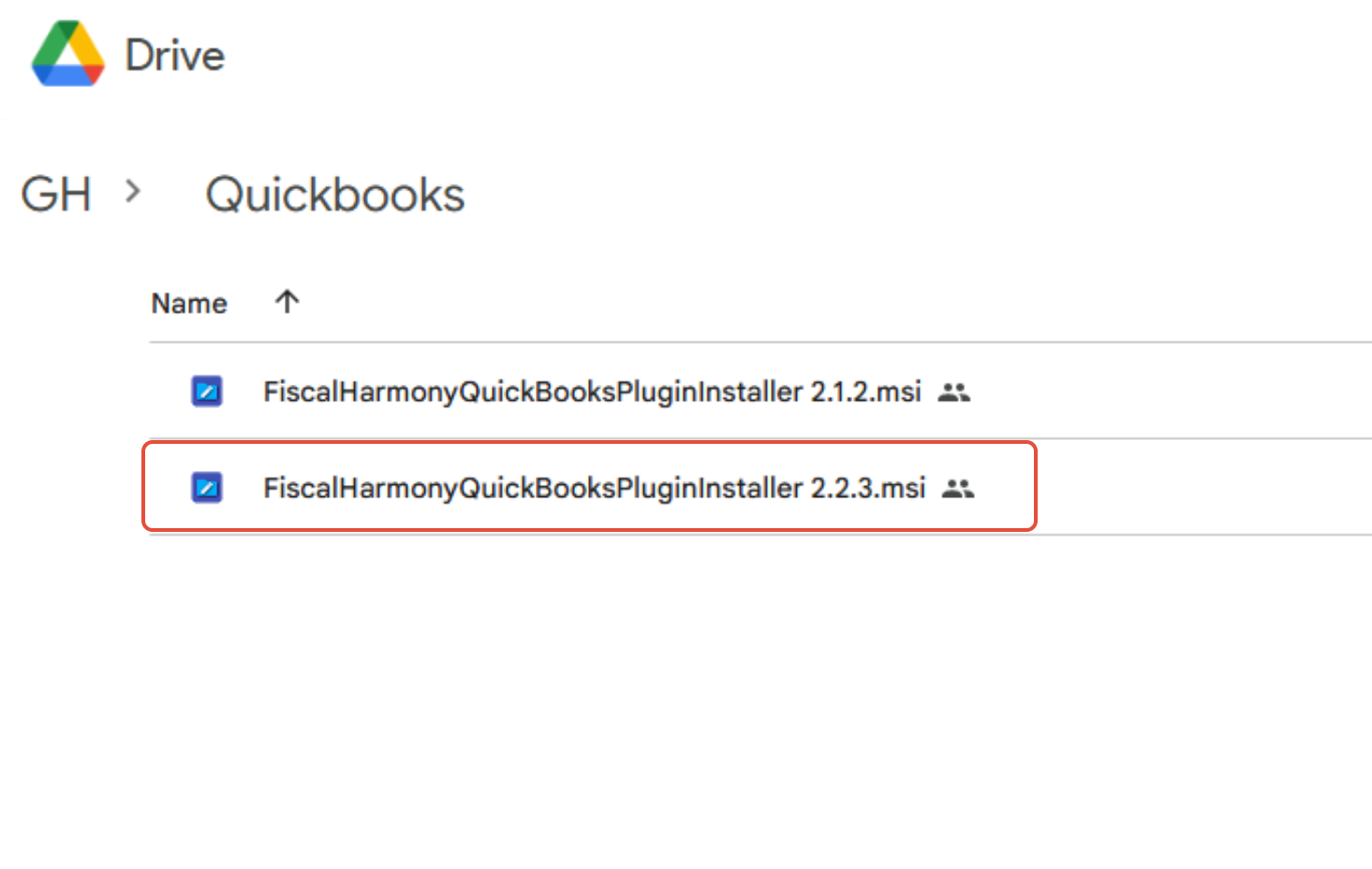
N.B please note you will be re-directed to another page after clicking this link
2. Open File Explorer and navigate to your Downloads folder to locate the PlugIn file, then right-click on it and select "Run as administrator" to start the installation.3. Follow the prompts to allow the installation process to complete. Once the installation is complete, the new plugin will automatically replace the older version.
Step 4.
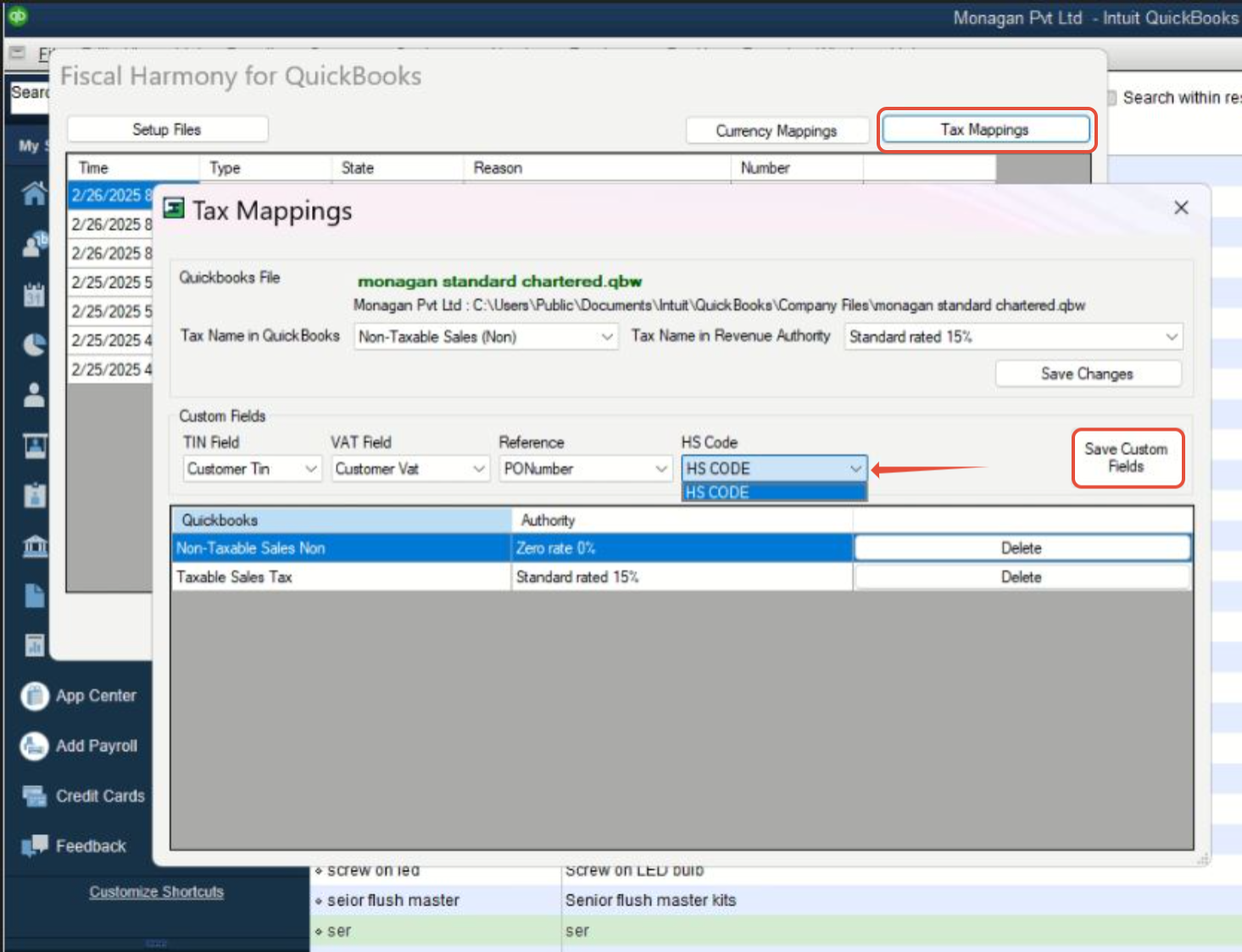
- Open the Fiscal Harmony plugin on your desktop.
- Locate and open the "Tax Mappings" section.
- Find the "HSCODE" custom field, then click the drop-down menu and select "HSCODE".
- Click "Save Custom Field" to save your changes.
For further assistance, reach out to our support team:
Call Centre: +263 8677 010 305
Call Centre: +263 8677 010 305
WhatsApp: +263 783 323 154
Related Articles
Implementing HS Codes in QuickBooks Desktop
Overview HS codes, also known as Harmonised System Codes, are standardized numerical codes used to classify products in international trade. They are unique codes that identify and describe a product or service. Step-by-step Guide Step 1. Navigate to ...Implementation of HS Codes in Xero
Step-by-Step Guide To enter HS codes into your Xero accounting system, follow the steps below: Step 1. Navigate to Products Log in to your Xero. Navigate to the products and services option. Step 2. Navigating to Item to Edit Click on the option icon ...Adding HS Codes in Sage Online
Overview Harmonised System (HS) Codes are an 8-digit classification system used globally for traded products and services. In Zimbabwe, they are also used for domestic sales under the Fiscalisation Data Management System (FDMS). Here’s how to add HS ...Implementing HS Codes in Manager.io
Overview HS Code (Harmonised System Code): Each inventory item on the invoice must have an HS Code associated with it. This code classifies the product or service for tax purposes. Step-by-step Process Step 1. Set up Custom Fields Go to Settings in ...HS Codes for FDMS
01: Live Animals & Livestock Expanded Semantic Context Live animals used for agriculture, breeding, transport, or food supply chains. Includes cattle, swine, poultry, horses, and other farmed livestock in live form. Covers breeding stock, young ...