HPOS: Core Features & How to Use Them
Sales Management
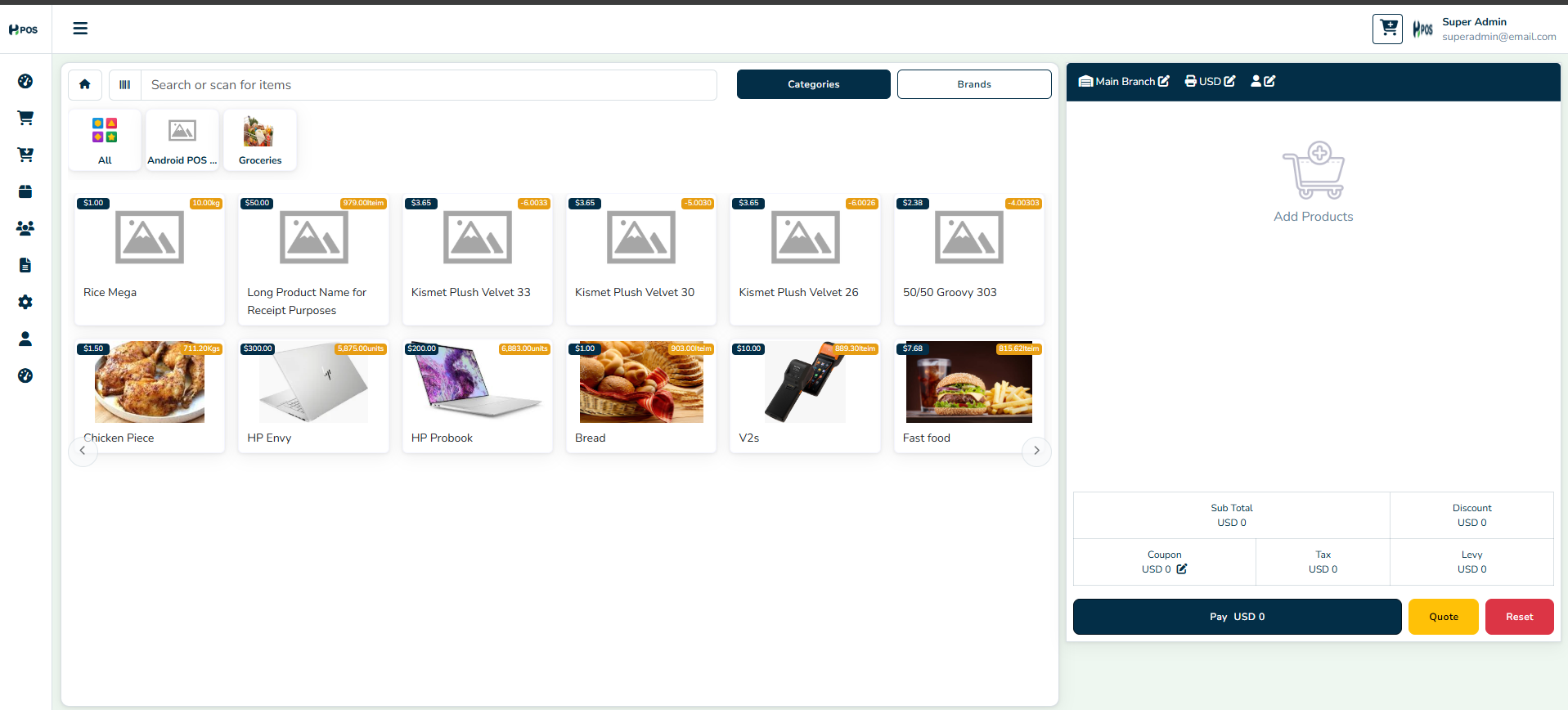
Creating a Sale Order
- Go to Sales → New Sale Order.
- Select the customer from the list or add a new one.
- Choose the products to sell.
- Enter quantity, price, and discount (if applicable).
- Click Pay to finalise the sale.
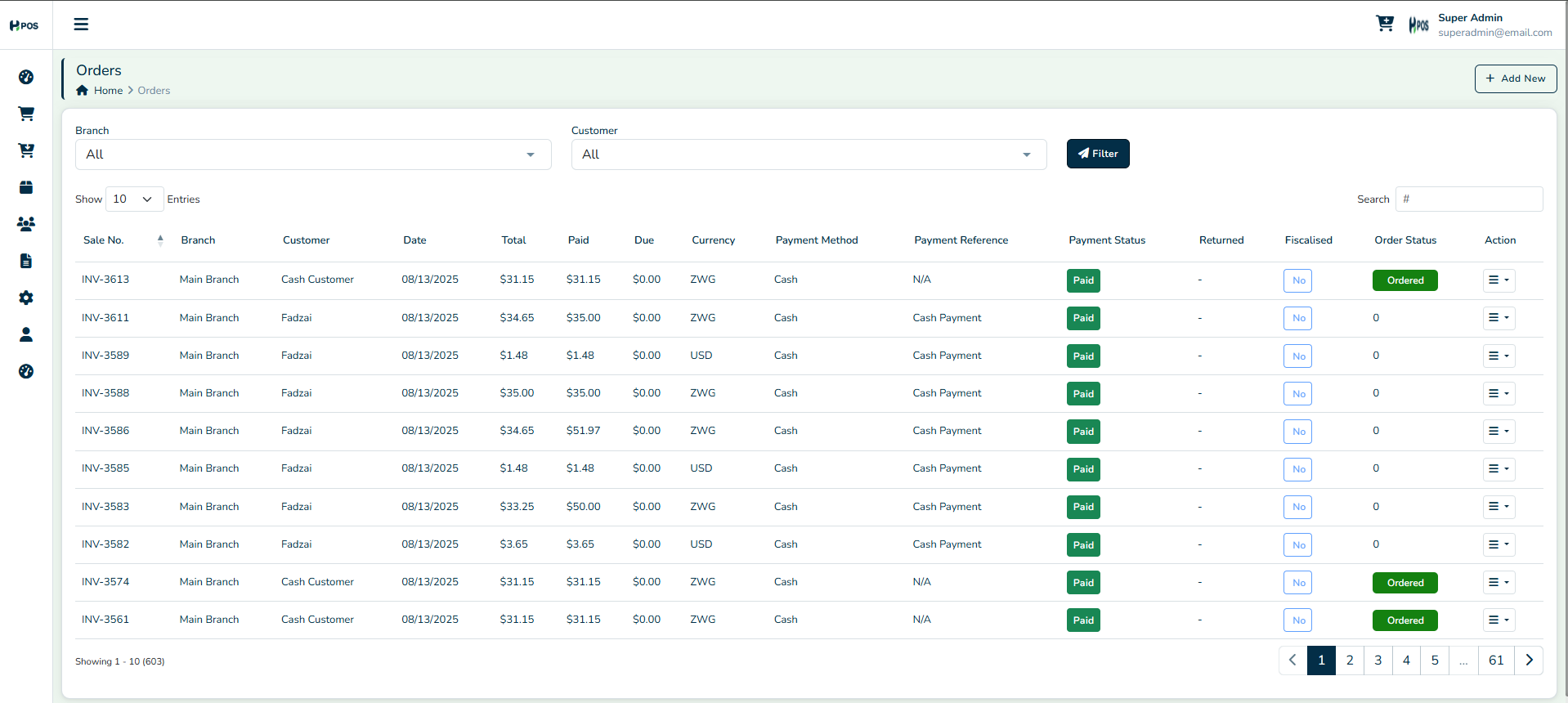
Tracking Sales
- View all sales under Sales Orders.
- Statuses include:
- Received – Order completed and payment received.
- Partial – Some items delivered, others pending.
- Pending – Order placed but not yet processed.
- Ordered – Items requested but awaiting fulfilment.
- Cancelled – Order voided by the user.
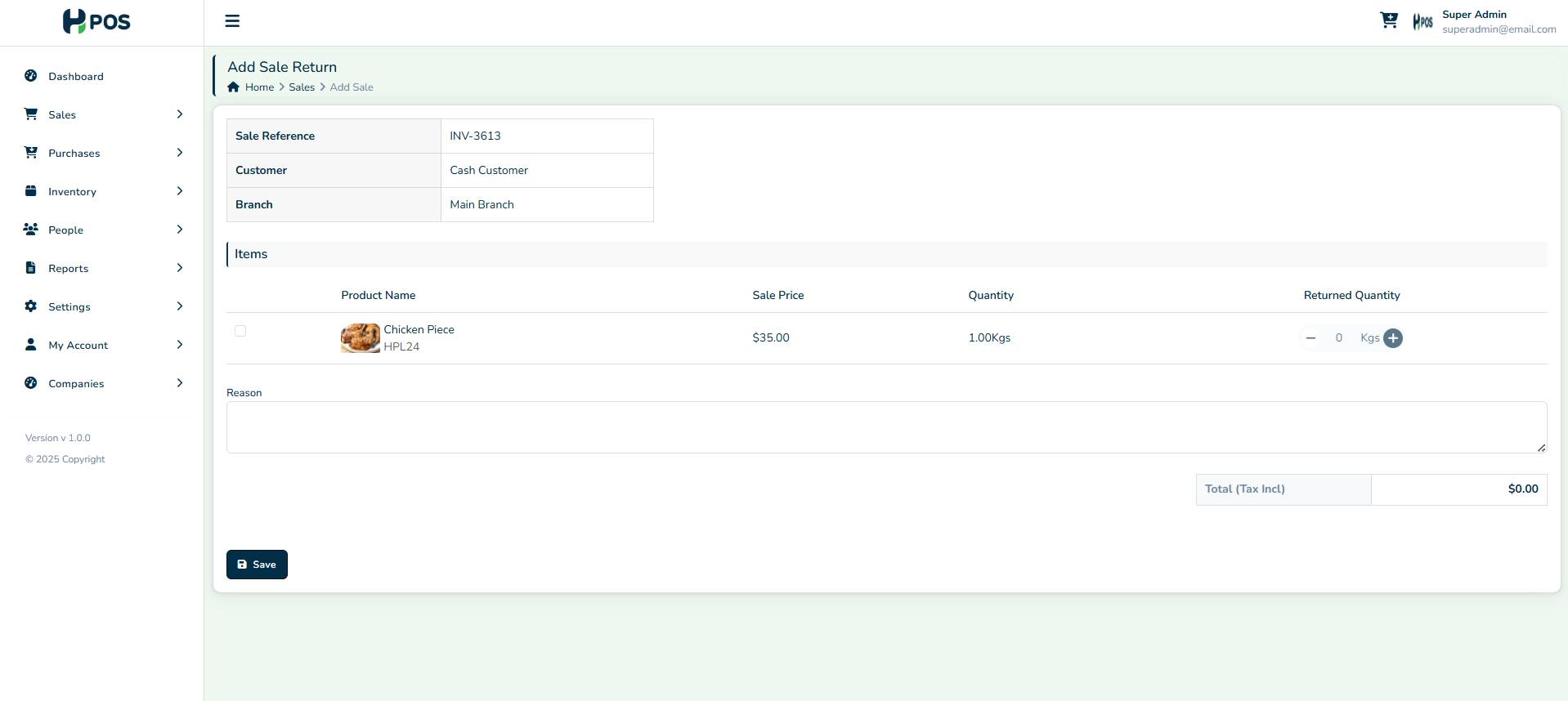
Processing Sale Returns
- Navigate to Sales Returns.
- Select the sale order to return.
- Choose the items and quantity to return.
- Confirm the return and update inventory by clicking "Save".
Purchase Management
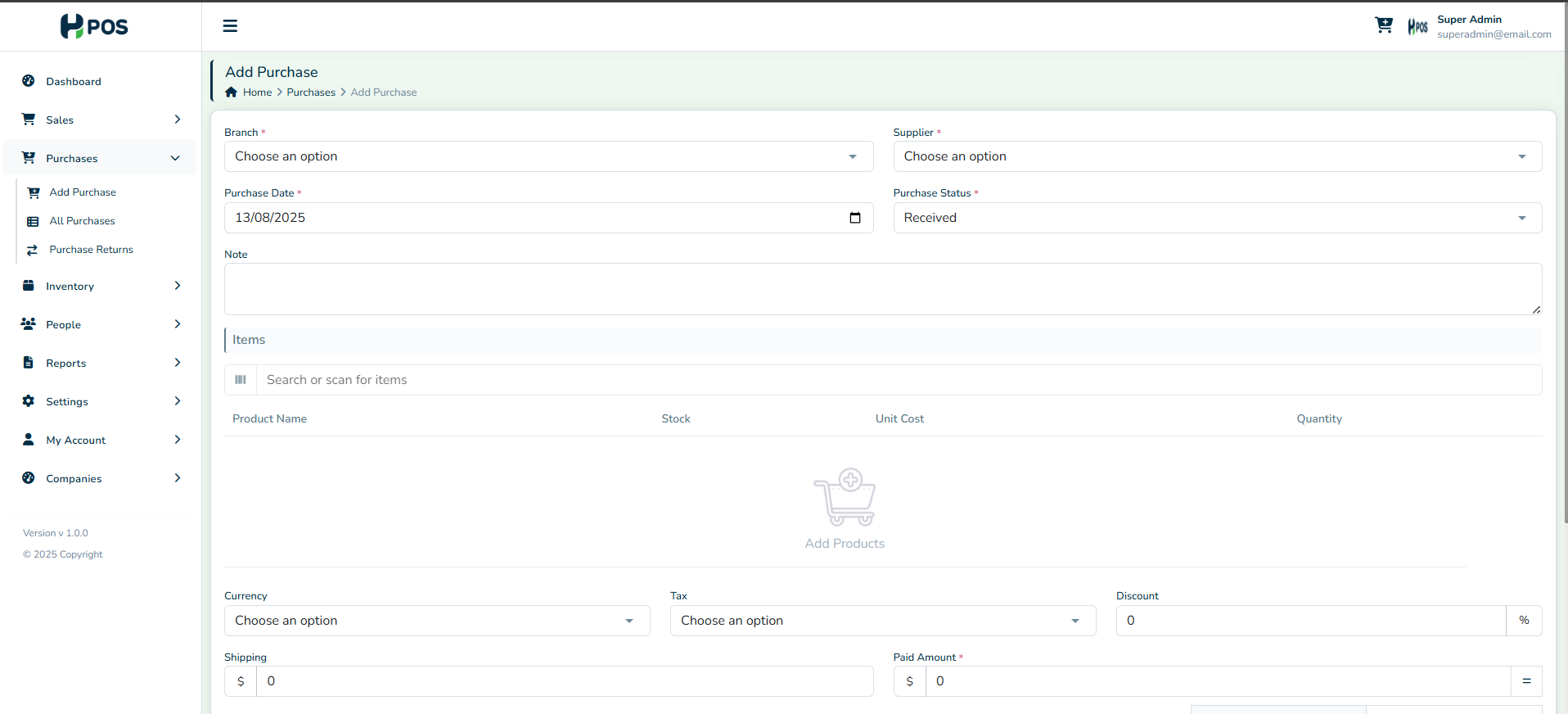
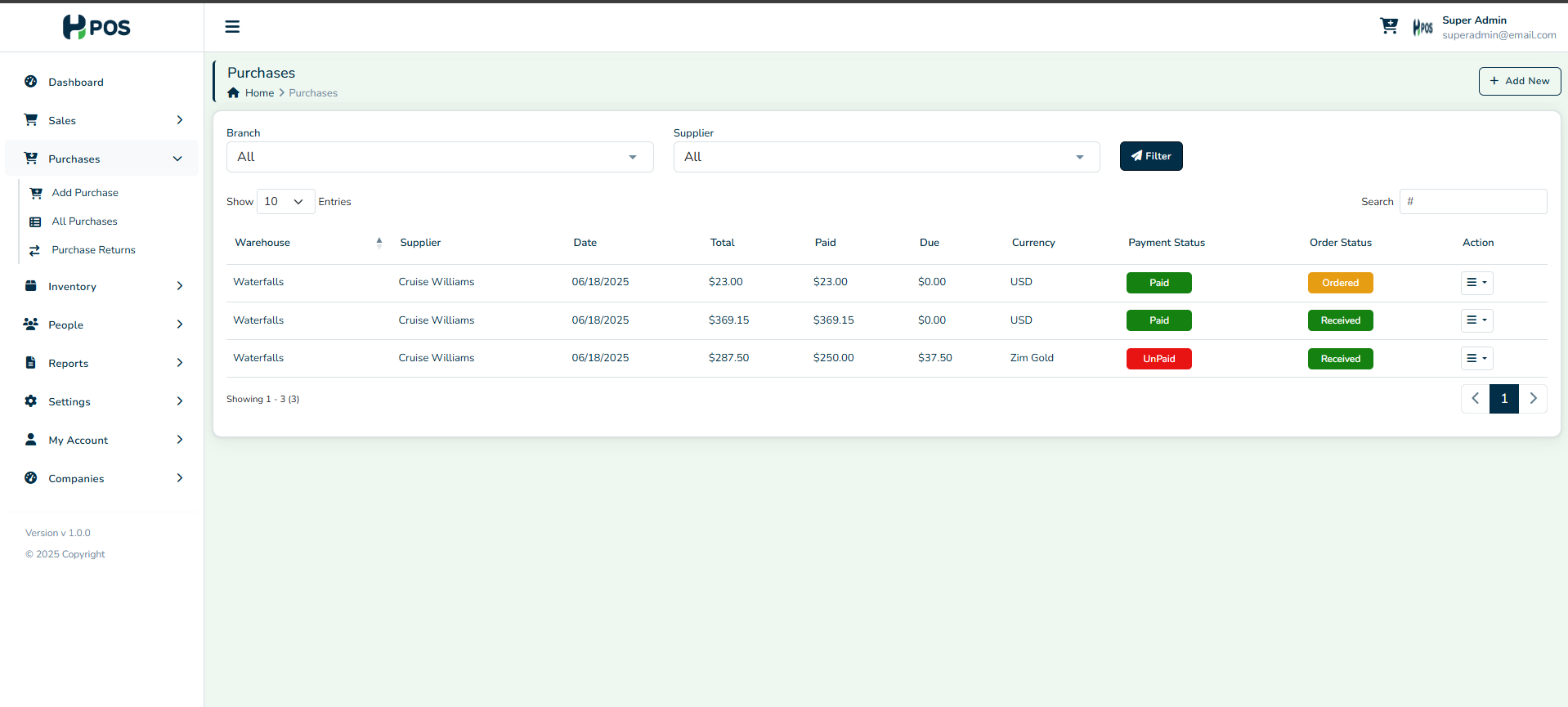
Creating a Purchase Order
- Navigate to Purchases → New Purchase Order.
- Select the supplier from the list or add a new one.
- Choose the items to purchase.
- Enter quantity, cost, and expected delivery date.
- Click Save to process the order.
Tracking Purchases
- View all purchase orders under Purchase Orders.
- Monitor order statuses for better inventory planning.
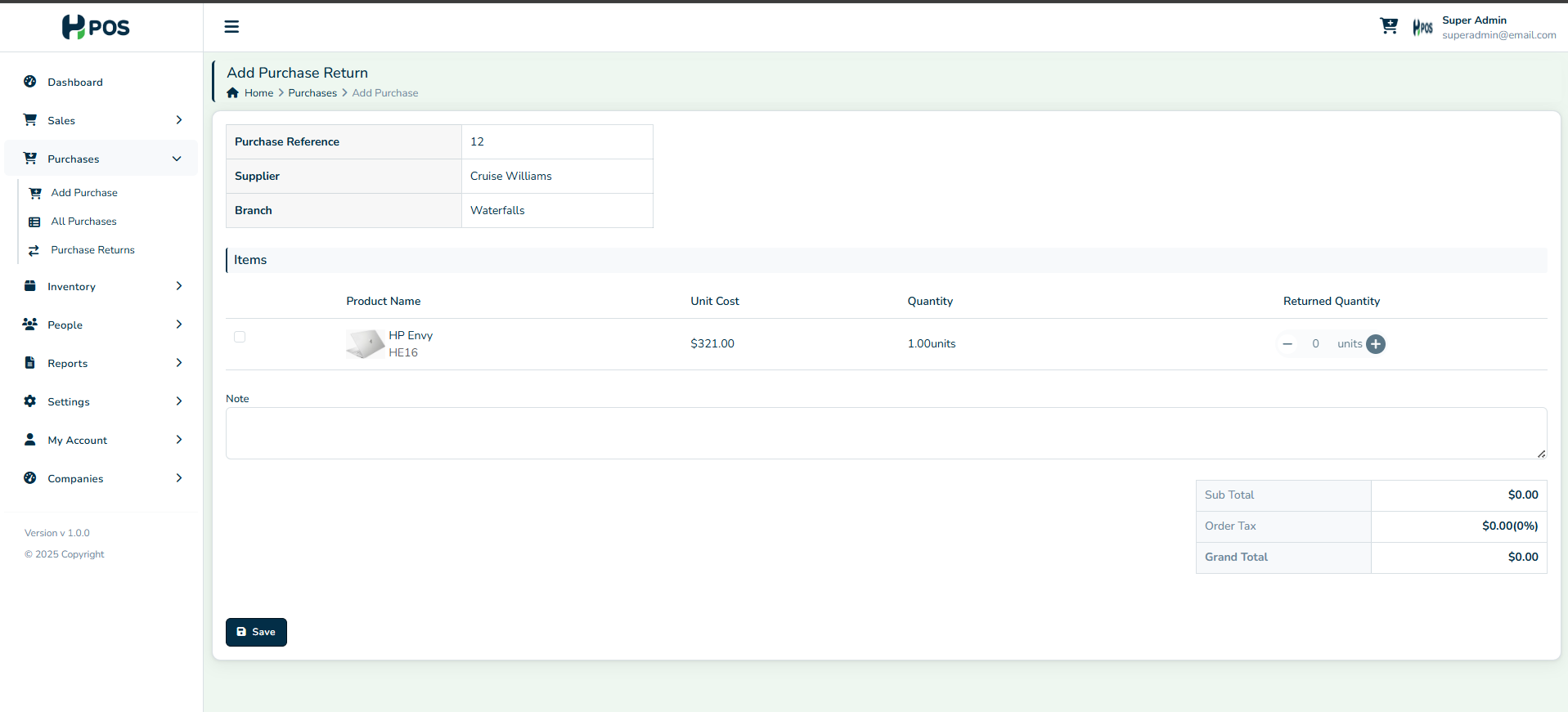
Processing Purchase Returns
- Navigate to Purchase Returns.
- Select the purchase order to return.
- Choose the items and quantity to return.
- Confirm the return and click "Save".
Inventory Management
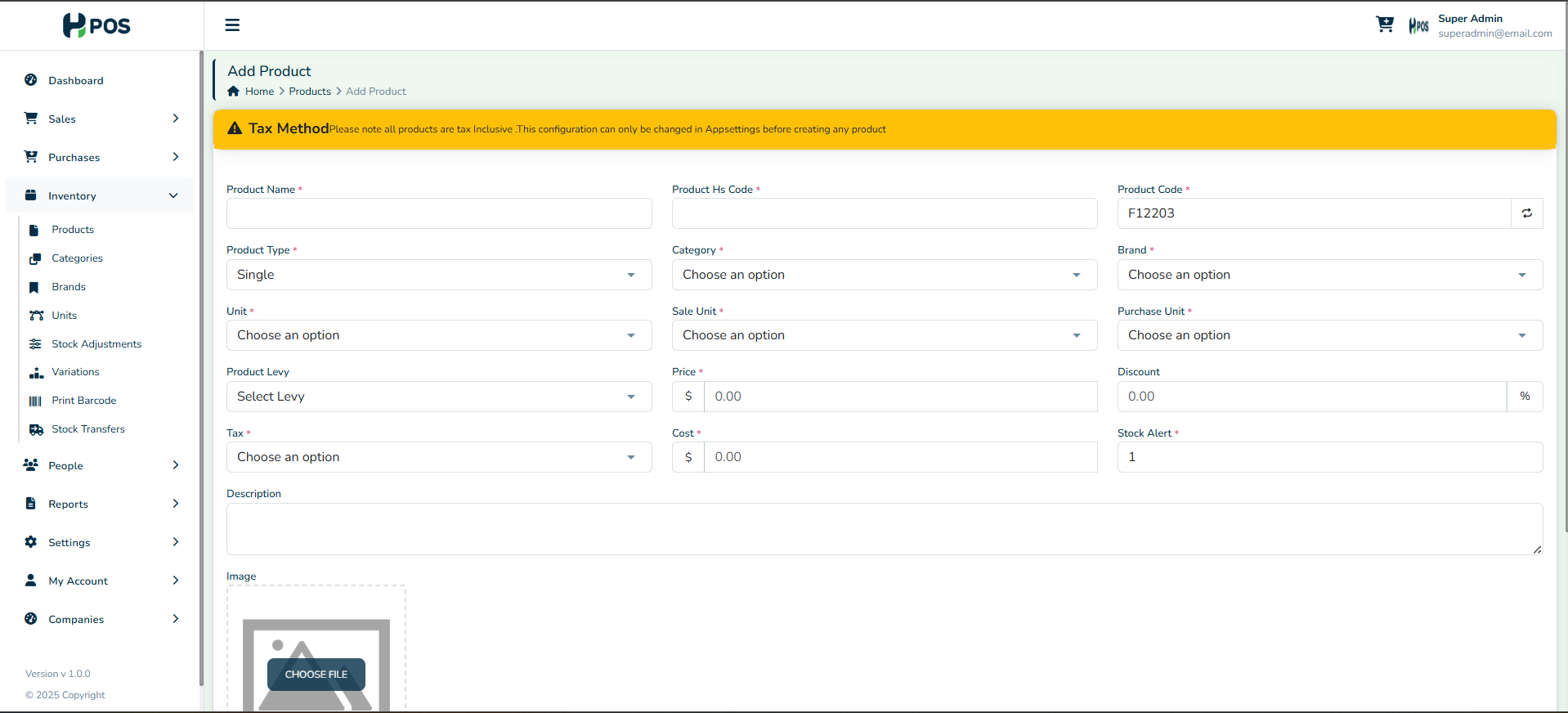
Adding New Products
- Go to Inventory → Add Product.
- Enter product name, code, category, and stock quantity.
- Set selling price and purchase cost.
- Click Save to update inventory.
Stock Tracking
- Monitor stock levels in Inventory Reports.
- Adjust stock manually if needed.
- View top-selling products and their earnings.
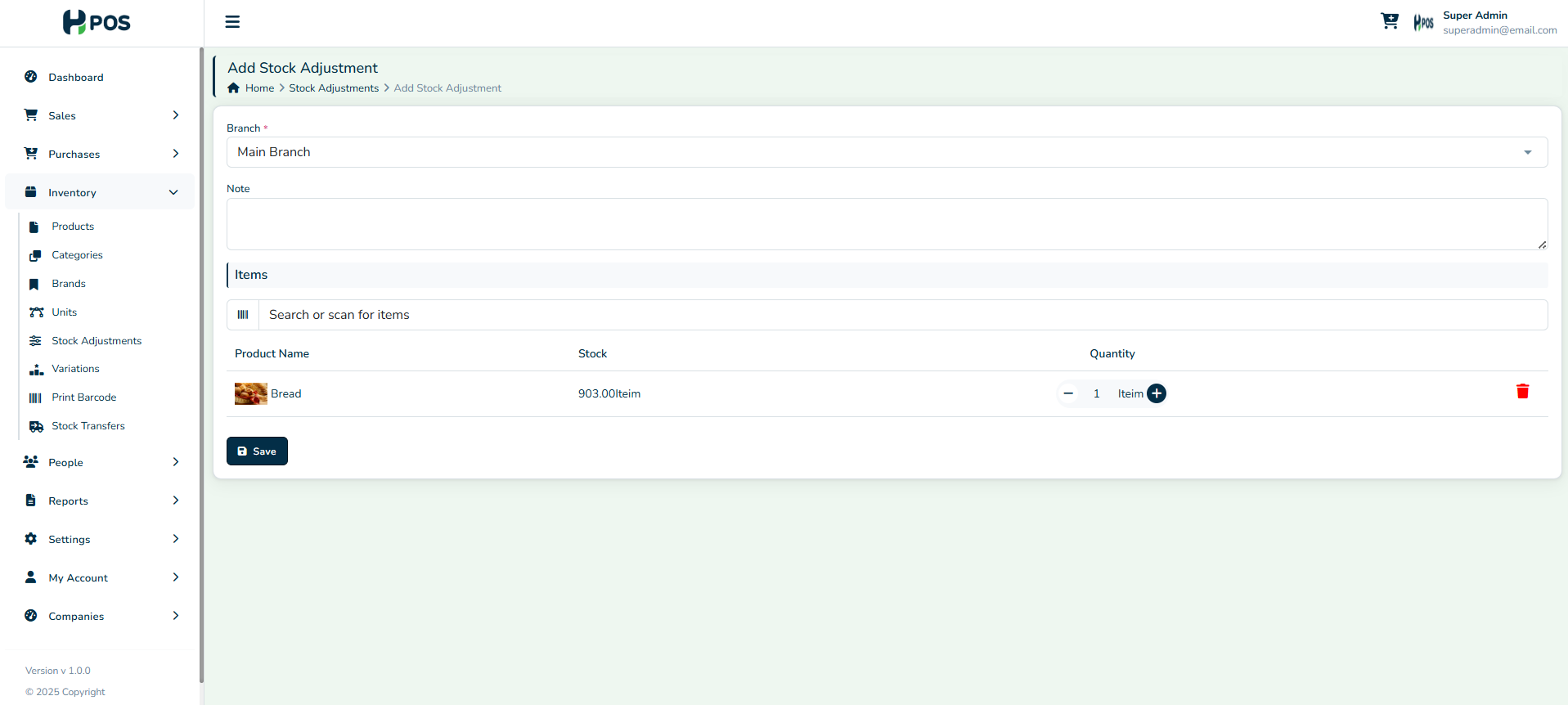
Handling Stock Adjustments
- Navigate to Inventory Adjustments.
- Select the product to adjust.
- Enter the new stock quantity.
- Provide a reason for adjustment (e.g., damaged goods, stock correction).
- Click Update to finalise changes.
Customer & Supplier Management
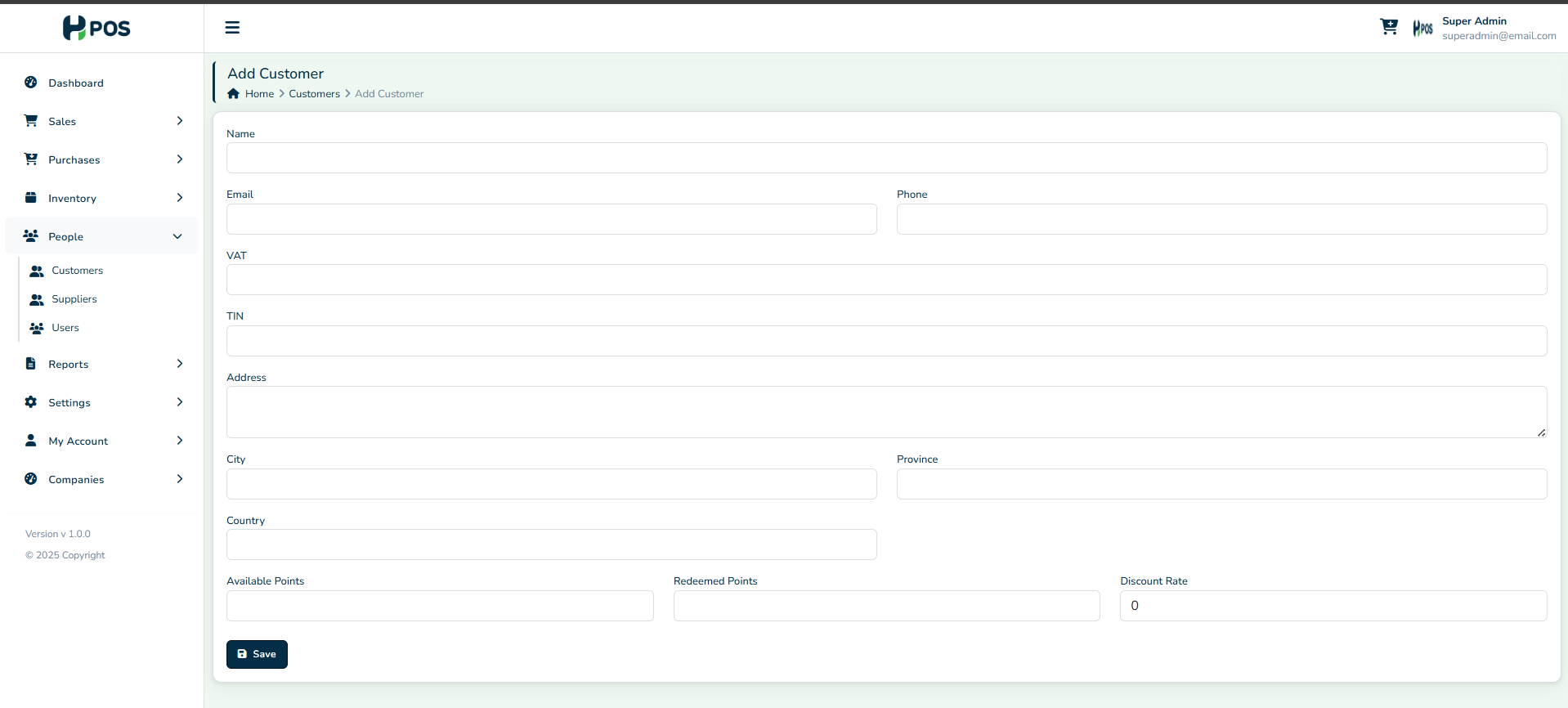
Adding a Customer
- Navigate to People → Customers → Add New Customer.
- Enter name, contact details, and address.
- Click Save.
Managing Customer Accounts
- View customer purchase history.
- Track outstanding payments.
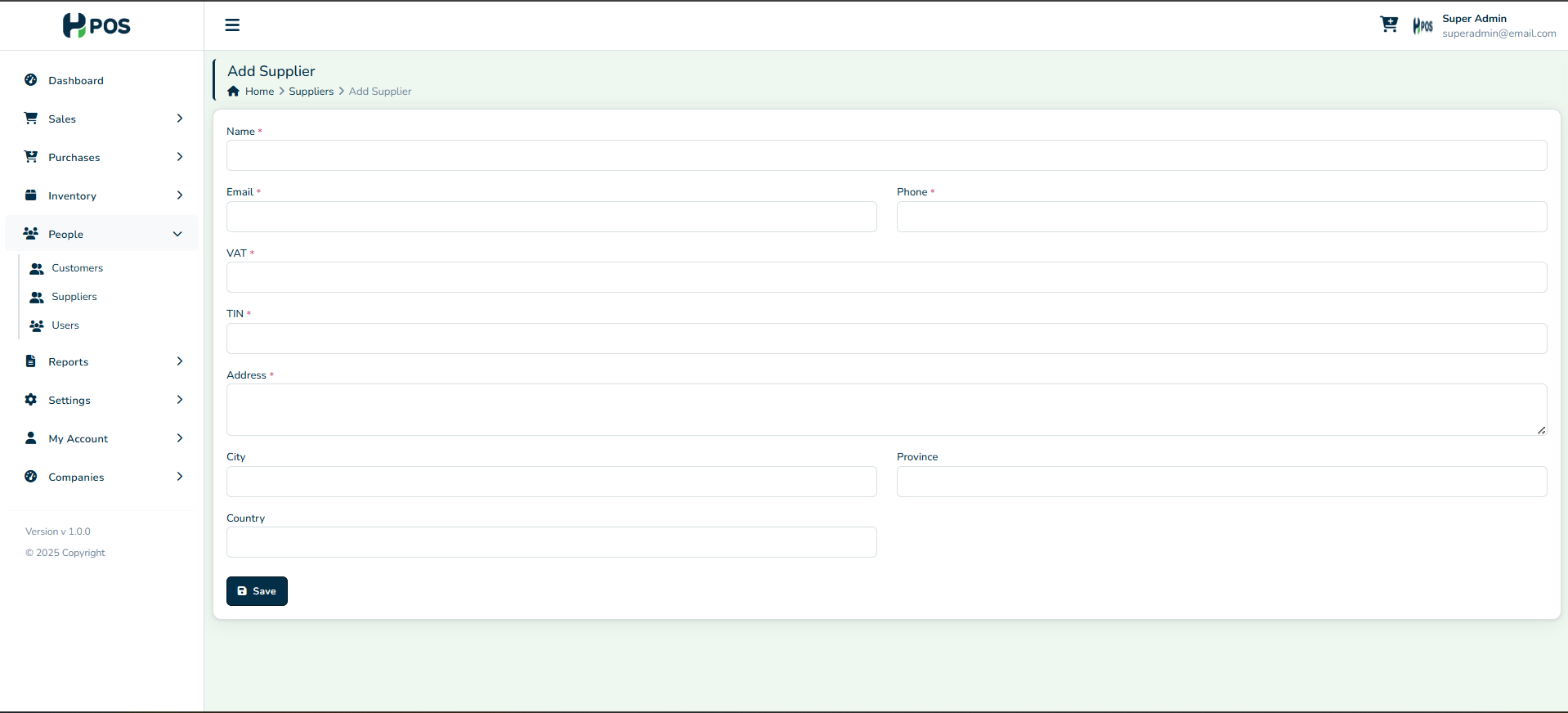
Adding a Supplier
- Go to People → Suppliers → Add New Supplier.
- Enter supplier name, contact details, and products supplied.
- Click Save.
Managing Supplier Accounts
- View supplier transaction history.
- Track pending purchase orders.
- Manage supplier payments.
Related Articles
Updating VAT in Cin7 Core
Step-by-Step Guide Step 1: Go to Tax Settings Log in to Cin7 Core with your Admin credentials. Navigate to Settings → Financial Settings → Tax Rules. This is where all tax rules are created and managed. Step 2: Create a New Tax Rule Default tax rules ...
How to Issue a Sales Return/Credit Note in HPOS
Overview The knowledge base below will highlight how you can issue a Sales Return in the HPOS application. Prerequisites Please note that the user should have the necessary user permissions to do a sales return. If the user does not have the ...
System Explanation
What is Fiscalisation? Fiscalisation refers to the process by which a business electronically records all taxable transactions. In Zimbabwe, businesses are required by law to ensure that every sale is recorded using a ZIMRA-approved fiscal device. ...
How To Change VAT in HPOS
Overview This is a guide on how to change the VAT Tax rate in your HPOS application, e.g. such as changing from 15% to 15.5%. Step-by-Step Guide Step 1. Log in to HPOS Navigate to HPOS app on https://app.hpos.co.zw/. Log in with your credentials ...
Updating & Re-Installing your HPOS App into Ingenico
Step-by-step Process Step 1. Uninstall the App on device Long-press the HPOS logo on the home screen. When the app options appear, tap “Uninstall”. Step 2. Installing Updates Long-press the Power button (located on the left side of the device). On ...