How to Issue a Sales Return/Credit Note in HPOS
Overview
The knowledge base below will highlight how you can issue a Sales Return in the HPOS application.
Prerequisites
Please note that the user should have the necessary user permissions to do a sales return.
If the user does not have the necessary permissions/rights, then the admin user should do the sales return.
Difference between Return All & Advanced Return:
- Use the Return All option if you want to return all items from the sale
- i.e., if there were 10 items from the sale and you want to credit all items.
- Use the Advanced Return option if you have a select number of items you want to return & not all
- i.e., if 2 bags + 1 shoe were bought and only one bag has to be returned from the full sale.
Step-by-step Guide
Sales Return on Ingenico Axium DX8000 (Small POS machine)
- Log in to the POS machine.
- Select the three lines at the top left corner of the screen
- Select Receipts.
- Locate the correct invoice you want to credit.
- Select the Refund Sale option.
- Enter Return Reason (mandatory field).
- The system automatically selects all products for the return so if there is a product you do not want to include on the return, just minus the Return Qty on that product to 0 or to the desired return quantity.
- To approve the return, select Submit Return.
Sales Return on the Web or Ingenico Axium CX8000/P3 Mix (Bigger POS machine)
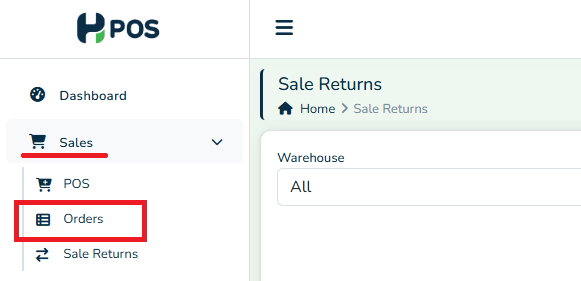
- Go to sidebar on the left panel and navigate to Sales > Orders.
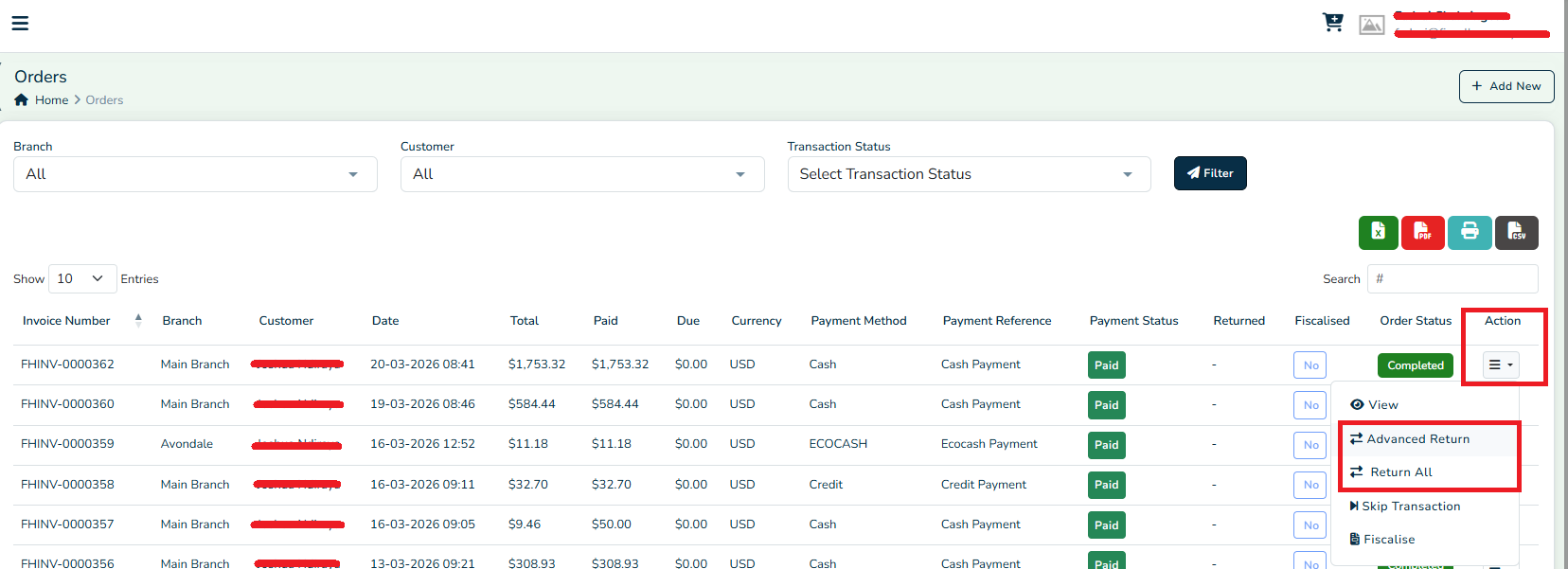
- Locate the correct invoice you want to credit.
- Select the Actions menu on that invoice.
- Select Advanced Return.
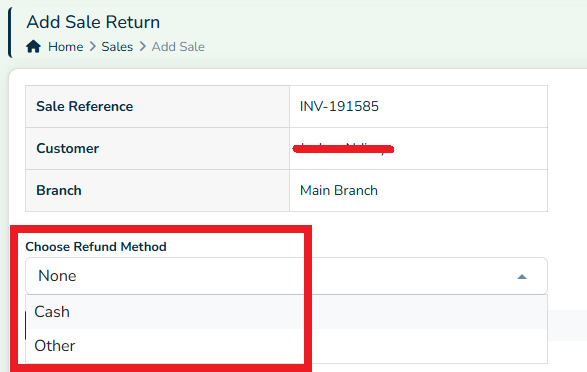
- On the credit note page, select the Refund Method.
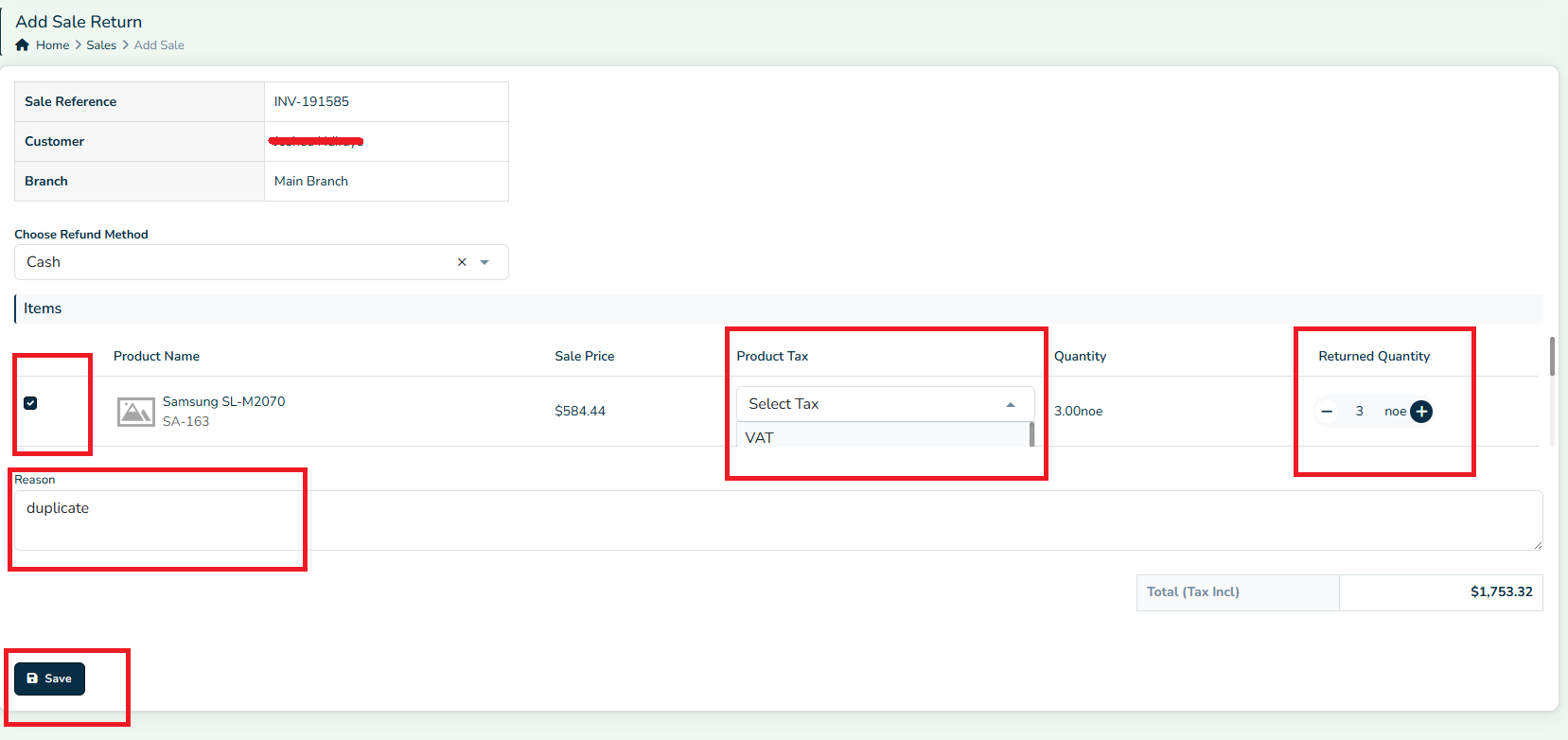
- Select the products being returned.
- Select the Product Tax type used on Original Invoice for the selected products.
- Select the Returned Quantity.
- Put a Reason (mandatory field)
- Click Save to save changes.
You can use the Return All option if all items from the sale are being returned.
Related Articles
Fiscalizing a Credit Note in Manager.io
Overview Step-by-step Process Step 1: Create Credit Note Go to the invoice for which you want to issue a Credit Note. Click on the "Clone to Credit Note" button. This will generate a Credit Note based on the selected invoice. Once the Credit Note ...Fiscalising a Credit Note in ERPNext
Overview A credit note is used to adjust or reverse an existing Sales Invoice when a customer returns goods. This process correctly updates the customer's outstanding amount and ensures the transaction is recorded as a return. Step-by-step Process ...How To Process a Credit note in Quickbooks Desktop
Overview A credit note is issued by a seller to a buyer for the purposes of correcting, writing off errors or making adjustments in a previous invoice. It is commonly issued in cases of overcharging, return of goods, discrepancies in the goods or ...Fiscalising a Credit Note in Sage Online
Overview Sometimes an error is made after an invoice has been created, or a customer may return goods. In this case, you need to create a Credit Note to correct or reduce the customer's balance. Step-by-step process Step 1. Locate the Original ...Fiscalising a Credit Note in Xero
Overview A credit note in Xero is a document that is used to reduce the amount owed on an invoice or bill, essentially acting as a correction or adjustment to a previous transaction. It’s commonly used for scenarios such as returns and issues, ...