Fiscalising an Invoice in Excel
Prerequisites
Ensure that you open the invoice template using Microsoft Excel only.
Steps to create an invoice
Step 1. Add Buyer Details
- Open the Fiscal Harmony Invoice template.
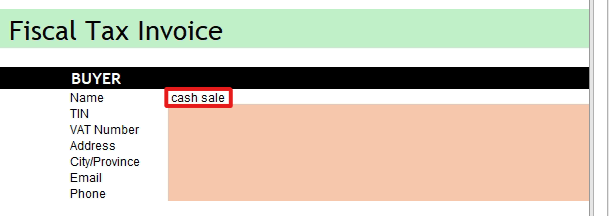
- Fill in the buyer's details in the specified fields.
- If the client/customer has a TIN/VAT number, address, and contact details, you can enter the details accordingly. If not, you can enter them in as a cash sale or enter their name.
- If they are entered in as a cash sale then you will not have to enter in any of the other details
Step 2. Add Invoice Information
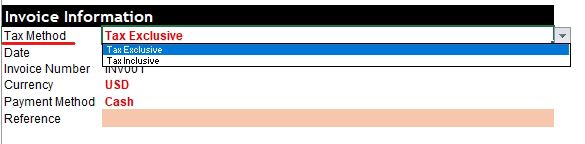
- Select the tax method by clicking on the drop down option. You can select whether you want your invoice to be Tax Exclusive or Inclusive.
The Invoice date and number is generated automatically with every invoice
The date automatically picks up the current date
The invoice number automatically increments with each invoice done. i.e. the next invoice you generate will be INV002.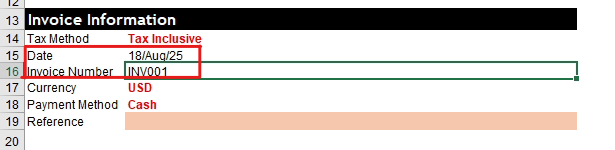
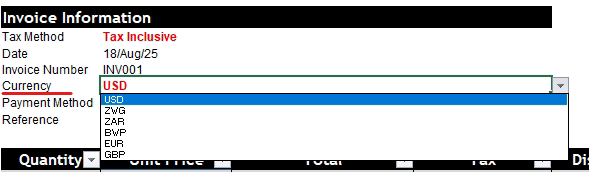
- Select the currency that the invoice will be in by clicking on the drop down option
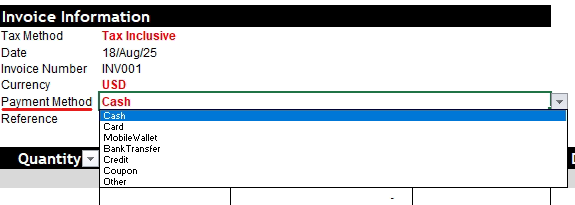
- Select the payment method that the invoice will be paid in by clicking on the drop down option.
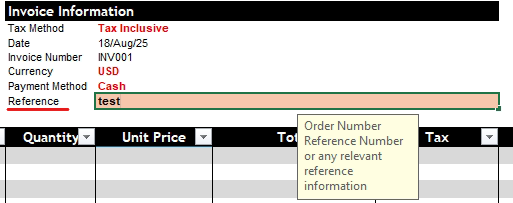
- Enter the Reference if you have any. The reference can be a reference number, order number, or any other information that you think is necessary to include in your invoice.
Step 3. Add Description
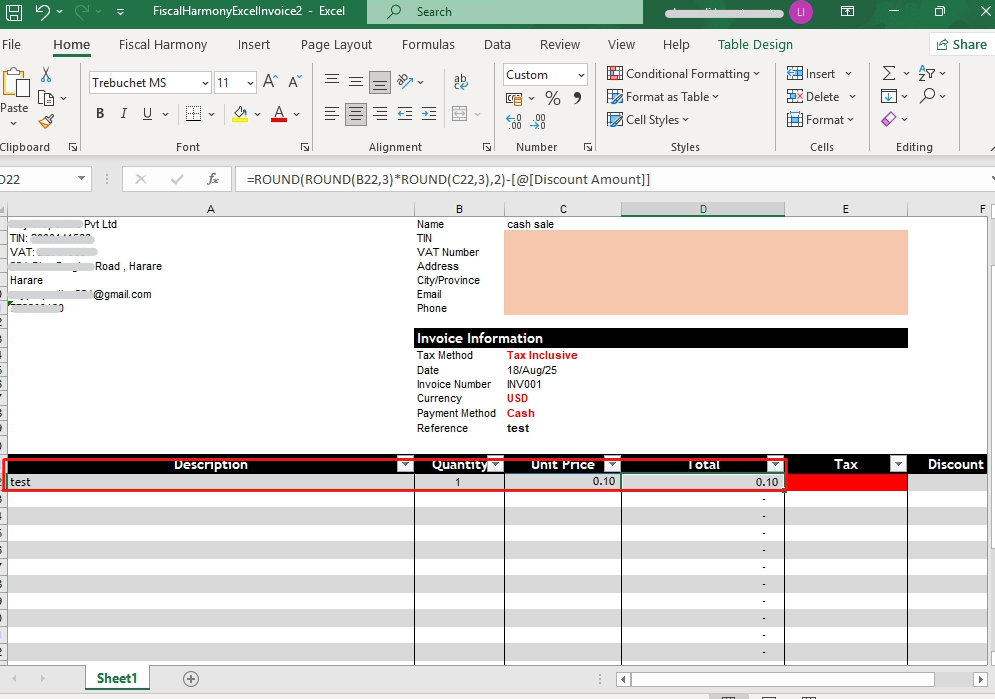
This is where you will add all your product or service details. You can enter your description, quantity and unit price.
The total should automatically calculate based on the quantity and unit price entered.
Step 4. Add Tax in Tax Column
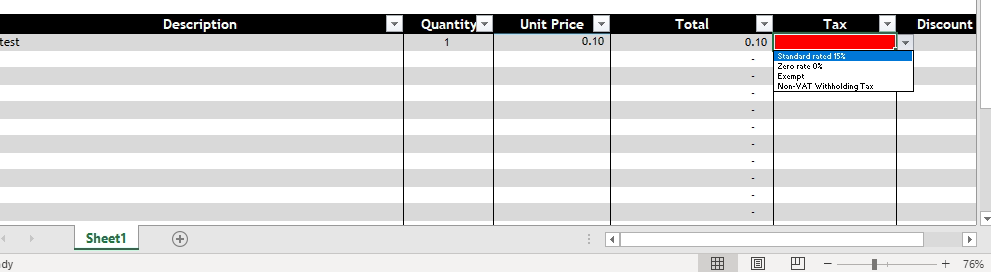
You can select from the dropdown, the tax that applies to the product or service, whether Standard/Zero rated, or Exempt from tax.
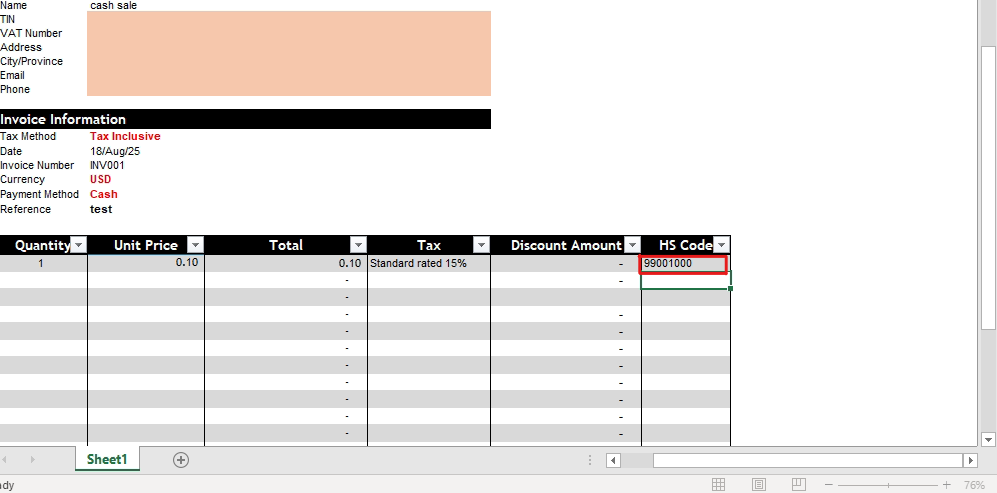
Step 5. Add HS Code
HS Codes are a Zimra requirement. You will be given an HS Code file during setup that you can utilize to find the corresponding 8 digit HS Code to your product or service. You will have to manually type the HS Code and not copy & paste it.
Step 6. Validate information
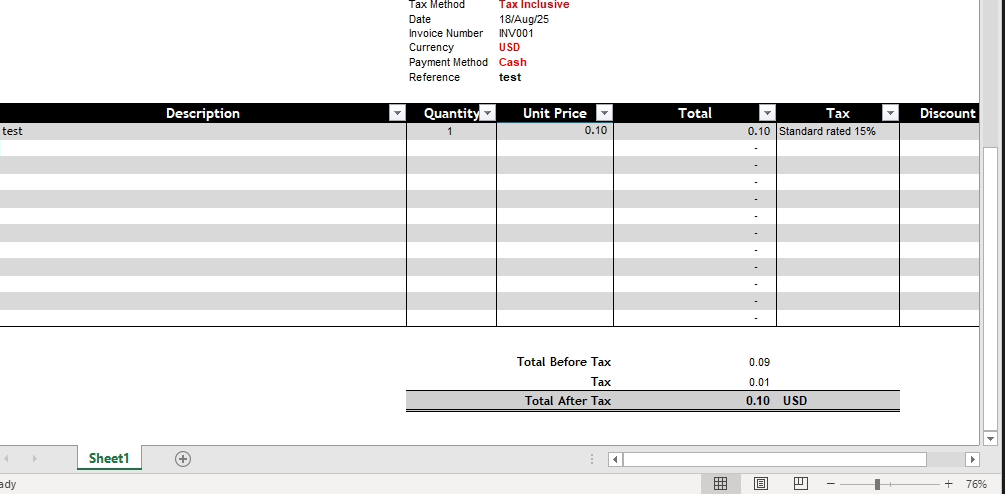
Cross-check invoice totals. Just double-check if the totals are correct.
Step 7. Fiscalise
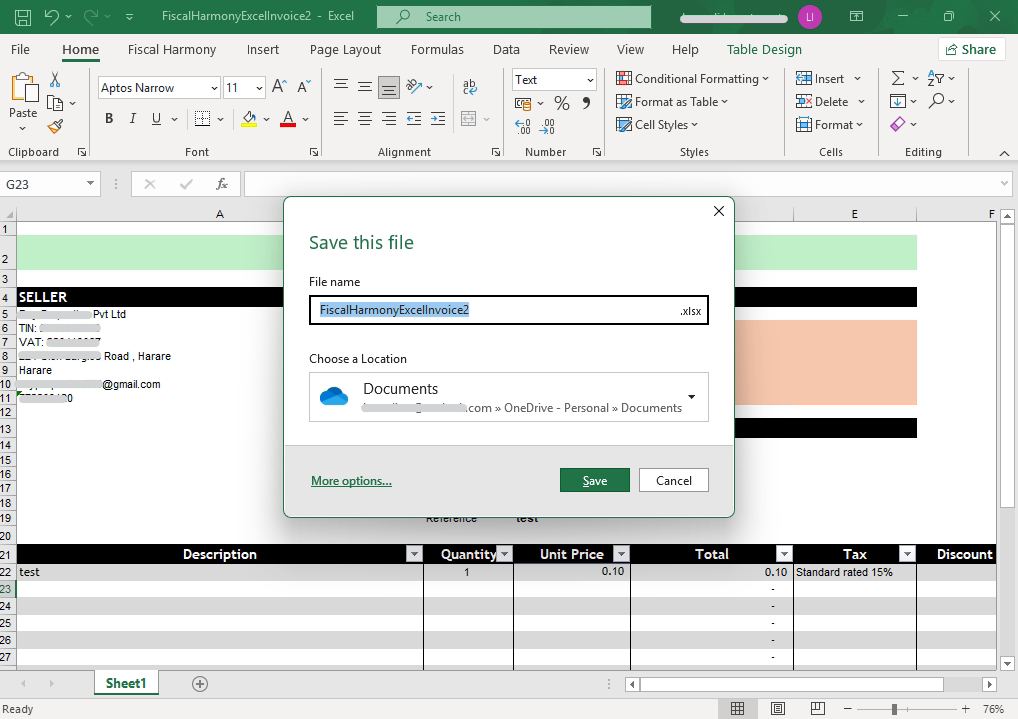
- Save the invoice as an Excel file before fiscalising. You can save the invoice locally in a folder on your PC/Laptop.
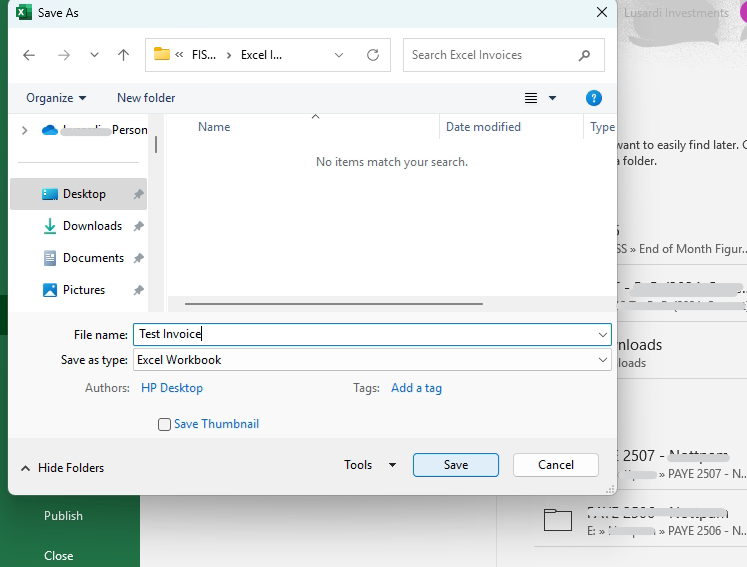
- You can also rename the Excel invoice for ease of locating it in the future.
- In Excel, navigate to the Fiscal Harmony tab (located next to Home) as shown.
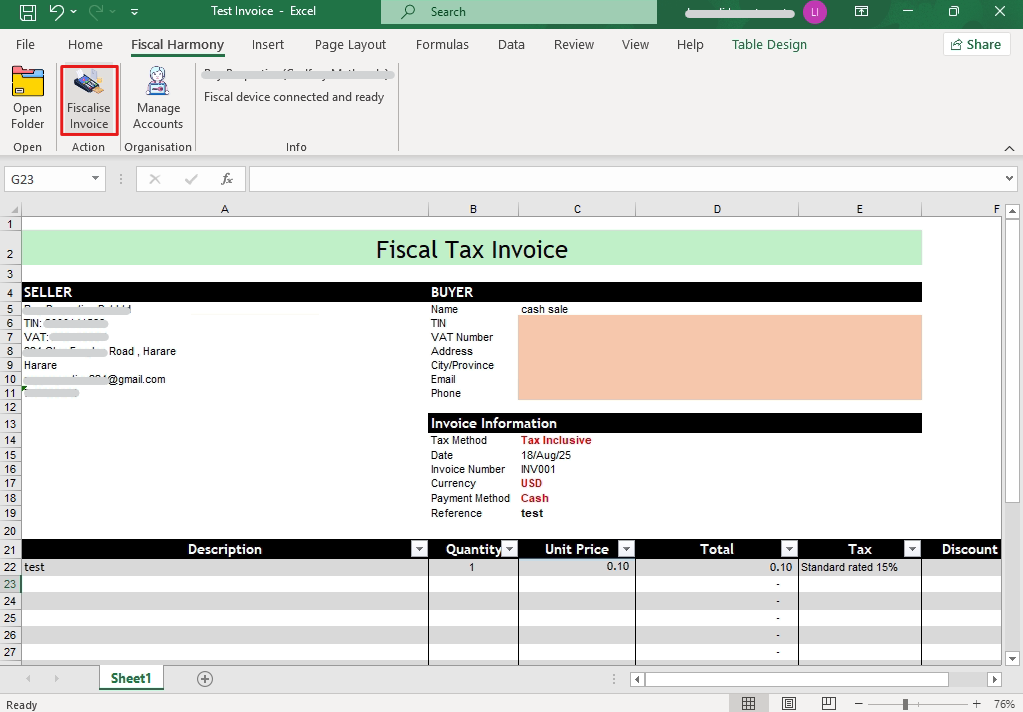
- You can click on the Fiscalise Invoice option to complete the process.
- If there are any errors, it will tell you the error through an error popup message.
- If there are no errors, your invoice will process and fiscalise.
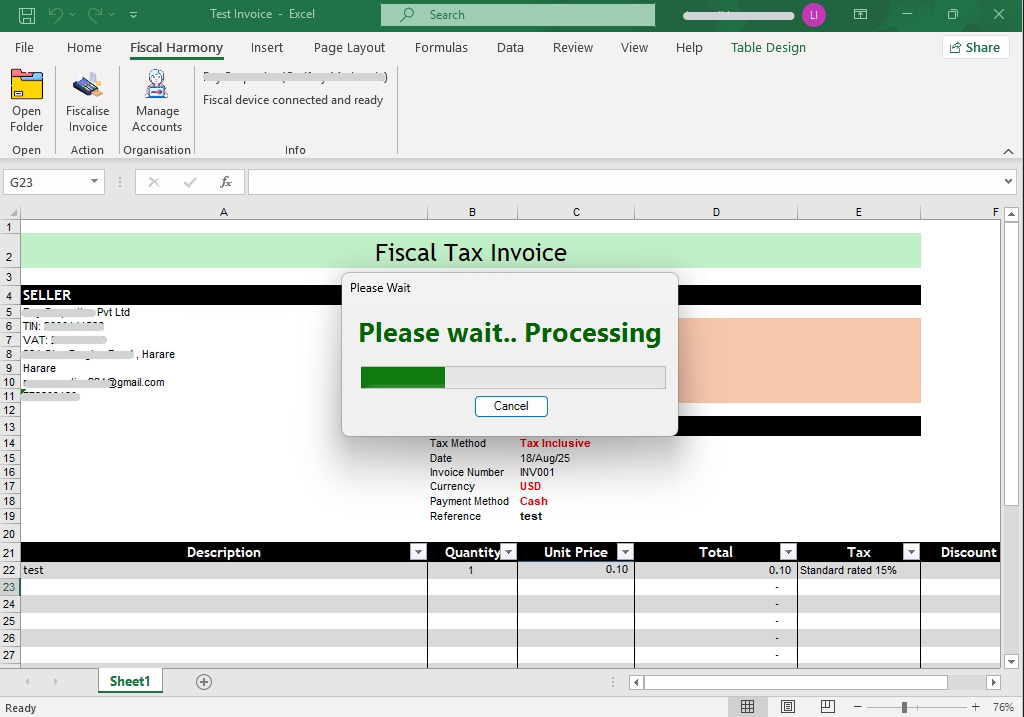
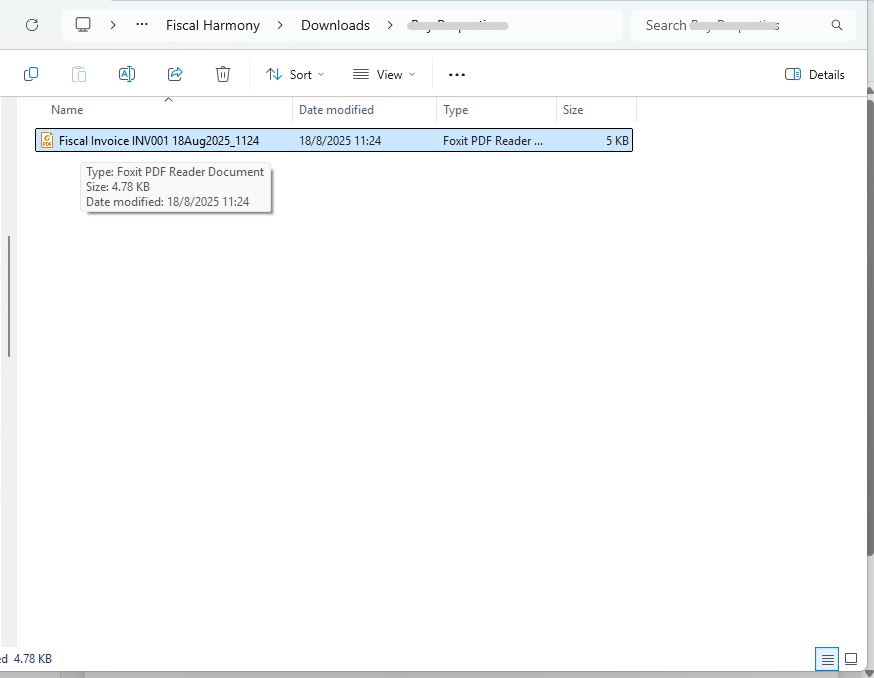
Once it has fiscalized, a folder will pop up on your screen with the PDF of the fiscalized invoice.
For further assistance, reach out to our support team:
Call Centre: +263 8677 010 305
Call Centre: +263 8677 010 305
WhatsApp: +263 783 323 154
Related Articles
Fiscalising a Credit Note in Excel
Overview Prerequisites Ensure that you open the invoice using Microsoft Excel only. If you attempt to use a different viewer, the Credit Note option will not be available. Make sure the Excel invoice is not saved in a cloud-based folder. If it is, ...Fiscalising an Invoice in Xero
Overview Prerequisites To fiscalise with this integration, you would need: Your Xero Account is connected to Fiscal Harmony. Step-by-step Process Step 1. Navigate to the Invoices. Locate the Sales module on the top nav. Clicking this will open a ...Creating and Fiscalising Credit Notes in Palladium Accounting
Overview Please follow the following steps to fiscalise credit notes using Palladium accounting. Steps Step 1. Opening Application Running the Fiscal Harmony Plugin Right click on the app and click "Run as administrator" option. Click the upward ...Creating and Fiscalising Credit Notes in Sage Pastel Express Accounting
Overview Please follow the following steps to fiscalise credit notes using Sage Pastel Express Accounting. Step-by-step process Step 1. Opening the application Running the Fiscal Harmony Plugin Right click on the app and click "Run as administrator" ...Creating and Fiscalising invoice in Palladium Accounting
Overview Please follow the following steps to fiscalise an invoice using Palladium accounting. Steps Step 1. Opening Application Running the Fiscal Harmony Plugin Right click on the app and click "Run as administrator" option. Click the upward arrow ...