Fiscalising an Invoice in ERPNext
Overview
This guide walks you through the steps to correctly create, save, and fiscalize a Sales Invoice in ERPNext, ensuring compliance by applying necessary taxes and submitting your invoice.
Step-by-step Process
Step 1. Starting a New Sales Invoice
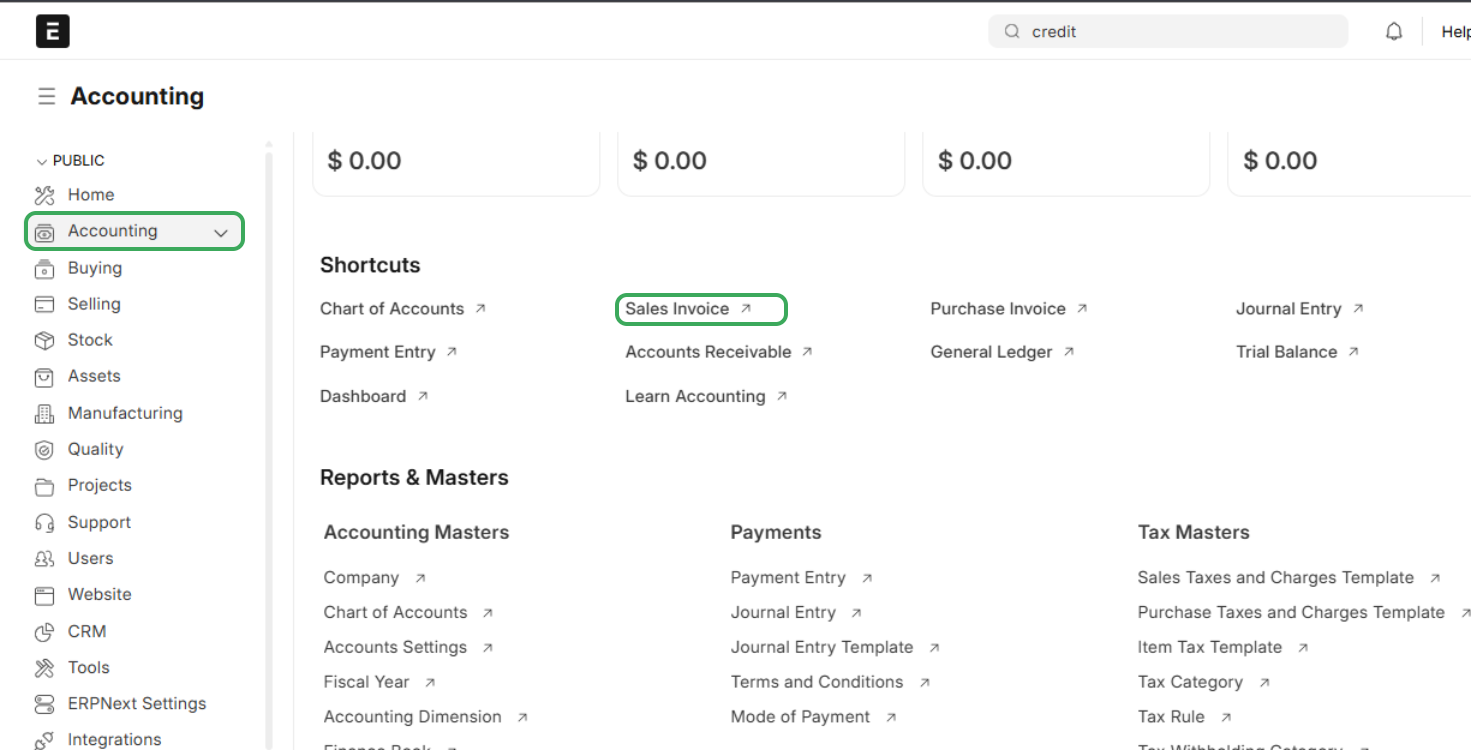
- Navigate to the Accounting module from the sidebar menu.
- Under Shortcuts, click on Sales Invoice.
- On the Sales Invoice list page, click the Add Sales Invoice button.
- You will now see a new Sales Invoice page with a Not Saved status.

Step 2. Filling in the Invoice Details
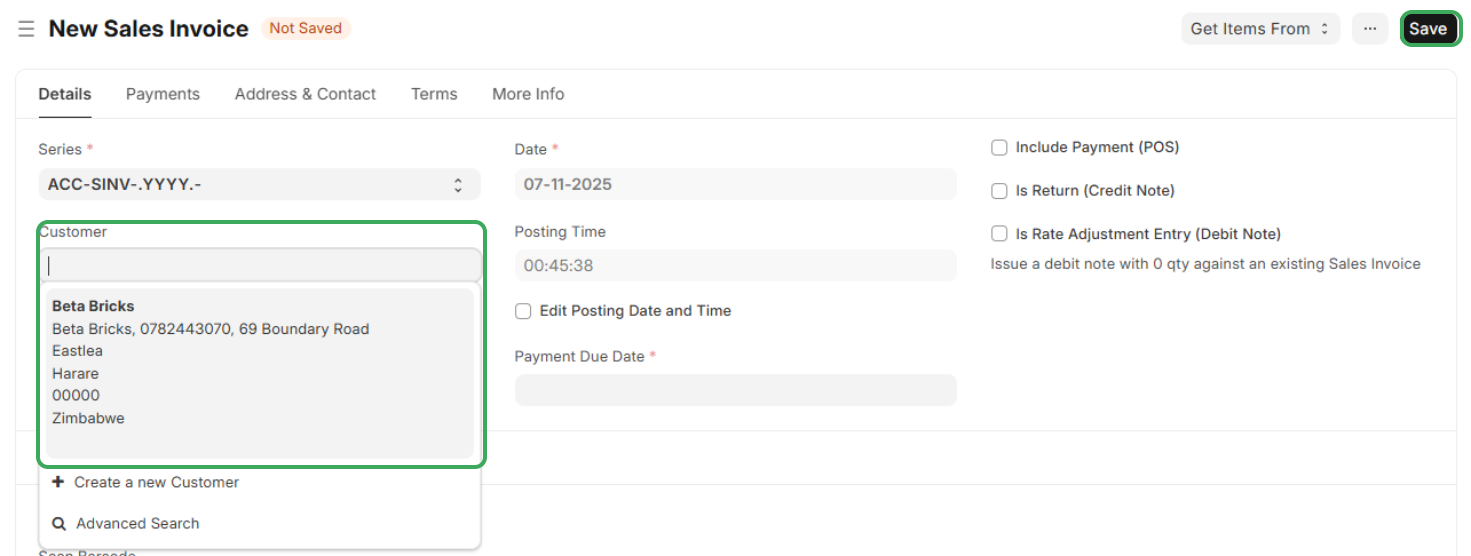
- Enter the important information for your sale on the new invoice form and use the current date always.
- In the Customer field, start typing the name of your client and select the existing customer (NB: The system will pull the customer's address and contact information automatically).
Step 3. Adding Items and Services
- Scroll down to the Items section to detail the goods or services provided:
- Add Products/Services: Click on the row to add the products or services you are selling.
- For each item, enter the correct:
- Product/Service Name
- Quantity being sold
- Price per Unit
Step 4. Applying Taxes and Charges Mandatory for Fiscalisation

This is a critical step for fiscalising the invoice.
- Navigate to the Taxes and Charges section if you scroll down.
- You must fill in this section to apply the correct taxes for your products or services as required by ZIMRA regulations. This is often done by selecting a pre-configured Sales Taxes and Charges Template.
- Ensure the total tax amount is calculated correctly before proceeding.
Step 5. Saving and Submitting Fiscalising the Invoice
Once all details are correct, the final steps will save the document and complete the fiscalisation process:
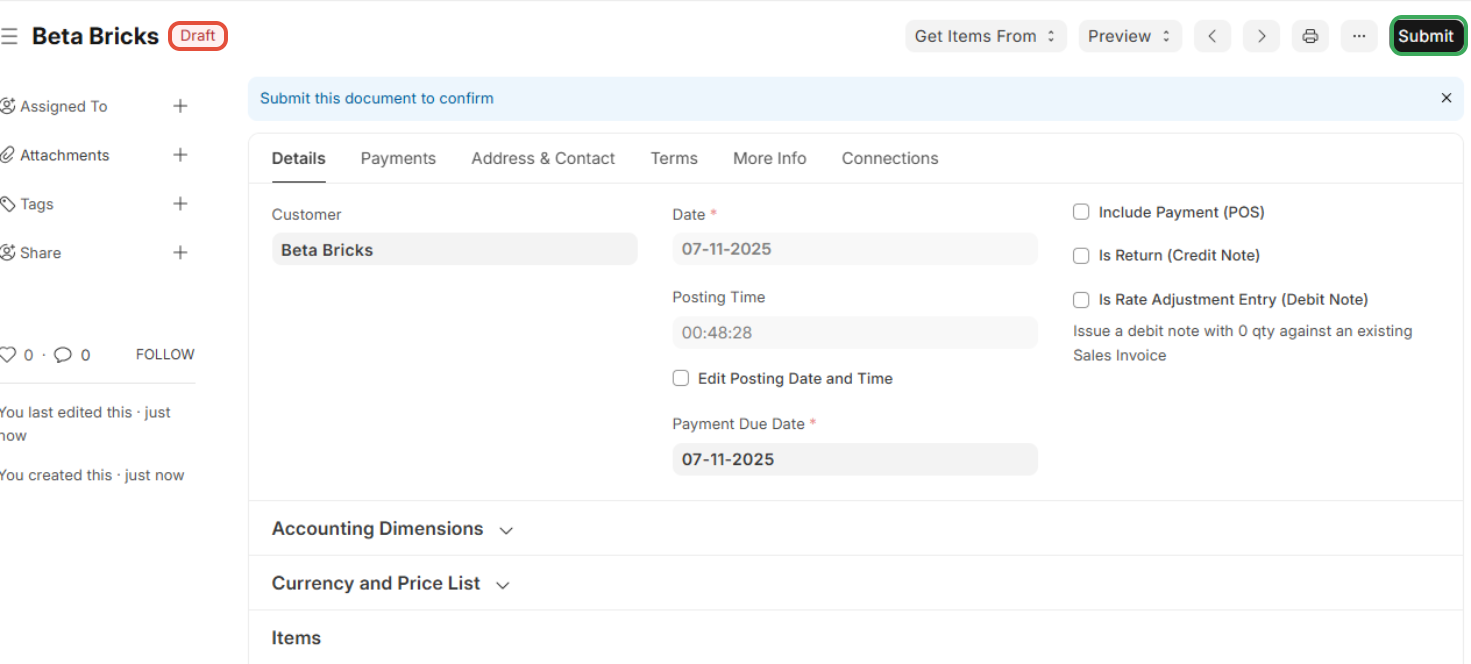
- Click the Save button in the top-right corner
- The invoice status will change to Draft.
- Click the Submit button in the top-right corner. Submitting the invoice triggers the fiscalization process.
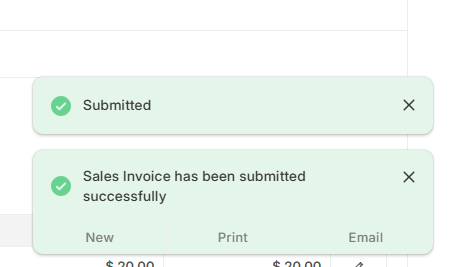
- You will receive a confirmation message that the Sales Invoice has been submitted successfully.
Your invoice is now fiscalised and recorded!
Related Articles
Fiscalising an Invoice in Xero
Overview Prerequisites To fiscalise with this integration, you would need: Your Xero Account is connected to Fiscal Harmony. Step-by-step Process Step 1. Navigate to the Invoices. Locate the Sales module on the top nav. Clicking this will open a ...Creating and Fiscalising Credit Notes in Palladium Accounting
Overview Please follow the following steps to fiscalise credit notes using Palladium accounting. Steps Step 1. Opening Application Running the Fiscal Harmony Plugin Right click on the app and click "Run as administrator" option. Click the upward ...Creating and Fiscalising Credit Notes in Sage Pastel Express Accounting
Overview Please follow the following steps to fiscalise credit notes using Sage Pastel Express Accounting. Step-by-step process Step 1. Opening the application Running the Fiscal Harmony Plugin Right click on the app and click "Run as administrator" ...Creating and Fiscalising invoice in Palladium Accounting
Overview Please follow the following steps to fiscalise an invoice using Palladium accounting. Steps Step 1. Opening Application Running the Fiscal Harmony Plugin Right click on the app and click "Run as administrator" option. Click the upward arrow ...Fiscalising an Invoice in Sage Pastel Partner
Overview Step by step process To be able to create an invoice, log in to Sage Pastel. Step 1. Create Invoice Navigate to Customers > Documents > Fiscal Tax Invoice. Select the correct Customer from the list. Enter the Invoice Date, Reference Number, ...