Zimbabwe’s VAT has increased from 15% to 15.5% under the 2026 Budget.
From now on make sure all invoices and transactions use the new 15.5% rate. Updating your ERPNext tax template will keep your records correct and compliant.
How to Update VAT in ERPNext
1. Search for your Tax Template
- In ERPNext, type Sales Taxes and Charges Template in the search bar.
- Select the template
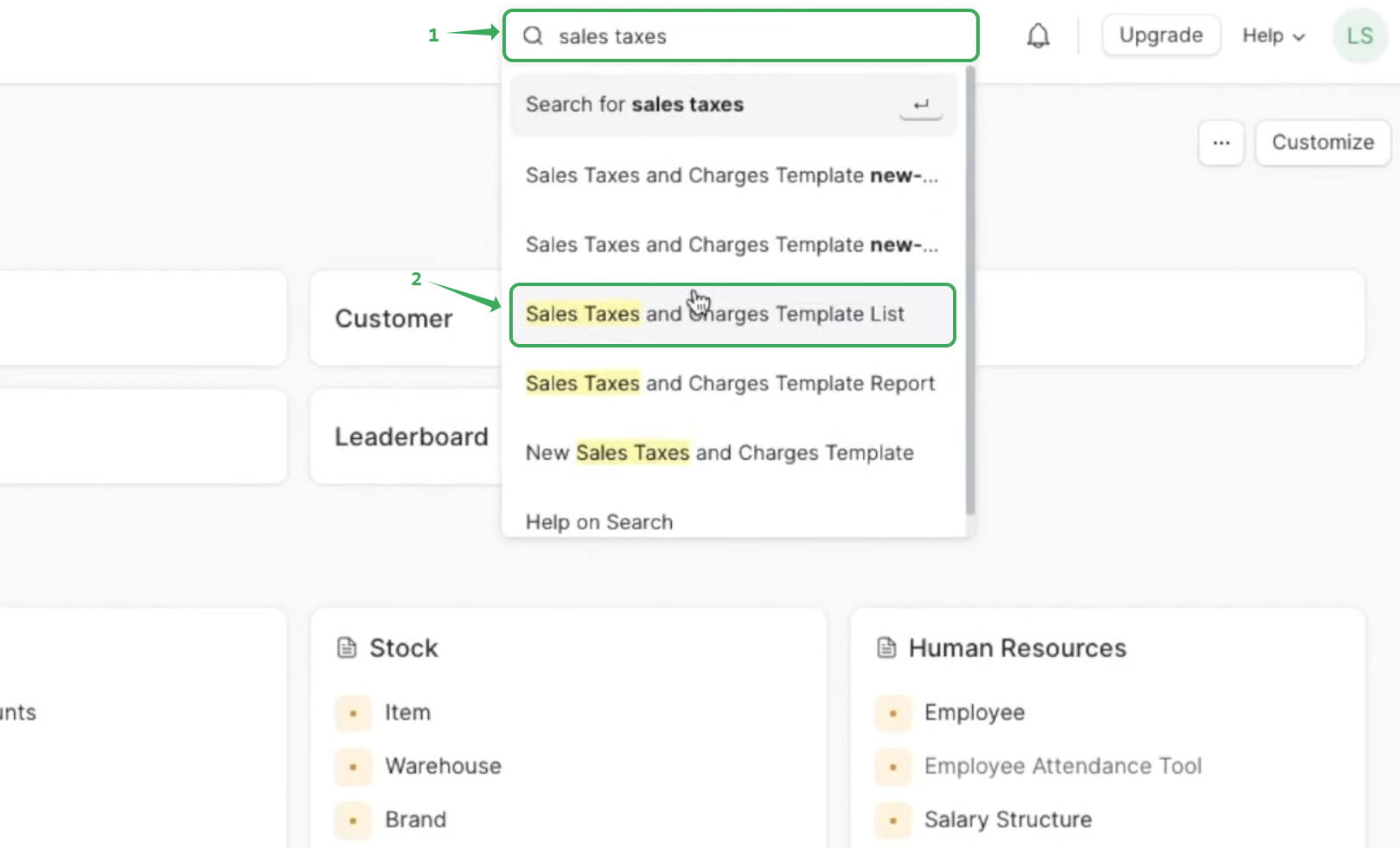
2. Open the template list
- Find your company’s template (e.g Company Name) or add the sales tax
- Click to open it

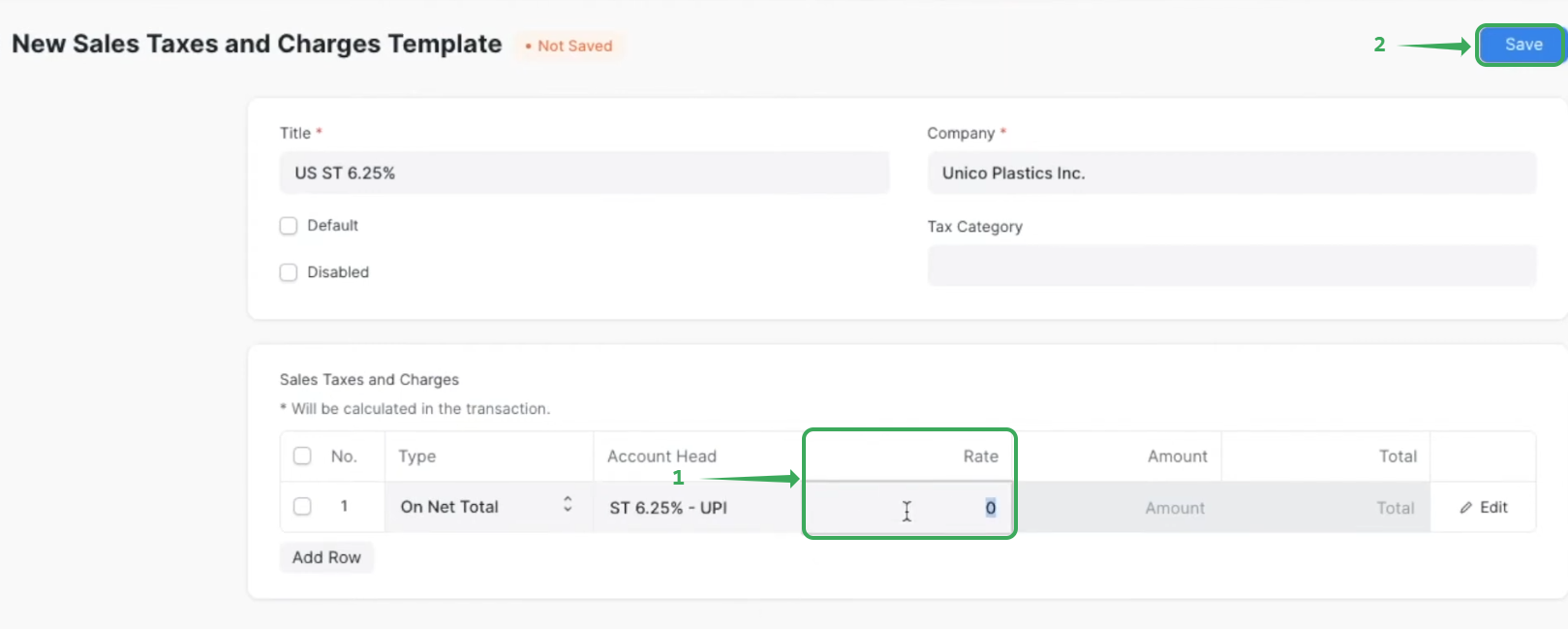
3. Edit the tax rate
- Under Sales Taxes and Charges change the Rate field to
15.5 - Save your changes
4. Confirm the update
- Create a test invoice to make sure VAT is calculated at 15.5%
Was this article helpful?
That’s Great!
Thank you for your feedback
Sorry! We couldn't be helpful
Thank you for your feedback
Feedback sent
We appreciate your effort and will try to fix the article