How to Update VAT in Manager.io
Overview
It is important to know when and how to change the VAT in your system to stay tax compliant and keep our tax records correct. For example, in January 2026, ZIMRA's VAT increased from 15% to 15.5% under the 2026 Budget.
Step-by-Step Guide
Step 1. Navigate to Settings
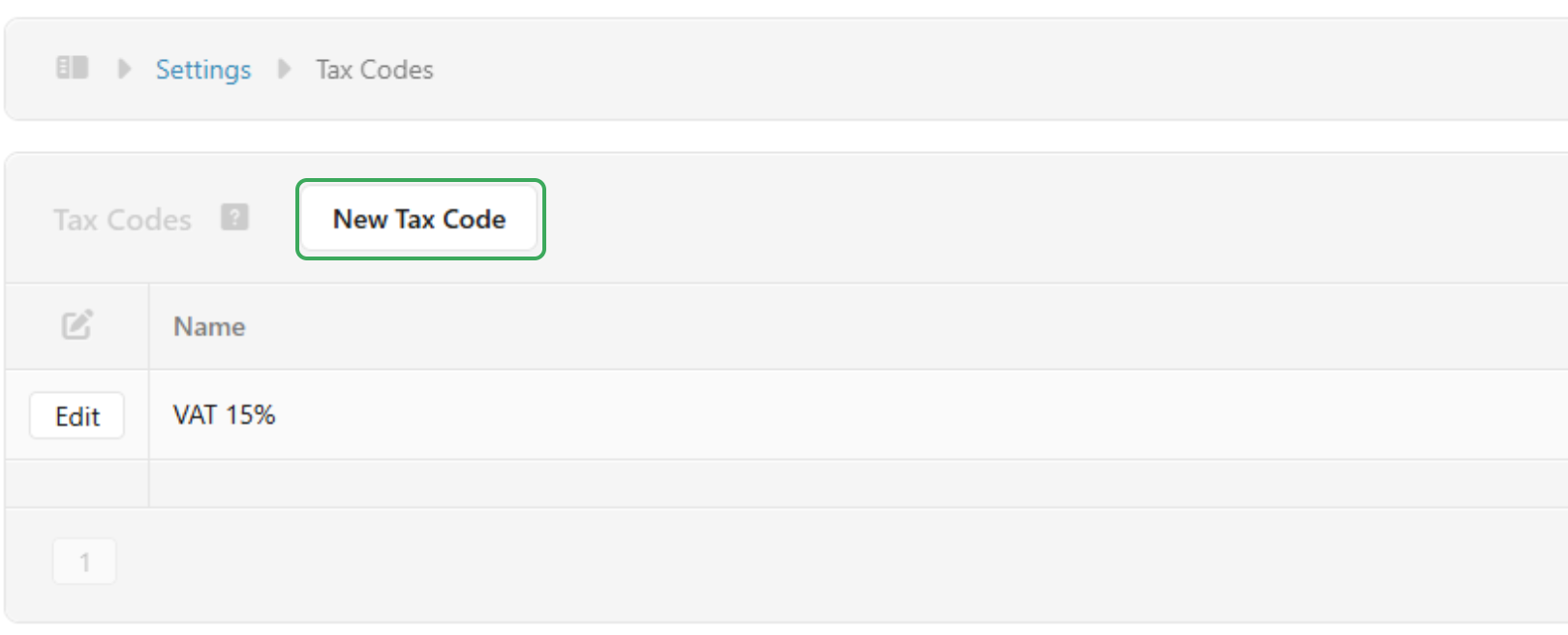
- From the main dashboard, click on Settings.
- Select Tax Codes.

Step 2. Create a New Tax Code
- Click New Tax Code.
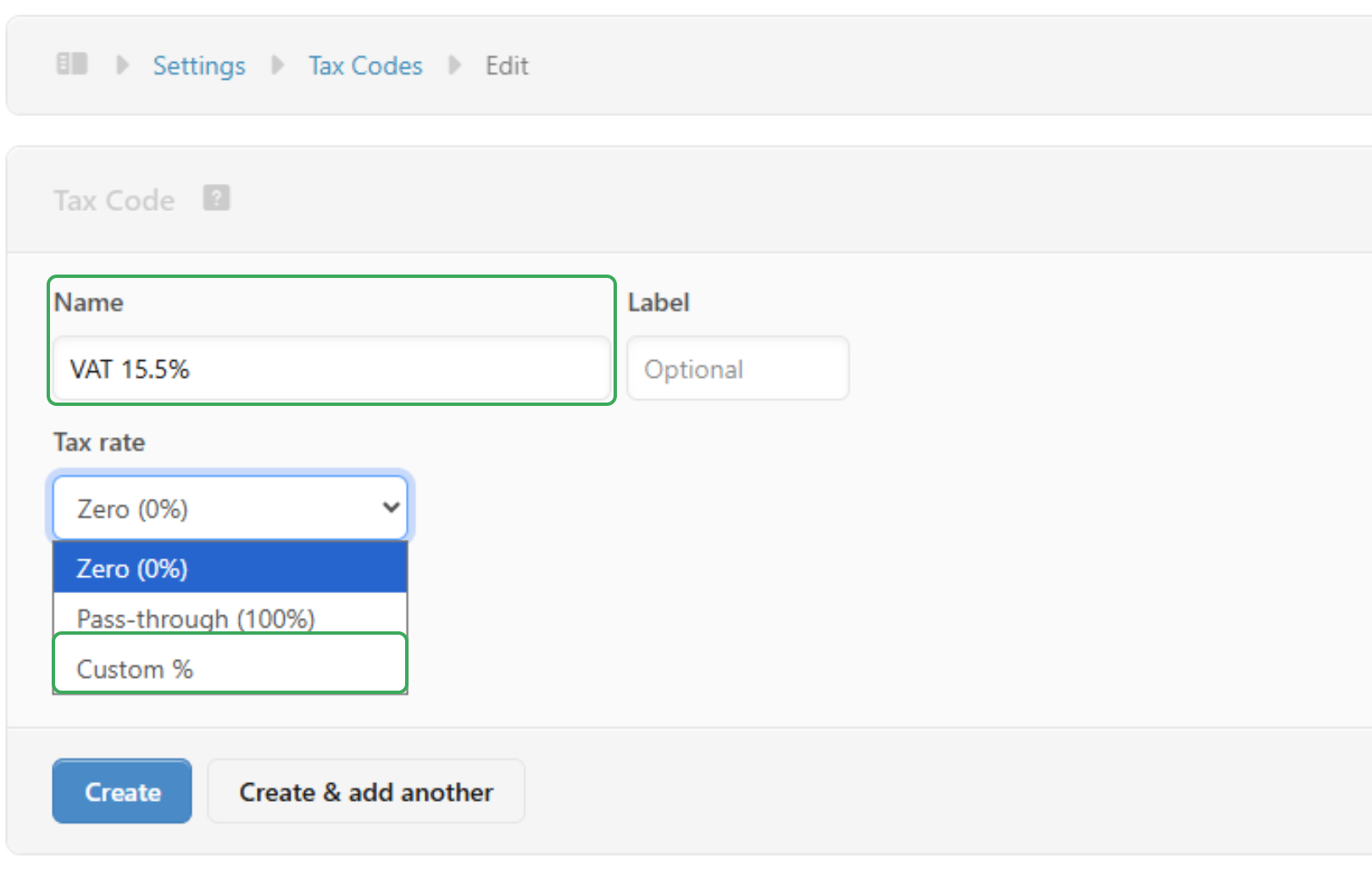
- Enter the name of the new VAT (e.g. VAT 15.5%).
- Leave the Label blank or add one if needed.
- For Tax rate, choose Custom %.
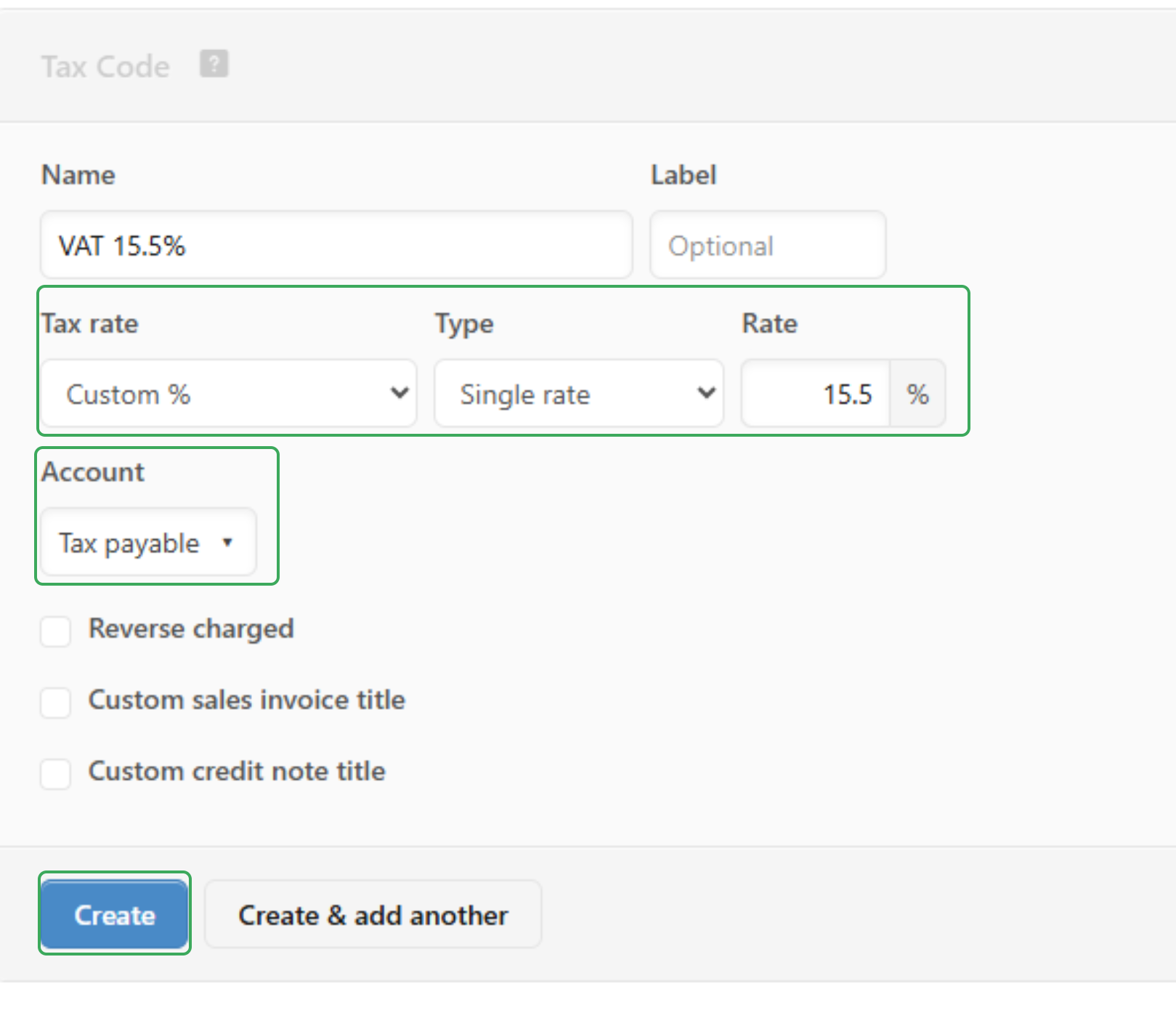
- Set the Rate to the tax percentage you want to use (e.g. 15.5%).
- Make sure Type is set to Single rate.
- Choose the correct Account (e.g. Tax payable).
Step 3. Save the Tax Code
- Click Create. Your new VAT rate is now ready to use on invoices and credit notes.
Related Articles
Updating VAT in Cin7 Core
Step-by-Step Guide Step 1: Go to Tax Settings Log in to Cin7 Core with your Admin credentials. Navigate to Settings → Financial Settings → Tax Rules. This is where all tax rules are created and managed. Step 2: Create a New Tax Rule Default tax rules ...Updating Excel template to the VAT Tax rate
Overview If you are currently having issues with updating your VAT from the old tax rate to new tax rate (i.e. 15% to 15.5% as of January 1st 2026), the following instructions are on how to update it on your Fiscal Harmony Template. This also ...Updating VAT in 4POS
Step-by-step Process Step 1: Go to Tax Settings Log in to 4POS from the admin. Navigate to Settings → Financial Settings → Tax Rules. This is where all tax rules are created and managed. Step 2. Update the Tax Rates For the tax rule you want to edit, ...Updating VAT Sales Intellect
Step-by-step Process Step 1: Go to Tax Settings Log in to Sales Intellect from the admin. Navigate to Settings → Financial Settings → Tax Rules. This is where all tax rules are created and managed. Step 2. Update the Tax Rates For the tax rule you ...Updating VAT in Sage Evolution
Step-by-Step Guide Step 1: Open the Tax Types Setup Open Sage Evolution and select the company to log in as Admin. On the main menu, navigate to Administration → Tax → Tax Types. You will see a list such as: Input VAT (Purchases) Output VAT (Sales) ...