How to check and access Z Reports
What is a Z-Report
A Z-report in virtual fiscalisation is a report generated to summarise all the fiscalised transactions for a particular period. A Z-report in the context of virtual fiscalisation is a report generated to summarise all the fiscalised transactions for a particular period.
Why is a Z-report important?
It confirms that the transactions have been properly registered and fiscalised according to the tax laws of the country. The Z-report serves as an official record that businesses can provide to tax authorities to demonstrate they are following the correct fiscal procedures. It is often used for auditing purposes and ensuring transparency.
 Steps to Check for Z-Reports
Step 1
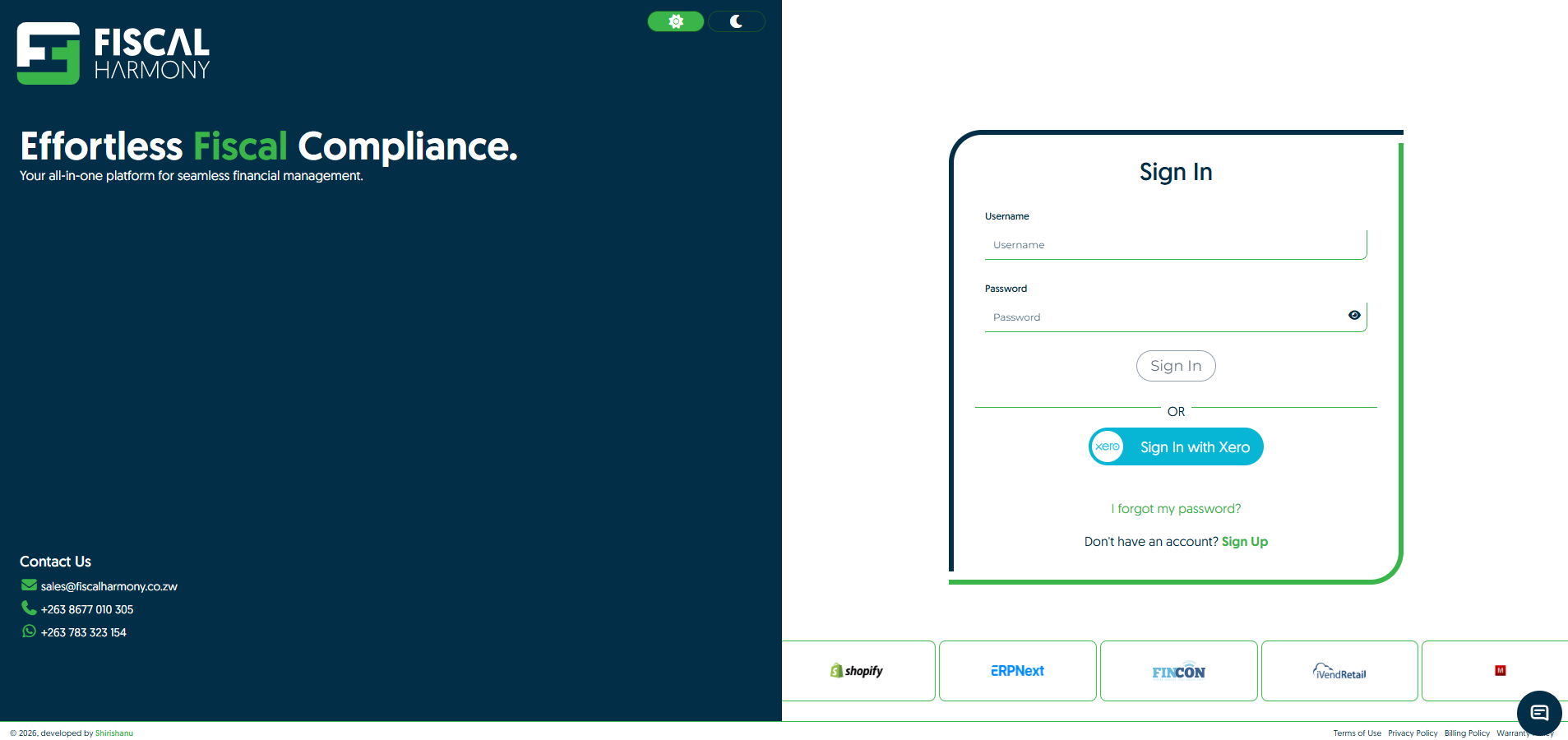
Visit our Fiscal Harmony app to log in to your portal on https://app.fiscalharmony.co.zw/login. Use your credentials to sign in. If you have forgotten your password, click 'Forgot Password' to reset it.
Step 2
Navigate to Reports > Z-Reports, which can be found on the sidebar on the left side of your screen.
Step 3
Filter the duration of the summary you require by selecting from the tabs showing the view periods (Last 24 hours, Last 7 days etc) that displays the available number of dates. Once you found the Z-report you're looking for, you can simply click on "View Report" to see the document.
Step 4
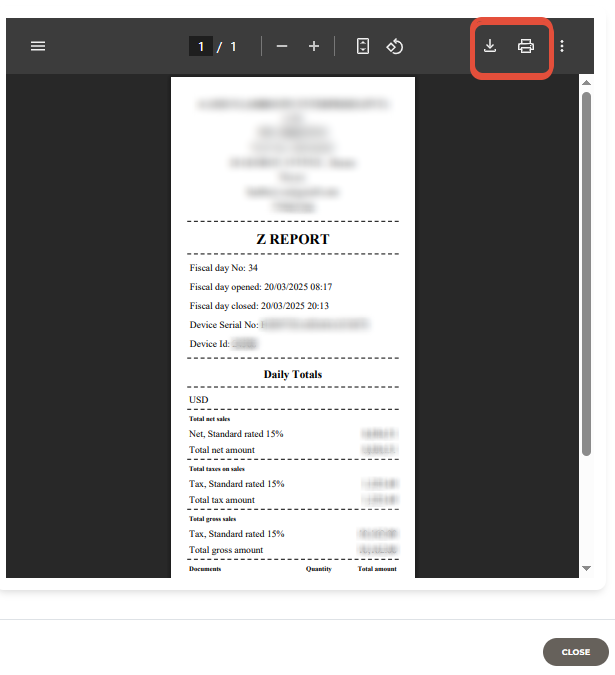
Click "Download " or "Print" to save the Z-Report file.
Related Articles
Consolidated Z-Report
To access and obtain a consolidated Z-Report, you can set the settings of your choice based on your customisation. How to obtain a consolidated Z-Report Step 1. Navigate and log in to your account on the Fiscal Harmony app on ...Reports & Analytics
Overview Viewing Business Performance Access Reports to analyse: Sales trends (daily, monthly, yearly). Manage Open Day balances. Inventory movement and stock levels. Expenses and profitability. Exporting Reports Click Download to export reports in ...How to Upgrade Fiscal Harmony subscription
Upgrading your Fiscal Harmony subscription is a smart move for individuals and businesses looking to access more powerful financial tools and enhanced service features, upgrading ensures your subscription keeps pace with your growing needs. handle ...Dashboard Explanation
Overview Here is the information about the dashboard and signing into the application. You can navigate to the Fiscal Harmony app by going to https://app.fiscalharmony.co.zw/. App Users This is for information on how to navigate to the dashboard for ...ERP Next and Fiscal Harmony Integration Guide
Overview This guide provides a step-by-step process for integrating ERP Next with the Fiscal Harmony plugin, facilitating the fiscalization of invoices and credit notes for compliance with the Zimbabwe Revenue Authority (ZIMRA). Prerequisites Setting ...