Close Day Print out for Cashiers
End-of-Day Report Printing
The system allows you to automatically print an end-of-day report each time a user performs a Close Day.
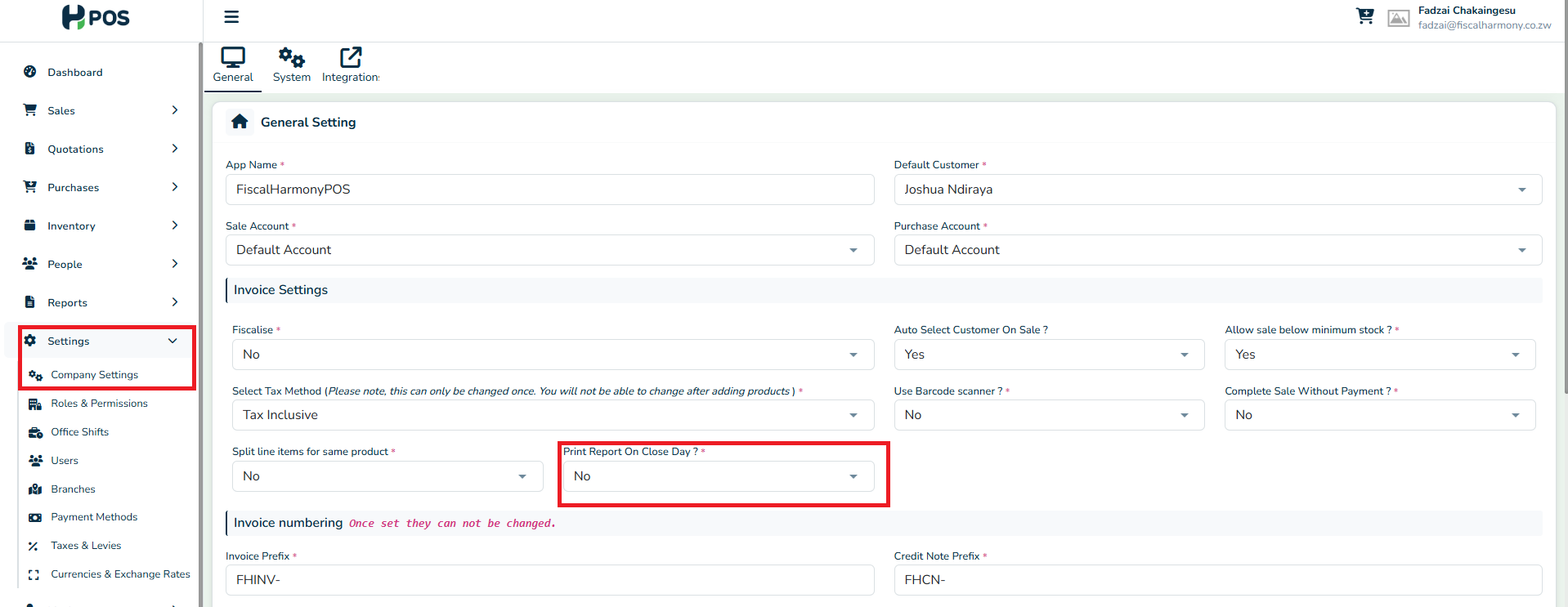
How to Enable End-of-Day Report Printing
- Go to Settings from the main menu.
- Click on Company Settings.
- Under Invoice Settings, locate the option “Print Report On Close Day?”
- Change the setting to Yes to enable automatic printing.
Important Notes
- The end-of-day report will display cash sales and amounts only, as this more accurately shows the user's cash in hand for handover to the next user or for cashing up.
- Once enabled, the report will automatically print every time a user closes the day.
Related Articles
CSV Import Manual for Legacy Transactions
This guide explains the process of importing historical transactions using the CSV Import feature. It is designed for clients transitioning from a previous fiscal supplier and is intended for one-time use only to ensure compliance with fiscal ...Dashboard Explanation
Overview Here is the information about the dashboard and signing into the application. You can navigate to the Fiscal Harmony app by going to https://app.fiscalharmony.co.zw/. App Users This is for information on how to navigate to the dashboard for ...How to check and access Z Reports
What is a Z-Report A Z-report in virtual fiscalisation is a report generated to summarise all the fiscalised transactions for a particular period. A Z-report in the context of virtual fiscalisation is a report generated to summarise all the ...Fiscalising a Credit Note in Sage Evolution
Overview Sage 200 Evolution is an Enterprise Resource Planning (ERP) software system designed to help businesses manage various aspects of their operations, including finance, customer relationships, and supplier relationships. It goes beyond ...Updating & Re-Installing your HPOS App into Ingenico
Step-by-step Process Step 1. Uninstall the App on device Long-press the HPOS logo on the home screen. When the app options appear, tap “Uninstall”. Step 2. Installing Updates Long-press the Power button (located on the left side of the device). On ...